
Executing Test Scripts for C# WinAppDriver
Run algoQA-generated desktop test scripts with C# WinAppDriver by configuring application settings and launching them from Visual Studio.
Executing Test Scripts
Run algoQA-generated desktop application tests with C# WinAppDriver after selecting the framework and generating the scripts.
Before you execute the tests, select the C# WinAppDriver framework in the script generation settings and generate the scripts. After generation completes, click OK, then click the Open Scripts button to open the generated script folder.
Updating the Application Settings File
Update ApplicationSettings.xml with the application name, application ID, and WinAppDriver path before running the scripts.
Open the generated script folder
After script generation finishes, click Open Scripts. The generated folder contains the application settings file and the test implementation files.
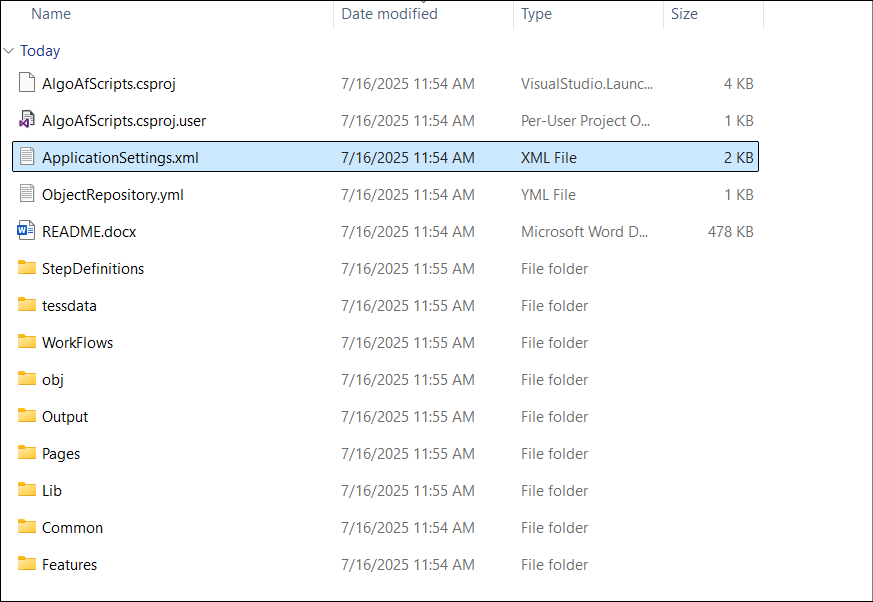
Update the application settings
Open ApplicationSettings.xml and enter the application name and application ID. Confirm that the WinAppDriver path points to the WinAppDriver executable, then save the file.
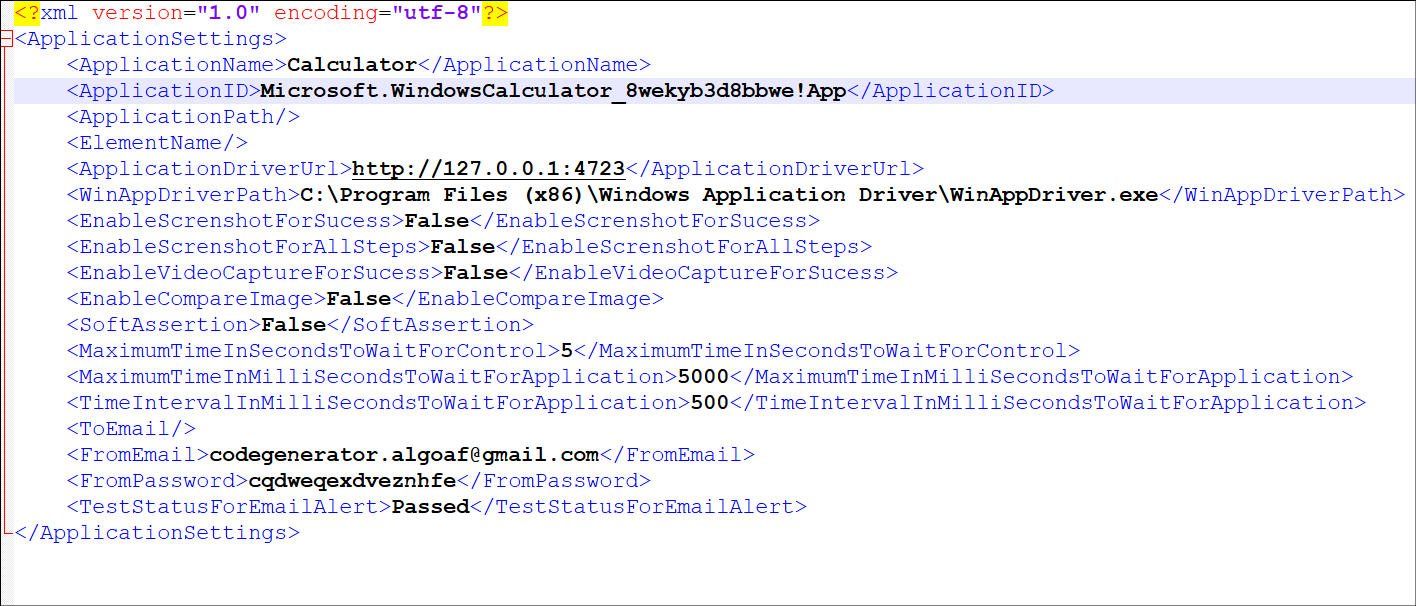
Run the scripts from Visual Studio
Open the generated project in Visual Studio and run the test scripts. The scripts use the values in ApplicationSettings.xml to locate and launch the desktop application through WinAppDriver.
To fetch the application ID, open Task Manager, select the Details tab, and find the target application process. Use the process ID shown for that application.
