
Sketch Agent
Generate and manage scenarios with prompts, select AI models and agents, and review generated scenarios in Test Design Studio.
✨ Generate and manage scenarios with Sketch Agent
Sketch is an interactive prompt agent in algoQA Test Design. Describe a scenario you want to create or change in plain language, then review Sketch's proposal or preview before approving the changes.
What you can do with Sketch Agent
Use Sketch Agent to:
- Create additional test cases for features or user flows.
- Add steps to existing scenarios.
- Update or modify test cases, features, and controls.
- Organize test cases with tags, module groups, and folders.
- Check for duplicate or redundant test cases.
- Generate scenarios from connected Jira tickets.
- Add alias steps to specific scenarios or all scenarios, and update alias steps across all scenarios.
- Find duplicate controls and similar XPaths across all scenarios.
- Delete a step from a specific scenario or across scenarios.
- Find scenarios by custom tags.
- Copy scenario steps, paste steps into a specific location in one or more scenarios, and copy scenarios.
- Replace duplicate controls across all locations with an existing defined control.
- Update control names and replace XPaths.
- Add new steps when requested.
- Edit or add custom values for a specific scenario or across scenarios.
- Replace a default action for a specific step, or select a default action and update it across scenarios.
- Replace a custom action for a specific step or across scenarios.
- Update step-level messages across scenarios.
- Add or update folder structures and feature files.
- Update scenario names and scenario outlines.
- Update page names and configuration data.
- Add or update step input.
- Update object repository configuration and scenario-level settings.
- Create a scenario with a file upload, or with an image upload, file, and prompt.
- Add new controls to the configuration.
Open Sketch Agent
After creating a project and its first scenario, open the Test Design screen and select algoAI (Sketch Agent) to create another scenario from a prompt.
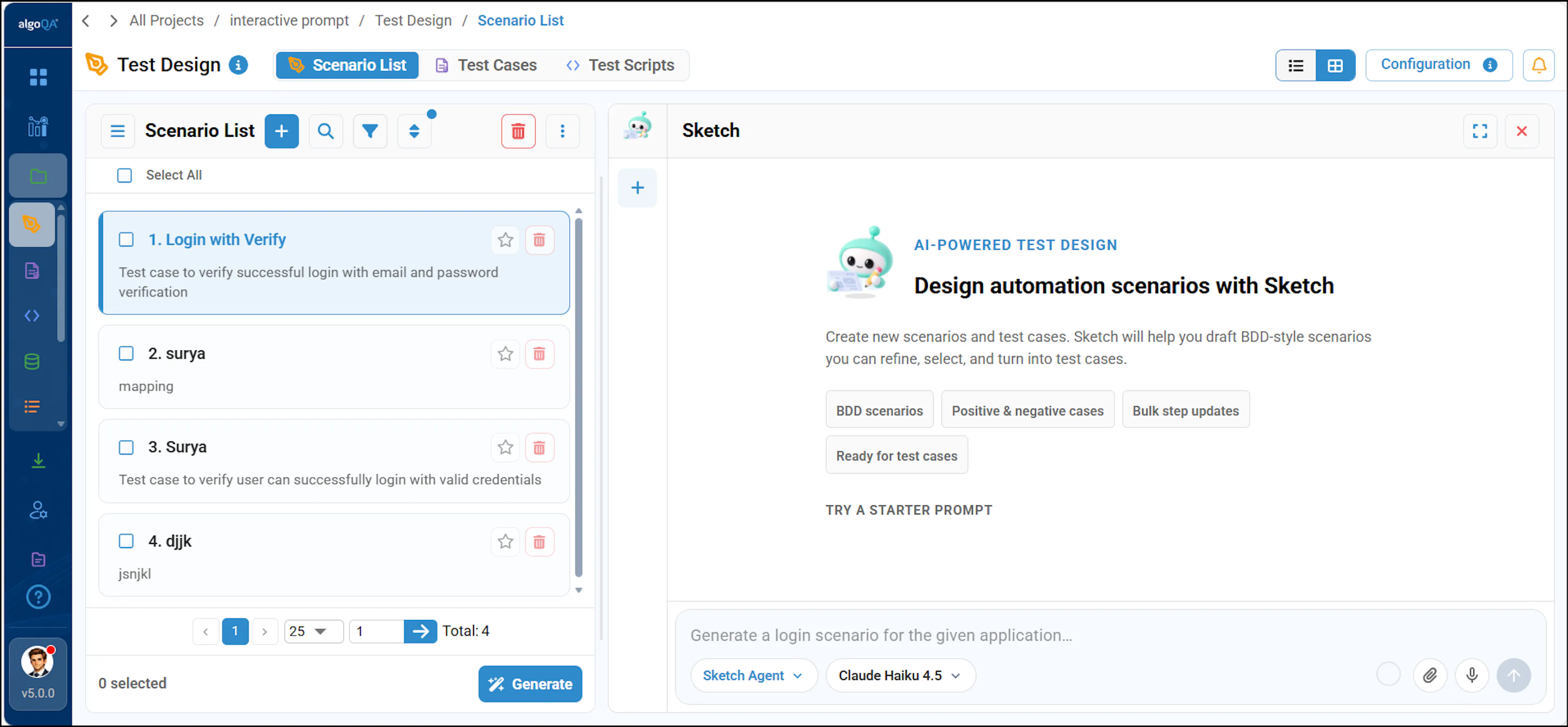
Describe the scenario
Enter a description of the scenario you want to generate. To provide the description by voice, click the microphone once, speak the scenario description, and click Send.
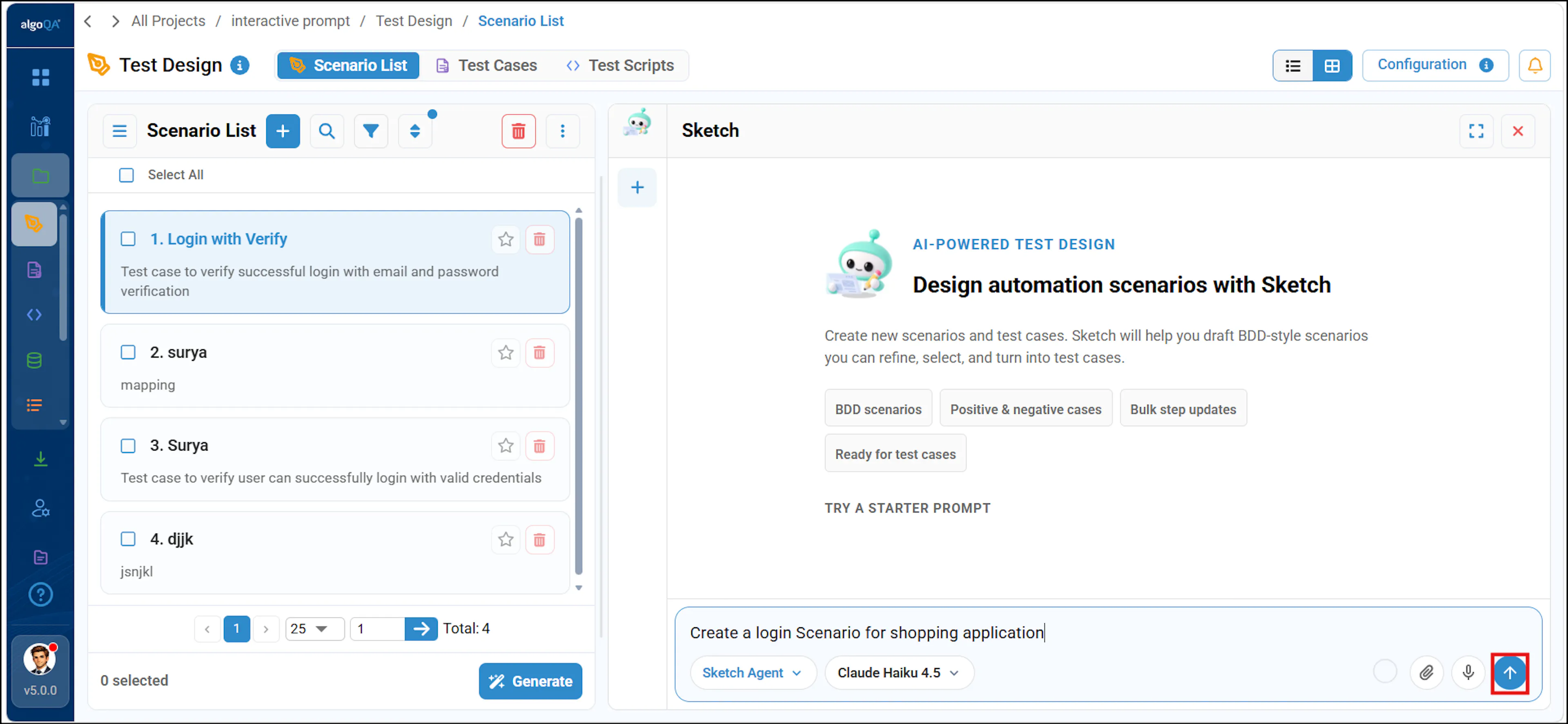
AI credits are used when generating scenarios with algoAI. Pro Lite users receive 2,000 credits, Pro users receive 30,000 credits, and Enterprise users receive 100,000 credits. You receive a notification when you exceed your credit limit.
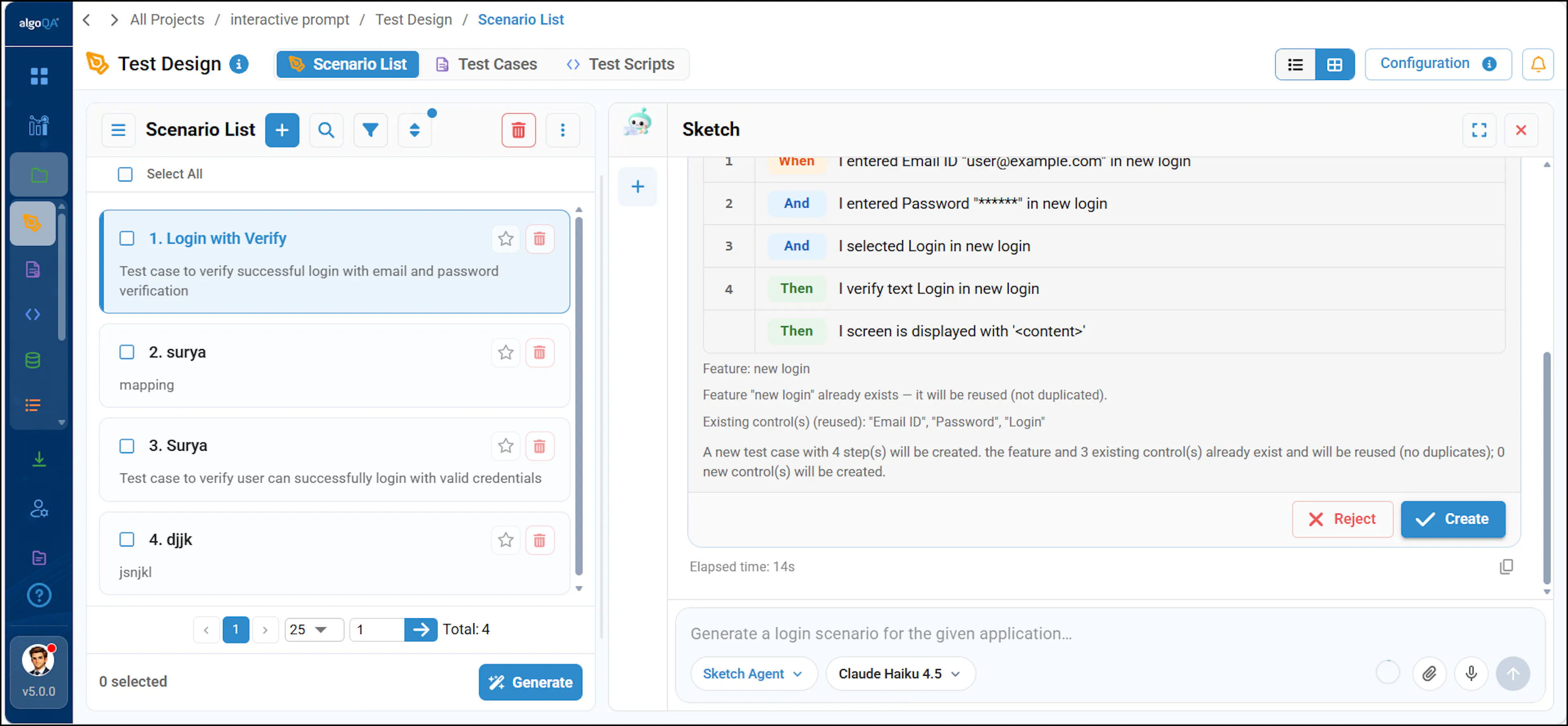
Review the scenario preview
Review the generated scenario preview. Select Reject to discard it or Create to add the scenario to your project.
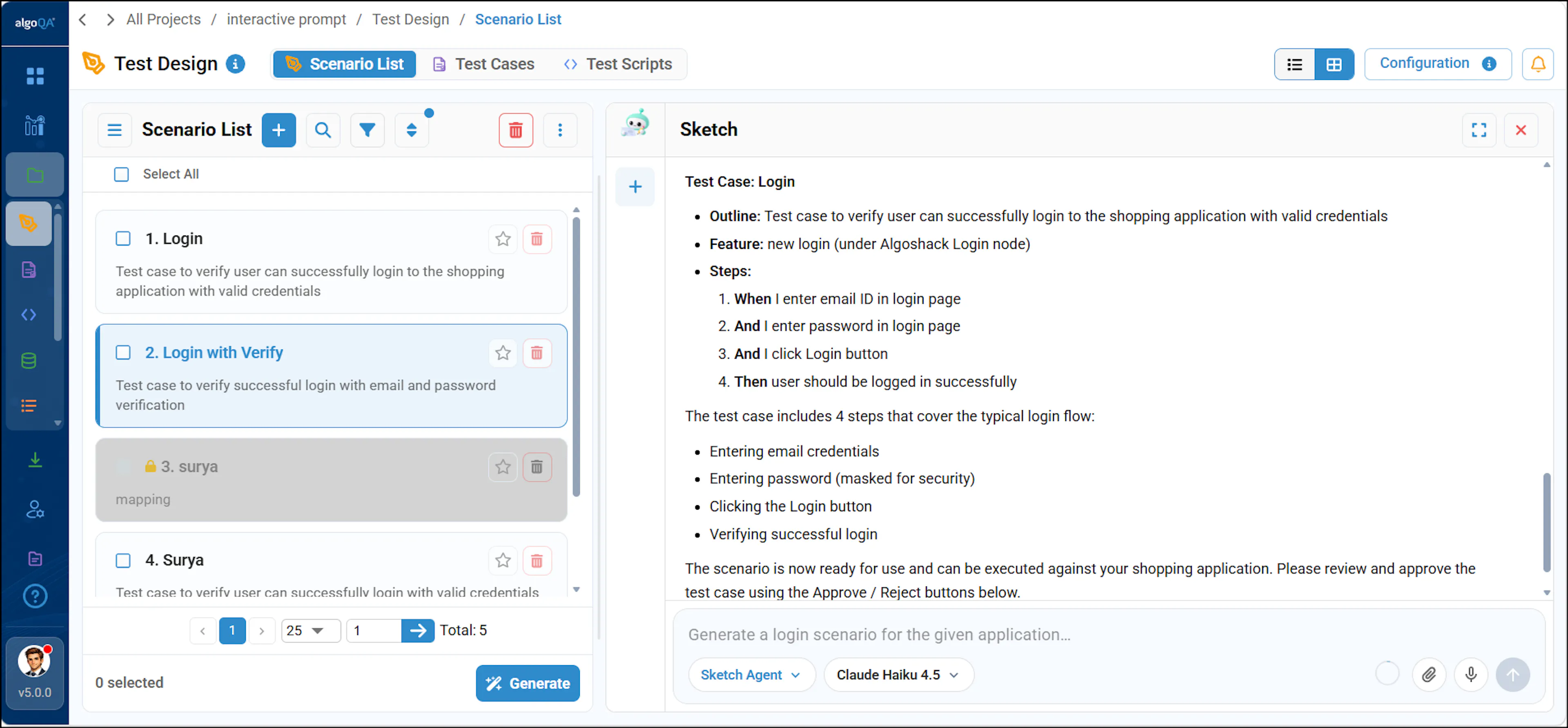
Review the created scenario
Open the created scenario and review its steps. Make any necessary corrections before generating test cases.
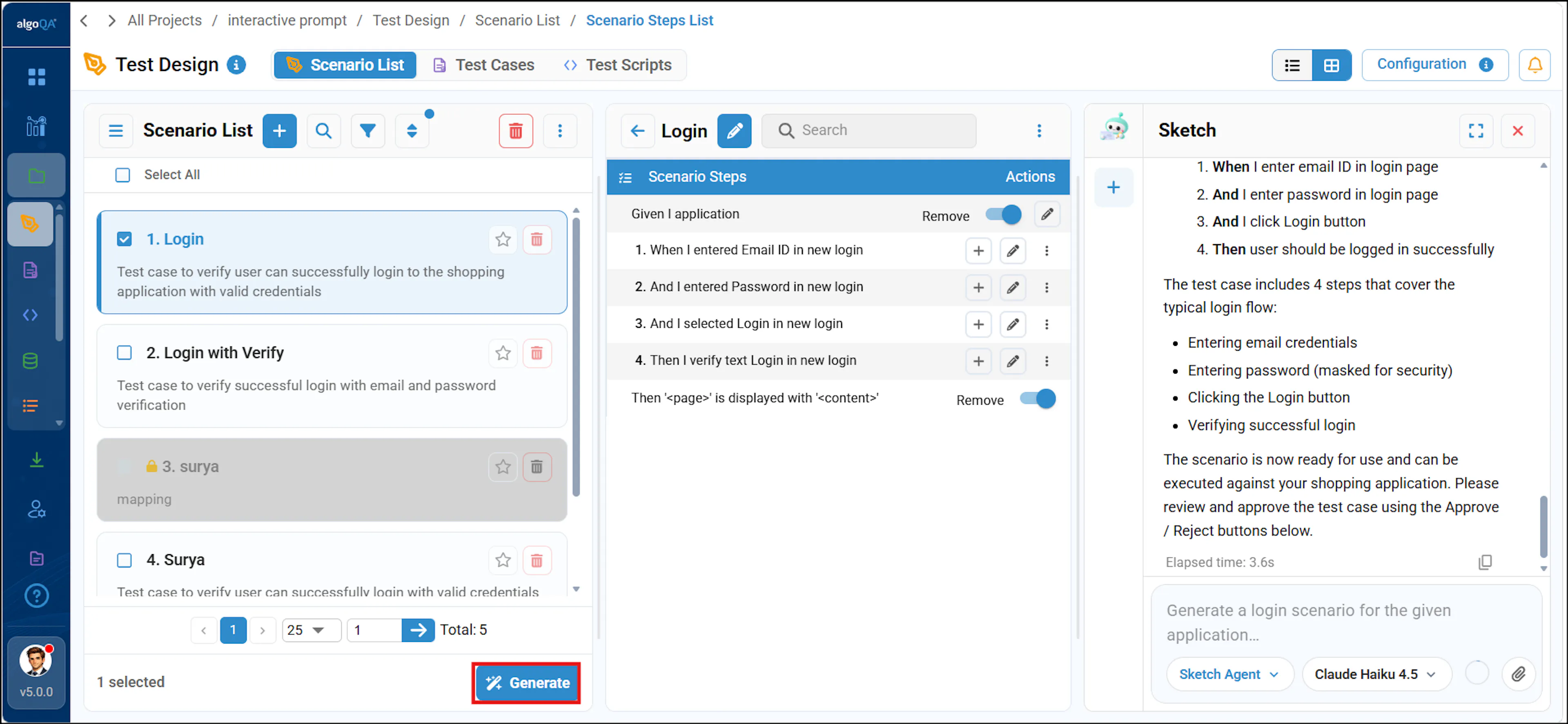
Generate test cases
Review the scenario and make any corrections, such as updating the locator, then click Generate to generate test cases. For more information, refer to Generate Test Cases and Test Scripts.
Manage the chat
Click Expand chat to expand the chat. Click Collapse Chat to collapse the current chat. Click New Chat to start a new conversation.
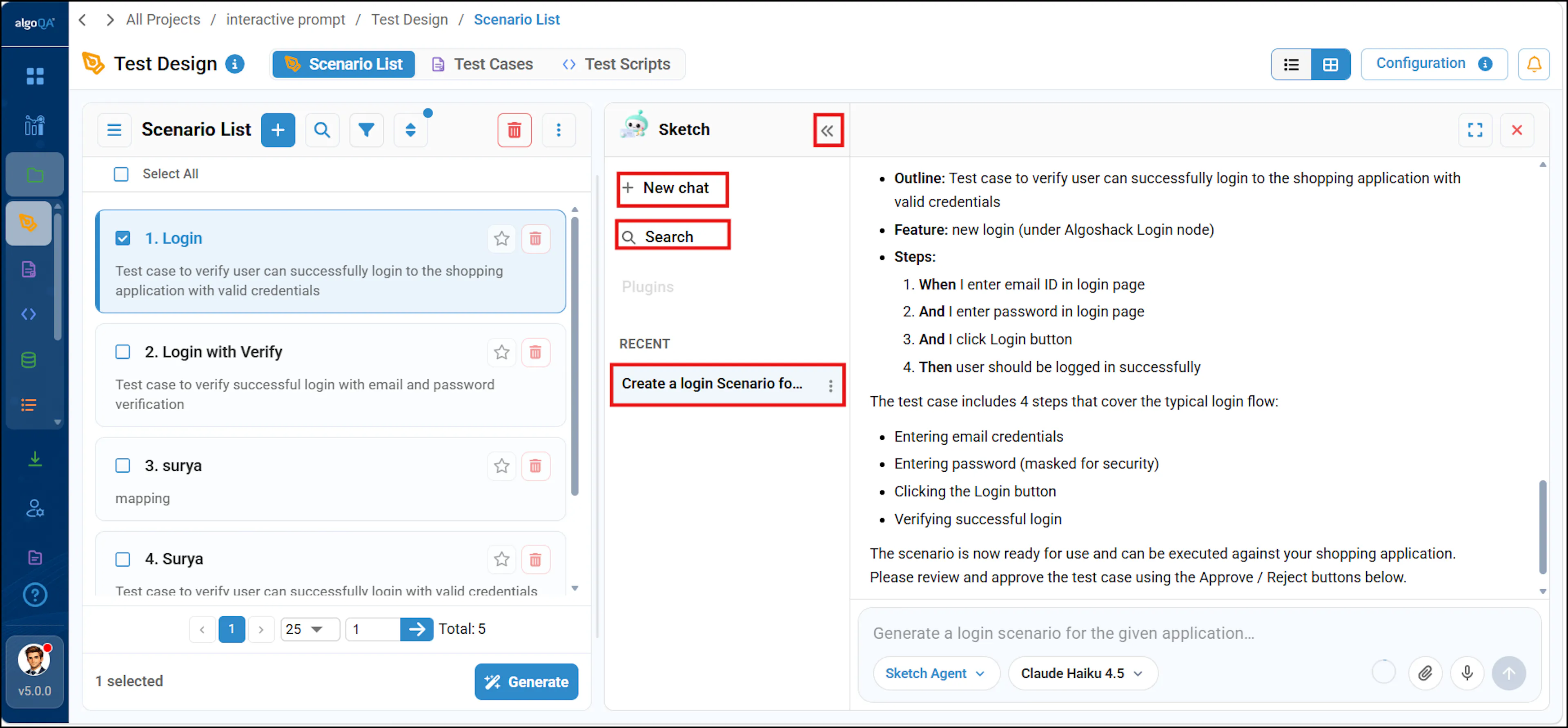
Open chat history and scenarios
Select Recent to view recent scenarios.
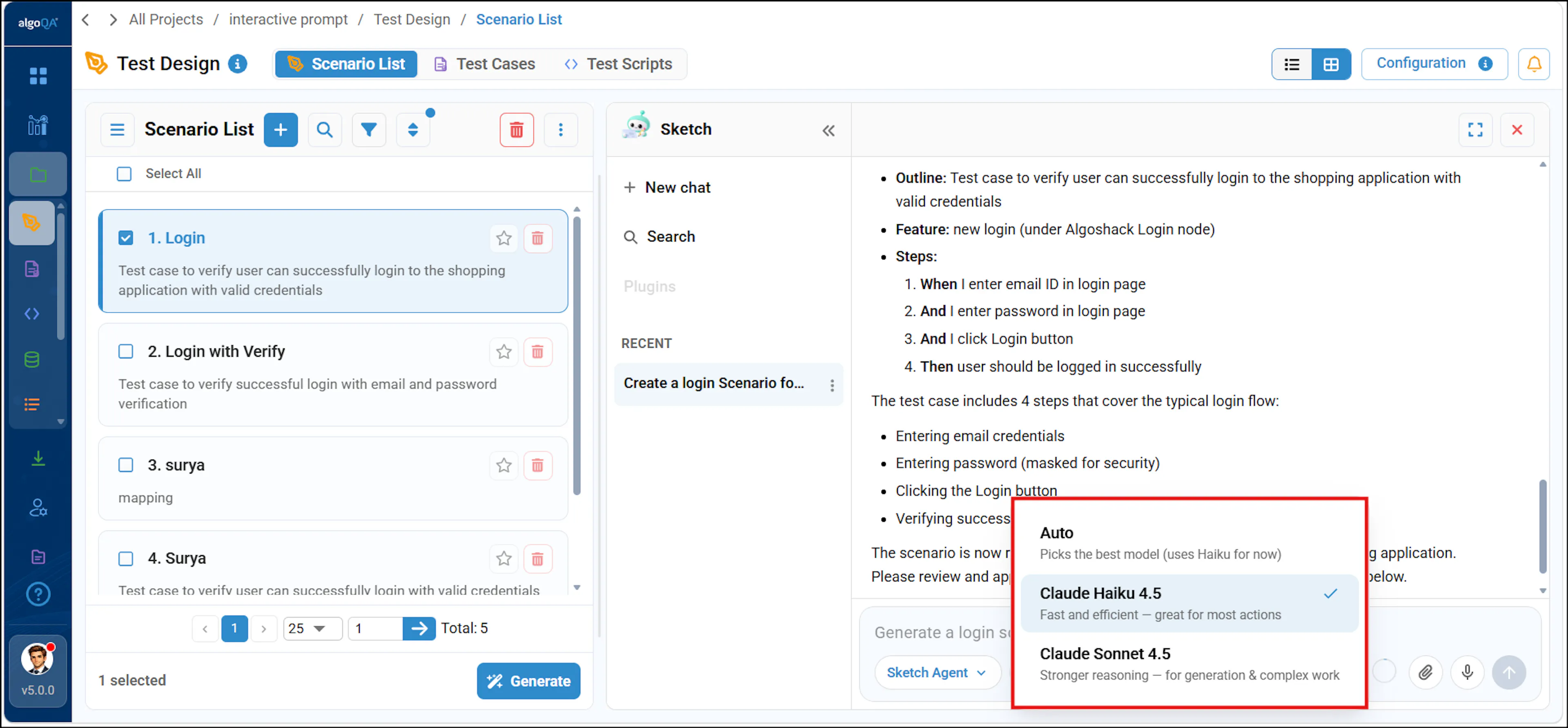
Choose the AI model
Click the Choose the AI Model dropdown and select a model. The Auto option selects Claude Haiku 4.5 by default and uses Claude Sonnet 4.5 to generate complex scenarios. You can also manually choose Claude Haiku 4.5 or Claude Sonnet 4.5 based on the scenario complexity.
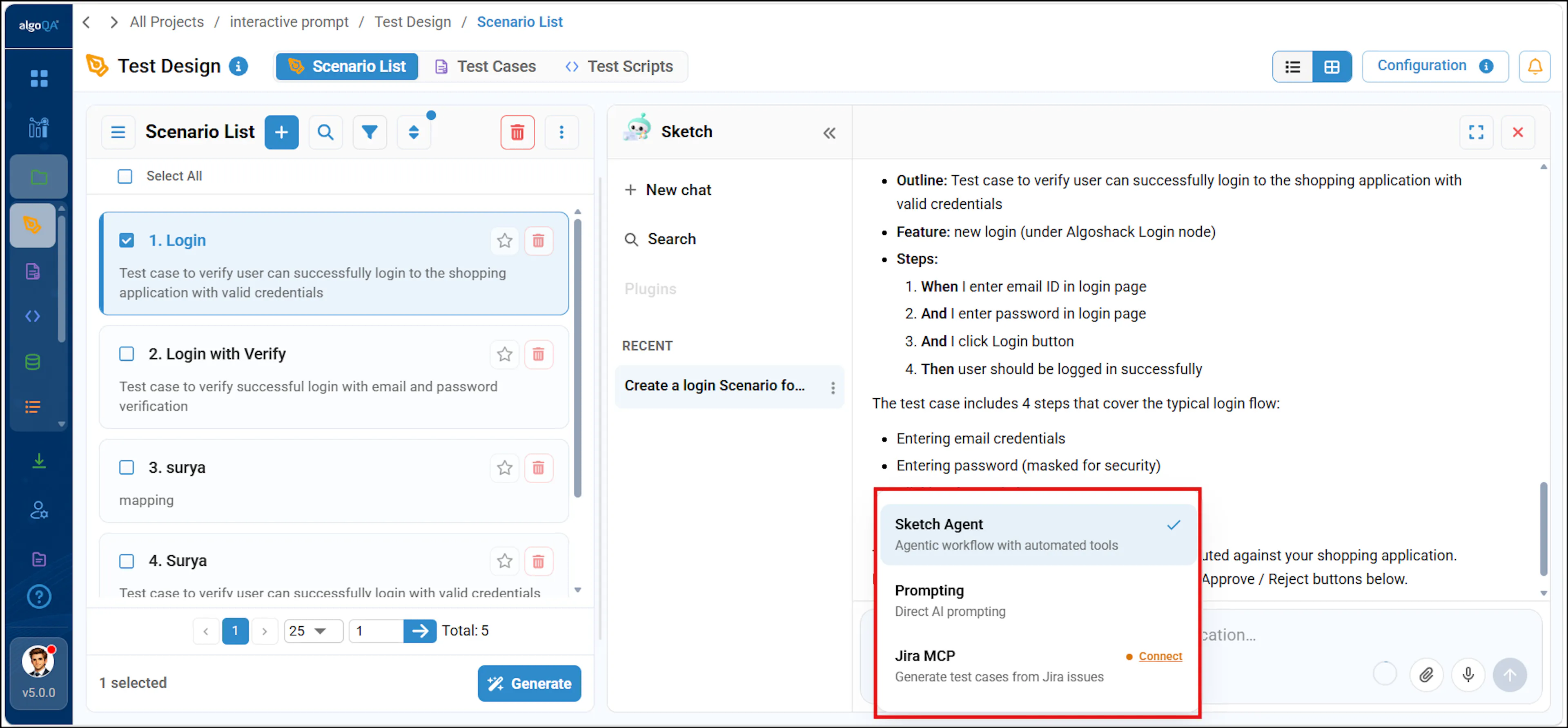
Choose an agent
Click the Agents dropdown to choose between algoAI Agents, Sketch Agent, Prompting, and Jira MCP. To learn more about prompting, refer to Prompting. To learn more about integrating Jira and generating scenarios from Jira defects, refer to Jira Defects to Test Case Generation.
Use Sketch with bulk updates and maintenance
Use interactive prompts in Sketch to update multiple selected scenarios at once or create and refine new scenarios. Sketch shows a proposal or preview first and does not change scenarios until you approve the proposal.
Review the proposal before approving it. For updates, compare the Original and Updated versions, exclude any scenarios that should not change, and then approve the proposal.
Add a step across selected scenarios
Select the scenarios
Select the scenarios that should receive the new step.
Describe the step and its position
Send a prompt that describes the step and the position where Sketch should place it in the selected scenarios.
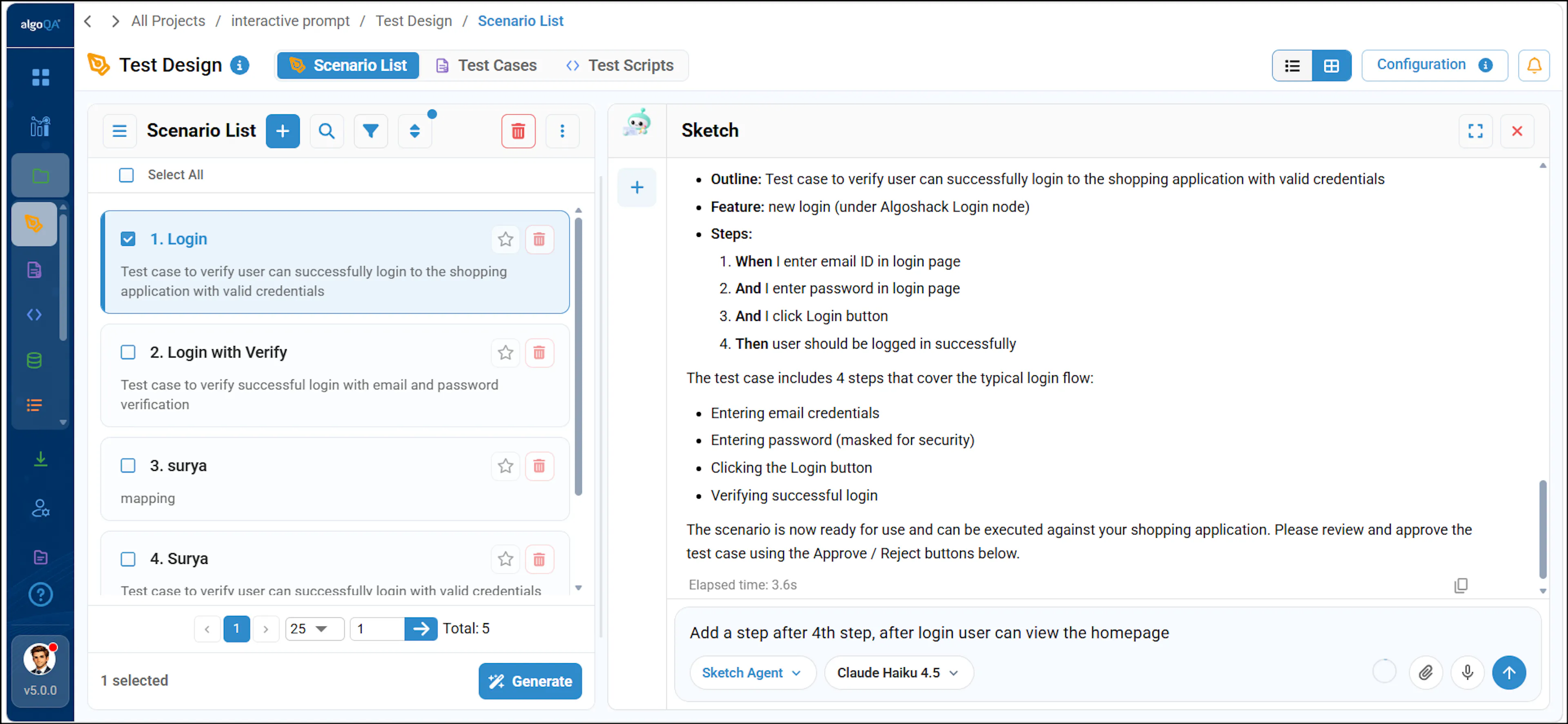
Review the proposal
Compare the Original and Updated versions. Exclude any scenarios that should not receive the step.
Approve and verify the update
Approve the proposal, then verify that the step appears in the requested position in each selected scenario.
Delete a step across scenarios
Review the delete proposal
Send a prompt describing the step to delete. Review each listed occurrence where Sketch will remove the step.
Approve and verify the deletion
Approve the proposal, then verify that the step was removed from the intended scenarios.
Create a scenario
Describe the scenario
Send a prompt describing the scenario you want to create.
Review the preview
Review the generated scenario preview.
Reject or create the scenario
Select Reject to discard the preview or Create to add the scenario.
Refine a scenario
Send a follow-up prompt
Send a follow-up prompt that names the created scenario and specifies the steps to change or add and where Sketch should place them.
Review the proposal
Review the proposed refinement for the named scenario.
Approve or reject the refinement
Select Approve to apply the refinement or Reject to discard it.