Installation Steps for Electron Scraper
Electron Scraper is an in-house tool for scraping UI elements and retrieving their XPath (locator) information from mobile apps on Android and iOS devices. Log in to the algoQA platform to access Electron Scraper.
Installing Electron Scraper
Follow these steps:
Download the latest Electron Scraper
Download the latest version of Electron Scraper from the Downloads link.
Extract the downloaded ZIP archive and open the installer
Extract the downloaded ZIP archive, then open the installer.
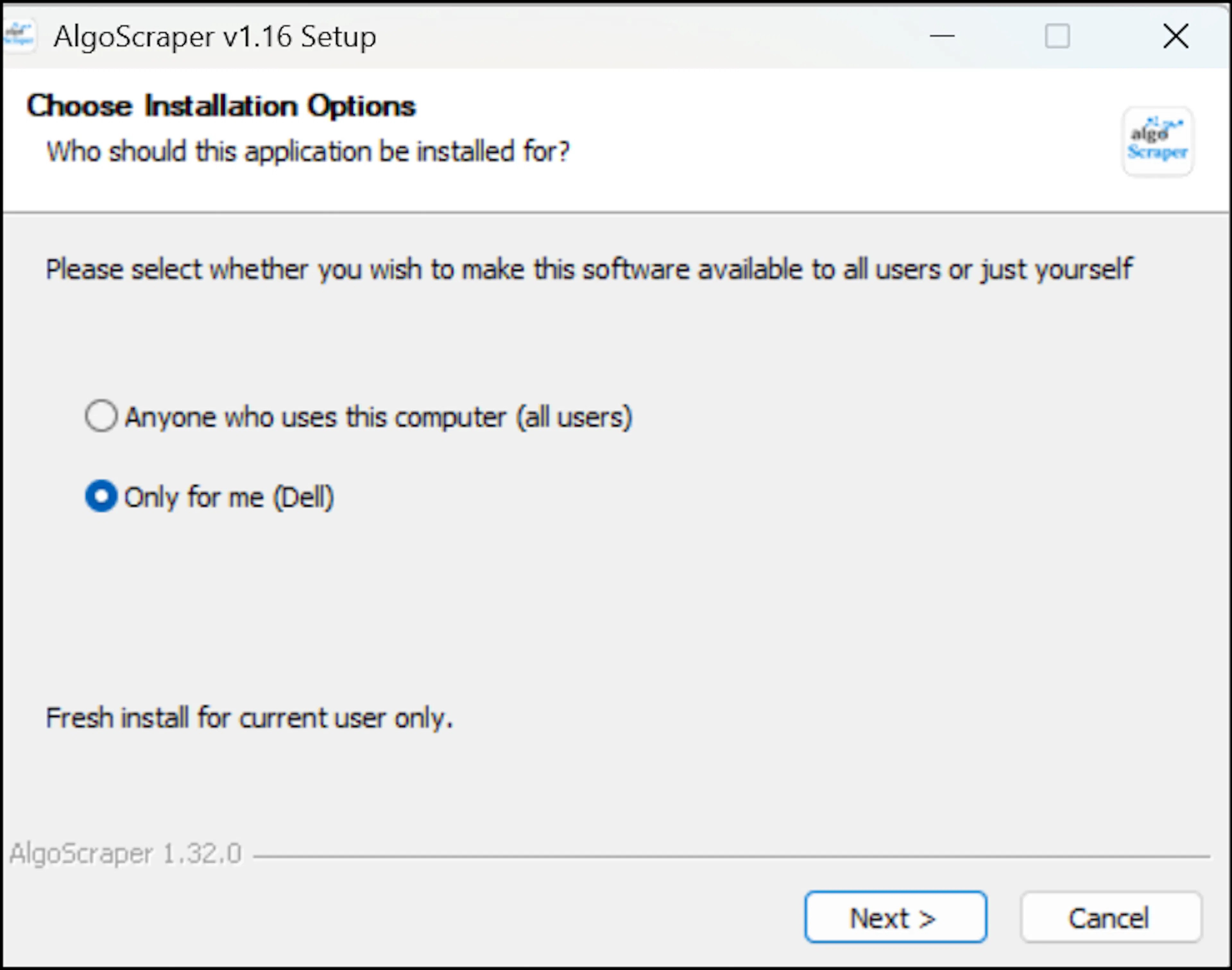
Choose an installation option
Select the relevant option, either Anyone who uses this computer or Only for me, then click Next.
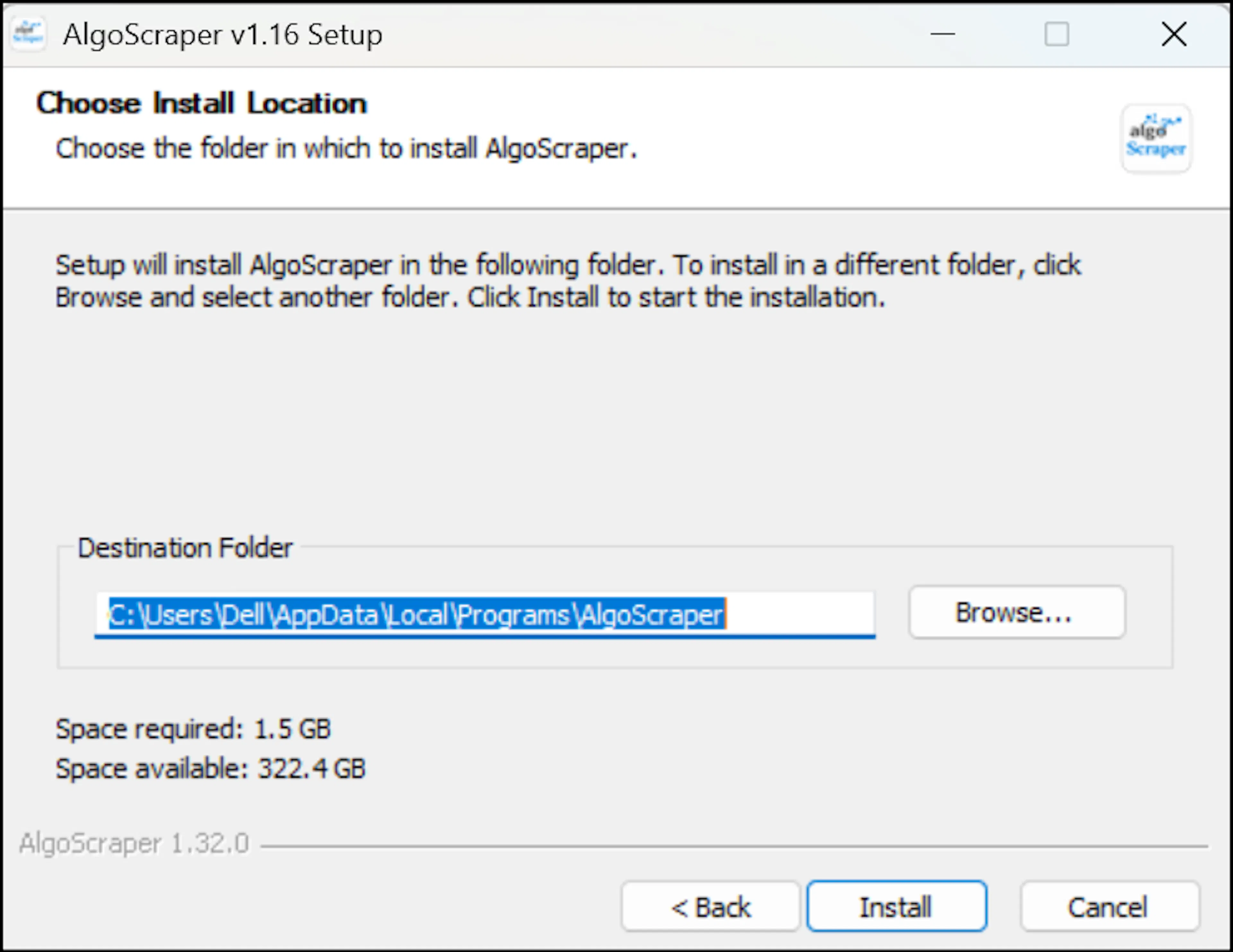
Choose the installation location
Browse to and select the installation location, then click Install.
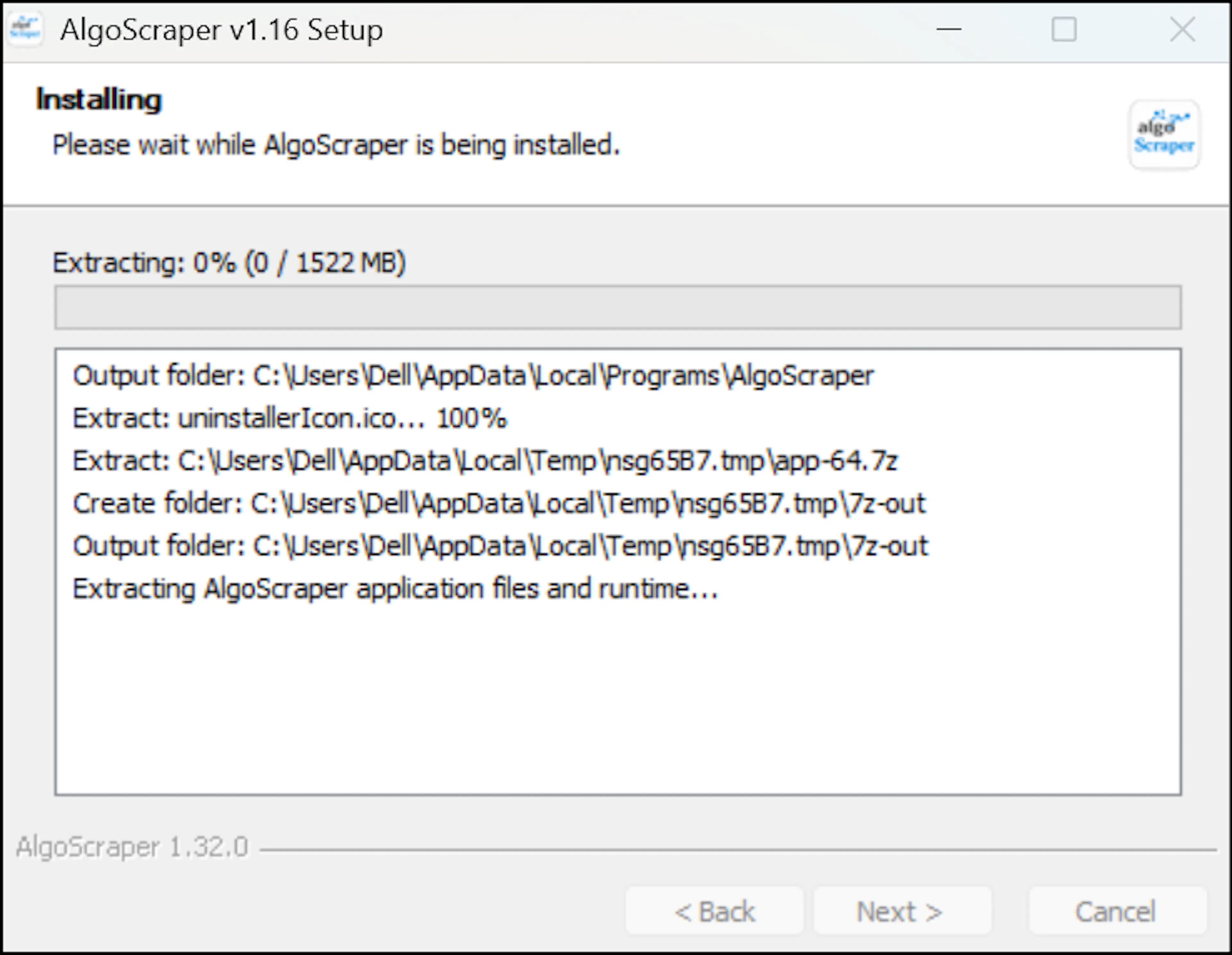
Wait for the installation process to complete.
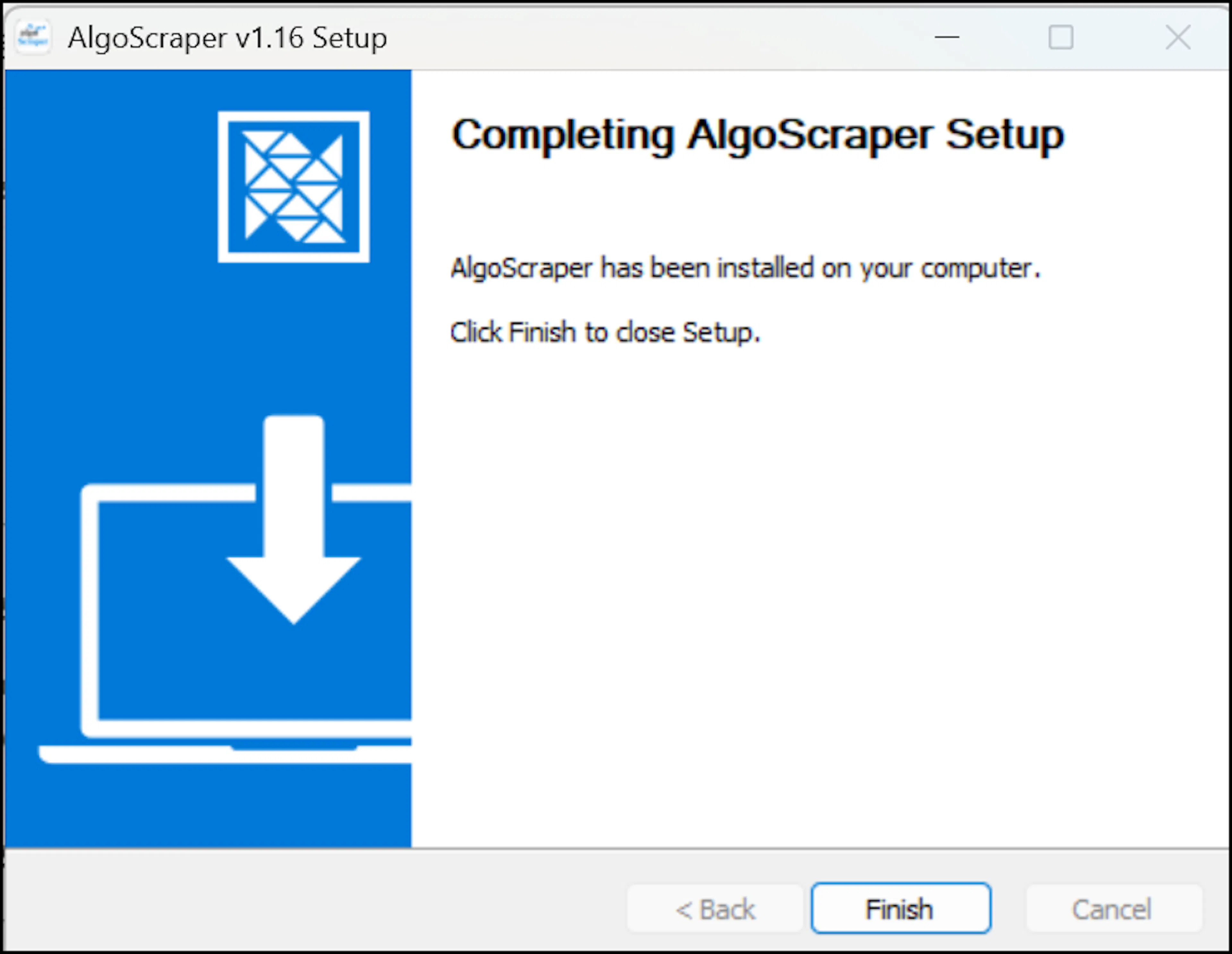
Click Finish to complete the installation.
The installation is complete, and Electron Scraper is ready to use.