
Adding or Modifying Default Actions
There are three ways to add UI elements default actions.
- Node Configuration
- Record Scenario
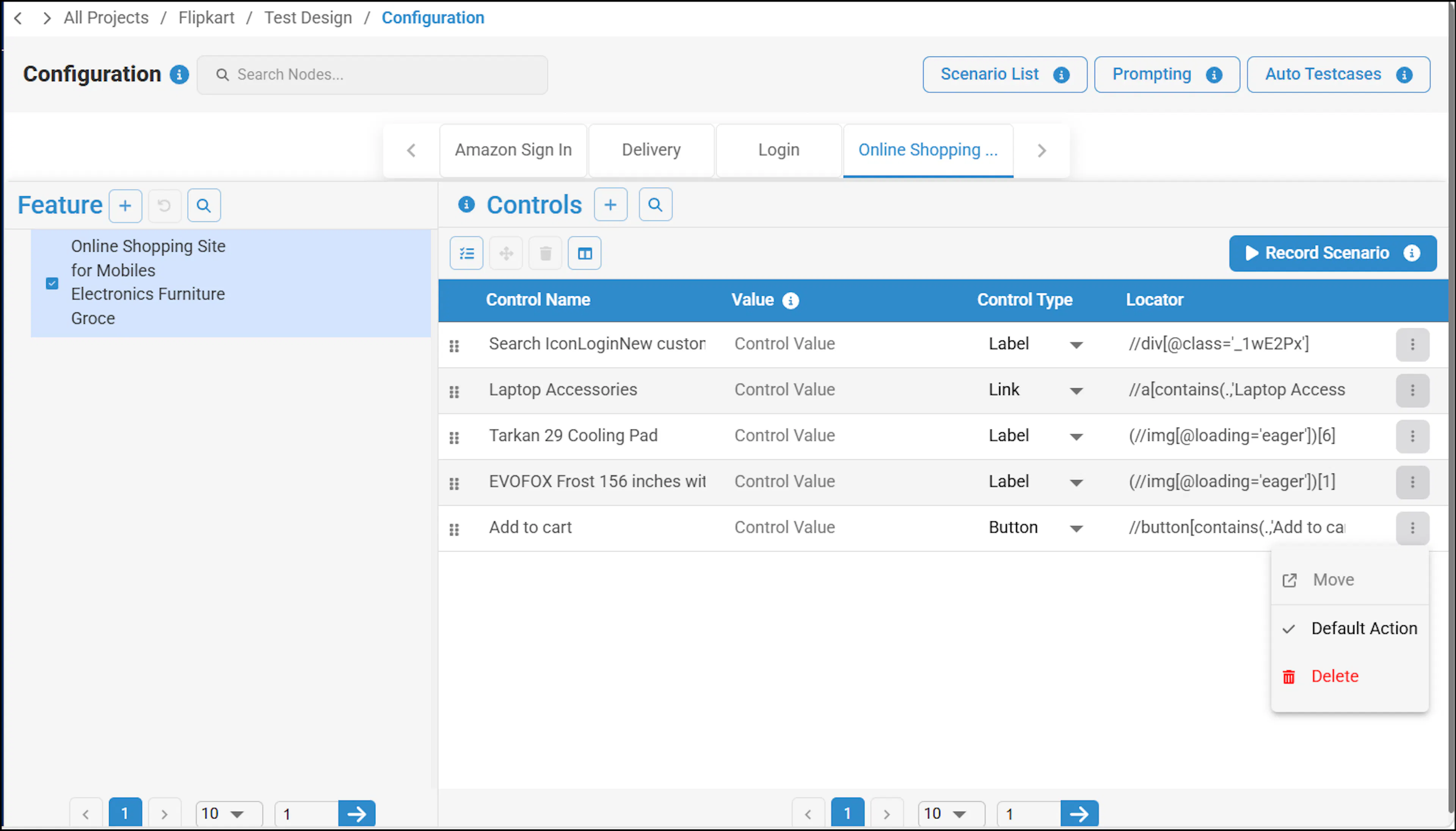
In the Node configuration process:
- Navigate to Test Design.
You can create a new project or use the existing one. In this case, existing project is used.
- and set the default action to required default action. In this case, Verify Text action is used.
Recording a Scenario
Perform the following when recording a scenario:
- Navigate to the Test Design and click on Record Scenario.
- Enter scenario name, outline the steps briefly and click Submit to record a scenario.
- Record Scenario window appears, in this window, select appropriate feature to view associated UI elements.
- You can arrange the UI elements listed in a sequence and add default action (verify text).
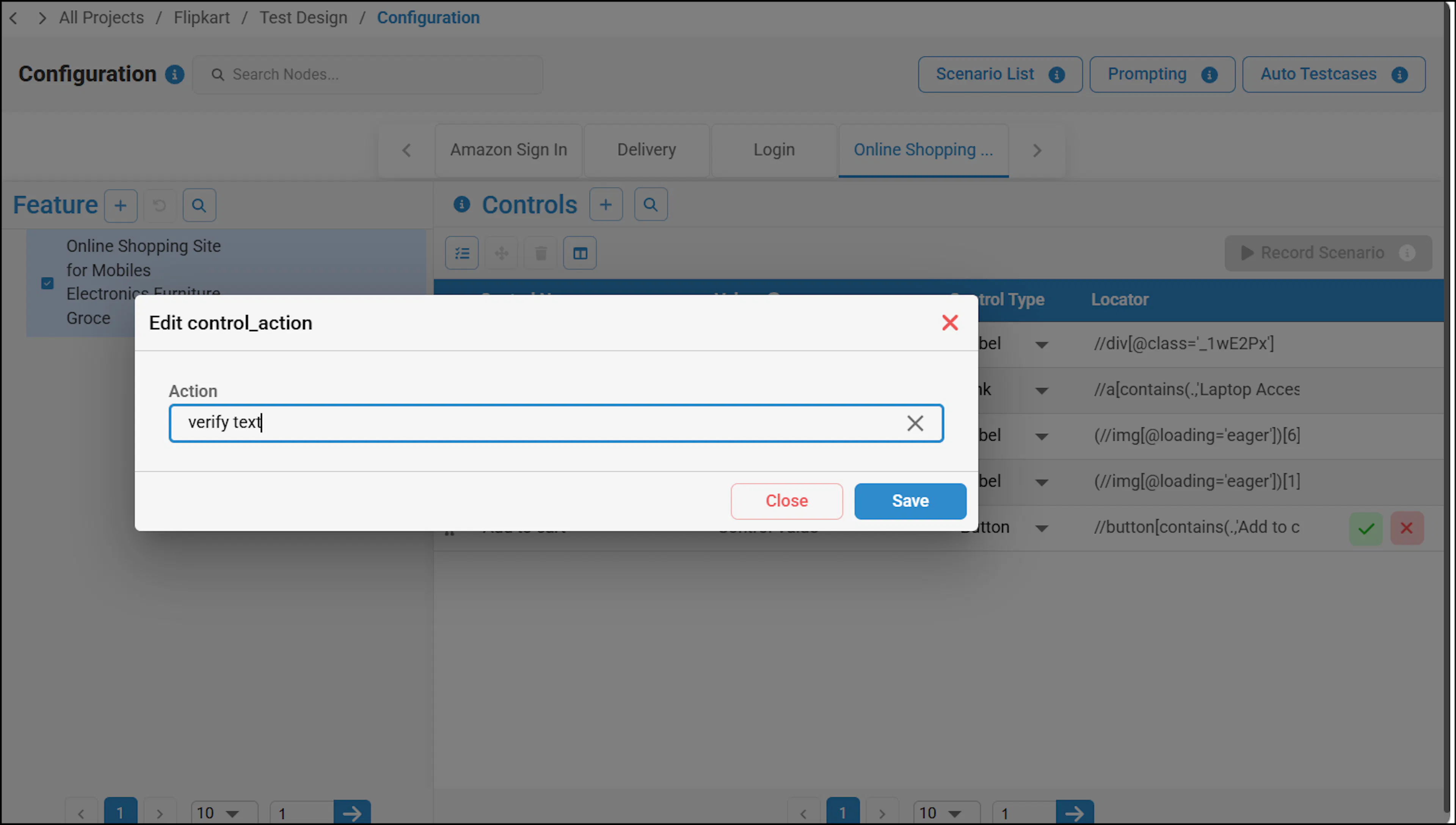
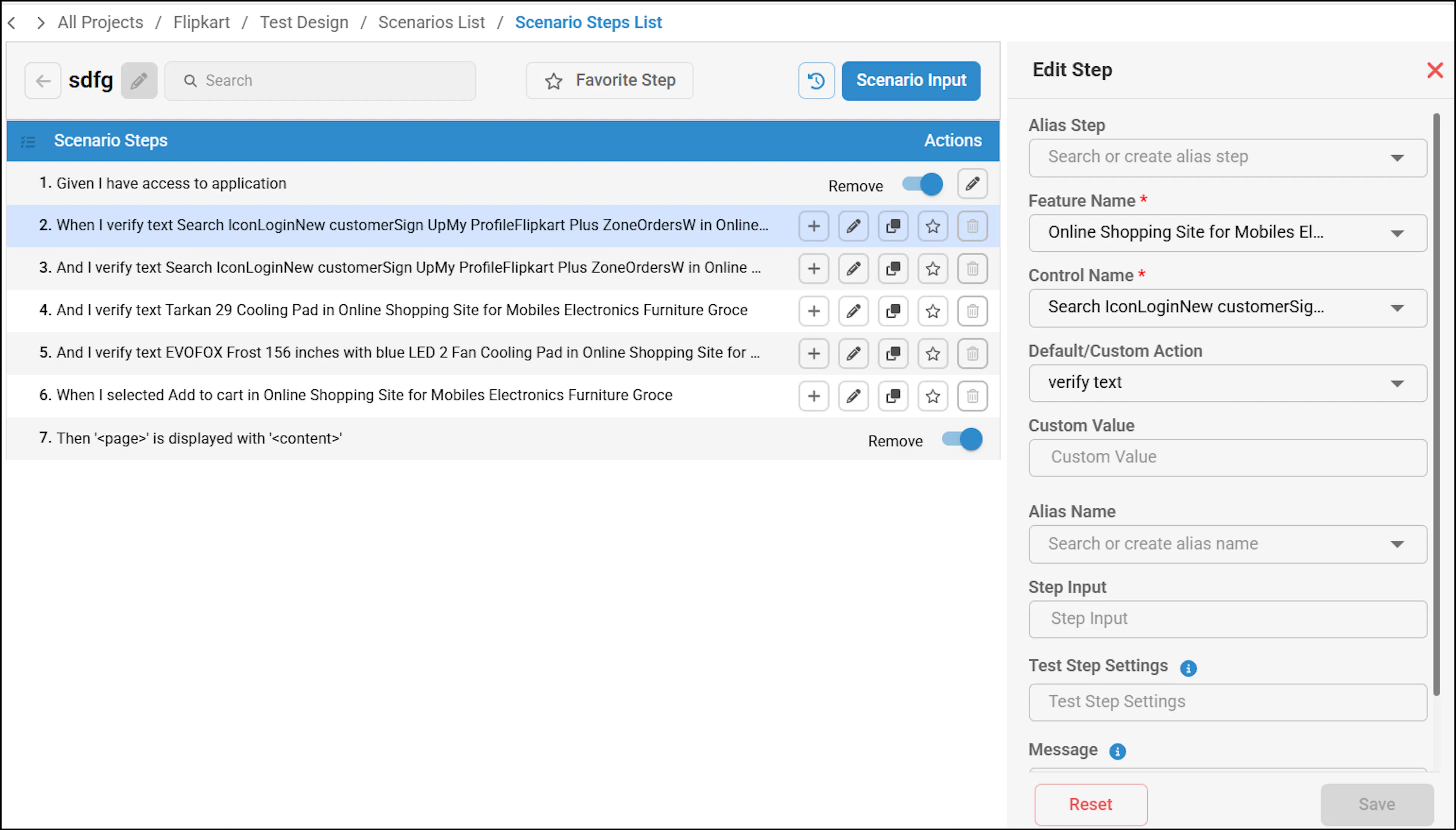
- Add the action after creating the sequence — even if you miss to add the action list while arranging the sequence, you can still add it after creating the sequence too.
- Click Edit icon in the Scenario Steps List.
- Select the default action associated to the UI element's name and click Save.
Was this page helpful?