
Contact Us
Use the Contact Us button for streamlined issue reporting and resolution, or reach the algoQA team through support, self-serve help, and sales.
Choose the channel that fits your situation.
Browse the knowledge base
Search self-serve articles and guides before you open a ticket.
Contact sales
Talk to the sales team about plans, pricing, and enterprise options.
Raise a Ticket from the algoQA Platform
If you encounter a bug, need a feature enhancement, or want to propose a new capability, the Get Support panel in algoQA lets you raise a ticket directly from the platform. Every ticket is acknowledged by email and tracked through to resolution by the Customer Support team.
Follow these steps to submit a support ticket:
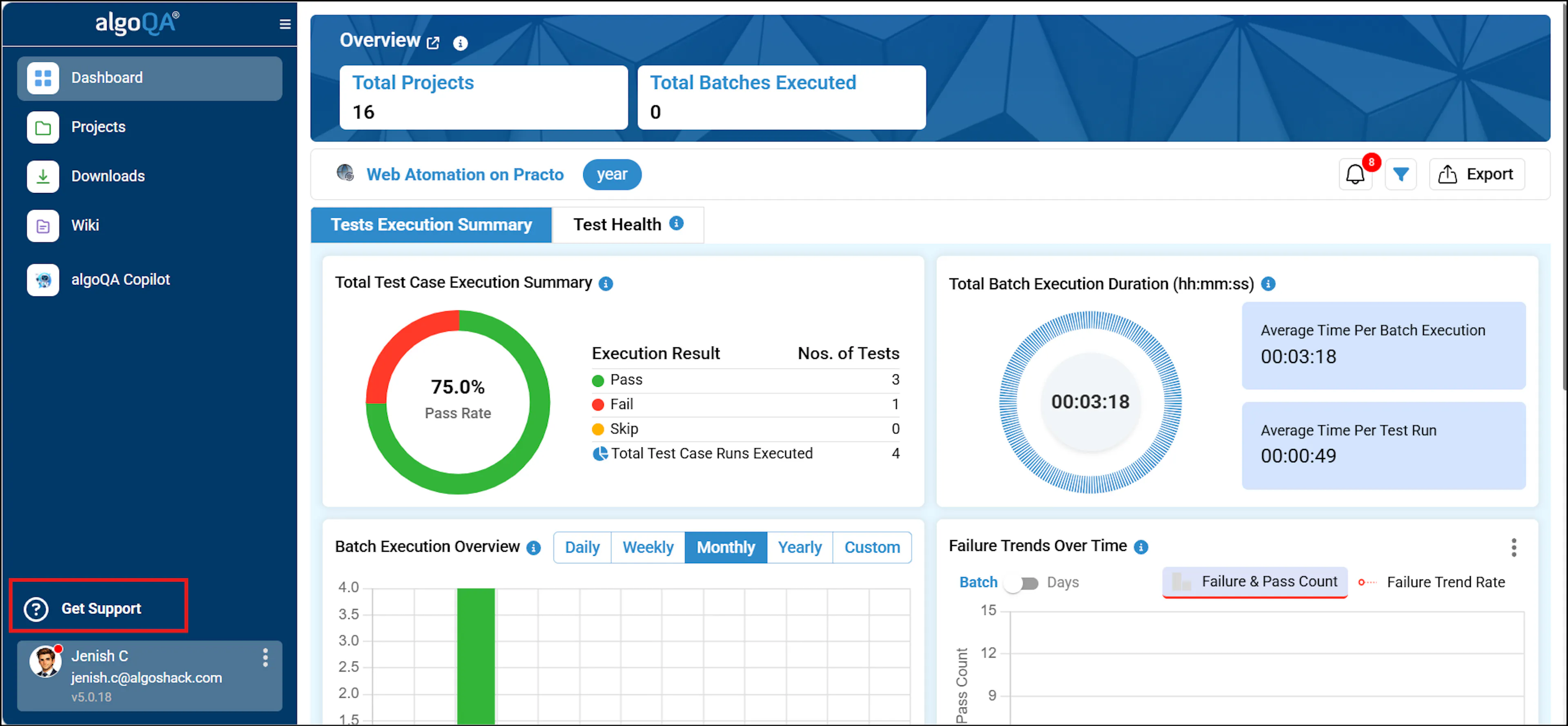
Click Get Support — After logging in to algoQA, click the Get Support button above your profile picture.
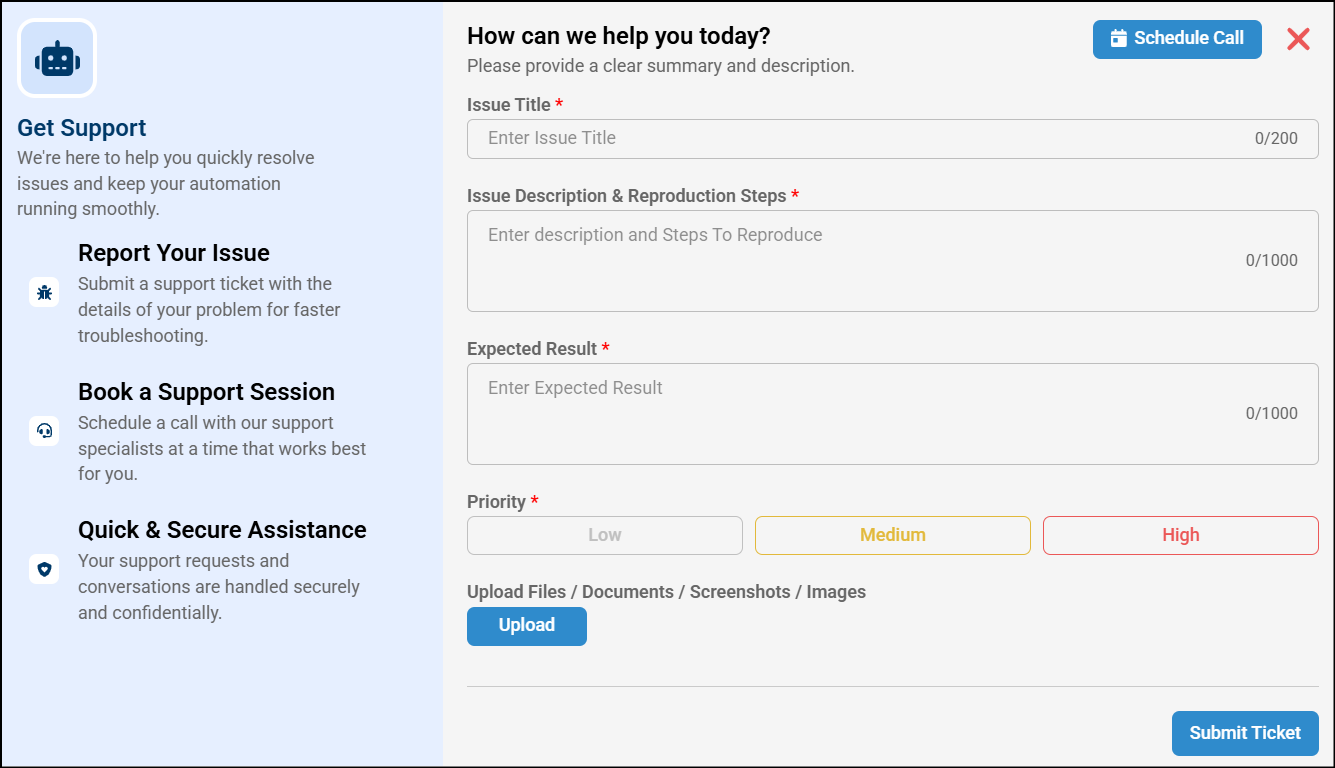
Fill in the ticket details — Enter the Issue Title, Issue Description & Reproduction Steps, Expected Result, and set the Priority. You may also attach files, documents, or images to illustrate the issue, then click Submit Ticket.
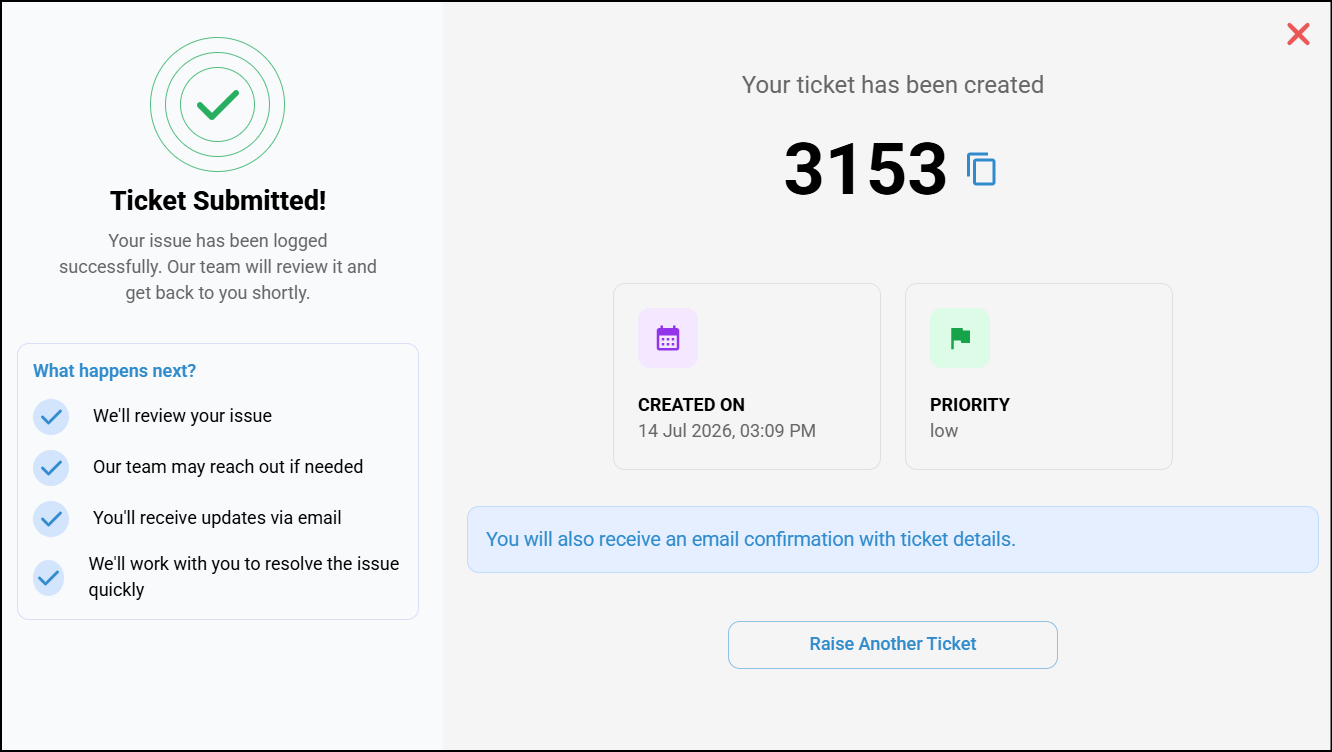
Review the confirmation — Once the ticket is submitted, a confirmation pop-up displays the Ticket Number, Created Date & Time, and Priority. The left panel shows the next steps. If you need to create another request, click Raise Another Ticket. You will also receive an acknowledgment email from the Customer Support team confirming your ticket.
Your ticket is reviewed and triaged by the Customer Support team, who will reach out to discuss or clarify the requirement. Based on severity, the team will provide an estimated date for the fix or enhancement delivery.
Choose the right priority level to help the support team respond faster. Use Low for minor issues or feature requests, Medium for standard issues, High for significant functionality problems, and Urgent for critical blocking issues.
Schedule a Support Call
For complex issues that need a live discussion, schedule a support call directly from the platform.
Click Get Support — After logging in to algoQA, click the Get Support button above your profile picture.
Click Schedule Call — In the pop-up that appears, click the Schedule Call button.
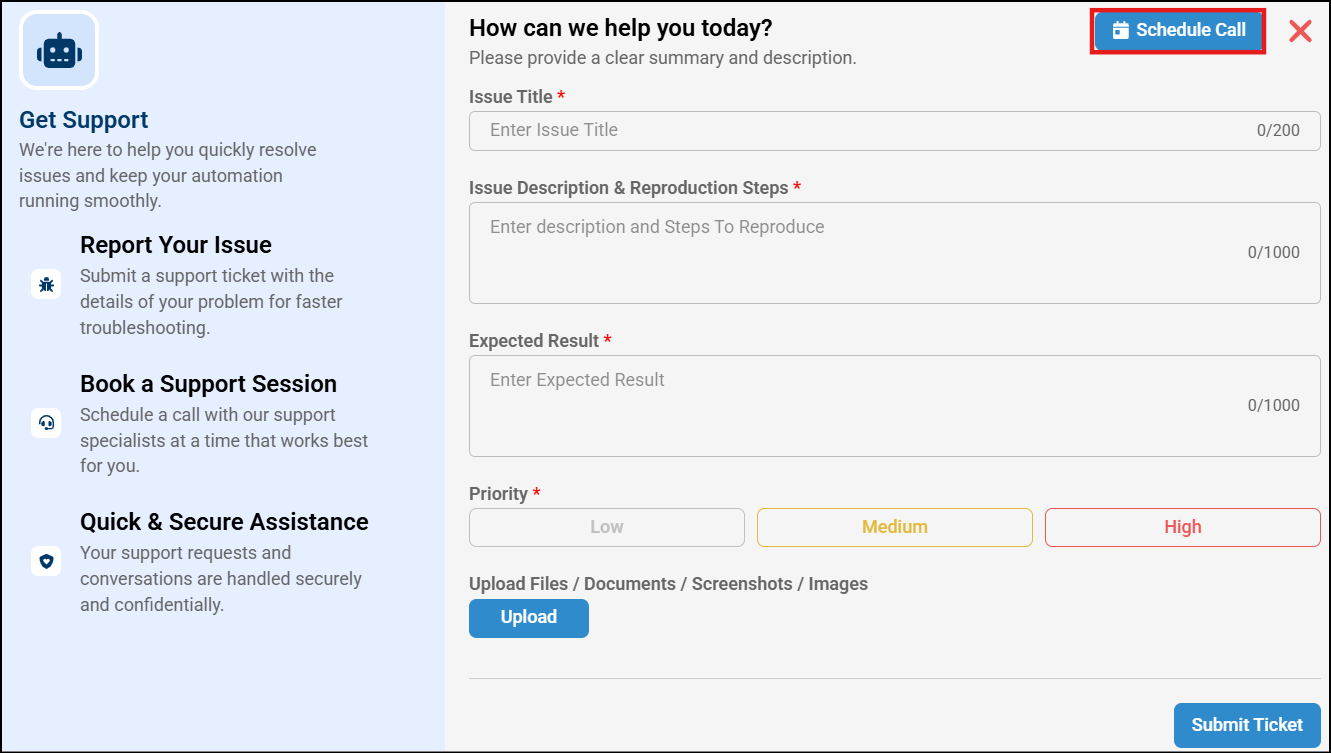
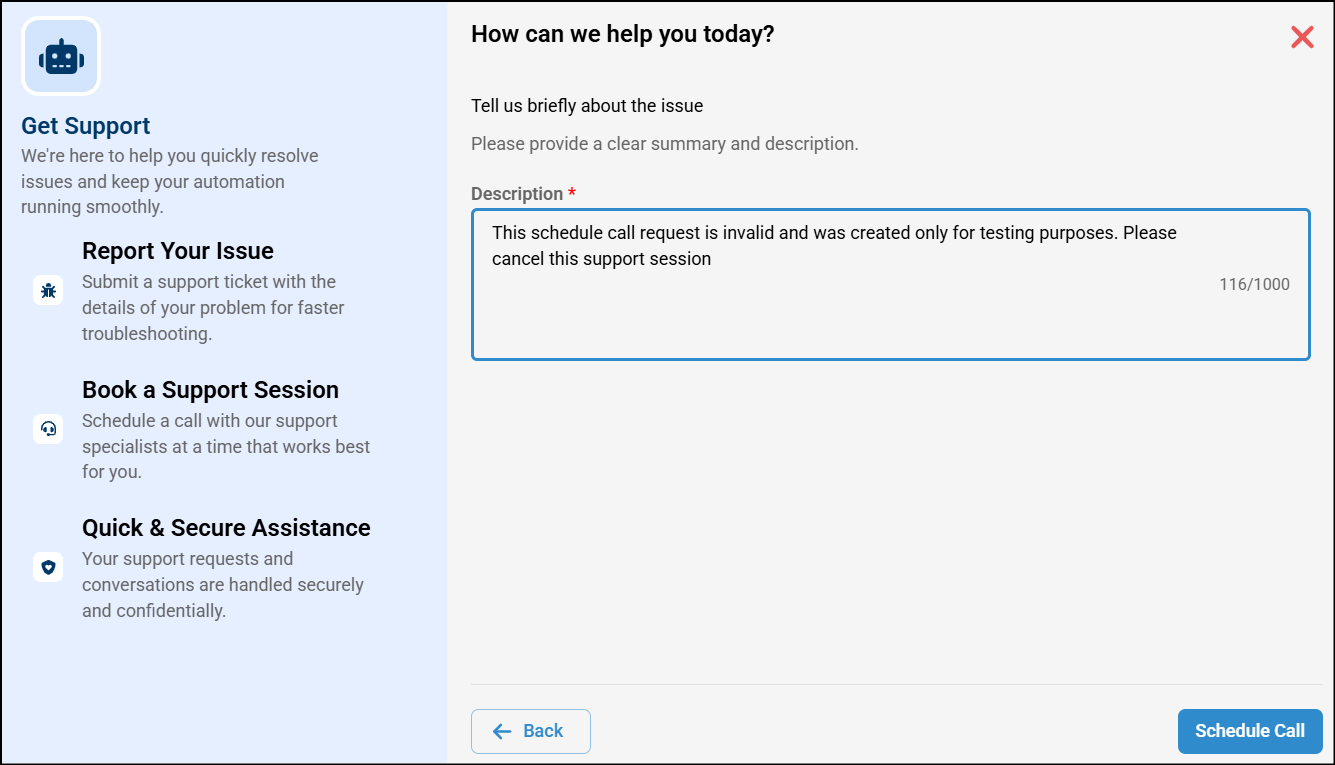
Enter a description — Specify the purpose of the call and the support you require, then click Schedule Call.
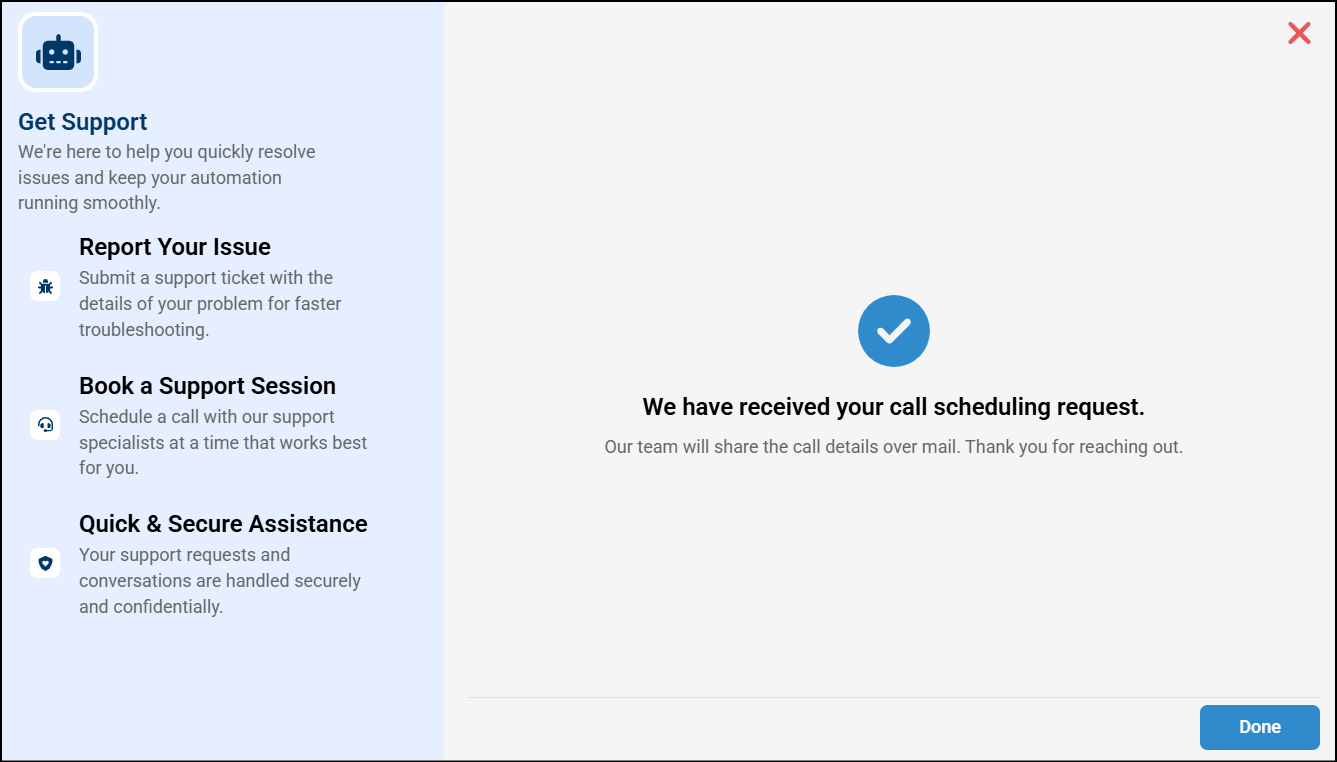
Review the confirmation — A confirmation pop-up appears indicating that your call scheduling request has been received. The Customer Support team will contact you to schedule the call.
You can use the Contact Us feature whenever you need assistance, share feedback, or want to report an issue. You can also reach the team directly from the help icon inside the algoQA platform.