
Using Electron Scraper for Android Devices or iOS Devices
Capture XPath locators and element details from Android and iOS apps on emulators, simulators, or real devices, then organize, manage, and send them through algoQA.
Prerequisites
- Connect an Android emulator, Android real device, iOS simulator, or iOS real device.
- Install Electron Scraper using Setting Up for Electron Scraper.
- Install Android Studio only when automatic Android SDK setup fails. Electron Scraper attempts to install the required SDK components automatically.
Set up an Android device
You can connect an Android emulator, a real Android phone, or both. When both devices are connected, select the device you want to use before selecting an application. The available application list updates for the selected device.
Create an Android emulator
Create an emulator from Android Studio's Device Manager.
Open Device Manager
Open Android Studio and navigate to Device Manager.
Create a virtual device
Select Add device, then select Create Virtual Device.
Select the device hardware
Select the device model and select Next.
Download a system image
Download the system image marked with a star, then select Next.
Finish the emulator setup
Review the configuration and select Finish. Start the emulator before launching Electron Scraper.
Connect a real Android phone
Enable USB debugging before connecting the phone to Electron Scraper.
Open the Android version details
Open Settings, then navigate to About or the device details page. The menu name varies by manufacturer and Android version.
Enable developer options
Select Version number seven times. Authenticate if Android prompts you to do so. Return to Settings and open Developer options.
Enable USB debugging
Turn on USB debugging.
Connect the phone
Connect the phone to your computer with a USB cable and approve the debugging authorization prompt on the phone if it appears.
The device name and UDID should appear in Electron Scraper after the connection is available.
Launch Electron Scraper
You can launch Electron Scraper from several algoQA workflows.
| Launch method | Project name or token required | Result |
|---|---|---|
After creating a new project and selecting Record Scenario | Project name | Launches Electron Scraper and connects it to the new project. |
| From an existing algoQA project | Project token | Launches Electron Scraper from the project's Upload Scraped Data screen and connects it to the selected project. |
| Manually from Electron Scraper | Project token | Opens Electron Scraper and connects it to the algoQA project associated with the token. |
Launch without an existing project
When you start from algoQA without an existing project, create the project and launch Electron Scraper from the Record Scenario workflow.
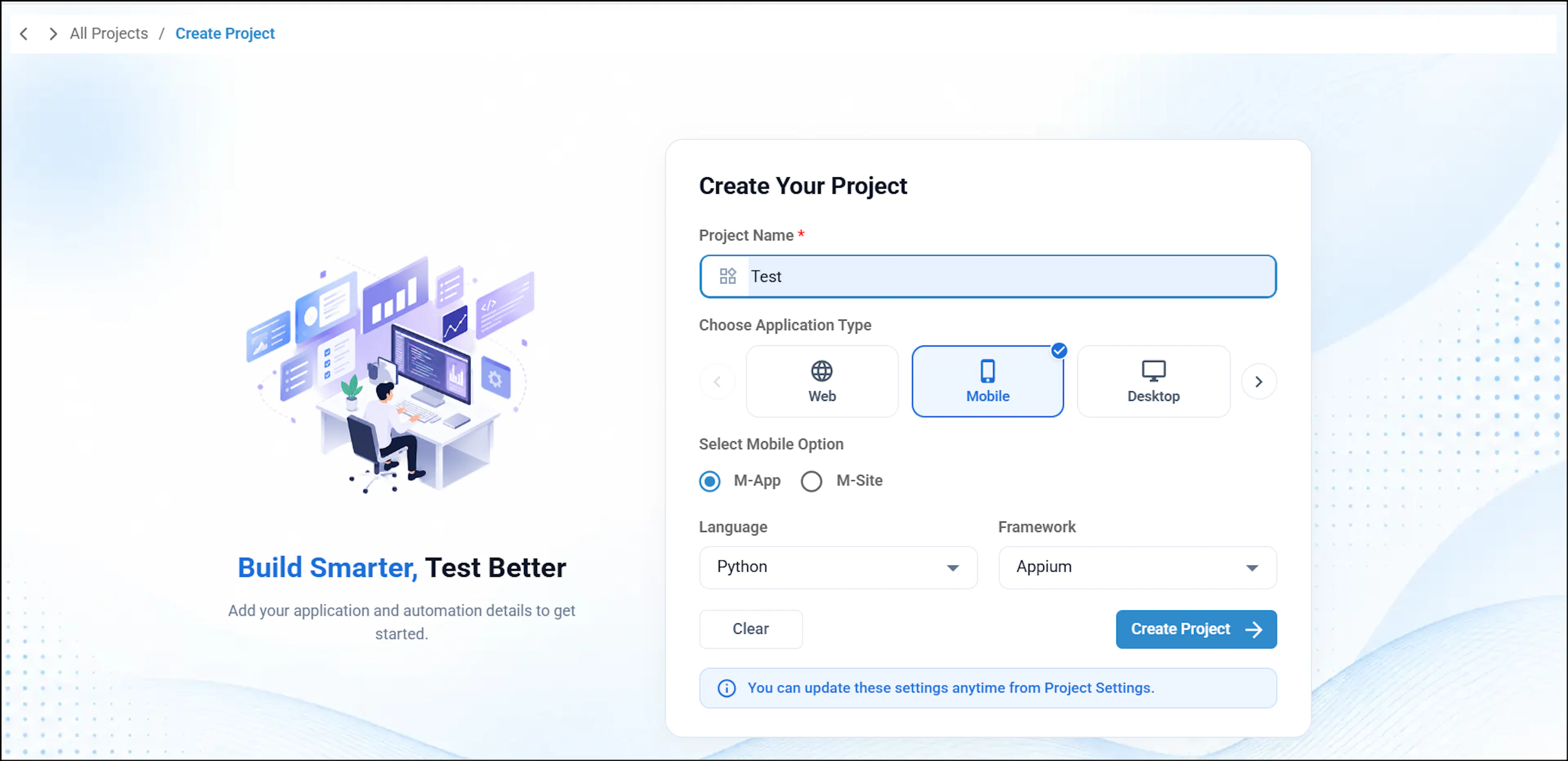
Create a project
Enter a project name, select the application type, select Mobile, select the language and framework, and select Create Project.
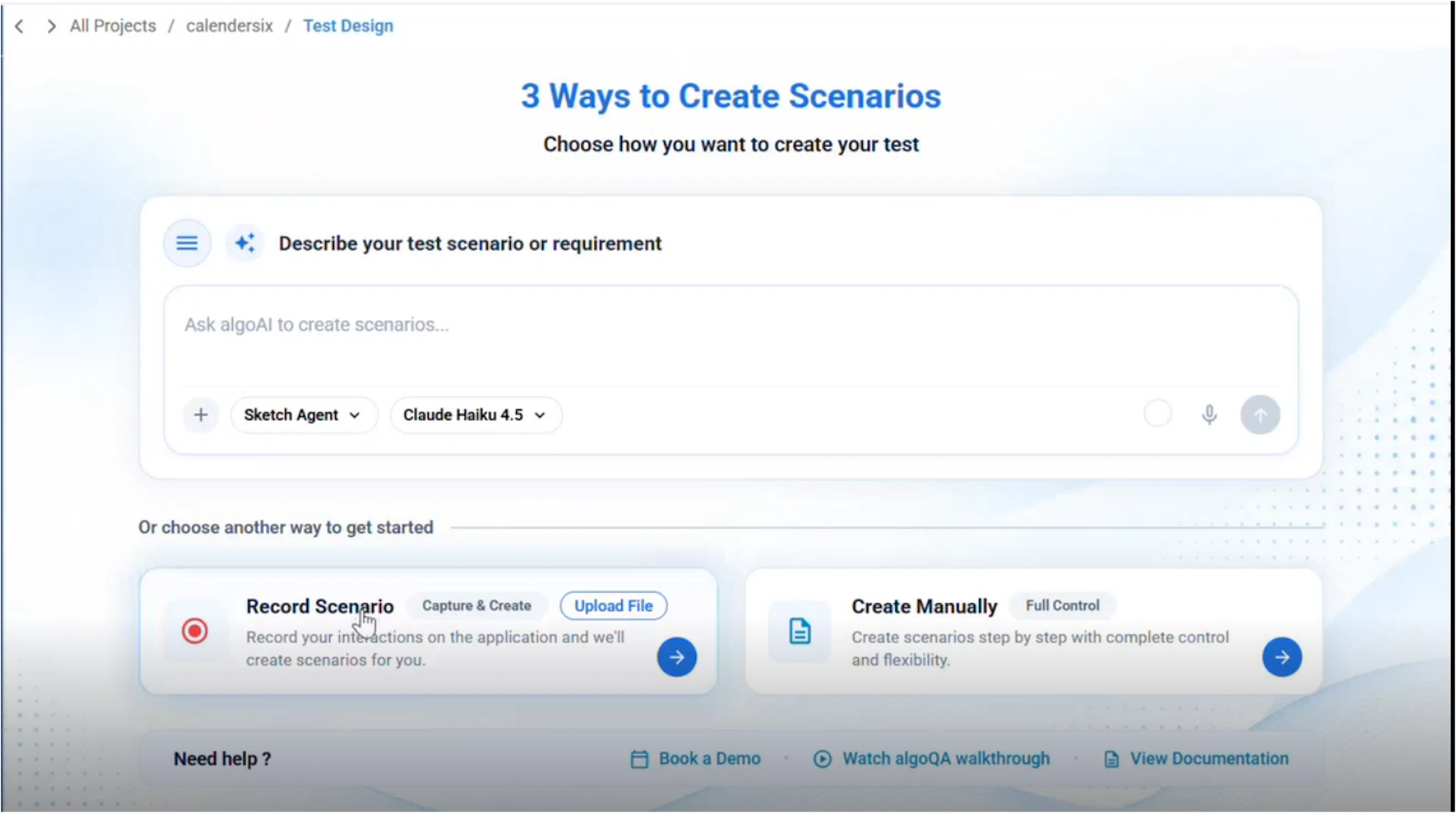
Select Record Scenario
Select Record Scenario.
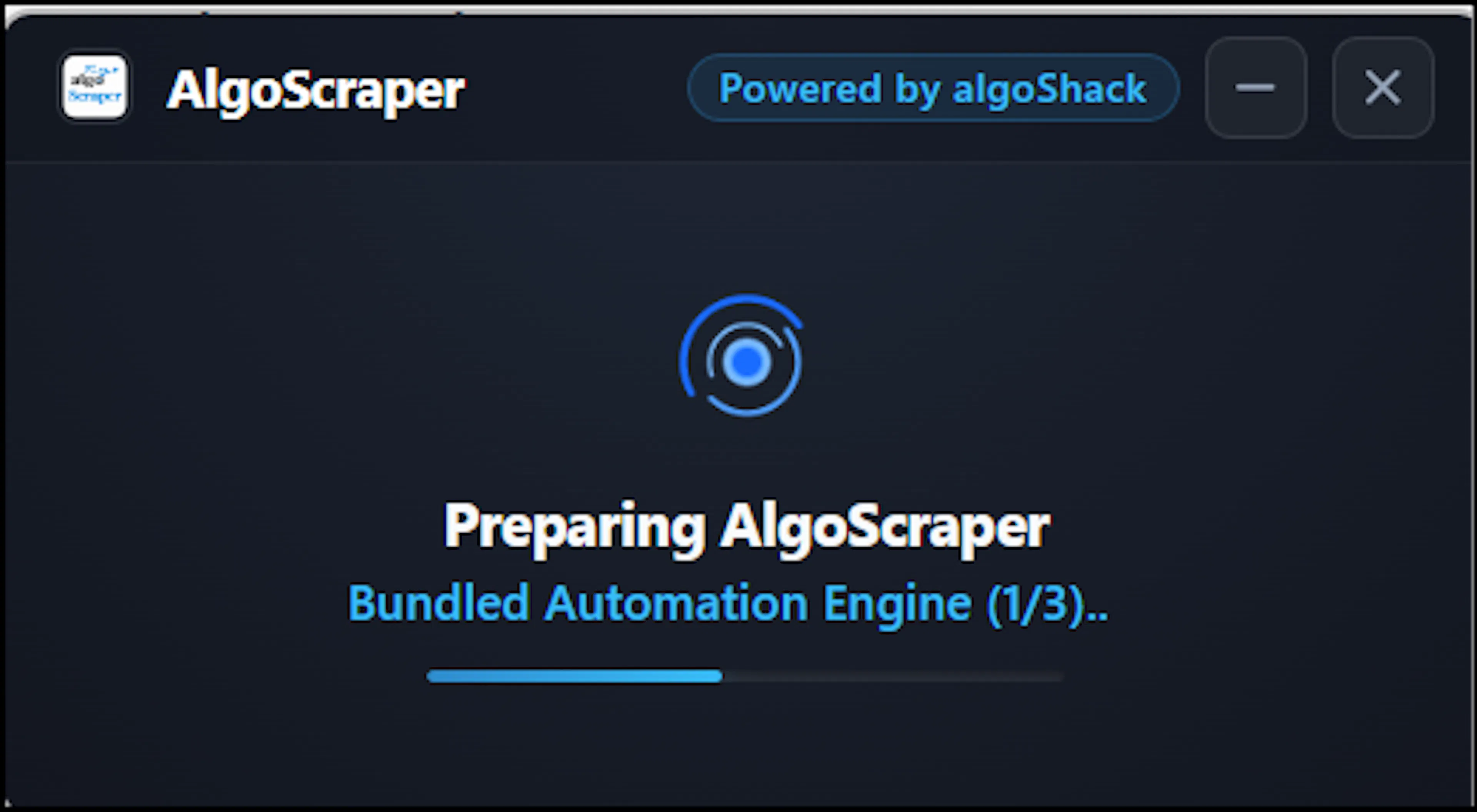
Open Electron Scraper
When the confirmation pop-up appears, select Open. Electron Scraper launches and connects to your project.
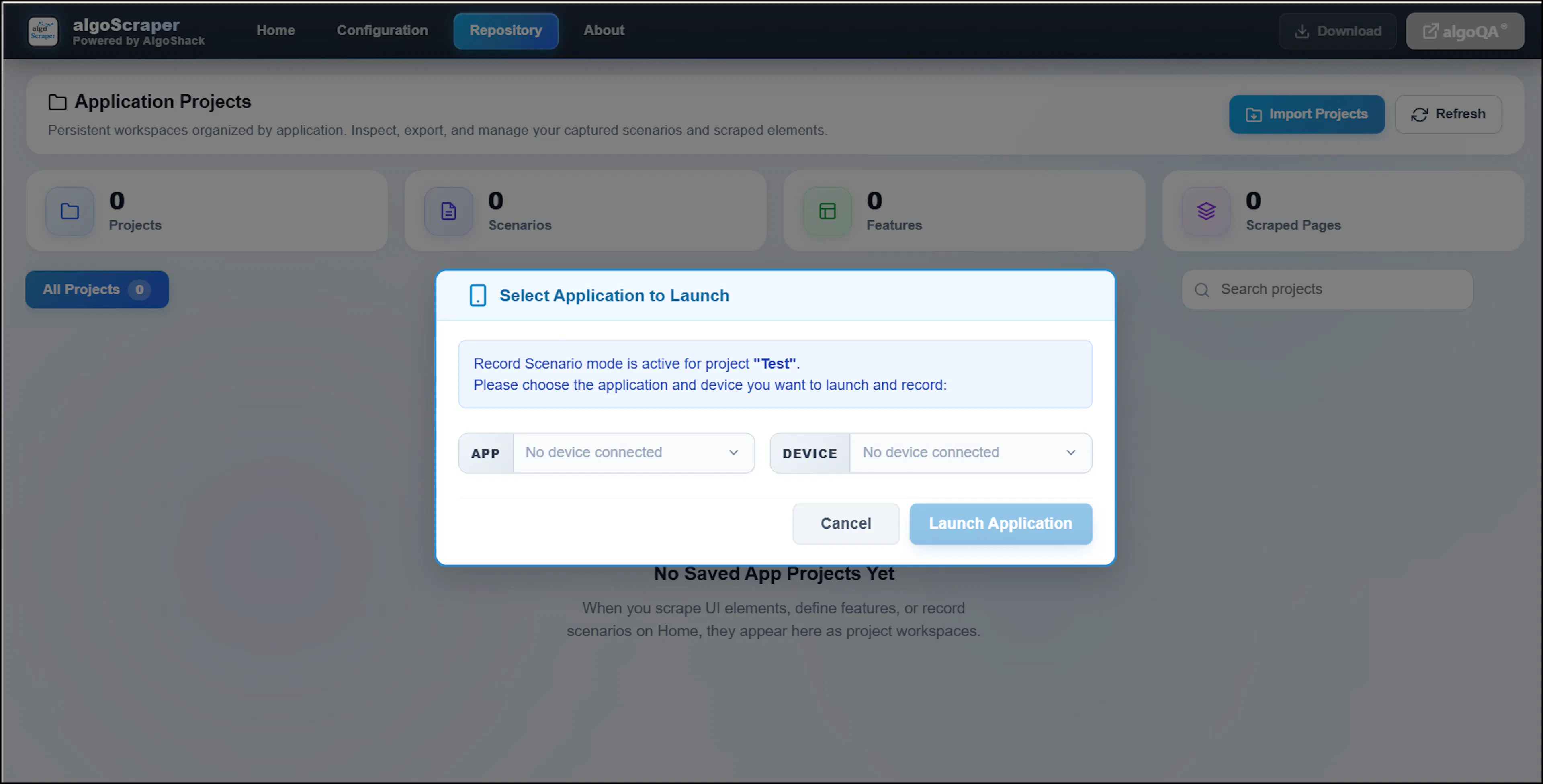
Select a device and application
In Electron Scraper, select a device and application, then select Launch to start the application on the connected device.
Connect manually with a project token
Use a project token when you open Electron Scraper directly instead of launching it from an algoQA workflow.
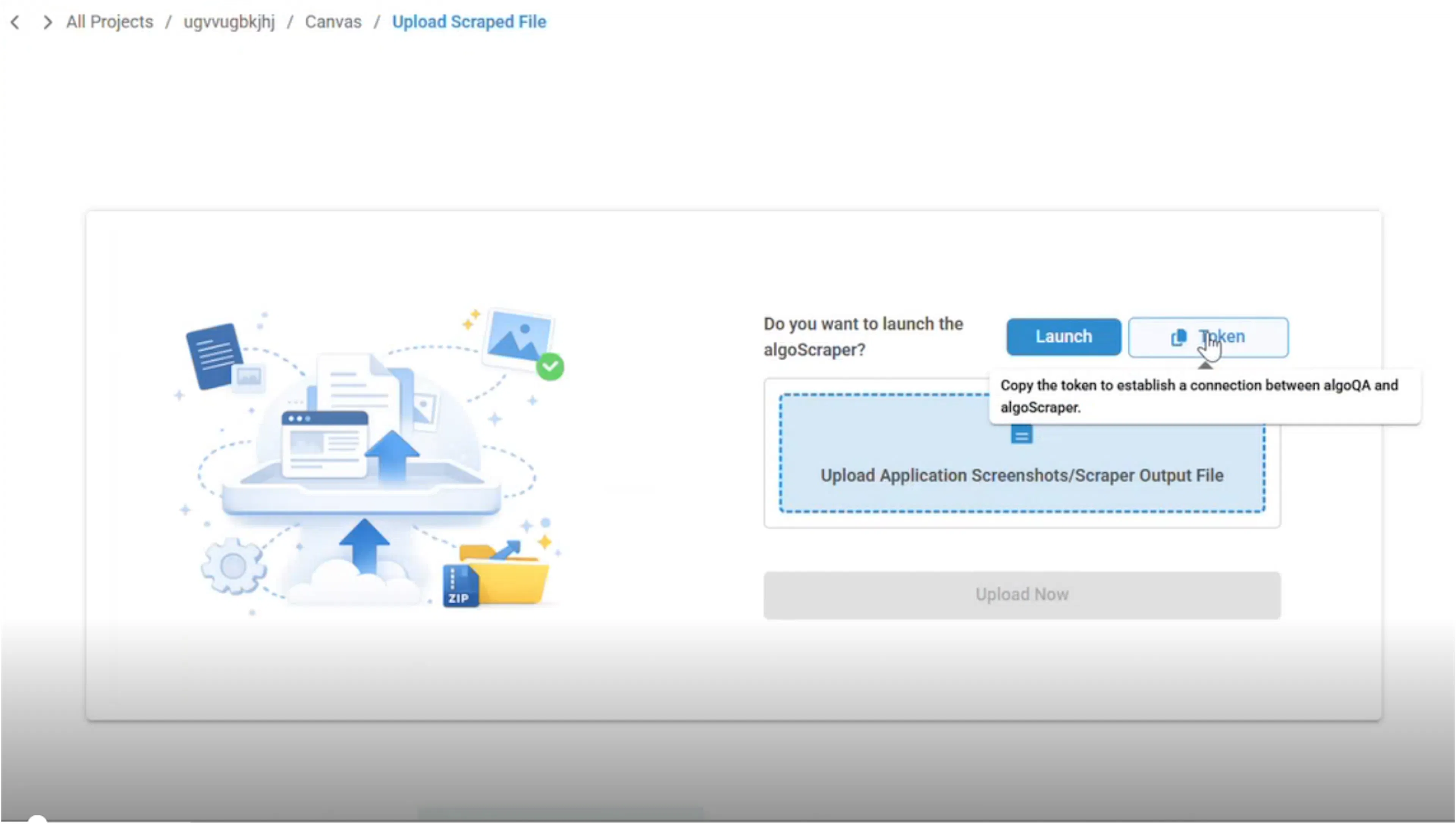
Copy the project token
From the project's Upload Scraped Data screen, select the token button to copy the project token.
Open Electron Scraper
Open Electron Scraper manually.
Paste the token
Paste the token into the project token field. A valid token connects automatically without pressing Enter and carries the associated project name into Electron Scraper.
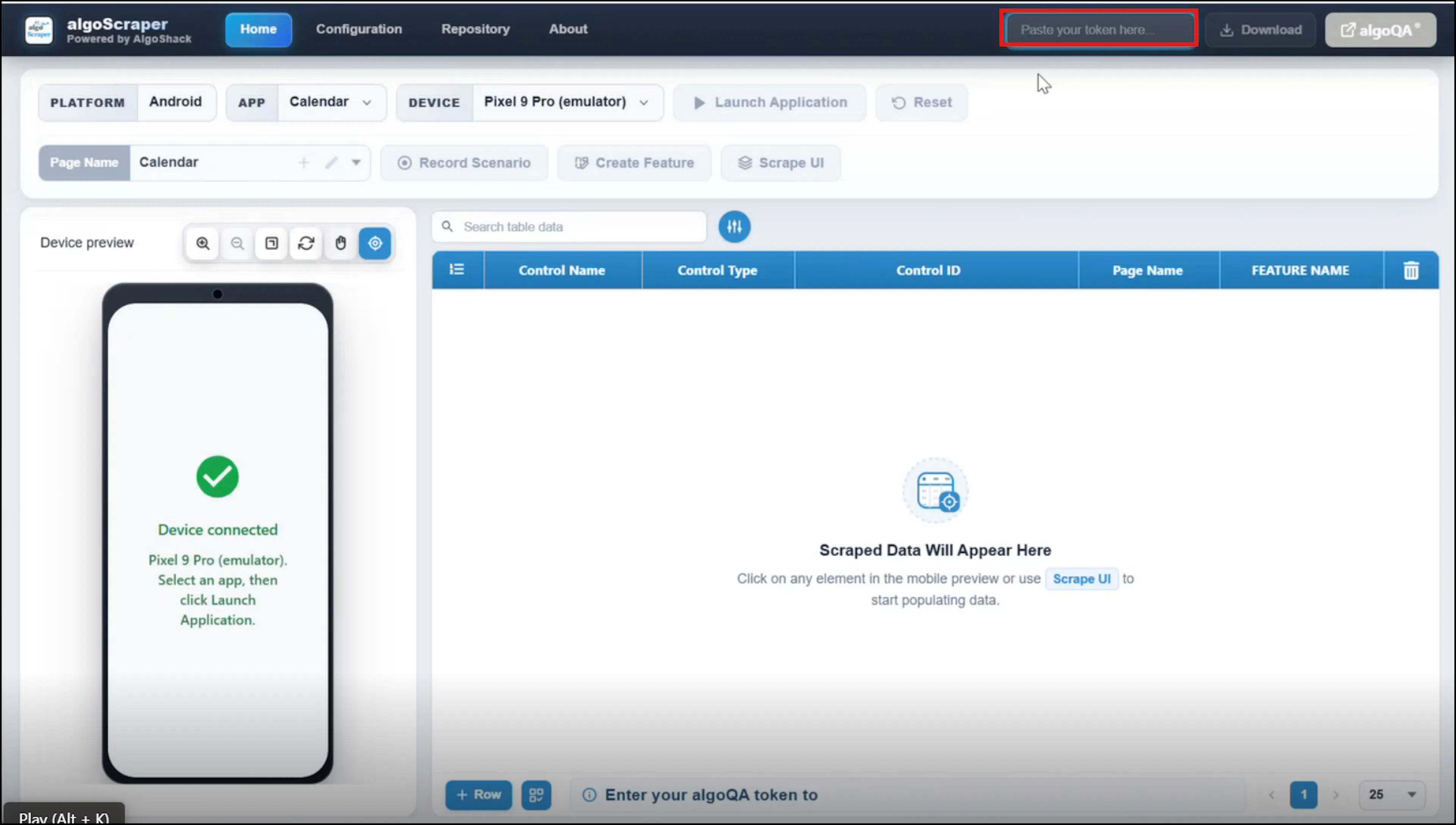
A token is not required when you launch Electron Scraper from Record Scenario, from an existing scenario, or through a launch button on the Upload Scraped Data screen.
Select Cancel to disconnect the scraper. You cannot scrape until you connect to a project again.
Record a scenario
Record Scenario mode captures the pages and interactions that make up a scenario. Launch this mode from the Record Scenario workflow in algoQA.
Recording requires both a scenario name and Start Record. Launching the scraper normally does not start recording. Use normal scraping for a manual launch and use Record Scenario mode when you start from Record Scenario.
Open Record Scenario in algoQA
From the algoQA project, select Record Scenario. When the pop-up appears, select Open to launch the scraper.
Select the device and application
Select the device and application in Electron Scraper. If multiple devices are connected, choose the device before choosing the application.
Launch the application
Select Launch and wait for the application to load completely.
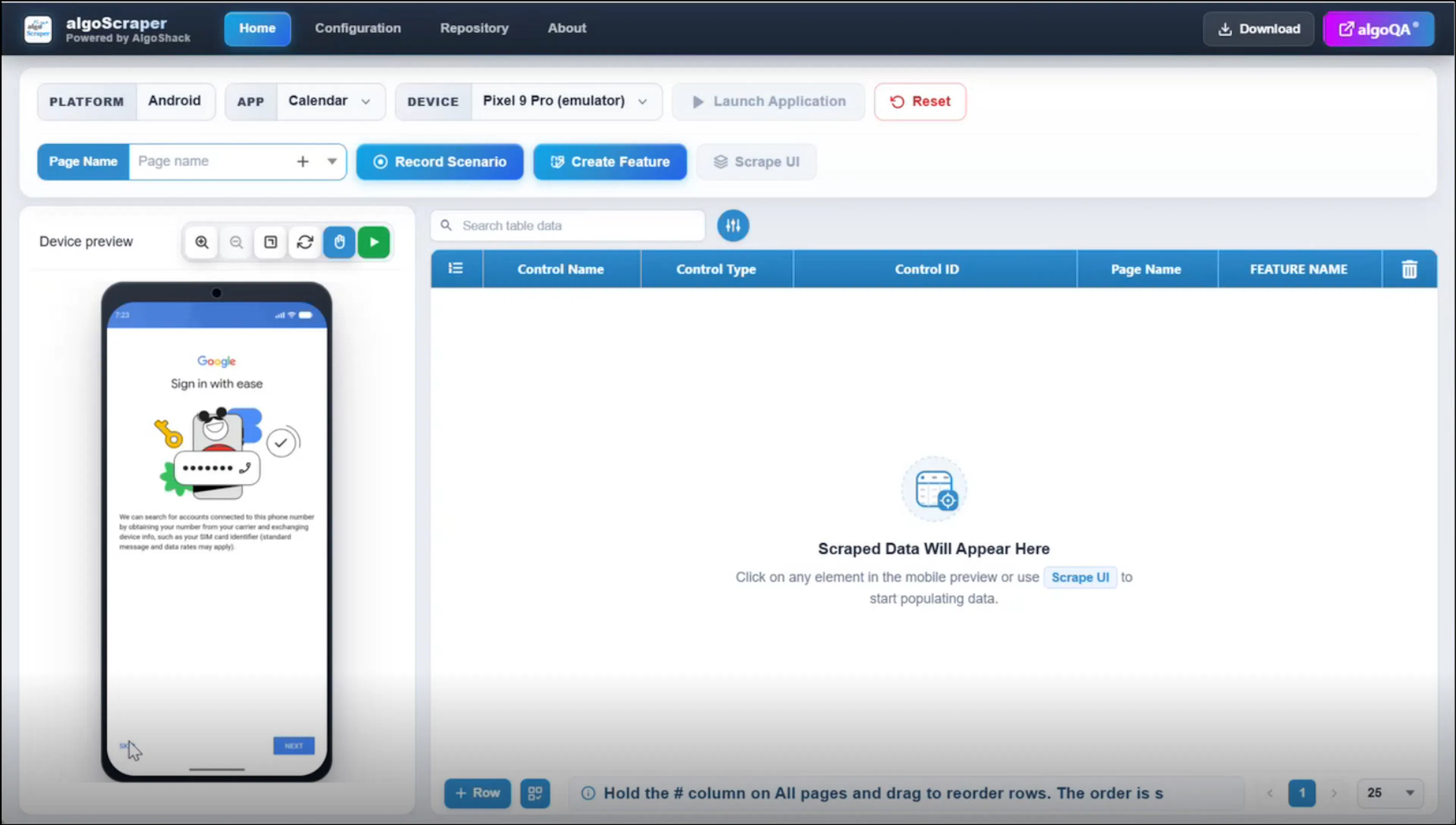
Start recording
Enter a scenario name and select Start Record. A blinking recording indicator confirms that recording is active.
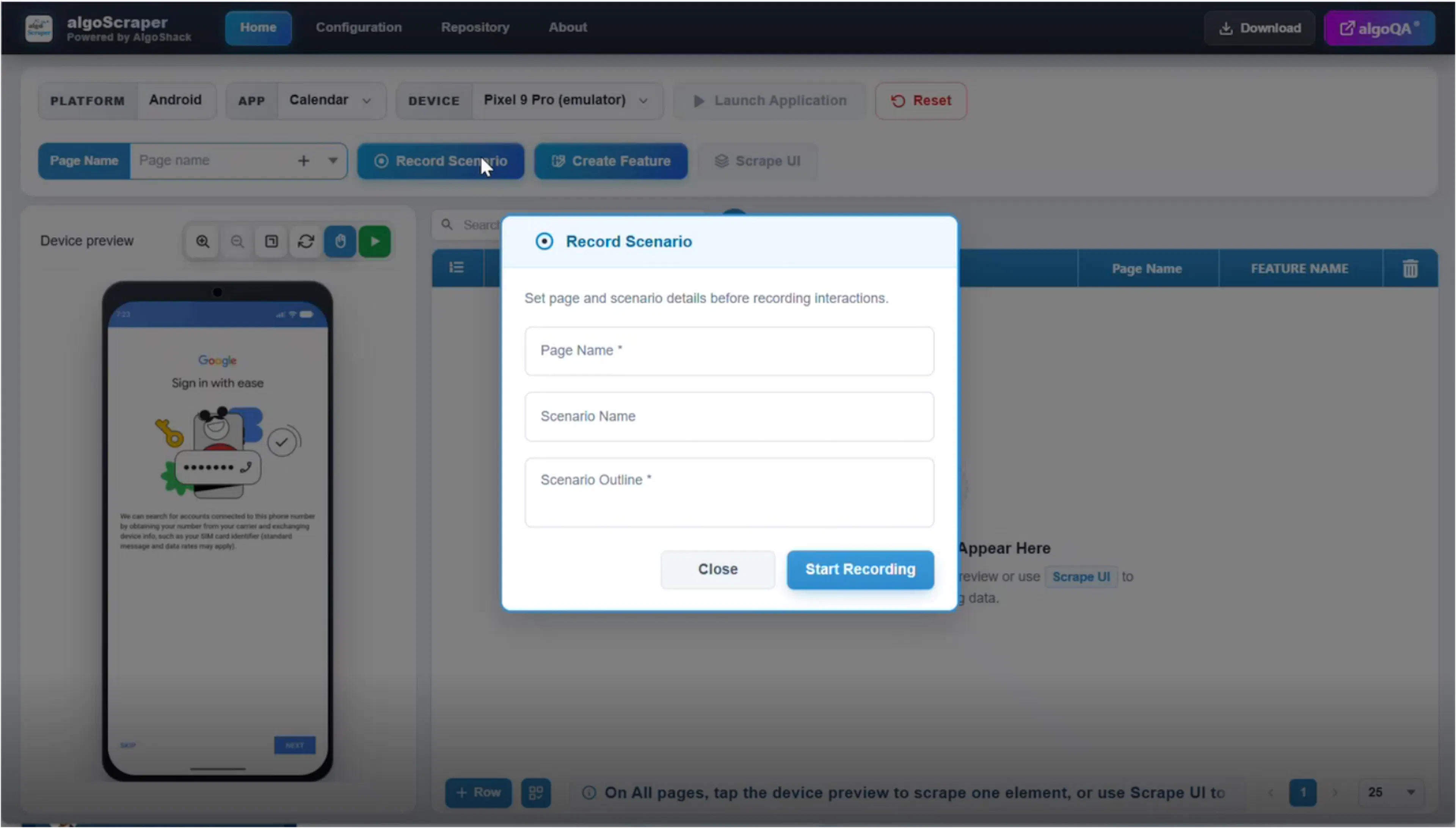
Interact with the application
Select or interact with application screens. Electron Scraper captures the screens and elements used during the scenario.
Stop recording
Stop recording when the scenario is complete. The captured pages remain available for review and management.
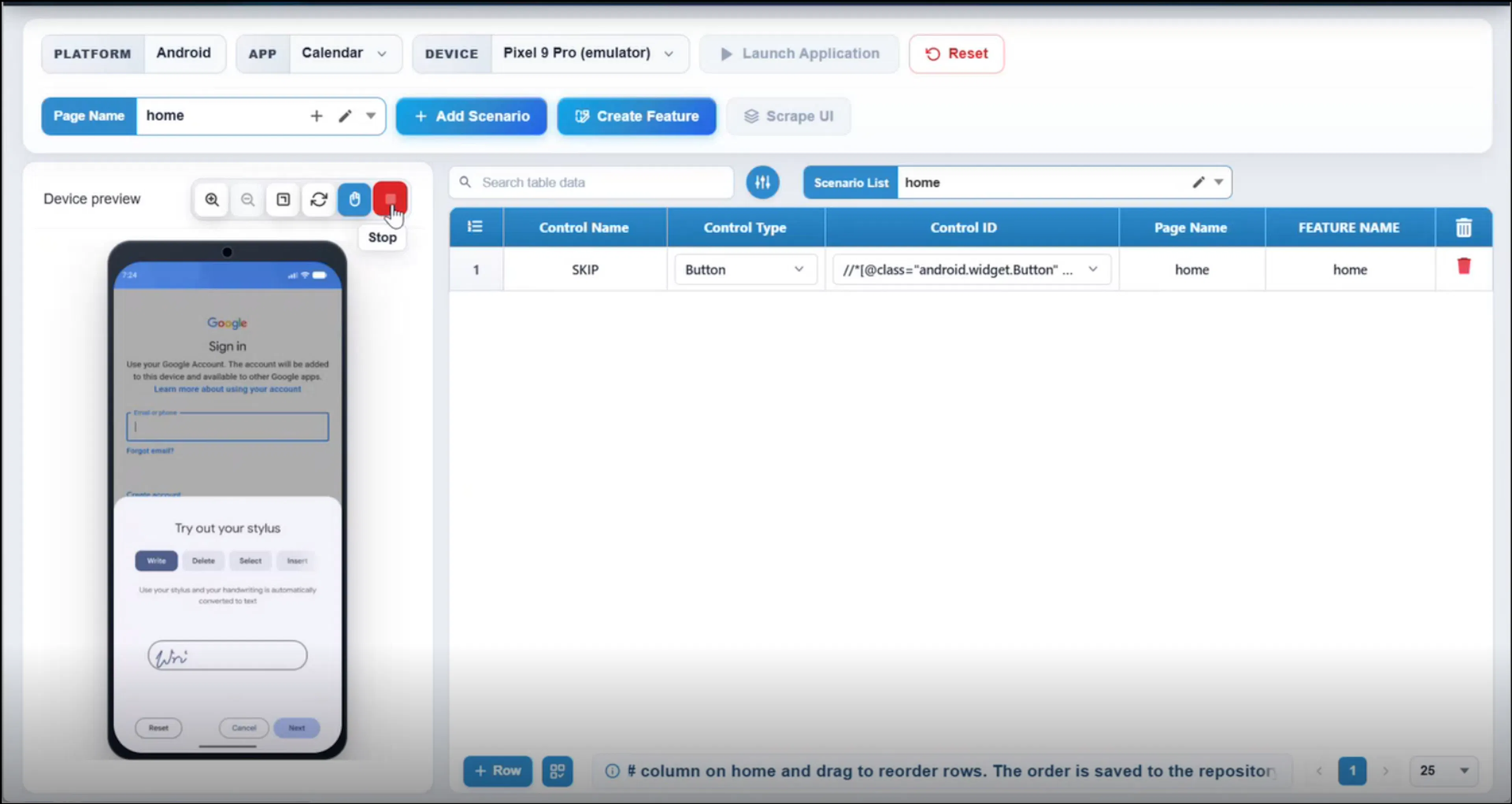
You cannot delete pages while recording. One scenario can contain multiple pages, and one project can contain multiple scenarios.
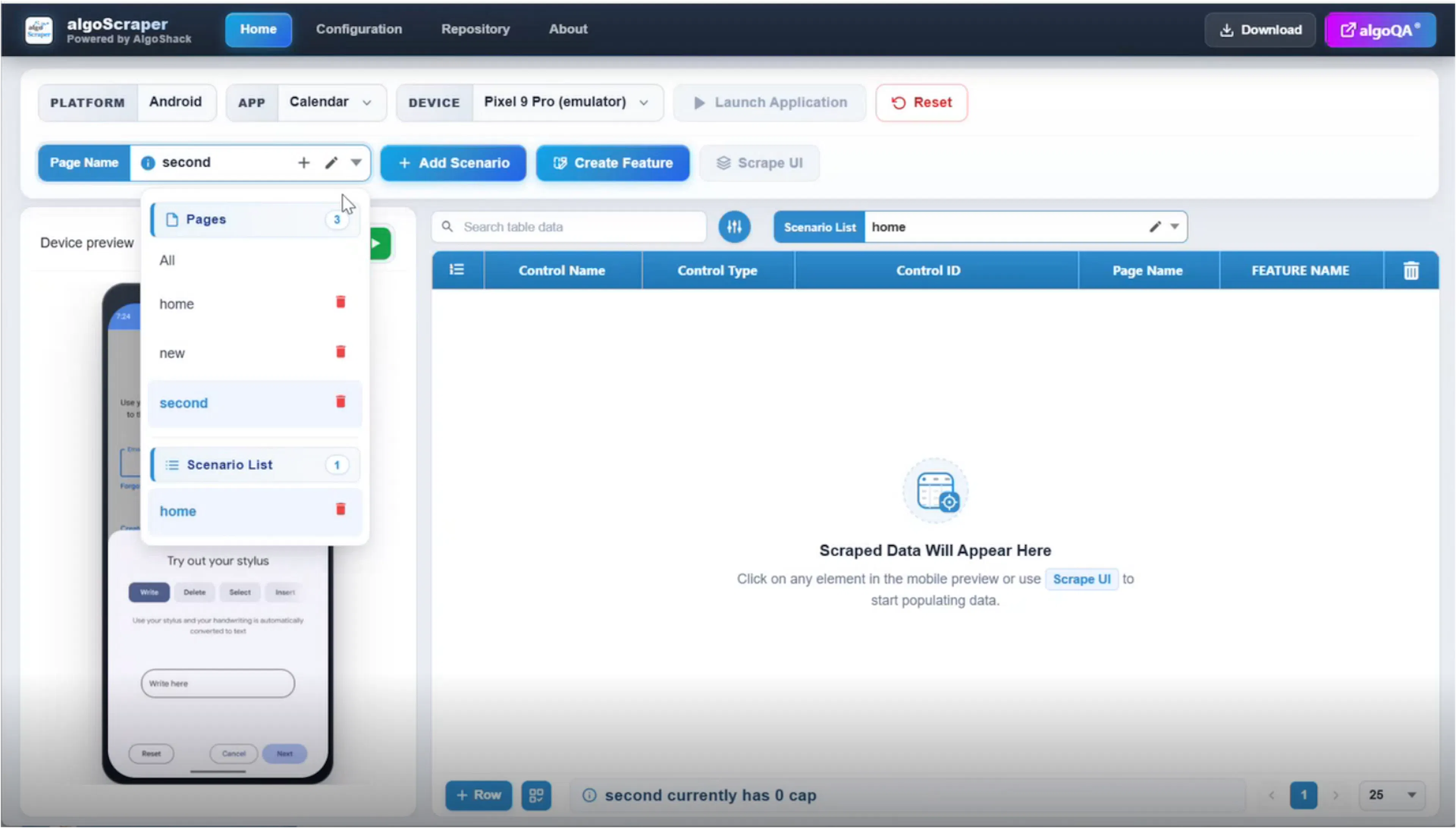
Selecting All permits viewing and accessing all pages, but it does not permit scraping. Select a specific page, such as Home, to scrape it. Edit page names in the page list and scenario names in the scenario list.
Scrape a screen in normal mode
Use normal scraping when you launch Electron Scraper manually from the Upload Scraped Data screen. You can scrape all elements with Scrape or capture individual elements with Tap element.
Launch the application
Enter a project name in Electron Scraper and launch the application.
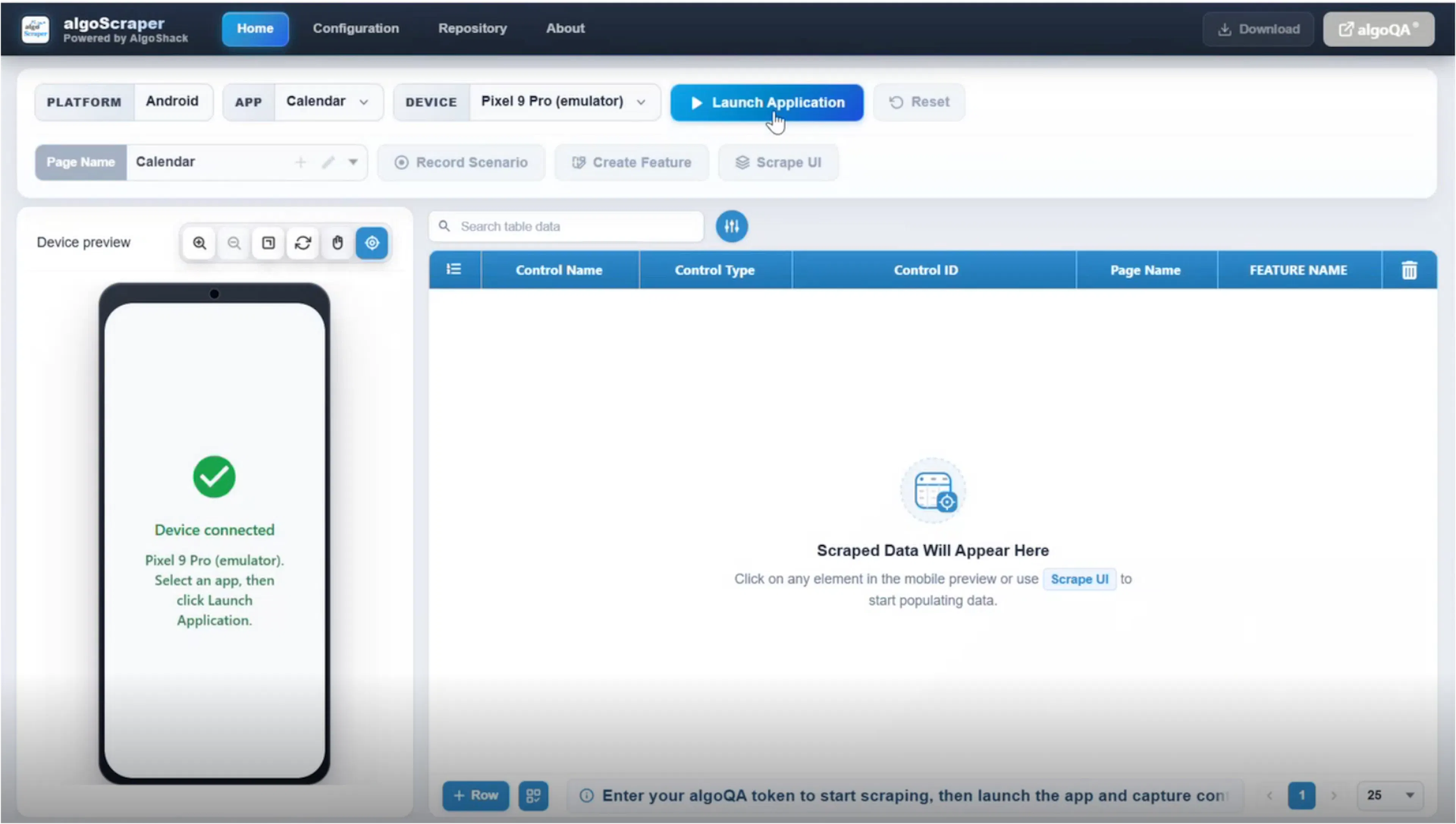
Select Scrape UI
Select Scrape. Electron Scraper captures the UI elements on the current screen.
Verify the captured screen
Confirm that the current device screen is the screen you intend to capture.
Review the elements
Review the captured element rows. Each row includes the element, its XPath, and its attributes.
Manage the page
Rename the screen or page, manage the captured elements, and select the refresh icon when you need to update the displayed data.
Download the data
Select Download to save the scraped data as a JSON file.
Electron Scraper supports a unique-elements-only behavior to prevent duplicate elements from appearing in the captured results.
Scrape individual elements
Tap element mode captures the selected element and is the default mode the first time you use normal scraping. Touch mode lets you interact with the application without scraping the selected element.
Choose a scraping mode
Select Tap element to capture an individual element. Select Touch to interact with the application without capturing the touched element.
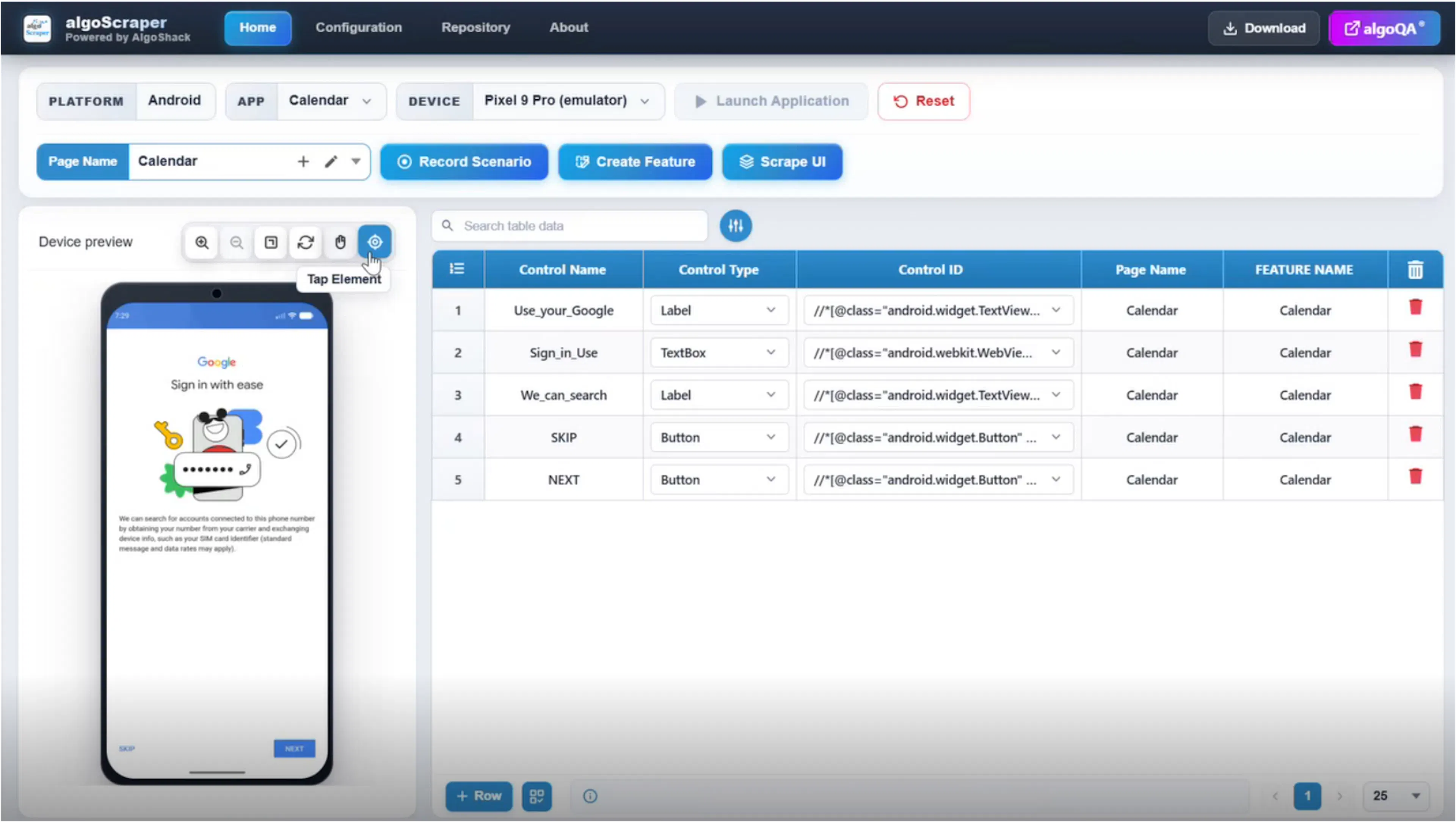
Select an element or interact with the screen
In Tap element mode, select the element you want to capture. In Touch mode, interact with the screen as you would on the device.
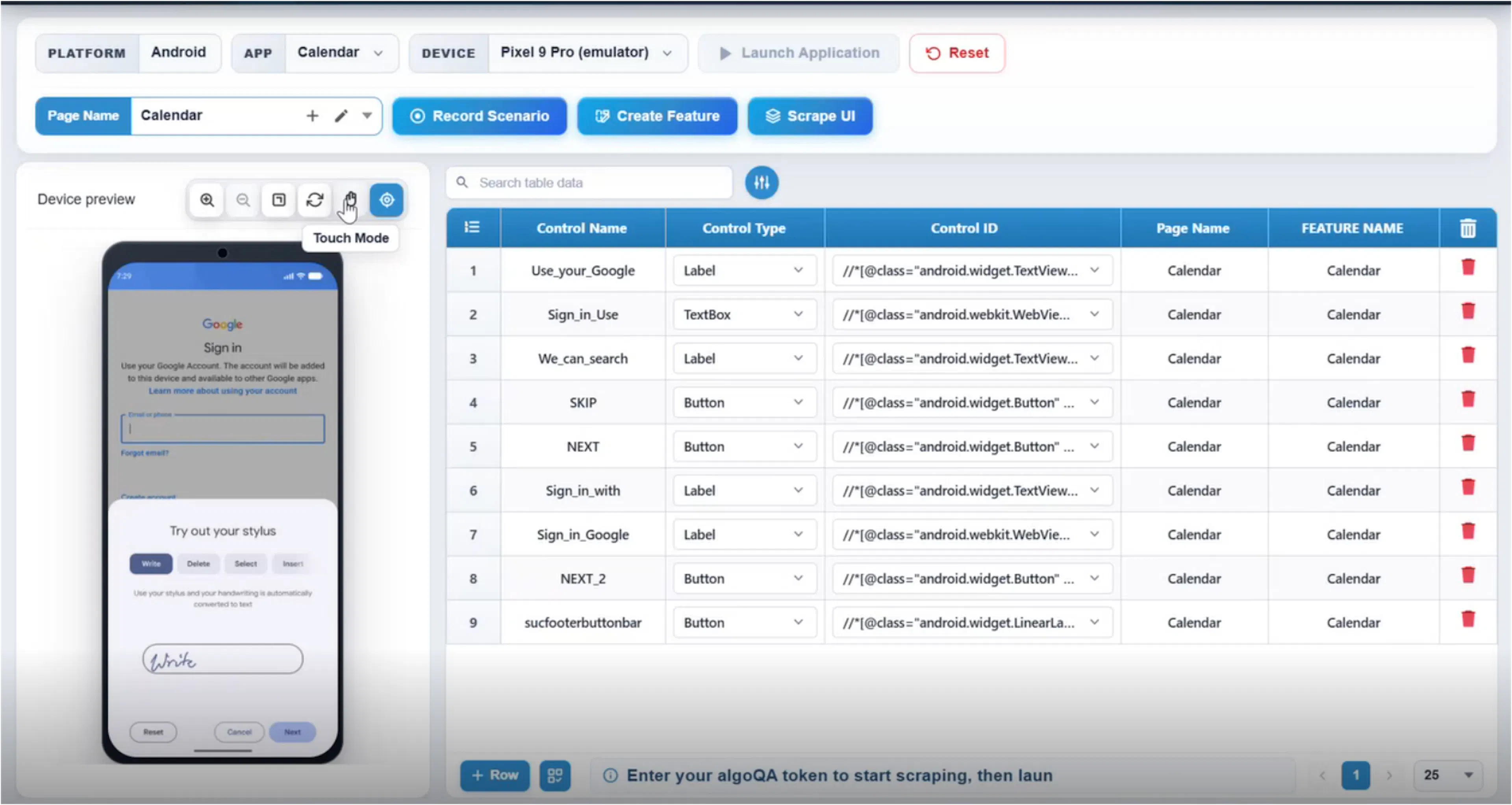
Switch modes when needed
Switch between Tap element and Touch as you move between capturing elements and navigating through the application.
Navigate to another screen
Use Touch mode to navigate to another screen, then select the appropriate page before capturing elements from that screen.
Use the zoom controls to zoom in, zoom out, or reset the view. The page list displays the pages available in the current project or scenario.
Manage pages and scenarios
Electron Scraper organizes captured application screens into pages and scenarios.
- A page represents one application screen.
- A scenario groups related pages.
- A project can contain multiple scenarios.
Select a specific page when you want to scrape that page. Select All to view or access all pages, but do not use All to scrape. Add or rename pages from the page list.
Add or rename scenarios from the scenario list. Editing a scenario from the scenario list changes only the scenario name and the displayed default page name. To rename a specific page, open the page list and rename that page there.
You cannot delete pages while recording. Stop recording before managing page deletion.
Manage captured elements
Each captured element includes its XPath and attribute details.
An element can have multiple locators. The elements table displays the selected locator, while the project stores all locators for that element.
You can manage the element list in these ways:
- Change an element's control type.
- Add a row for another element.
- Select individual rows for deletion.
- Select
Allto select every row. - Select
Cancelto clear the current selection. - Delete the selected rows.
Resize the elements panel by double-clicking its boundary and dragging it. You can also minimize or maximize the panel when you need more room for the application view or the element list.
Configure capabilities
The Configuration tab displays the current device name, device type, application package, application activity, and last project.
After Electron Scraper connects to algoQA, the Application Settings also show the App Package, App Activity, Device UDID, Device name, and platform version.
The default capability.json values are hard-coded and cannot be changed. You can add capabilities to the configuration.
Open the Configuration tab
Open the Configuration tab to review the current device and application settings.
Add a capability
Select Edit, select Add, and enter the additional capability.
Save the changes
Select Save before switching tabs or refreshing the scraper. Unsaved edits are lost when you switch tabs or refresh.
Use the repository
The repository lists Electron Scraper projects and provides operating-system-specific Android and iOS options where supported.
Repository data is stored in the local cache. It is not stored in the backend and is not shared automatically with other users.
Import a project
Import only JSON files downloaded from Electron Scraper. Use Import project to load the downloaded scraped data.
Open a workspace
Select Open workspace to display the scraped JSON that was sent to algoQA.
Refresh repository data
The repository refresh control is currently a placeholder. It does not fetch new data.
Delete projects
You cannot delete the project that is currently launched. This restriction also applies when you select multiple projects for deletion.
Download and export project data
Electron Scraper provides two different ways to save project data.
| Action | Contents | Can you import or view it in Electron Scraper? |
|---|---|---|
Download | Scraped data in JSON format | Yes. Import it with Import project. |
Export project | Full project information, including baseline, Appium URL, signatures, fingerprints, and multiple locators | No. The exported project is not importable or viewable in Electron Scraper. |
The element table displays the selected locator, but Export project includes all locators stored for the project.
Use Electron Scraper with iOS
Connect an iOS simulator or real device before opening Electron Scraper. Select iOS as the device type. Electron Scraper populates the device name and UDID automatically.
Select the iOS device type
Select iOS and verify that the device name and UDID appear automatically.
Enter the application details
Update the App Name, URL, and Bundle ID.
Run the application
Select Run and wait for the application to load on the simulator or real device.
Capture the application data
Follow the Android procedures for Record Scenario, normal scraping, and element-by-element scraping.
Download the data
Download the captured project as a JSON file.
Troubleshoot common issues
| Problem | Cause or resolution |
|---|---|
| Device is not detected | Enable USB debugging on the Android phone or start the Android emulator. For iOS, verify that the simulator or real device is connected. |
| The app or device is unsupported, or an APK error appears | Install Android Studio and its required SDK components. Electron Scraper attempts automatic SDK setup, but Android Studio may be required when that setup fails. |
| The project is not created in the scraper | Scrape at least one element. Electron Scraper creates and stores the project only after application data is scraped. |
| Electron Scraper cannot scrape | Connect to an algoQA project. If you are recording a scenario, enter a scenario name and select Start Record while using Record Scenario mode. |