
Setting Up and Executing Selenium Scripts in Terminal on Mac Machines with Maven
Install and configure Java and Maven on macOS, then execute algoQA-generated Selenium scripts from the Terminal using the mvn test command.
Prerequisites
Before executing the scripts on a Mac operating system to open your preferred application, ensure that you have performed the following. If Java and Maven are already installed on the system, you can skip the prerequisite steps related to their installation and configuration. Proceed with the steps for running the scripts.
-
Install the latest version of Java or a compatible version. If Java is not installed, download the Java installer from Oracle Website, follow the on-screen instructions to install it.
-
Set up the Java Path by opening the
.bash_profilein your preferred text editor and add the following line:export JAVA_HOME=/Library/Java/JavaVirtualMachines/jdk-21.jdk/Contents/Home/bin/JavaIn this example, nano is the text editor.
To run the
nano ~/.bash_profilecommand on a Mac:- a. Open Terminal: You can find Terminal in the "Utilities" folder within the "Applications" folder, or you can use Spotlight search (Cmd + Space, then type "Terminal").
- b. Run the Command: In the Terminal window, type
nano ~/.bash_profileand press Enter. This command opens the Bash profile file (~/.bash_profile) in the Nano text editor or your preferred text editor. If the file doesn't exist, Nano creates a new one. The '~' represents your home directory. - c. Ensure to paste the path and enter the following commands to save and exit.
- i. Press Ctrl + O to write the changes, then press Enter.
- ii. Press Ctrl + X to exit Nano. These commands in the nano text editor are used to save the changes and exit the editor.
-
Ensure that a compatible Maven version or the latest version is installed. If Maven is not installed, download it from Maven website. After downloading, extract it using the following command:
$ tar -xvf apache-maven-3.9.6-bin.tar.gzThe binaries will be extracted in the "apache-maven-3.9.6" directory. You can save it to the appropriate folder.
-
Set up the Maven environment variables M2_HOME and PATH by adding the following lines to the end of the .bash_profile file.
Add the Maven bin directory to the Path variable. Open .bash_profile in your preferred text editor (Refer to the step 2 to run the
nano ~/.bash_profilecommand) and add the following lines:export M2_HOME=/Library/apache-maven-3.9.6 export PATH="${M2_HOME}/bin:${PATH}"Make sure to save and exit the editor.
-
After setting the path for both Java and Maven, apply the changes in the .bash_profile file by running the following command:
source ~/.bash_profile -
After reloading the shell configuration, exit the current terminal and reopen a new terminal. Check the Java or Maven versions to verify the installations by running the appropriate commands:
To verify Java version, run the following command:
Java - versionTo verify Maven version, run the following command:
mvn -v
Executing Selenium Scripts in Terminal on Mac operating system
To run scripts on Mac computer, use the Terminal and perform the following:
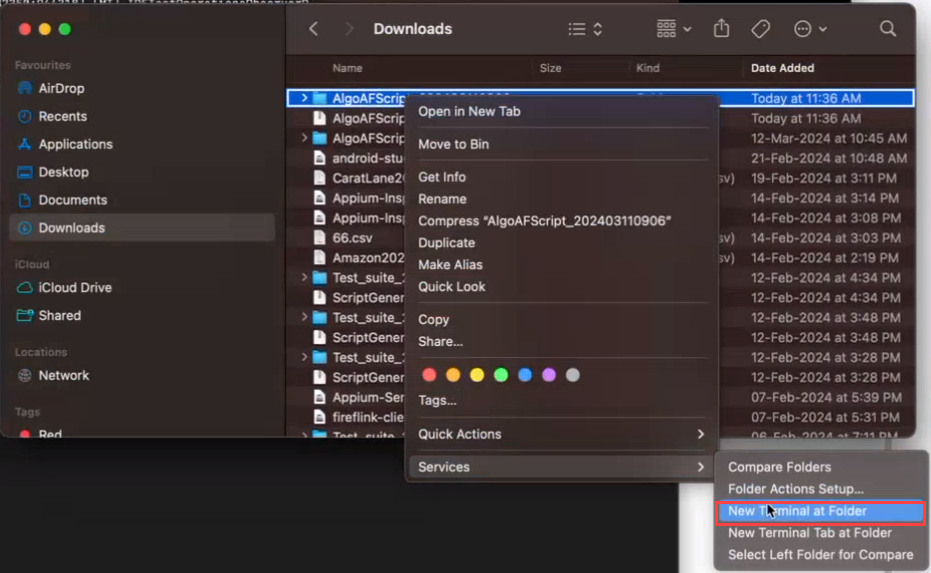
Navigate to the folder where the Script are downloaded, and open the Terminal from this location.
Run the following command to trigger the script to launch the preferred application.
mvn test

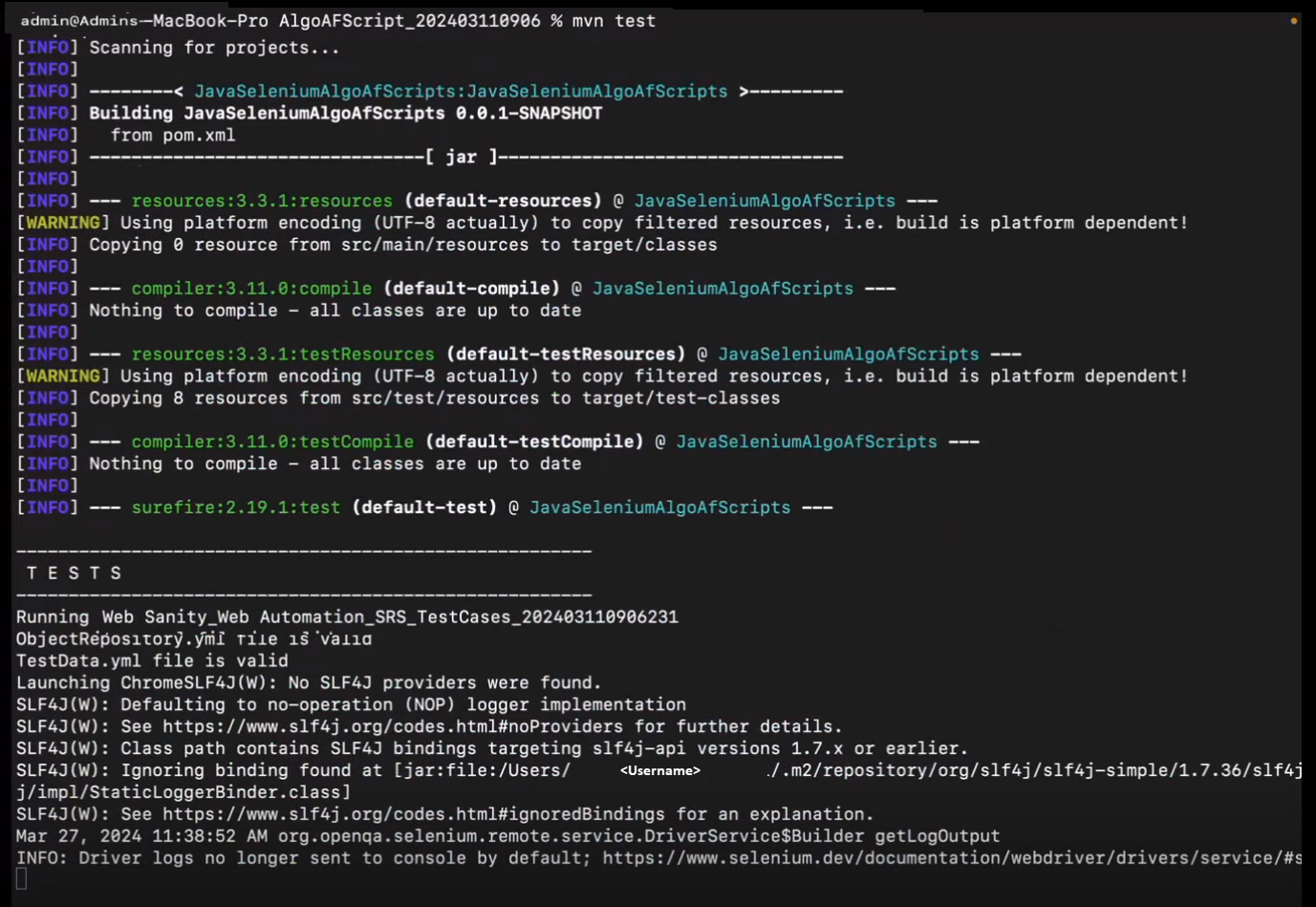
You will be able to view the preferred application in the chosen browser.