
Executing Web Automation Scripts for Java Selenium Framework
Compile, execute, and review reports for web automation scripts generated with the Java Selenium framework in algoQA, from one workflow.
View and compile generated scripts
After generating scripts in algoQA, review and compile them to check for syntax errors and resolve build failures before execution.
- After the scripts are generated, navigate to Test Scripts to view them.
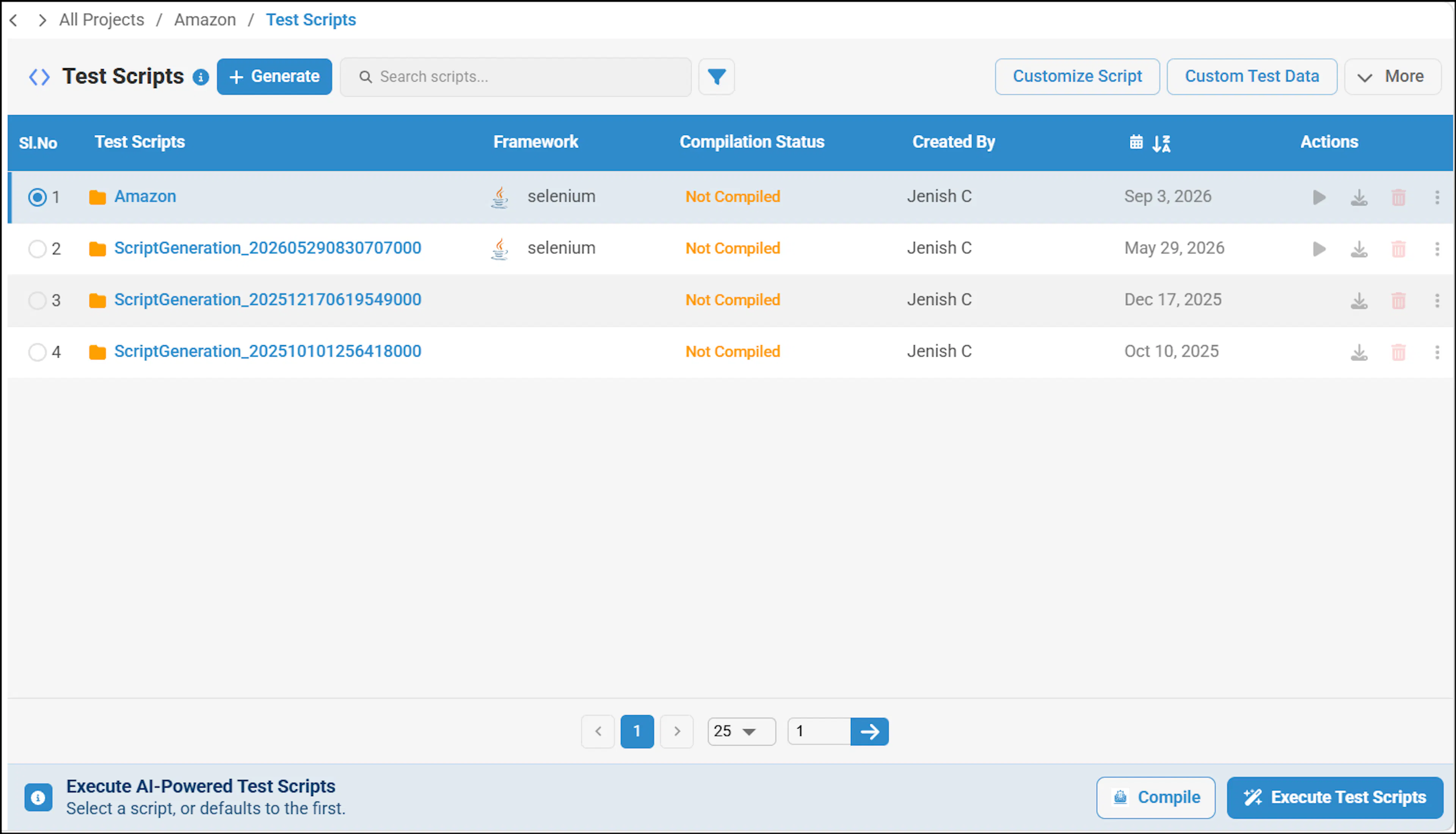
- The Test Scripts page displays each script's framework, compilation status, creator, and creation date and time. You can also execute, download, or delete scripts from this page. To execute scripts in algoQA, refer to Online Script Execution.
- After generating the script, select Compile on the Script Generated Successfully screen.
- The Script Editor screen opens, and the script begins compiling. The system checks the script for syntax errors. If it finds errors, Compiled Log Details displays a Build Failure status. If no errors are found, the build passes.
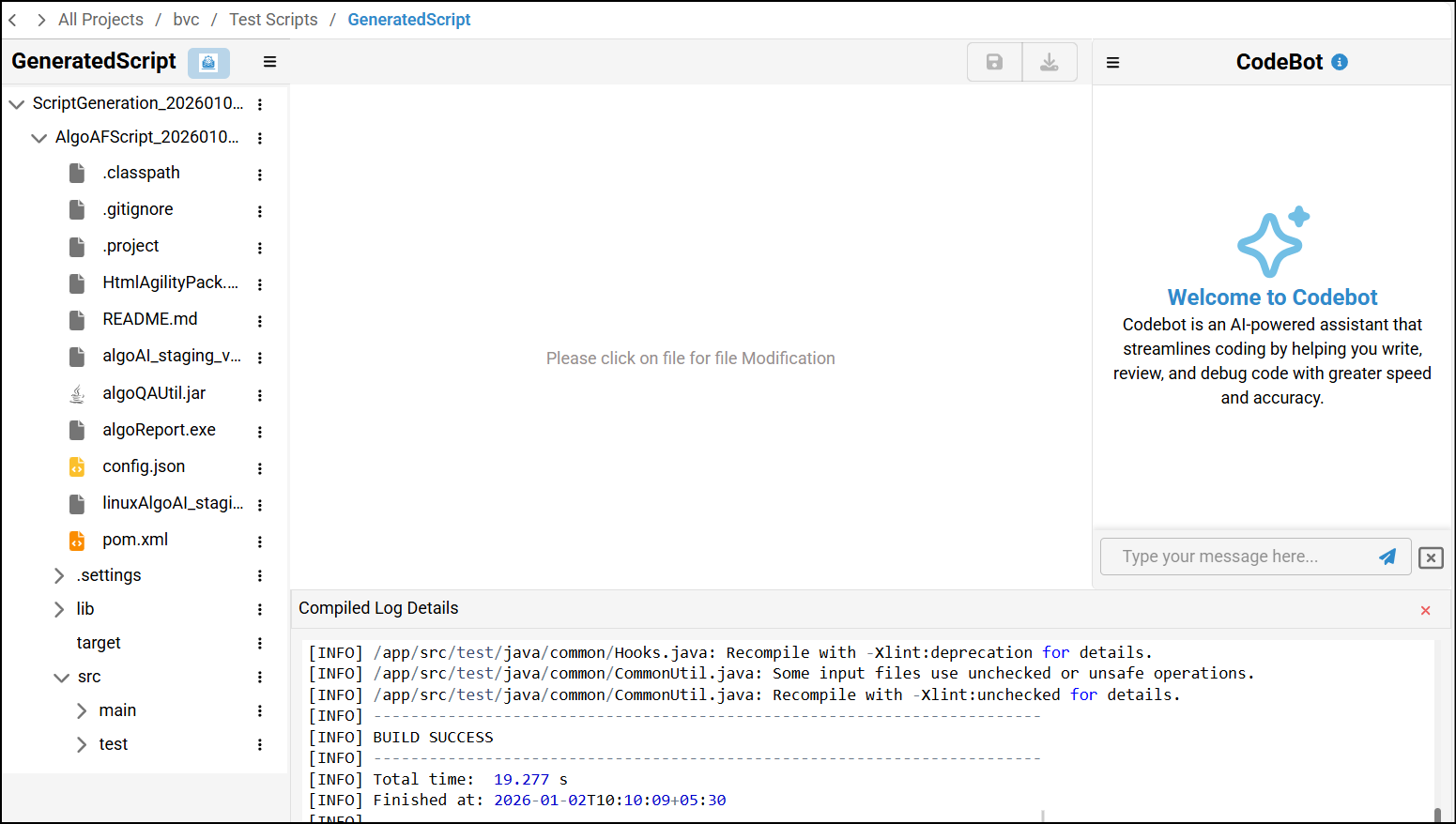
- If the build fails, check Compiled Log Details to identify the step and file path where the error occurred. Navigate to that path, update the parameters causing the error, and select Compile to compile the script again.

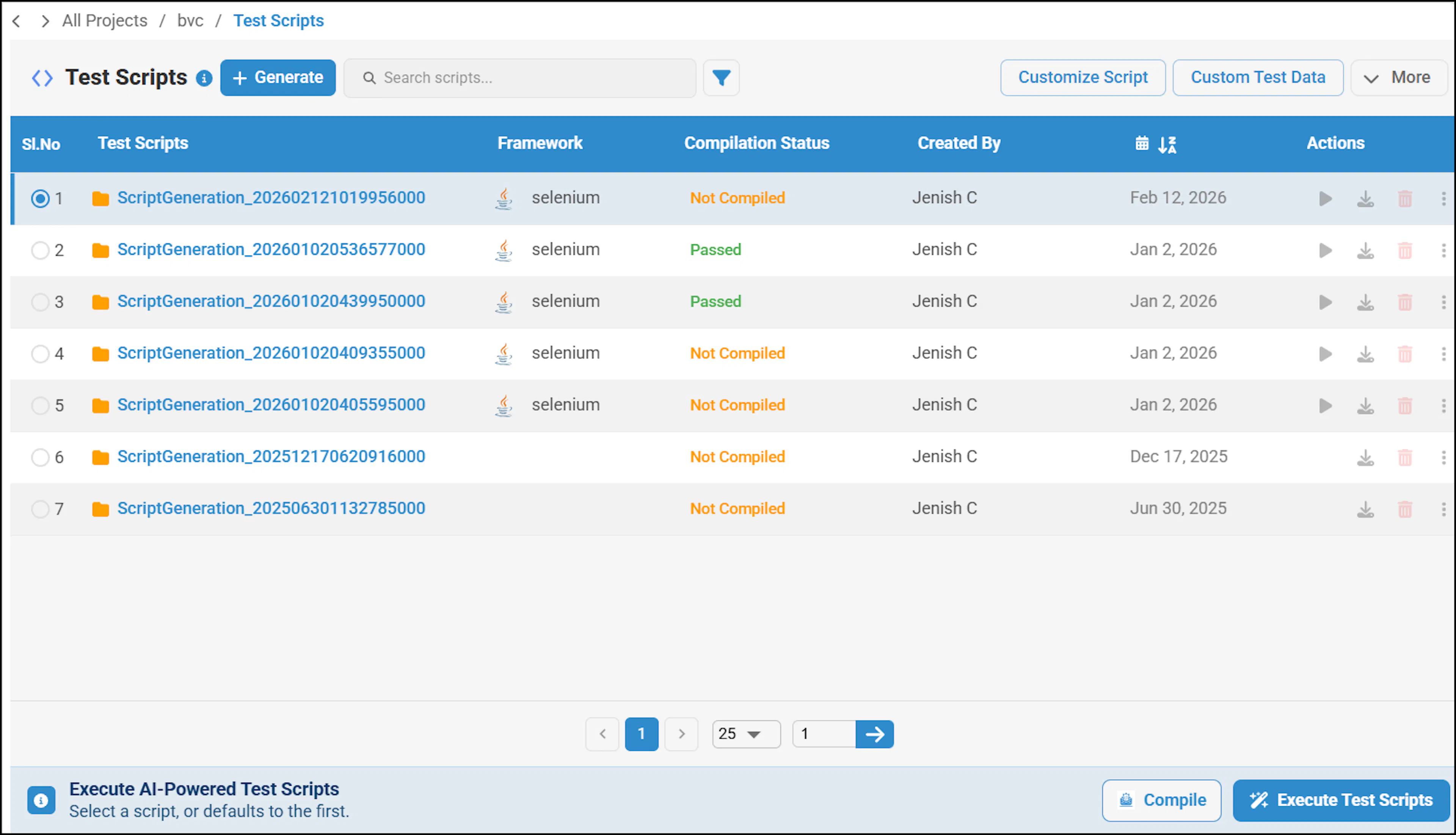
- You can also view the compilation status on the Test Scripts screen.
Execute scripts on Windows
Download the compiled scripts and execute them locally with Maven on a Windows machine.
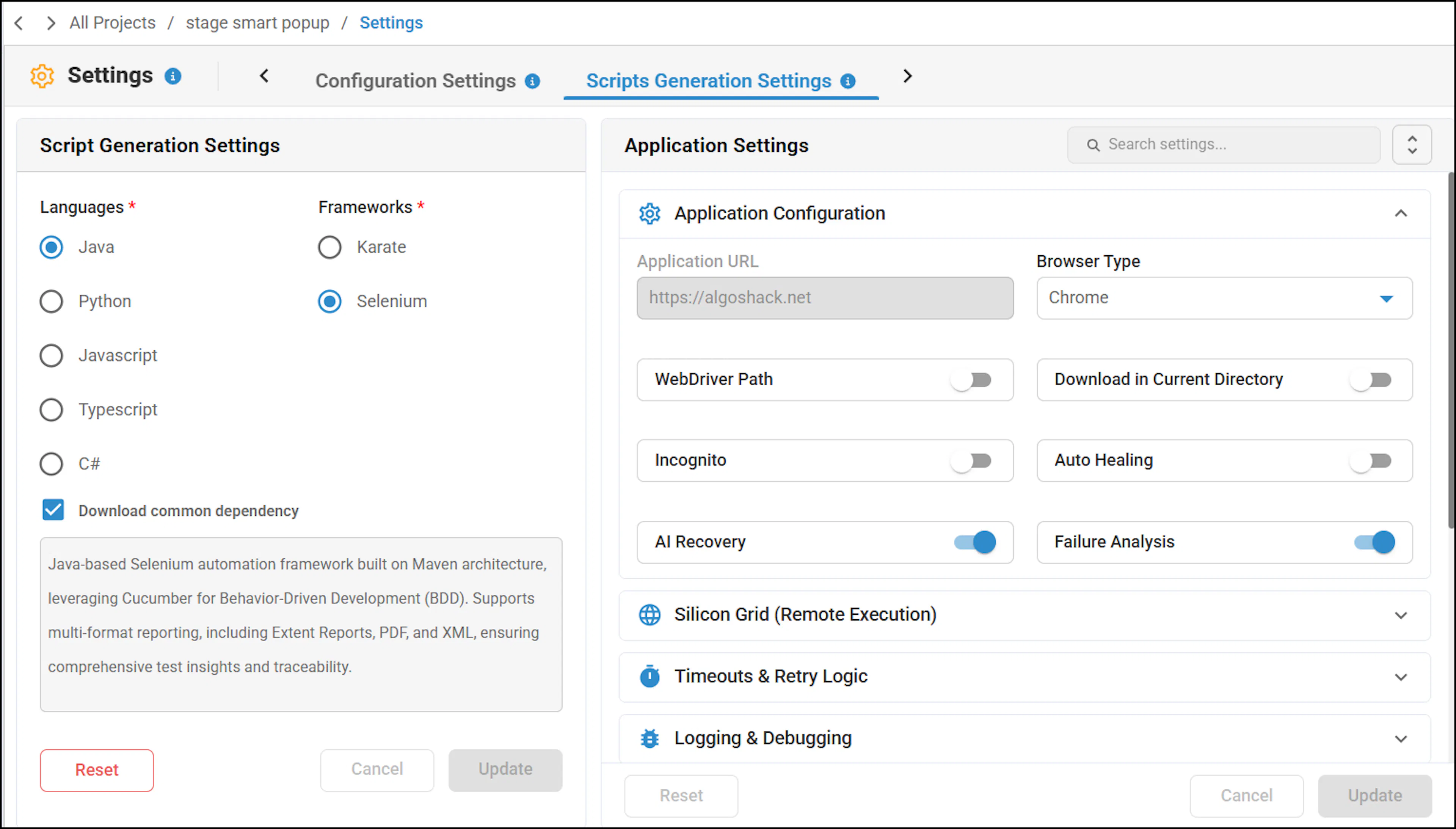
Smart execution is available for local Java Selenium runs. When a step fails, AI Recovery uses an AI model to recover the failed step, including failures caused by unexpected pop-ups, and then continues execution. The execution result includes a suggestion explaining how the failed step was handled.\
Enable the AI Recovery toggle in Application Settings to use this capability. Enable Failure Analysis to display the AI Recovery percentage. Failure Analysis identifies the root cause of a failed step and provides recovery suggestions. It does not perform the recovery.
The dashboard displays the AI Recovery percentage, the root cause of the step failure, the suggested recovery actions, and the recovery status, which can be Successful or Failed.
- Navigate to the generated script folder and select the download icon to download the script.
- Download and extract the script to a local folder, then navigate to that folder.
The feature files are in the scripts folder selected before you generated the scripts.
- In the folder navigation bar, type
cmdand press Enter to open Command Prompt. - Run the following command to trigger the script:
mvn test - Maven executes the script.

- Wait for the Build Success message, which indicates that the scripts executed successfully.

Framework capabilities
The Java Selenium framework in algoQA includes the following built-in capabilities, which do not require custom actions:
For web automation with the Java Selenium framework, you do not need to create custom actions for the following capabilities. The framework handles them automatically during execution.
- Auto Scroll: Automatically scrolls an element into view before performing an action, so you do not need to add explicit scroll steps.
- Auto Wait: Automatically waits until an element is visible, enabled, stable, and ready for interaction, so you do not need to add explicit wait statements.
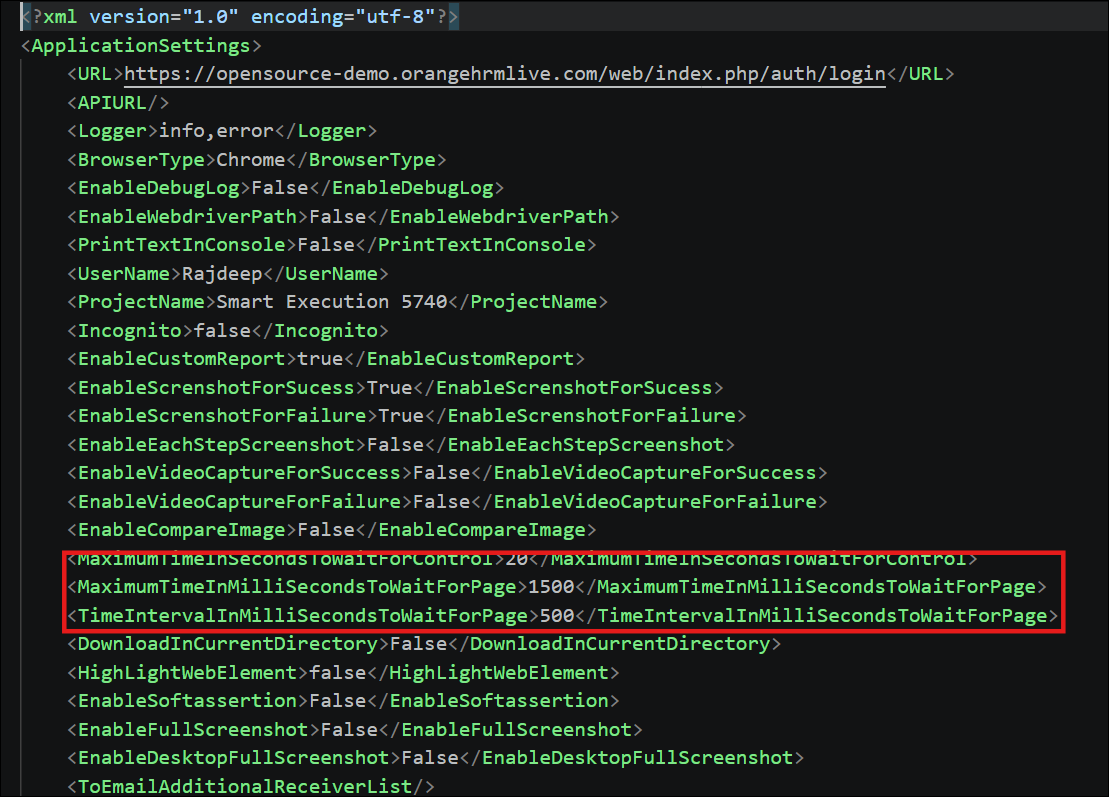
- Wait Optimization: Uses the configured wait timeout efficiently by continuously checking whether an element is ready and proceeding as soon as it becomes available instead of waiting for the full timeout. You can configure the wait timeout in Application Settings.
View reports
After execution, review the generated reports to analyze the test results.
- Open the Output folder to view the corresponding report.

- Reports are generated in Spark and PDF formats.

- The sample PDF report includes the following details:
- Test results: The number of test cases that passed and failed.
- Execution time: The total time taken to execute features, scenarios, and steps.
- Step details: Select the feature name link to view information for each test step.
- Screenshots: View screenshots for each verification step.
