
Creating an Offline Model for a Desktop Application
Build an offline model of a desktop application in algoQA — create a project, add and configure nodes, define unique feature names, and set up UI element attributes for test design.
Create an offline model of your desktop application in algoQA to prepare for test design and automation. This guide walks you through creating a project, adding nodes, configuring features, and setting up UI element attributes on the canvas.
Creating an Offline Model
Perform the following:
Log in to algoQA
Log in to algoshack.net > algoQA.
Create a new project
In the Projects screen, click the + icon to create a project. In the Create Project window, enter the project name, select the appropriate Automation type from the Application Type drop-down list, and click Create to view the canvas screen.
Add a node to the canvas
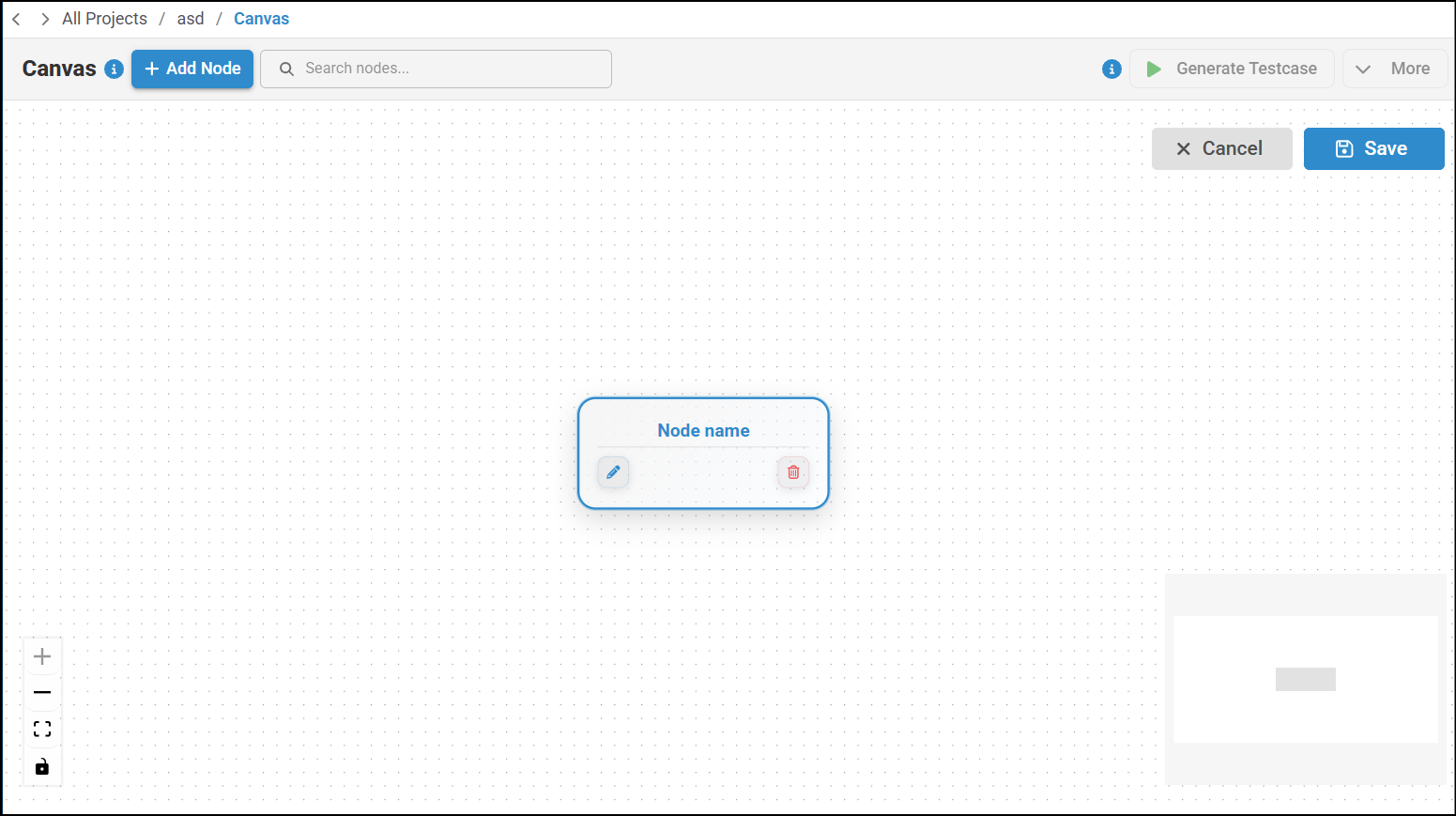
In the Canvas, click Add Node to add a node.
In the Node Name text box, enter the same name as the page name.
Similarly, add the appropriate node names for the remaining nodes and click Save. Ensure that you provide a unique node name. If you don't provide a unique name, an error message appears saying the node name already exists.
Click the node to configure it.
Note that when you are configuring the node, make sure to enter a unique feature name to avoid duplicates.
This is necessary when configuring a nested feature or entering a feature name for different nodes or the same node within a scenario. Otherwise, you will see an error message.
Upon successful node configuration, you can see all the UI elements within the feature.
By default, one feature will be configured.
In the required feature, update the five attributes of the UI element, such as control name, control value, navigation, business rules, test data or control value, and locator.
Similarly, repeat the step to update the attributes for all other UI elements.
Click the green tick mark icon to save next to each control.
Click the green tick mark icon next to each control to save it.