
Recording Scenarios Using the Offline Recorder for a Desktop Application
The Offline Recorder is used to record and save a workflow, scenario, or use case. The scenario will be saved in the same sequence it was recorded.
Recording for the Record Scenario feature is done in the offline model. It doesn’t interact with the live application.
User Actions: Adding two numbers
- Open the Calculator application
- Select two numbers and click the + button to add them
- Verify the addition of the two numbers
Recording a Scenario
To record a scenario, perform the following:
-
Click the node for which you have to record a scenario, then click Record Scenario to view the Record Scenarios pop-up window.
-
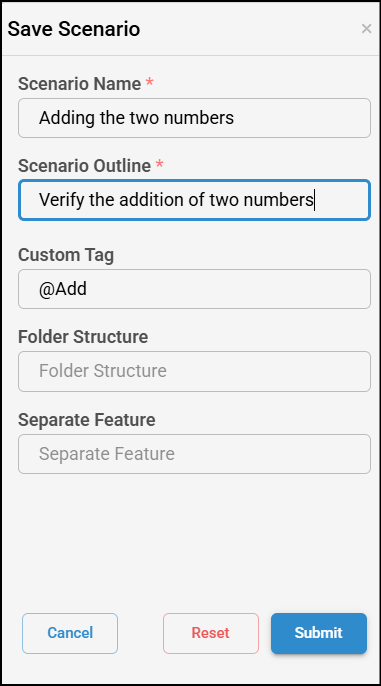
Enter the scenario name and outline, and click Submit to create a sequence.
-
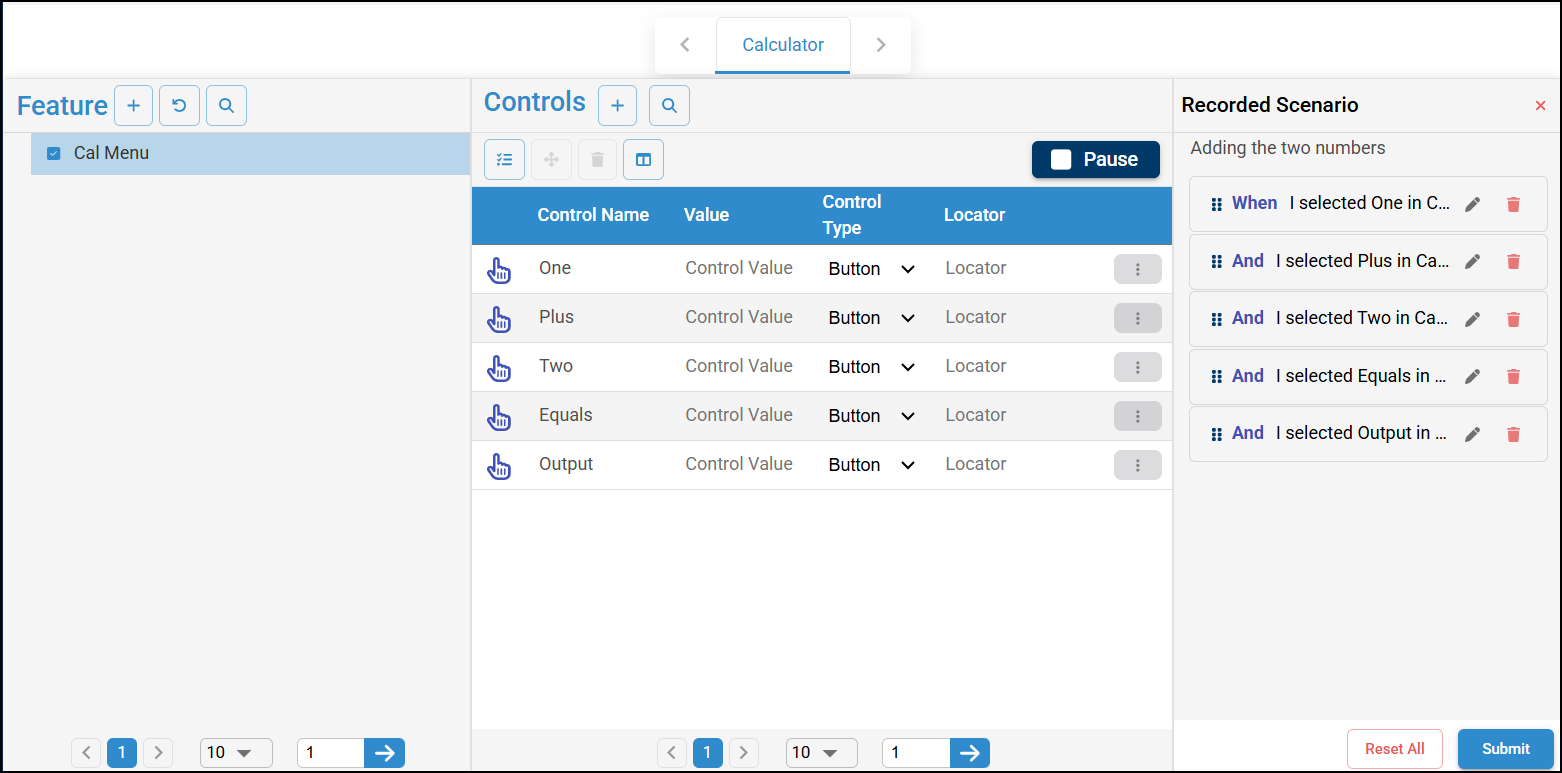
Select the required feature (Cal Menu) under Node (Calculator) to view all the added UI element details.
-
Similarly, select all the required features and the associated UI elements to create a sequence. Click Submit.
-
Once you click Submit, you will see a 'Scenario created successfully' message.
Note that you can select multiple UI elements repeatedly in a single workflow.
-
When entering a value in the Custom Value and Message fields, adhere to the following:
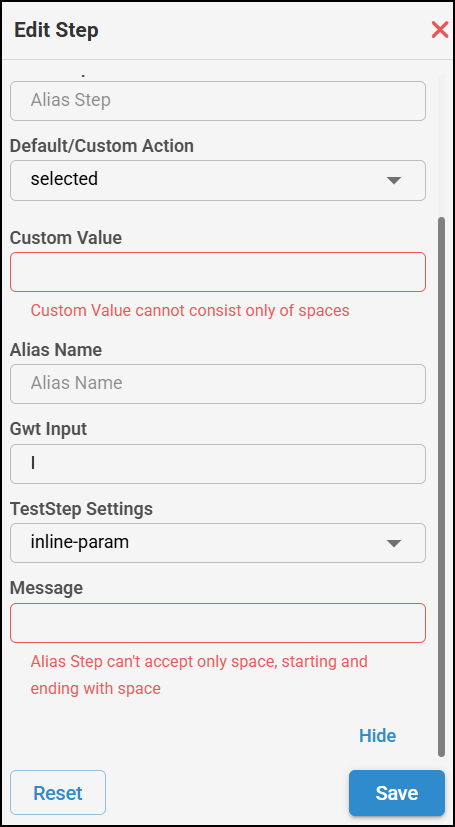
- Custom Value and Message fields cannot be just blank spaces. If you wish to include spaces, you can use the keyword _empty_. For more information, see Keywords used in algoQA. If you enter only spaces in any of the fields, an error message is displayed saying Custom Value cannot consist of only spaces.
- You can include spaces between words.
- Custom Value and Message fields cannot be just blank spaces. If you wish to include spaces, you can use the keyword _empty_. For more information, see Keywords used in algoQA. If you enter only spaces in any of the fields, an error message is displayed saying Custom Value cannot consist of only spaces.