
Installation steps for algoScraper on your Desktop
Install the Desktop Scraper on your desktop to enable UI element scraping for desktop application testing.
Applies to Desktop Applications
This scraper can be used only for the WinAppDriver framework.
Installing algoScraper
Perform the following:
Download the latest algoScraper
Download the latest version of algoScraper from algoQA Downloads.
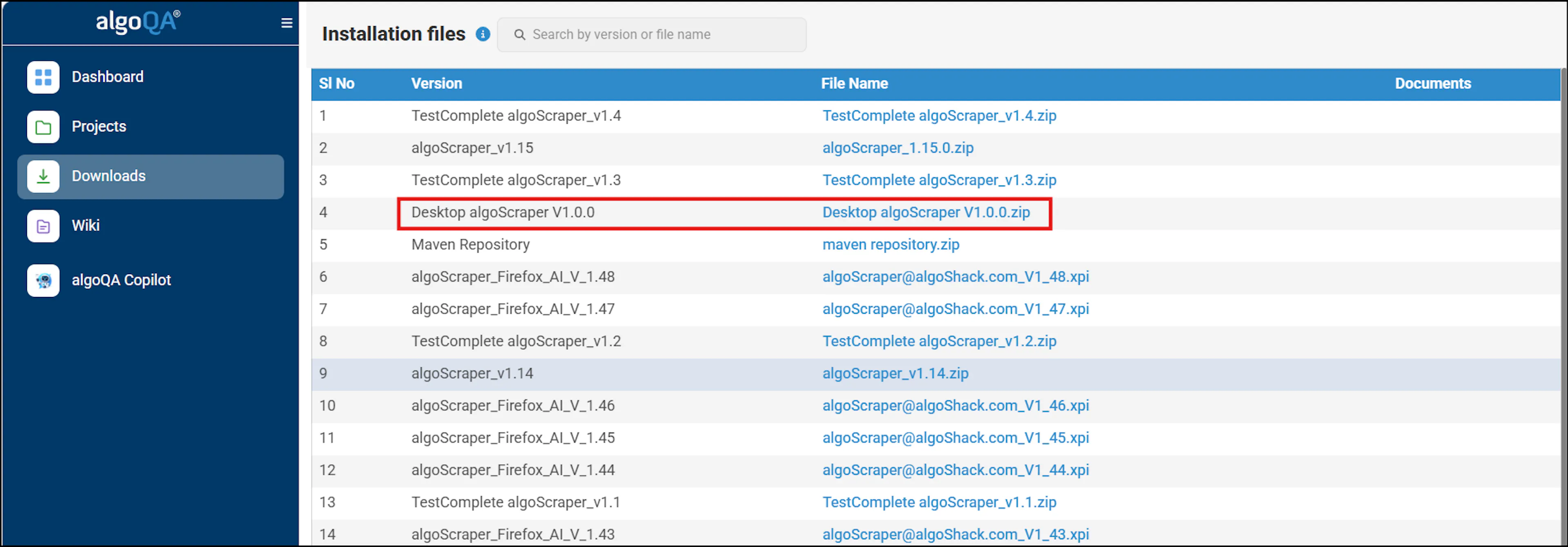
Extract the downloaded file, then open the Scraper folder.

Double-click the Desktop Scraper application.

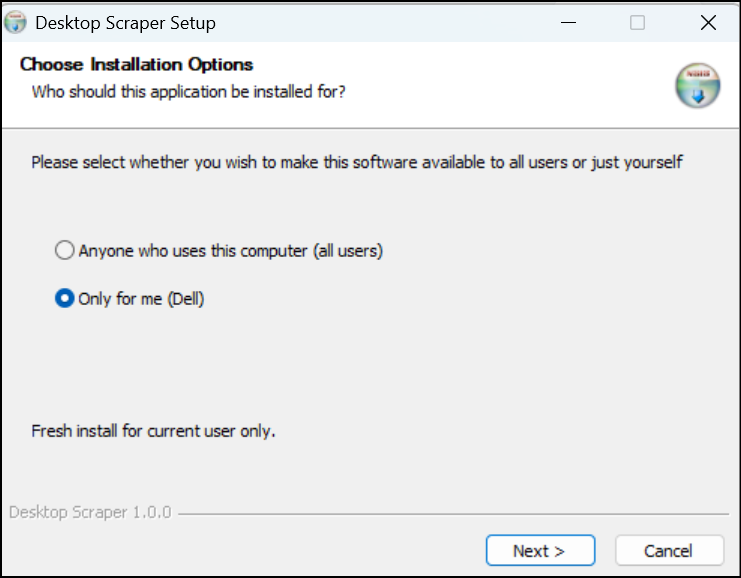
A pop-up appears prompting you to choose the installation option.
Select either Anyone who uses this computer or Only for me, then click Next.
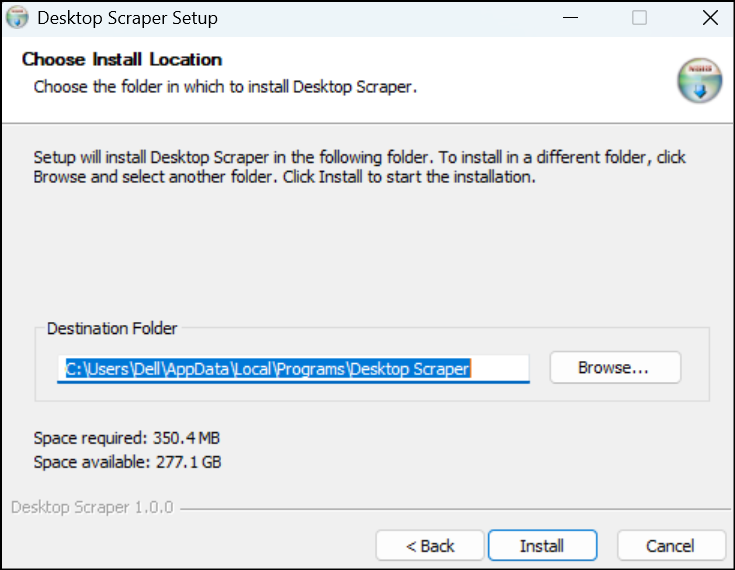
A pop-up appears prompting you to choose the installation location.
Browse to the desired location, then click Install.
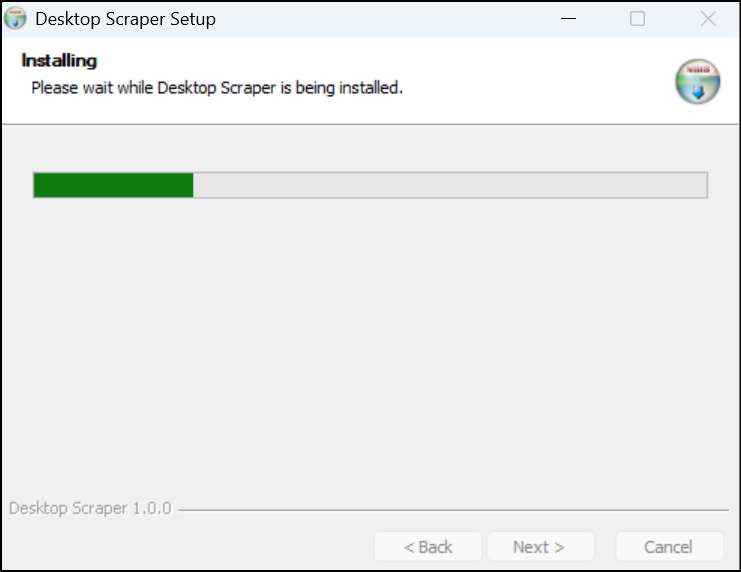
The installation window appears and displays the installation progress.
A confirmation pop-up appears indicating that the Desktop Scraper has been installed successfully.
Click Finish to complete the setup.
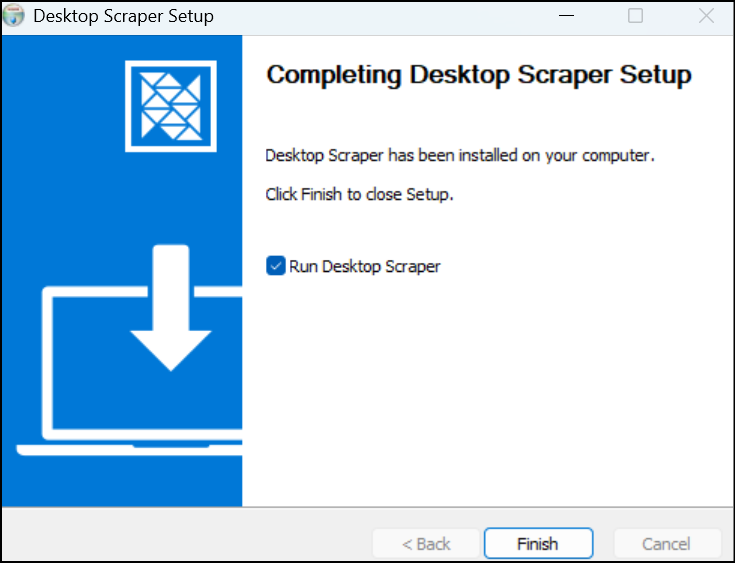
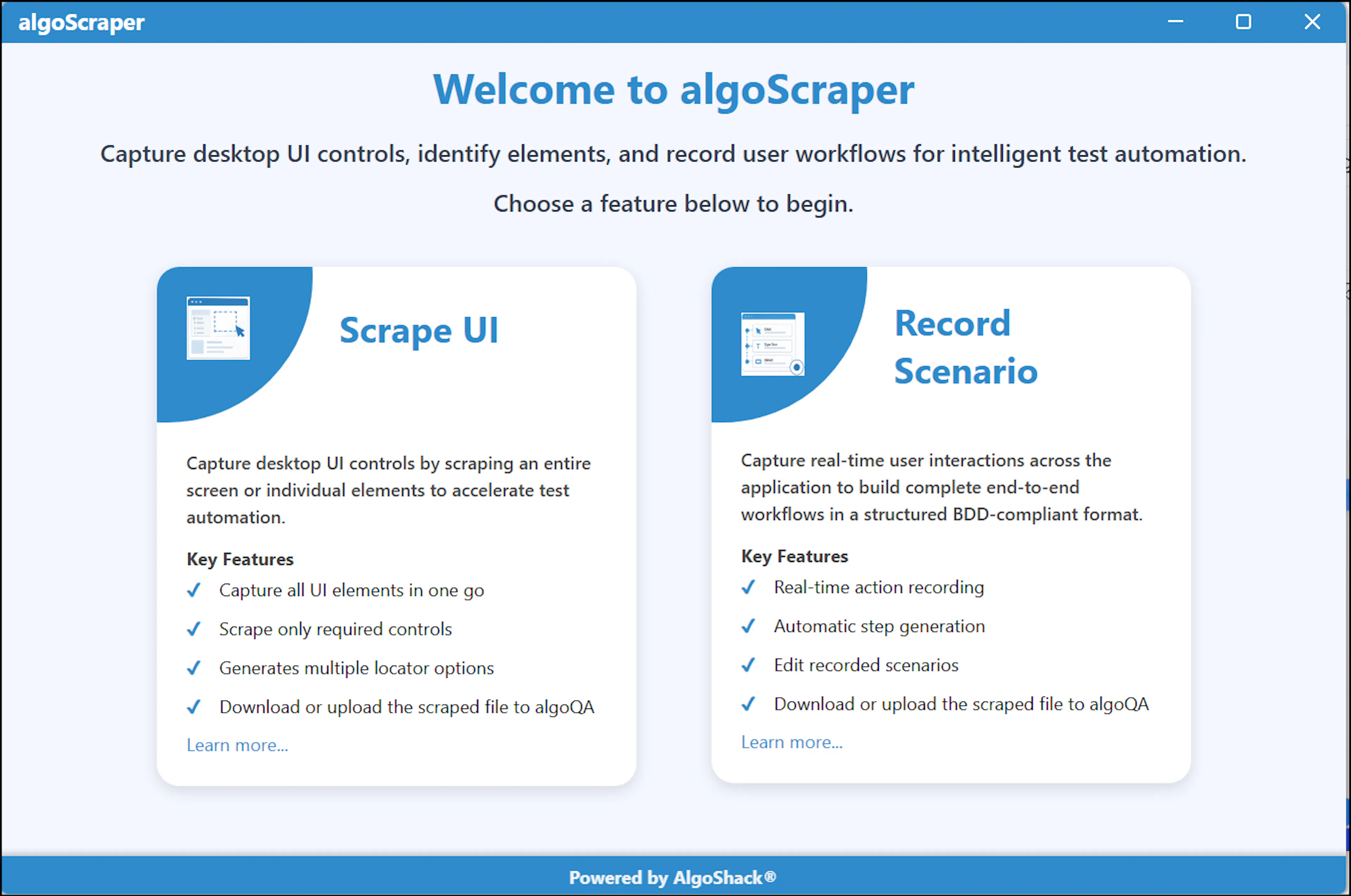
After clicking Finish, the Desktop Scraper launches automatically, and you can start scraping.
If you encounter the error message: "Windows cannot access the specified path or file. You may not have appropriate permissions to access the item."
After installing algoScraper, follow the steps below:
- Run as Administrator
- Right-click the algoScraper shortcut.
- Select Run as Administrator.
- Verify File Permissions
- Navigate to the installation folder: C:\Program Files (x86)\AlgoShack\algoScraper\
- Right-click WebElementLocator.exe → Properties → Security tab.
- Ensure your user account has Read & Execute permissions.
- Check Windows Defender / Antivirus
- Open Windows Security → Virus & threat protection → Protection history.
- If the file is blocked, choose Allow.
- Unblock the File (if applicable)
- Right-click WebElementLocator.exe → Properties.
- If you see an Unblock checkbox, select it and click Apply.
- Reinstall as Administrator (if issue persists)
- Uninstall AlgoScraper.
- Reinstall by running the installer as Administrator.