Uploading TestComplete Script Data to Dashboard Database via Command Prompt
Upload TestComplete script execution data to the algoQA dashboard database via the command prompt using the algoReport utility.
Prerequisite
Make sure you have executed the script in TestComplete and generated a customized MS Word report using algoQA via the command prompt. If not, refer to the article Execution of algoQA generated Test Scripts in TestComplete and Viewing the Report.
Uploading TestComplete Script Data to the Dashboard Database
Perform the following:
Navigate to the algoReport folder
After downloading the scripts to your computer, navigate to the algoReport folder and open the command prompt by typing 'cmd' in the folder address bar.

Run the following command in the command prompt:
algoReport.exe "wordReport" "C:\Users\Hp\Downloads\ScriptGeneration_202405291016\AlgoAFScript_202405291016\Examcard_2024-03-12_23_31_59_240809_report.txt" "dashboard"
Here, "C:\Users\Hp\Downloads\ScriptGeneration_202405291016\AlgoAFScript_202405291016\Examcard_2024-03-12_23_31_59_240809_report.txt" is the file path of the generated report. Make sure to replace it with your actual file path.
Examcard_2024-03-12_23_31_59_240809_report.txt is the file name with .txt extension.
Press Enter to upload the data to the dashboard database. A 'Data inserted to database successfully' message is displayed.

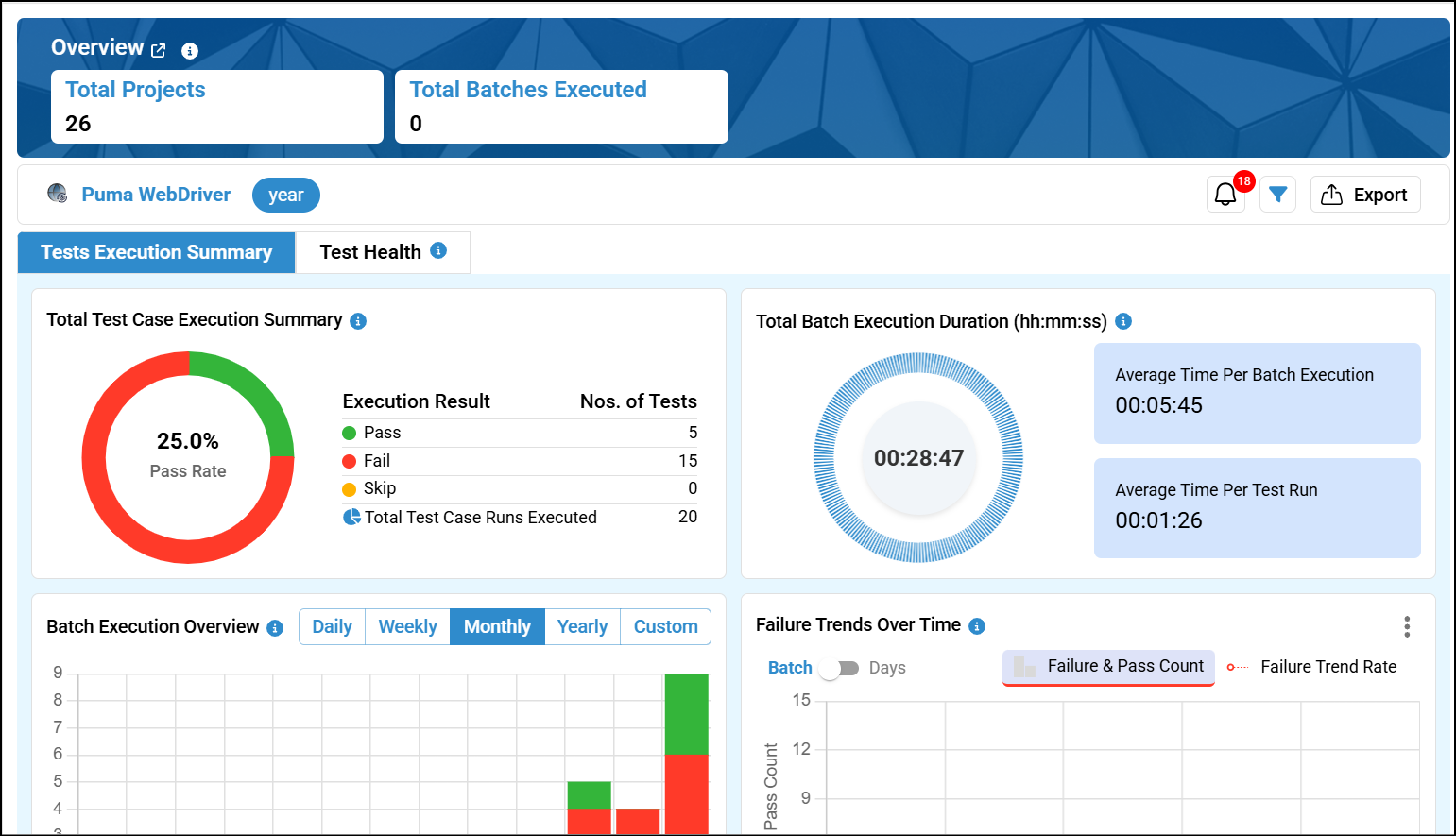
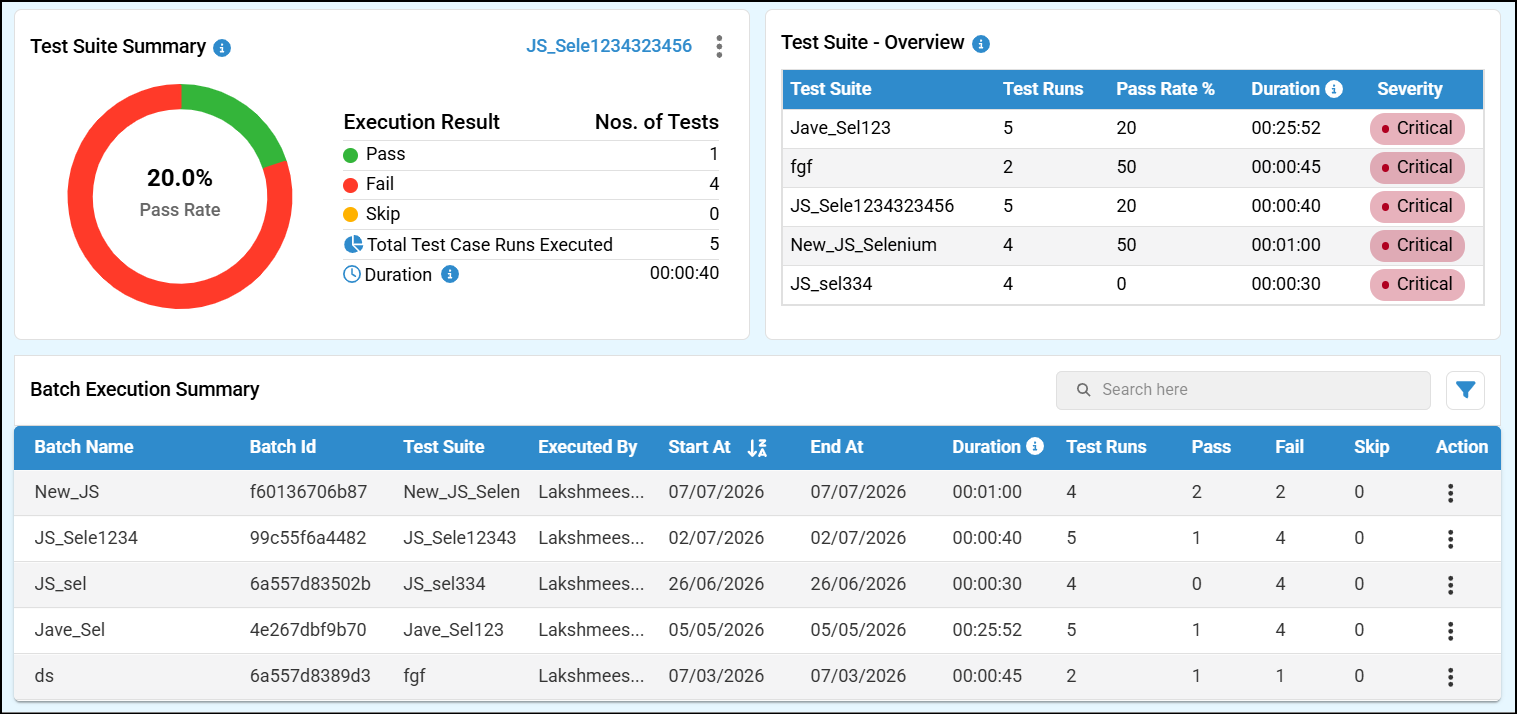
To verify whether the data has been uploaded to the database, log in to algoQA and check the dashboard by selecting the project from filter.