
LambdaTest Integration to Execute Web Automation Scripts
Configure LambdaTest integration to execute your algoQA web automation scripts on cloud-based browsers for scalable cross-browser testing.
Integrate algoQA with LambdaTest to run your web automation scripts on a cloud-based browser farm. This guide covers obtaining your LambdaTest credentials, configuring ApplicationSettings.xml, and executing scripts via the command prompt.
Prerequisites
- Make sure you have an appropriate licensed version to perform web test automation in LambdaTest.
- Upon obtaining the license, log in with your credentials and navigate to the Dashboard page. Click the Access key button in the top-right corner to view the access key. Your username will be displayed alongside the registered username. For example, if your registered username is John Davis, it will appear as "John Davis" in place of 'username'.
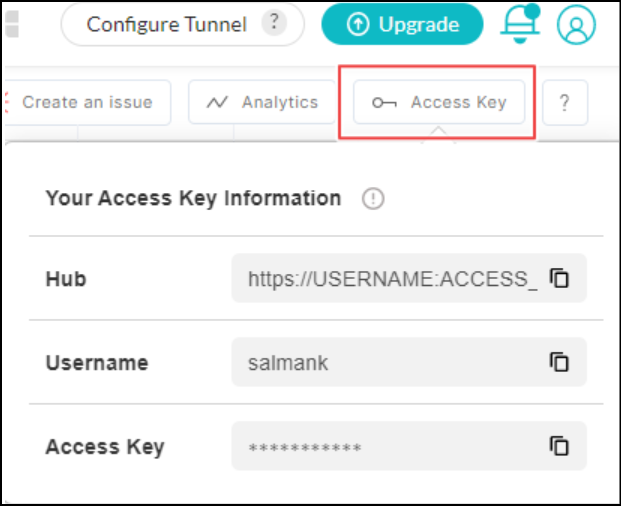
LambdaTest Access Key page showing Hub, Username and Access Key fields
Integrating algoQA with LambdaTest
Perform the following:
- Log in to your LambdaTest account.
- Paste your LambdaTest Username and Access Key in the test scripts for generating a secure remote connection with algoQA through LambdaTest Remote URL.
- Example of a Remote URL= "http://username:accesskey@hub.lambdatest.com/wd/hub"
- Navigate to LambdaTest Automation Capabilities Generator for declaring desired capabilities. For instance, if you wish to test on macOS High Sierra using Firefox browser then desired capabilities for Java frameworks would look like below.
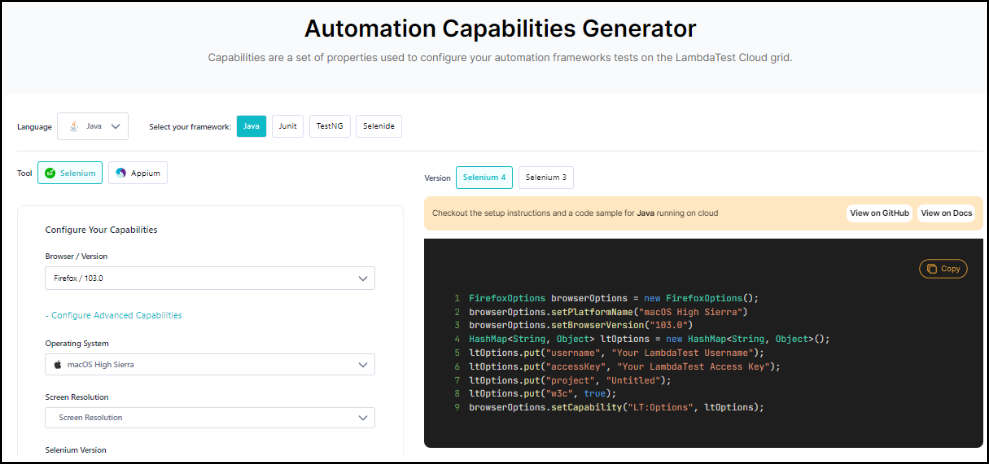
LambdaTest Automation Capabilities Generator with Java framework selected and generated code snippet - In algoQA, after generating a test case in a project, click the Generate Script button.
- Follow the procedure described in the Generate Test Cases and Test Scripts for generating the scripts.
- After generating the Java Selenium scripts, navigate to the script downloaded folder to open the ApplicationSettings.xml file. For example, you can find the ApplicationSettings.xml file in an algoQA-generated script folder for a web automation available at - ScriptGeneration_202310311222.zip\AlgoAFScript_202310311222\src\test\java.
- In the ApplicationSettings.xml file, update the following:
Field Description URL https://www.lambdatest.com/ BrowserType Lambda Username Parimala.bc Access key HyDKmA3cf32RImwztkupVWUrZJFLFLWWyMRghDrUvNPSJXKymm LambdaTestBuild EnvironmentName LambdaTestURL lambdatesturl.com 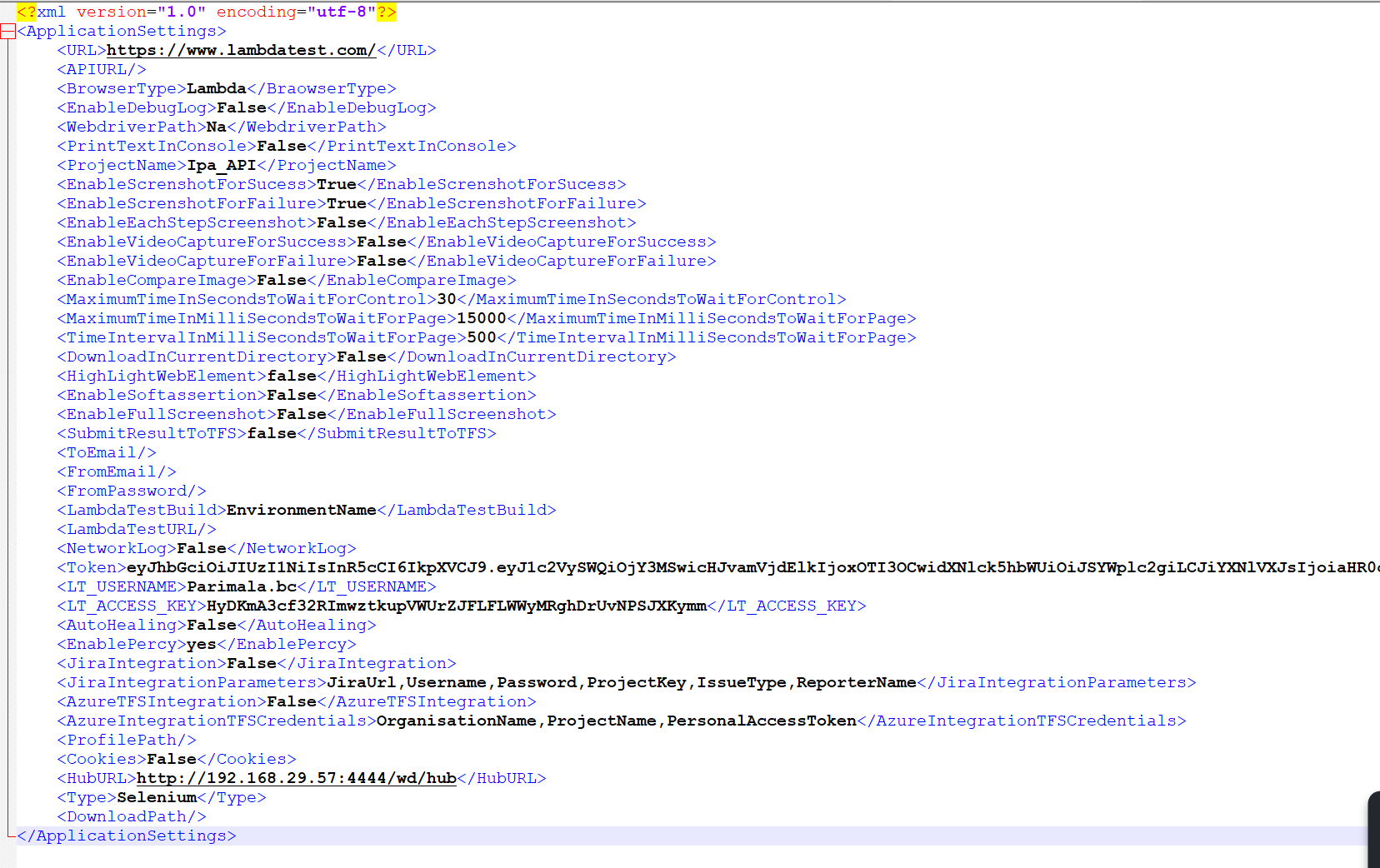
ApplicationSettings XML file showing LambdaTest URL, BrowserType, LT_USERNAME and HubURL fields - Navigate back to pom.xml directory and open 'Command Prompt' in the same directory.
- Run the following command to execute the script:
mvn test
Was this page helpful?