
Open Script in VS Code and Sync Changes to algoQA
Edit algoQA-generated scripts in VS Code and sync scripts, object repository, custom action, and customized script changes back to algoQA.
Sync VS Code changes to algoQA
Open an algoQA-generated script in VS Code, edit supported files locally, and transfer your changes back to algoQA without changing the downloaded folder structure.
Before you begin:
- Install Visual Studio Code.
- Install the algoQA agent extension file,
.vsix, built by algoQA.
Open and edit the script
Open the script in VS Code
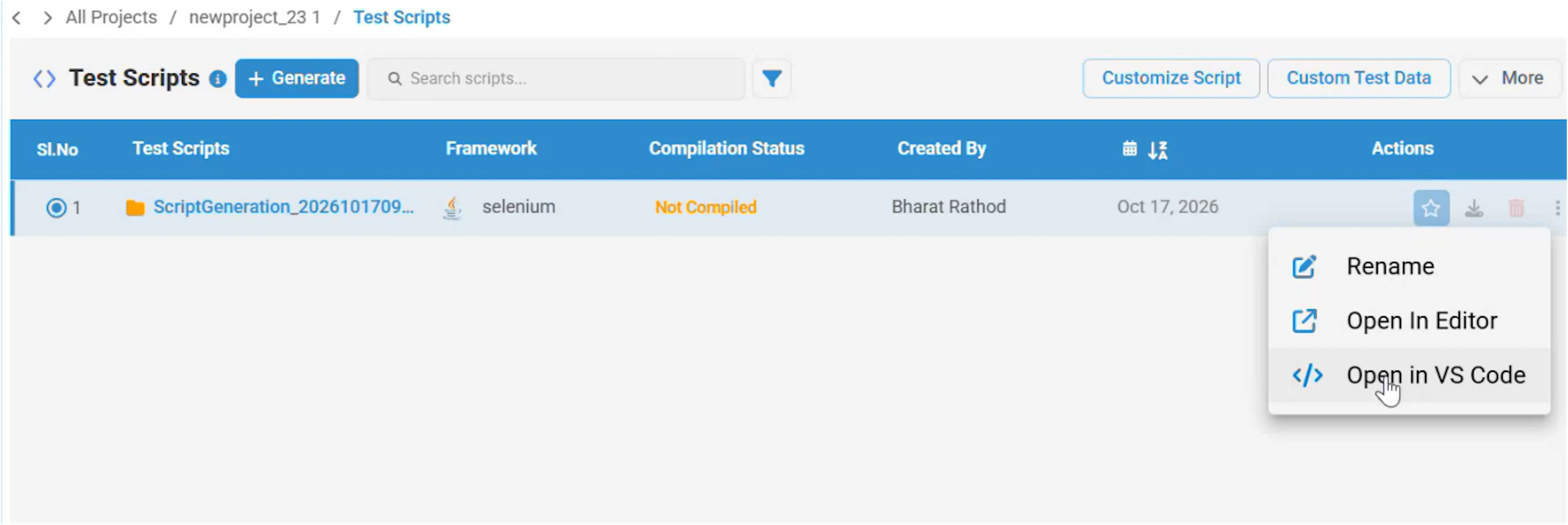
In algoQA, open Test Scripts, click the three-dot menu beside the script, and click Open in VS Code for the script you want to edit.
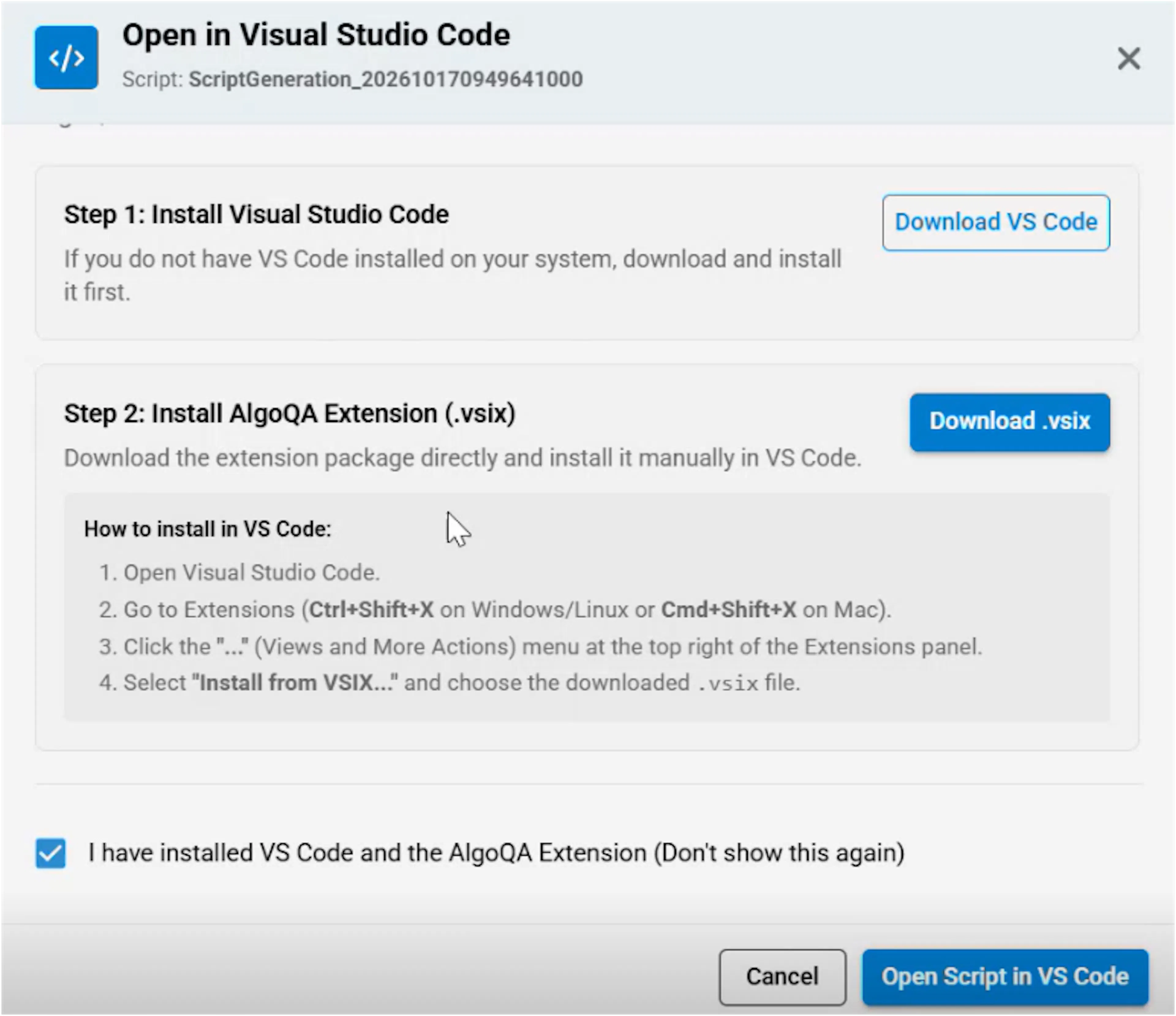
On first use, follow the prompt to install VS Code and the algoQA agent extension. If the extension is already installed, continue opening the script in VS Code.
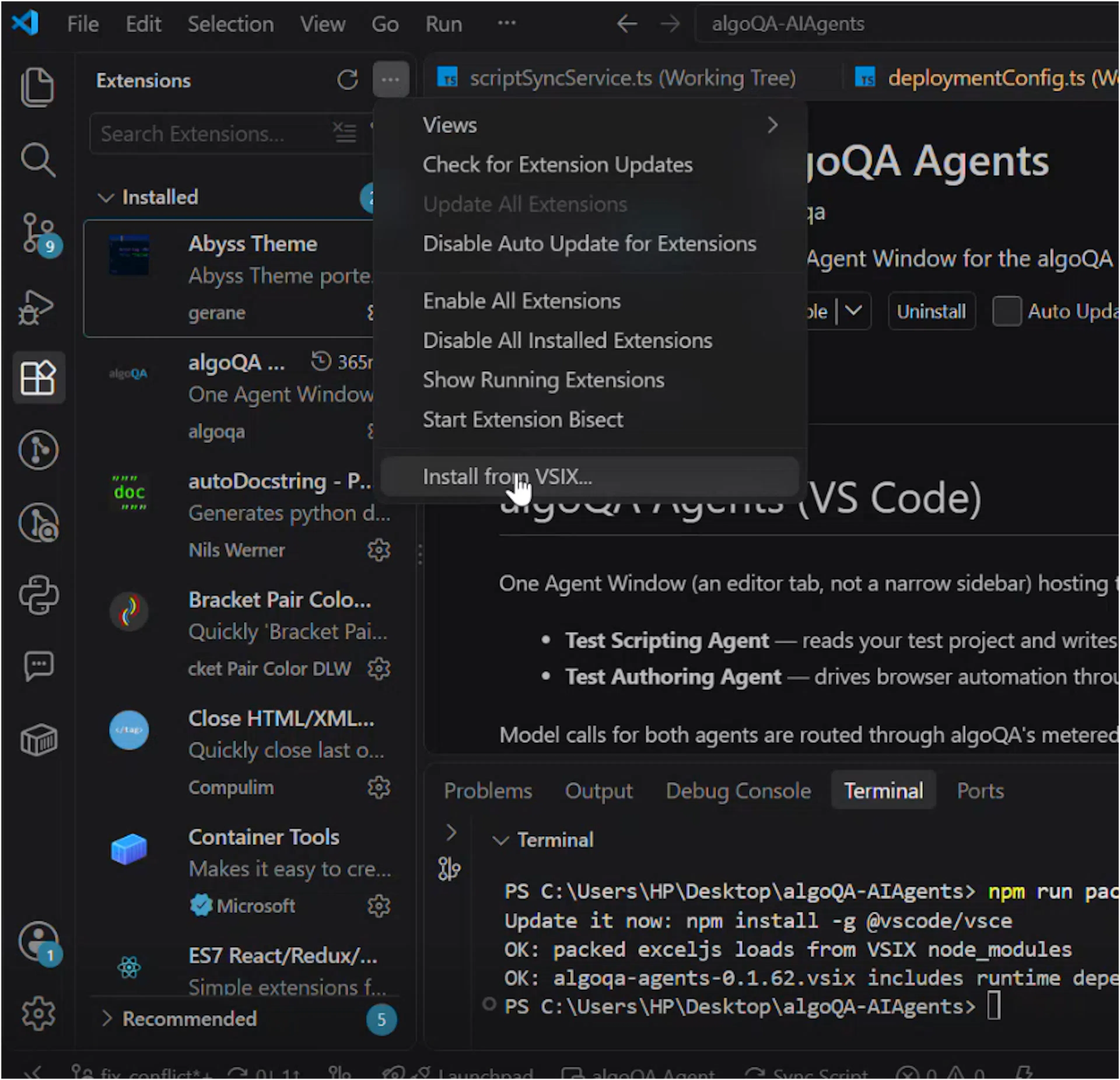
If you need to install the extension manually, open Extensions in VS Code, open the three-dot menu, select Install from VSIX, and choose the downloaded .vsix file.
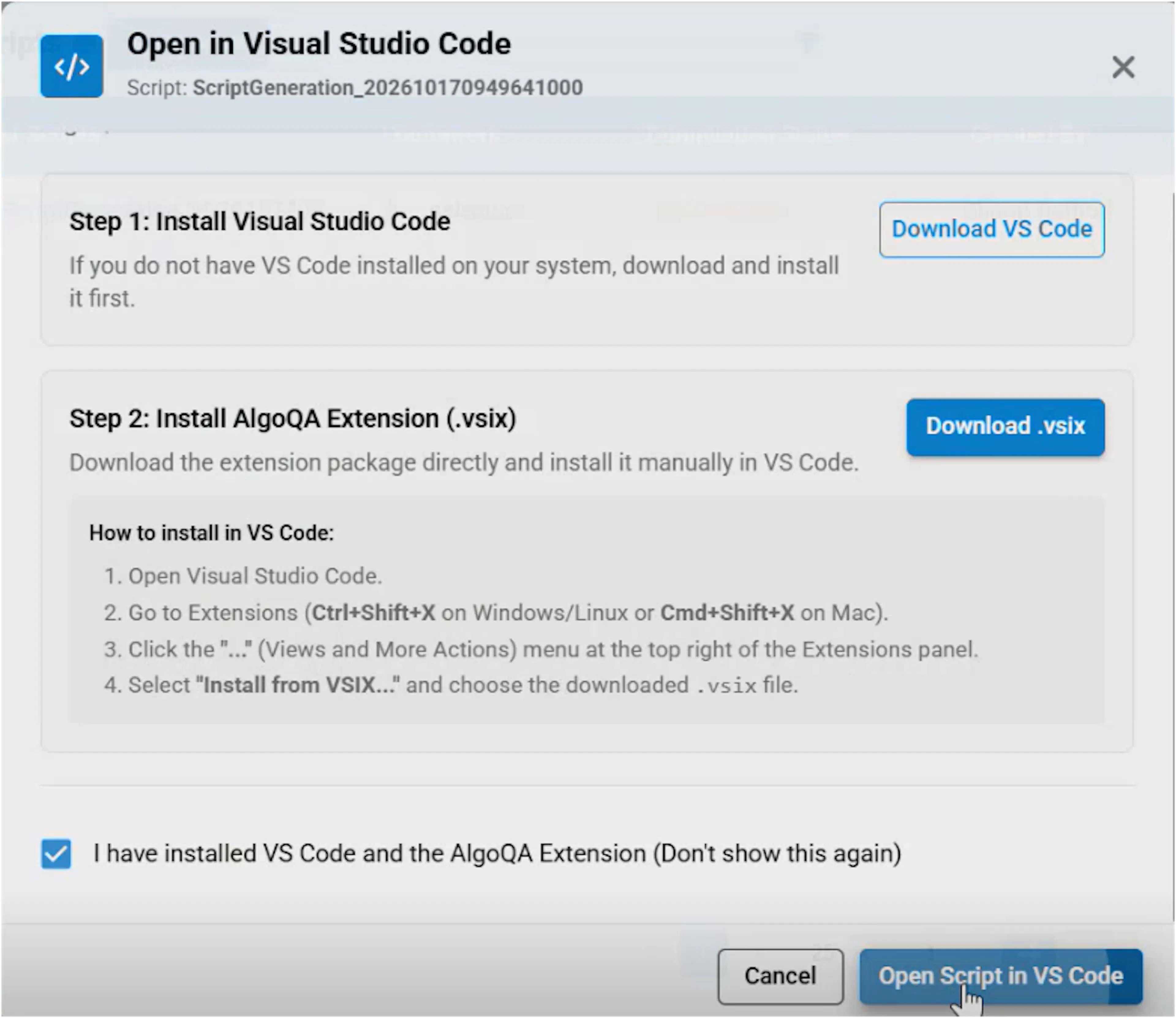
After installing the extension, click Open Script in VS Code in the pop-up.
Wait for the script to download
Wait for the download to finish before editing the script. The downloaded folder structure remains unchanged.
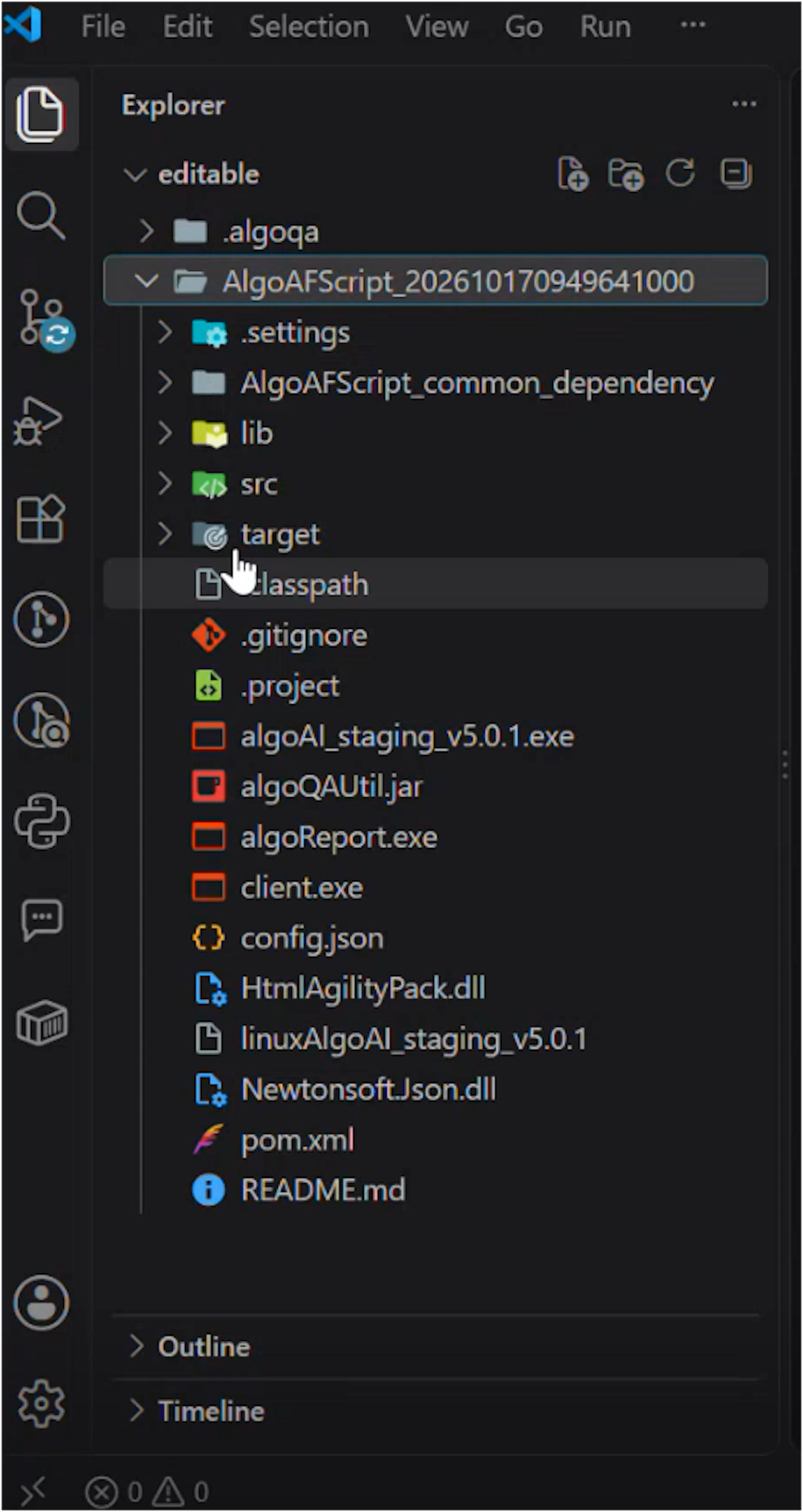
Edit supported files
Edit one or more of the following files in VS Code:
- The object repository
- Custom actions
- The customized script
Compare and push local changes
Start synchronization
In VS Code, click Sync Script. If prompted to sign in, complete the sign-in before continuing.
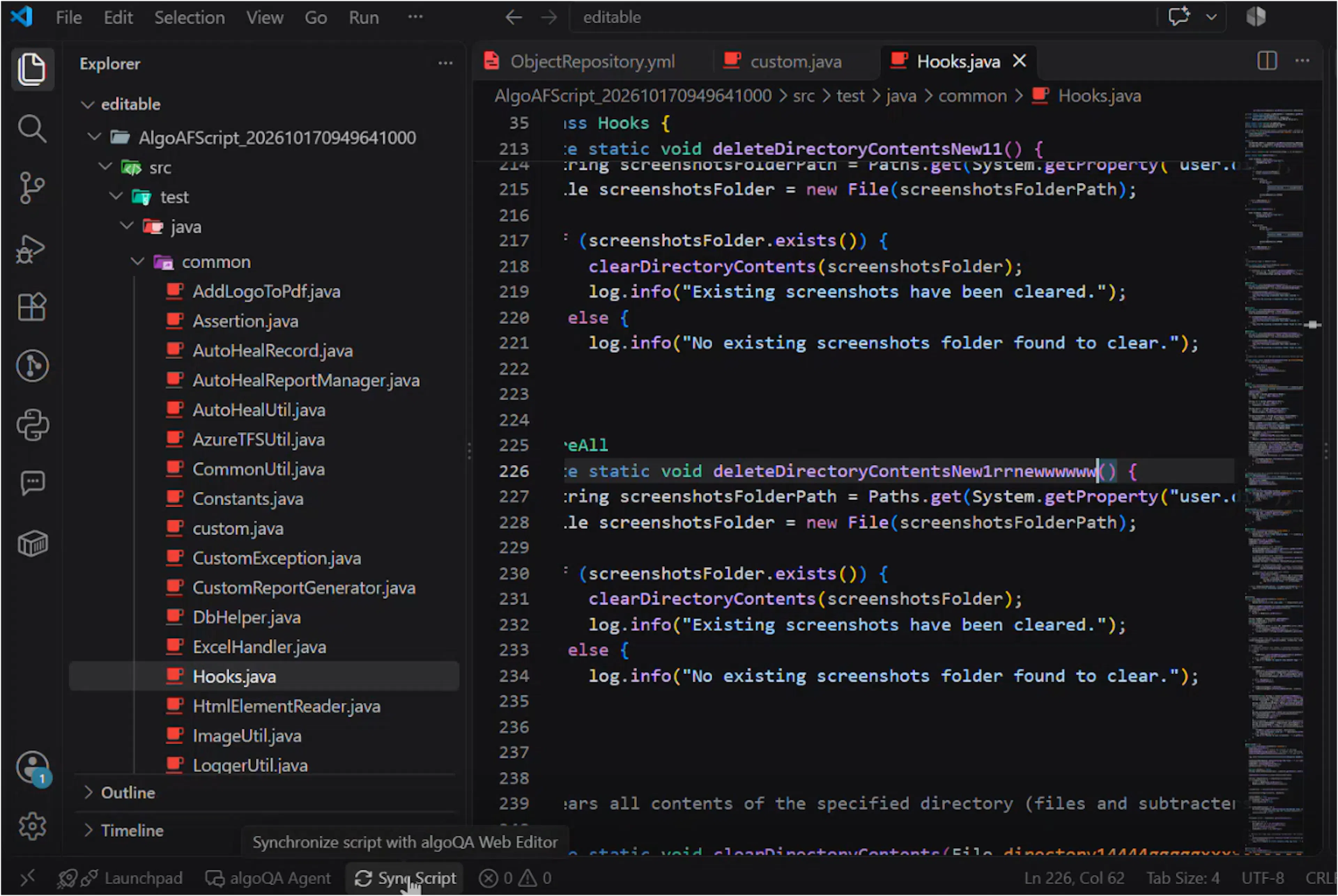
The sync checks for local changes, fetches the latest remote version of the script, and compares the local and remote versions.
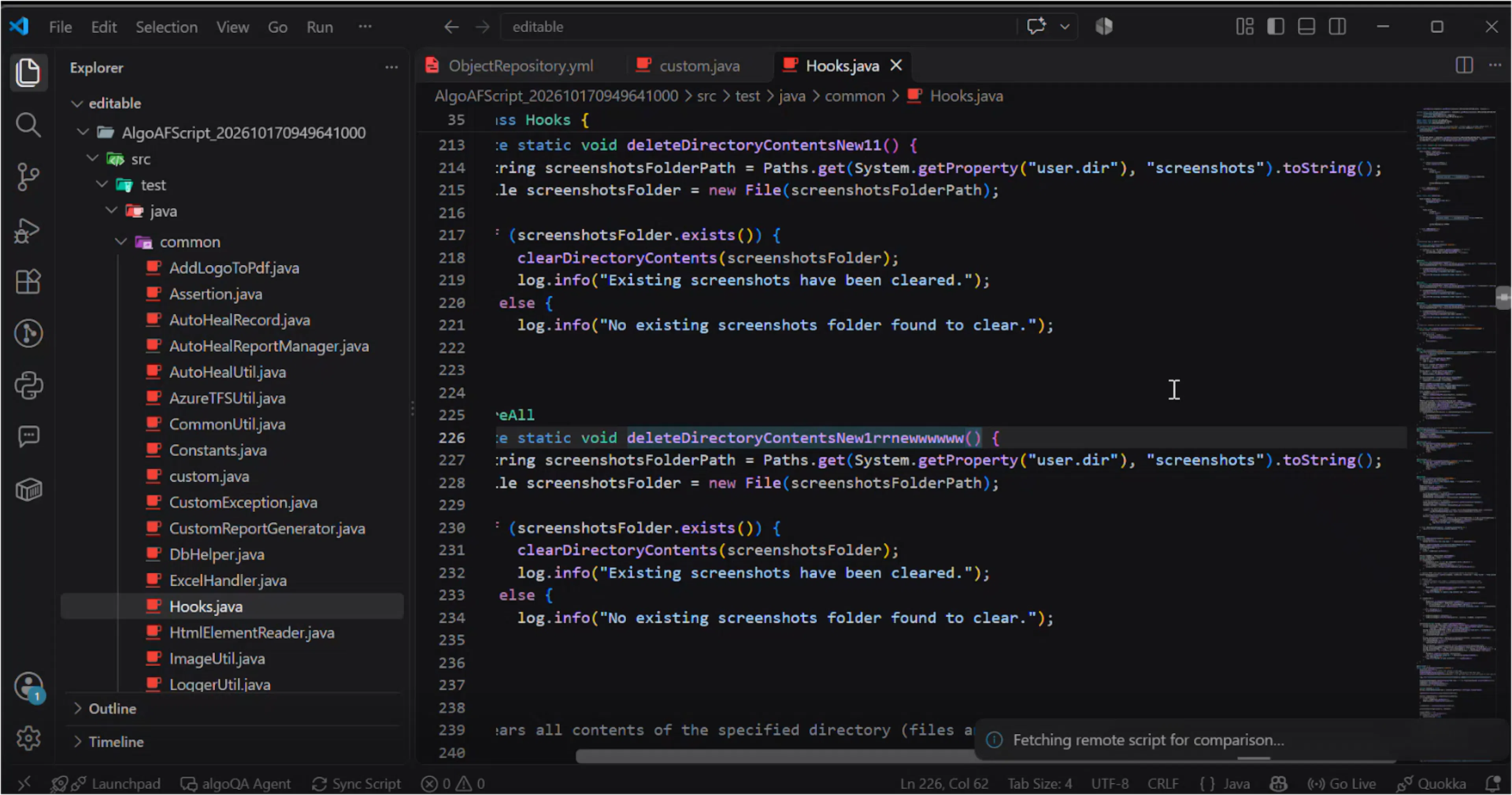
Review changed files
Click View File Differences to see the files that differ between your local copy and the remote script.
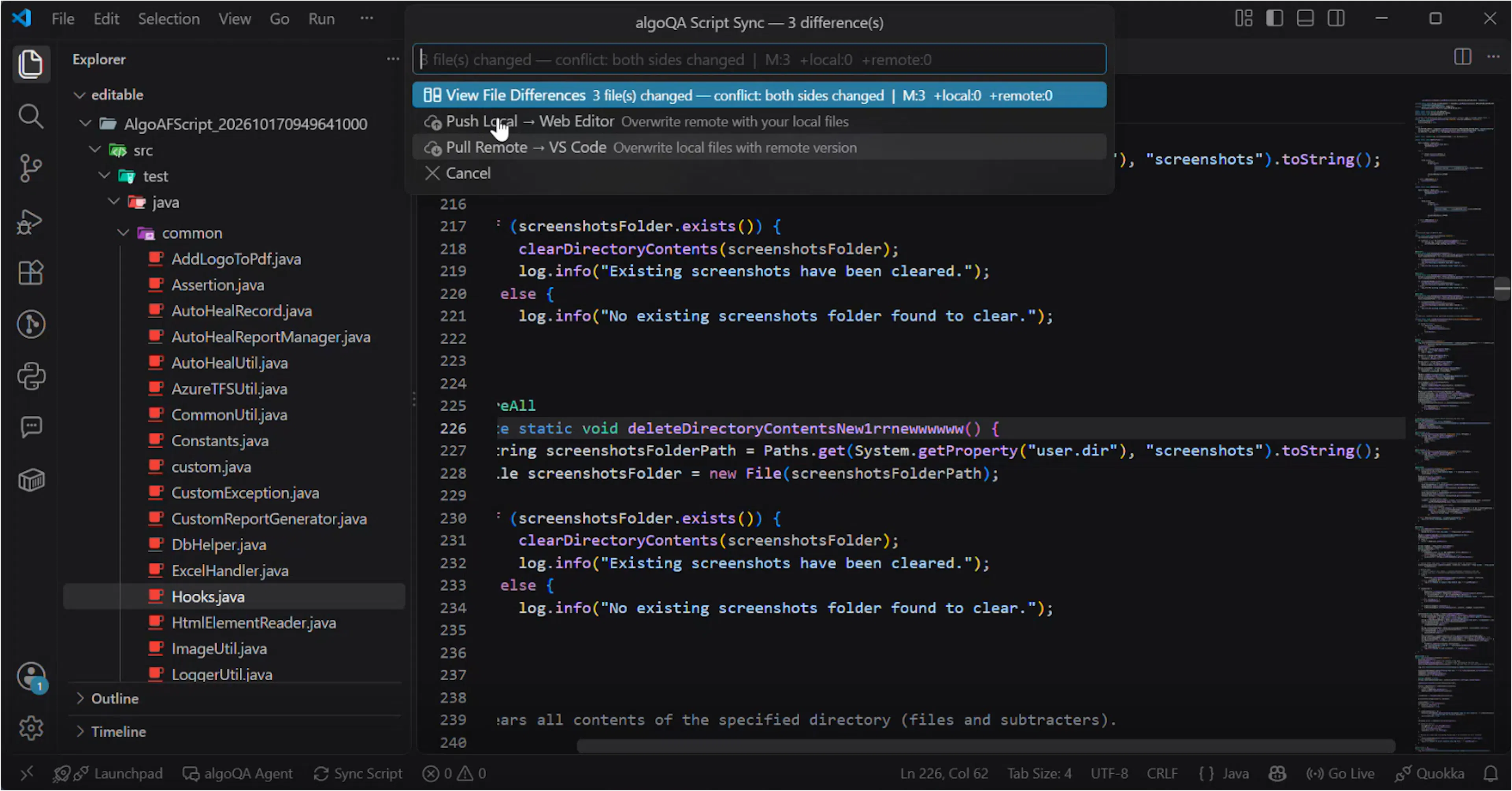
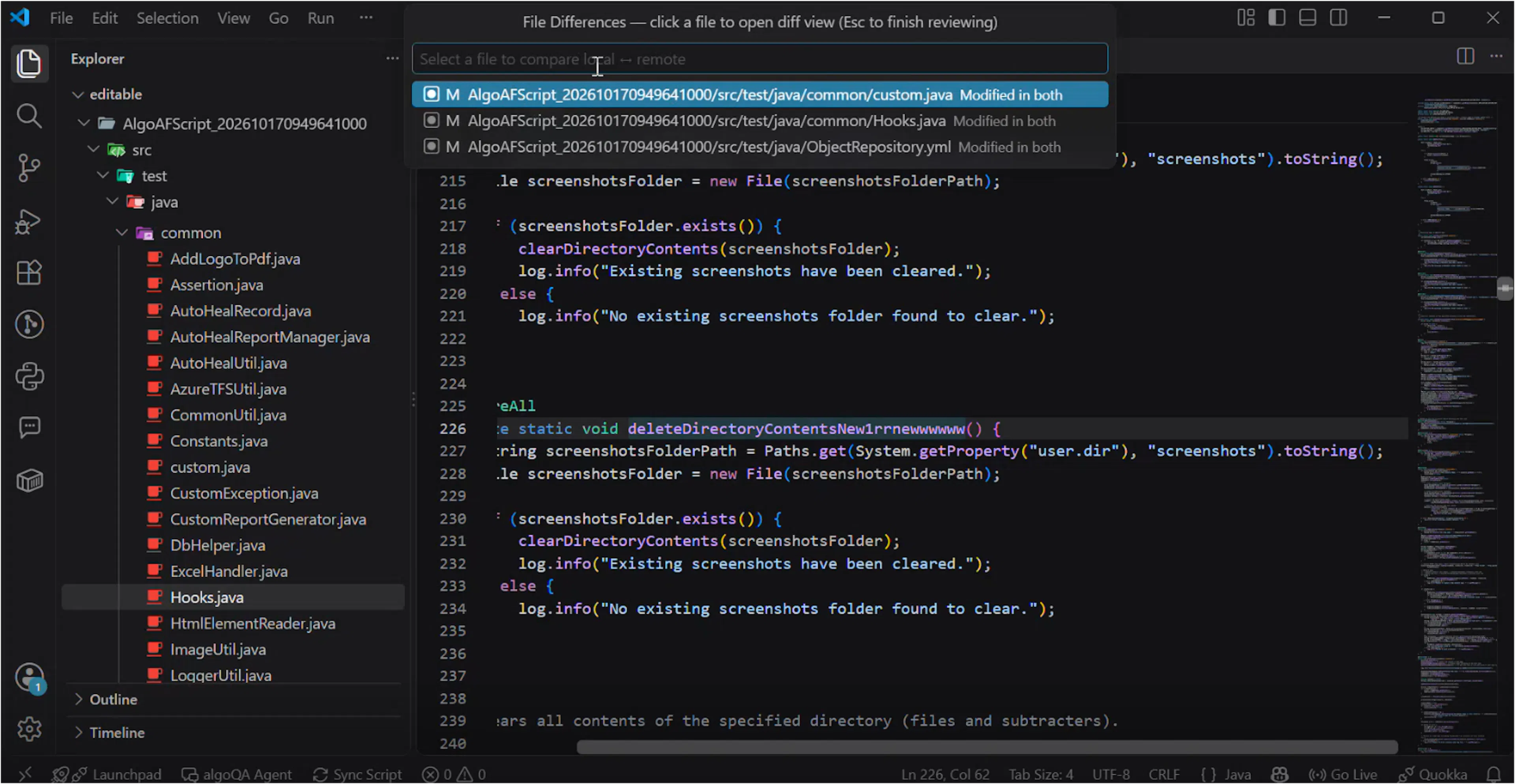
Select a file to compare its local and remote contents. Press Esc when you finish reviewing the file.
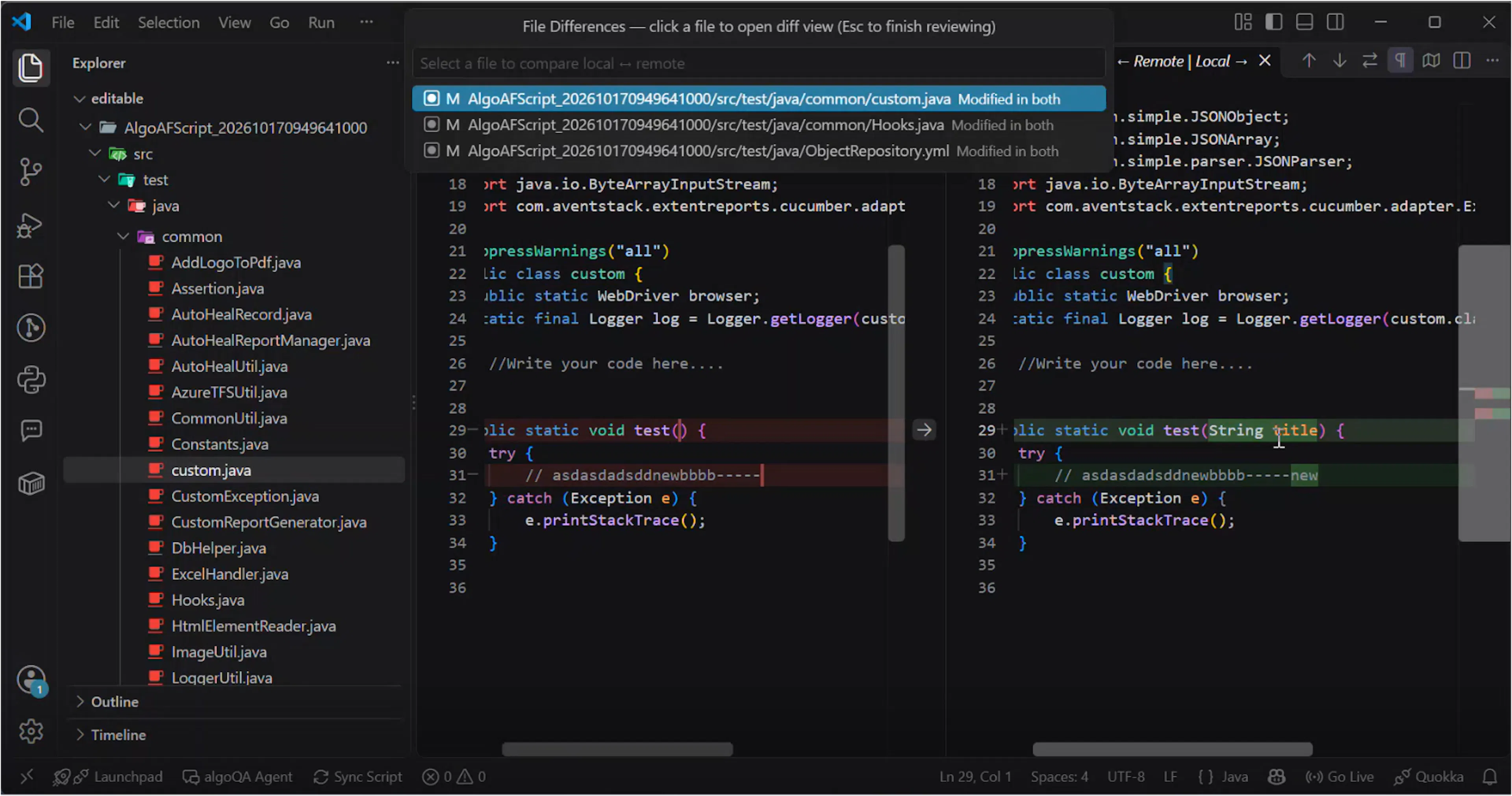
Push the local changes
Click Push Local to Web Editor to transfer the supported changes to algoQA.
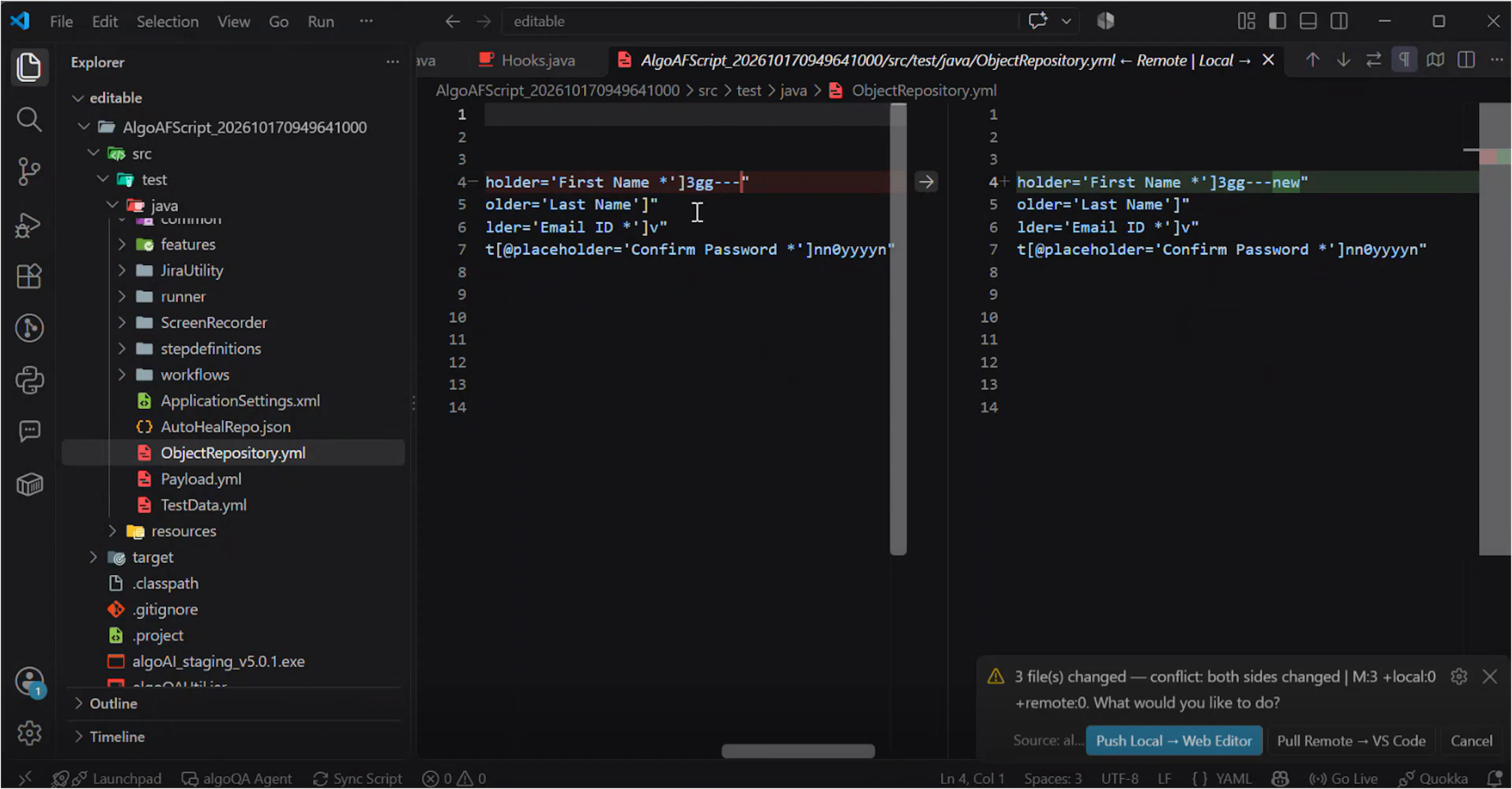
The changes are stored in the script and configured internally. Apply the appropriate follow-up action for the type of change you pushed.
Apply object repository changes
If you pushed object repository changes, an update icon appears beside the object repository. Select the Update icon in algoQA.
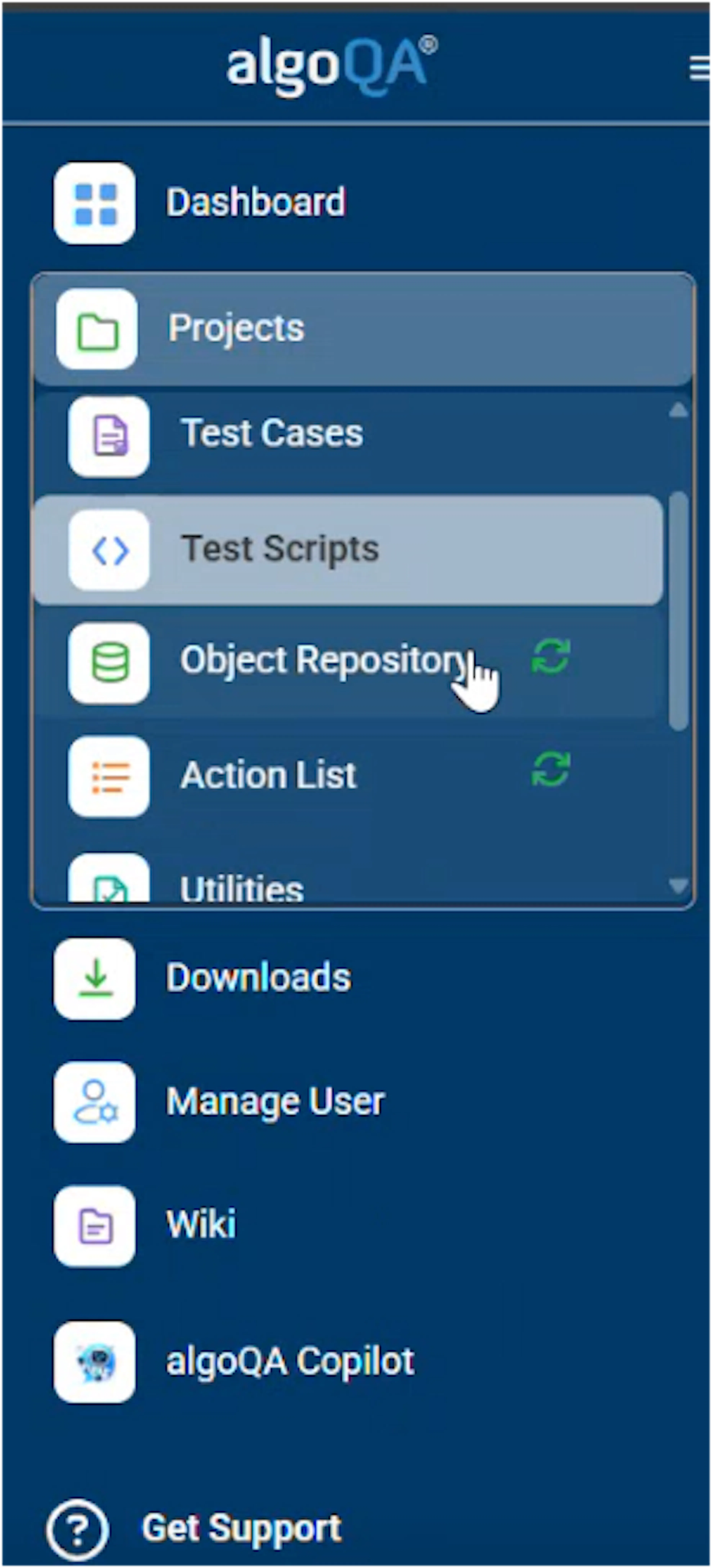
Update the object repository
Select Update All.
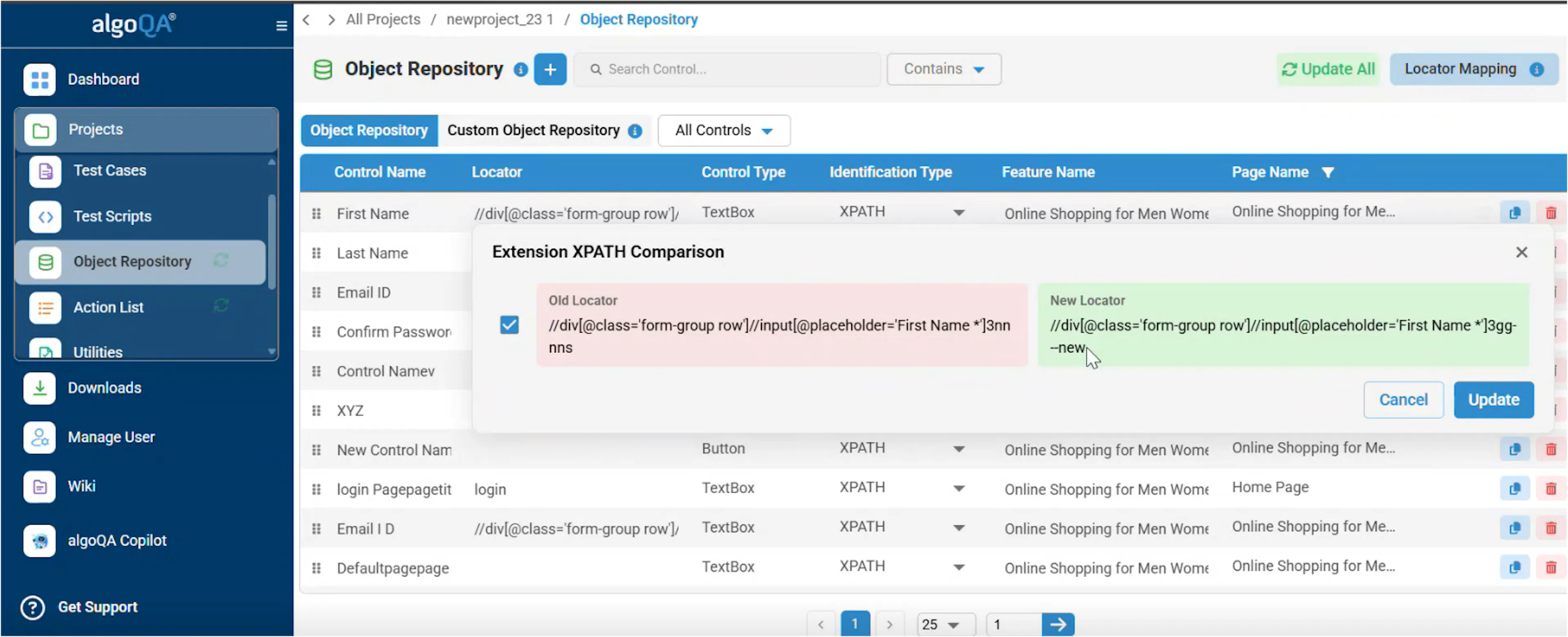
Review the changes
Review the changes and compare the affected entries.
Apply the changes
If everything is correct, click Update to apply the changes.
Apply custom action changes
If you pushed custom action changes, an update icon appears beside the action list. Select the Update icon in algoQA.
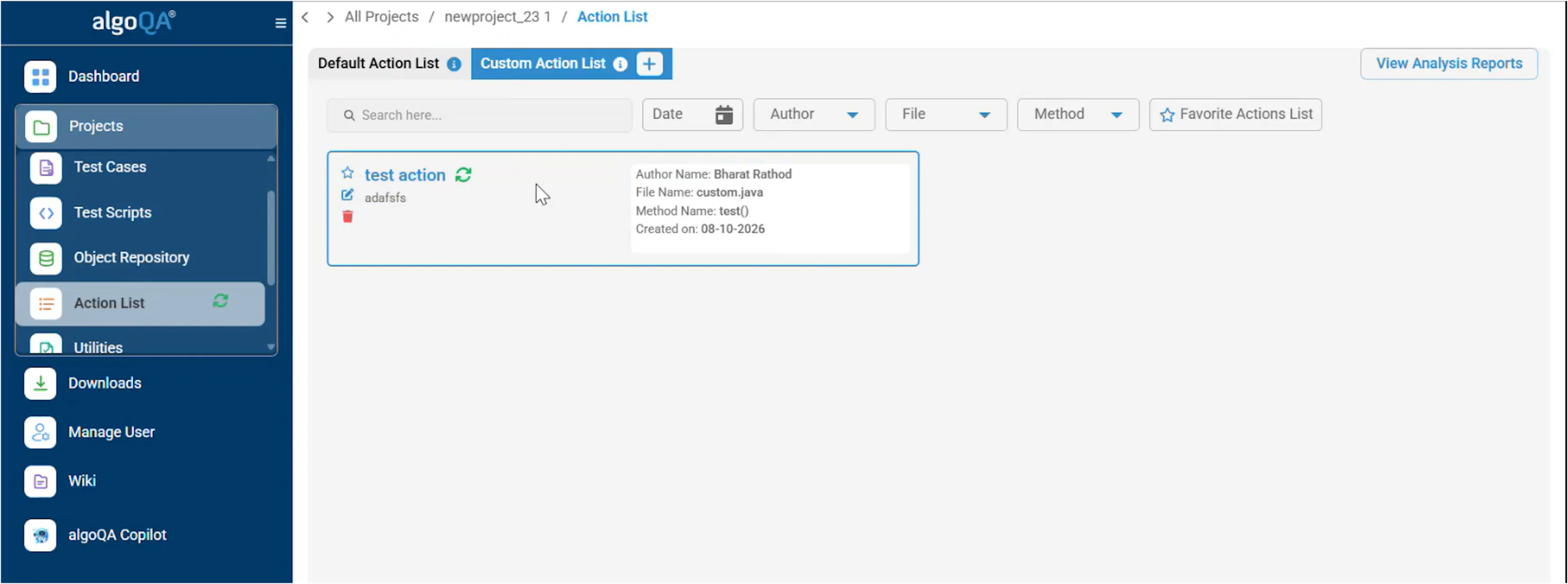
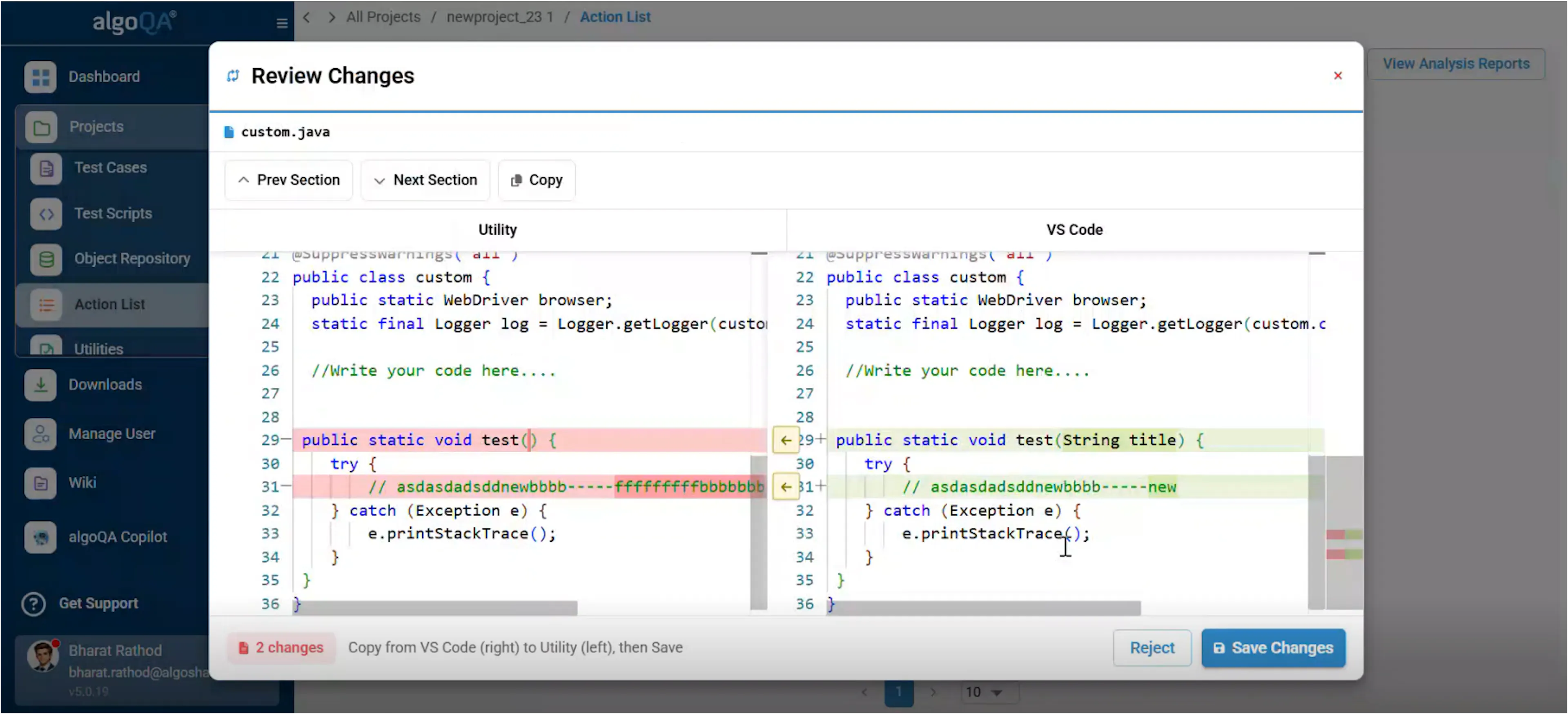
Review the changes, then click Save Changes to apply them.
Apply customized script changes
If you pushed changes to a customized script, use the customized script comparison workflow.
Open the customized script comparison
Open Customize Script and select Compare Customize Script with Global Script or VS Code Script.
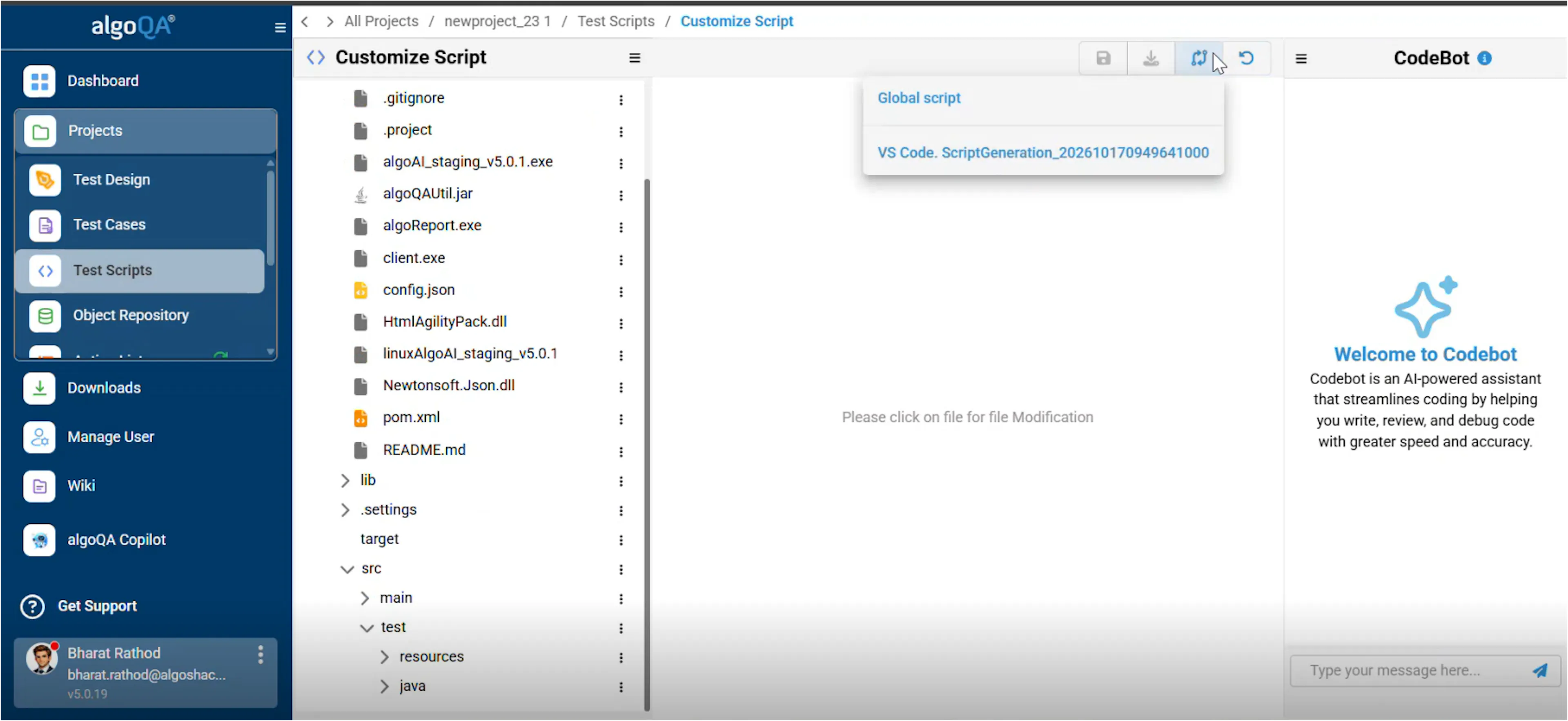
Select the VS Code script
Choose the VS Code Script Generation file.
This opens Compare Script and lists the files modified in VS Code.
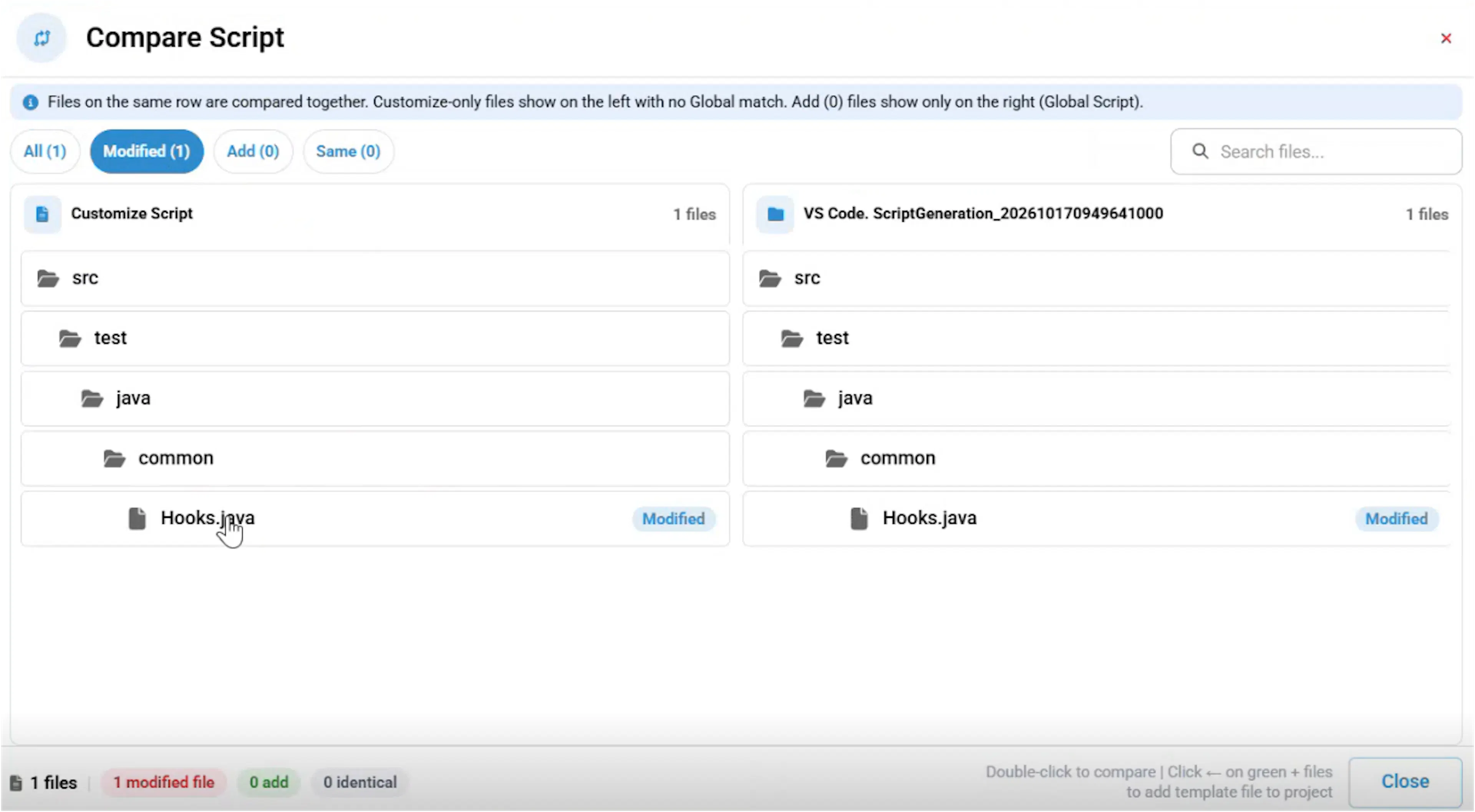
Review and copy changes
Open the listed files to review their changes. To copy a change into the customized script, click the arrow next to the relevant line.
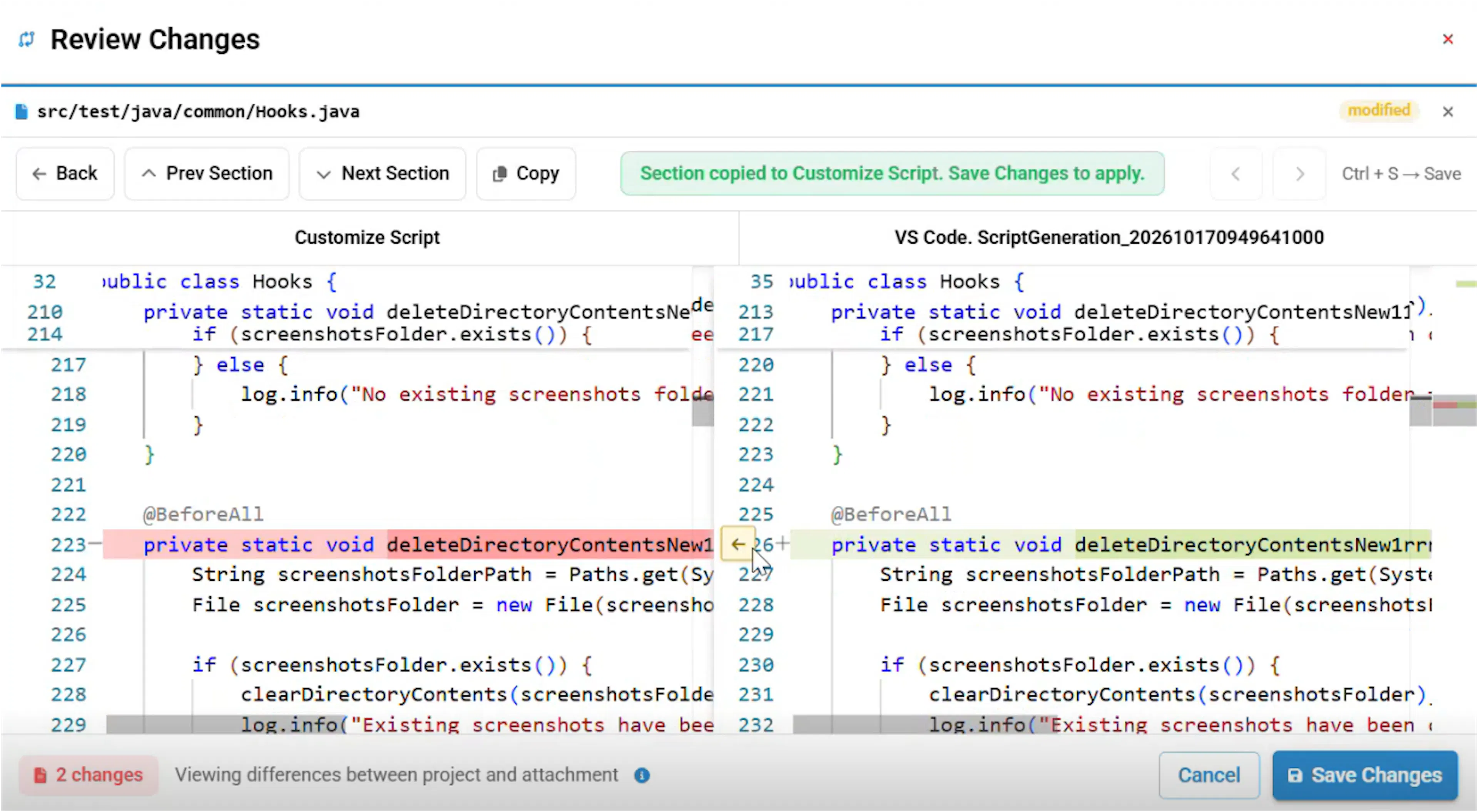
Save the customized script
Click Save Changes to apply the selected changes to the customized script.
The updated script appears in Test Scripts. The script is saved in its original location and marked as a favorite to preserve it when you generate more scripts.
Supported scope
This workflow maps only the following changes back to algoQA:
- Object repository changes
- Custom action changes
- Customized script changes
API automation is not supported.
The workflow works across automation types when you download the script locally, open it in VS Code, and keep its folder structure unchanged.
Advantages
Use this feature to edit algoQA-generated scripts in the test scripting agent, sync the changes back to algoQA, review the changes, and execute the scripts.