
Automating Test Cases using Squish Framework with Python
Automate desktop application tests with the Squish framework and Python — install Squish, design tests, inspect GUI objects, record scenarios, and generate executable scripts using algoQA.
Automate desktop application test cases by integrating algoQA with the Squish framework using Python. This guide walks you through installing prerequisites, inspecting GUI objects with Squish's pick mode, recording scenarios with the Offline Recorder, and generating test scripts for execution.
Prerequisites
Squish Installation
Currently applicable for: Desktop, mobile, and embedded systems automation types.
Squish serves as an automation tool designed for executing test scripts in the regression stage of software testing for user interfaces. algoQA with its extended capability supports Squish and helps you to generate Squish scripts.
To install the Squish framework, see Squish Installation Guide.
Python Installation
If you need a different Python version or have specific requirements that the bundled Python version cannot meet, then download the compatible version or the latest version from here. If you need to install Python packages, then refer to the Installation steps for Python section.
Use Case
This use case demonstrates the automation of updating a patient's demographic details by integrating algoQA with the Squish framework using the in-built Python scripting language. The example showcases an in-sprint automation process, automating the steps of updating a patient's demographic details and viewing it in the Patient details screen.
Design the Tests
You can leverage algoQA and perform the following:
Test Designing is creating an offline model of an application under test (AUT), which involves mimicking a UI model of an AUT using nodes, features and UI elements. For more information, see Profiling.
Pick an Object and Inspect It Using Squish
Squish allows you to "pick" GUI objects of the currently running application. Once picked, the following can be done with the object:
- Inspect the properties
- Insert the methods
- Create verification points for property values (property verification points)
- If you have a test script already, perform the following:
- In the Application Objects, look for the icon to activate Squish in "pick" mode.
- Return to the Application Under Test (AUT) by clicking its window title bar once to give it focus.
- Mouse over the required object to inspect the element, and the selected element will be highlighted. All the properties will be displayed in the Properties tab. Choose the required attribute to locate the element.
- Navigate to the Control List Panel window to update the locator. You can update the locator fetched from the Object Spy tool and save it. Similarly, update all the locators required for the objects.
Record Scenarios Using the Offline Recorder
The Record Scenario feature is used to record and save the workflow or scenario or use case. The scenario will be saved in the same sequence it has been recorded.
Recording for the Record Scenario feature is done in an offline model. It doesn't interact with the live application.
You can record scenarios by following the steps described in the Record a Scenario using Offline Recorder article, using the use case steps provided in the Use Case section.
Managing Scenarios
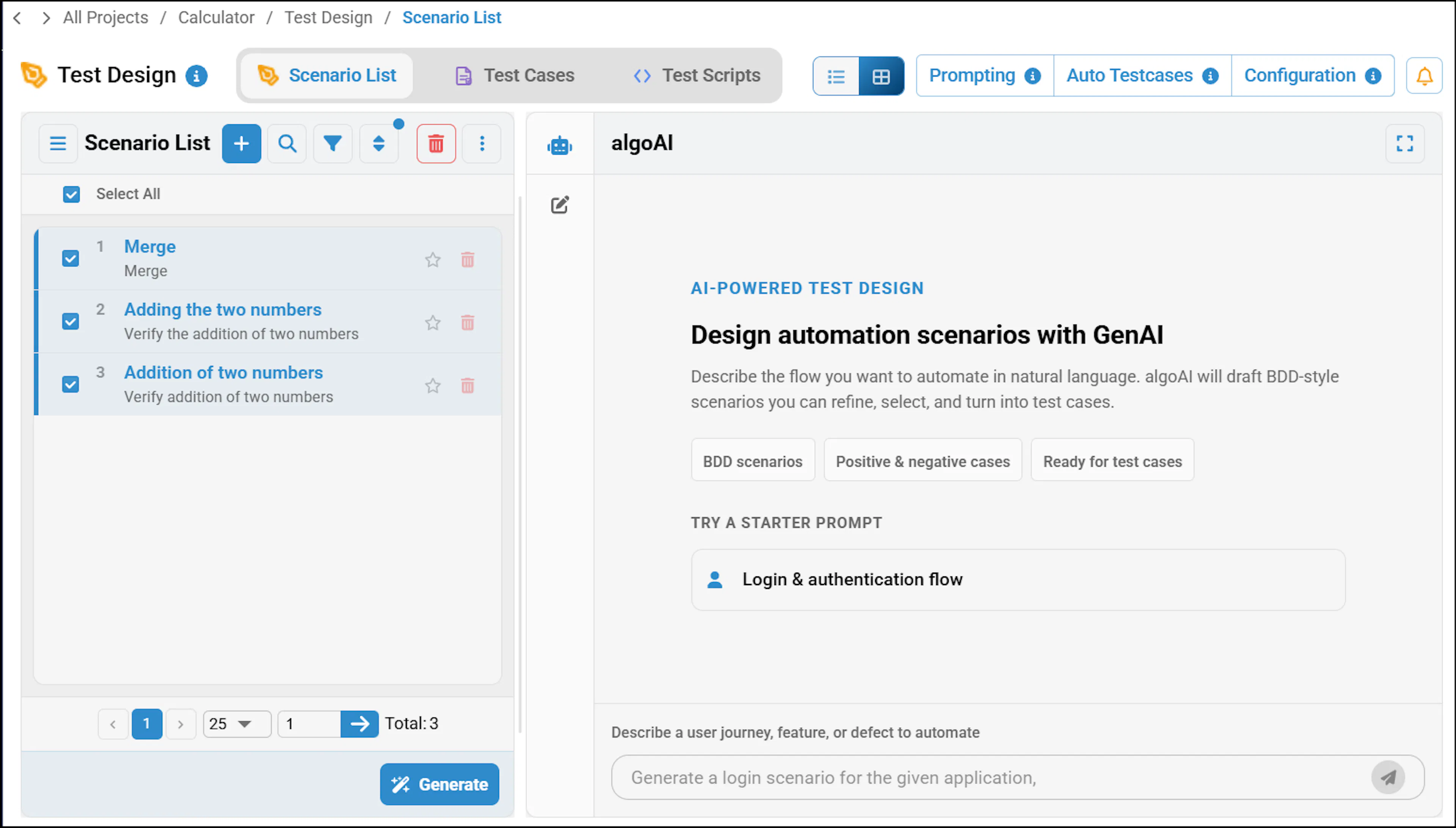
Navigate to Scenario List. All the scenarios corresponding to the project are listed here. Click on the scenario.
The Scenario Steps List appears:
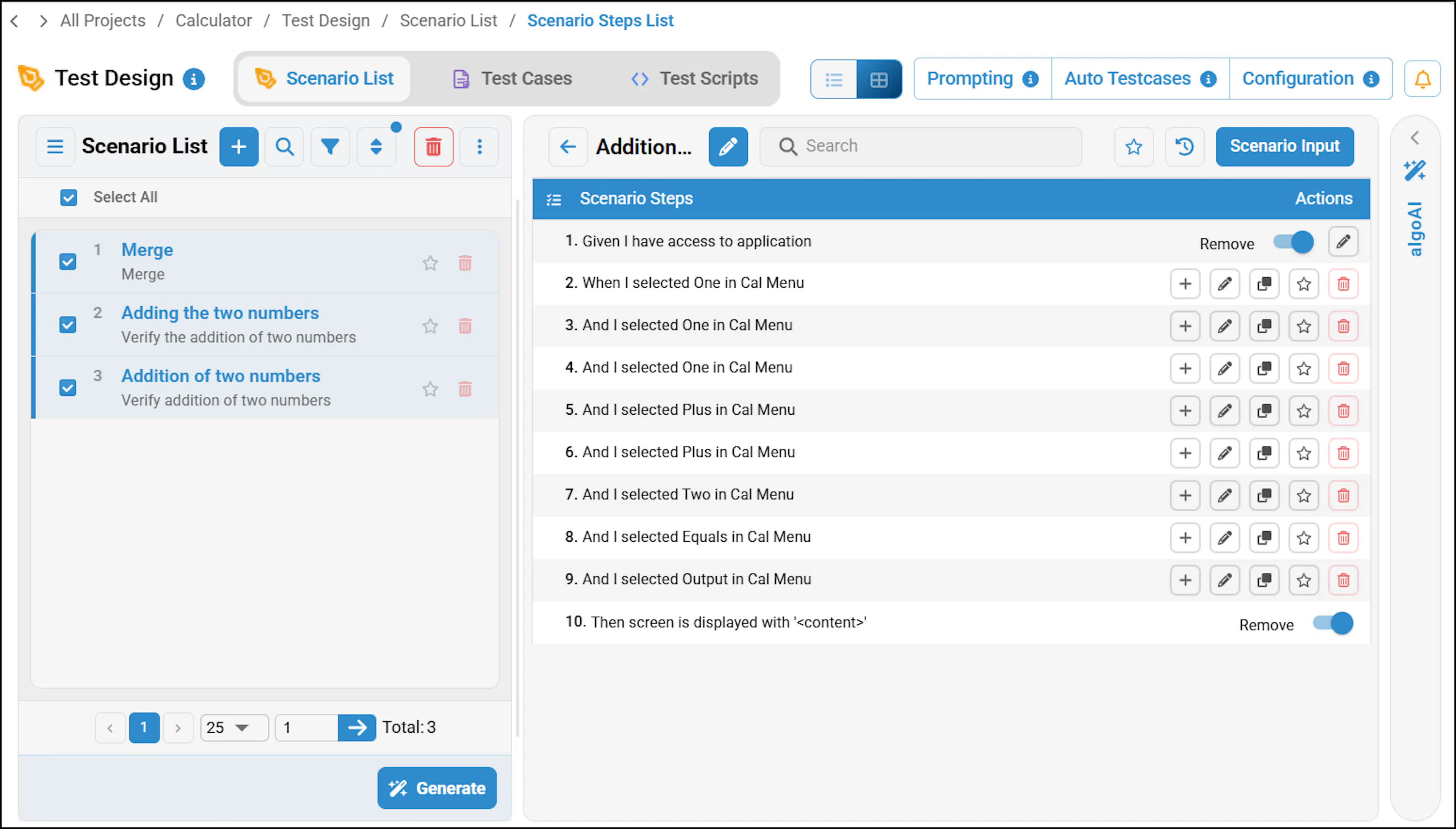
- You can add and list controls within the test steps.
- Easily track the sequence of scenarios.
- Use drag-and-drop functionality to rearrange test steps. For more information on editing the scenarios, refer to Managing Test Cases using Edit Scenario Workflow.
Generate Test Cases and Test Scripts
For more information, see Generate Test Cases and Test Scripts.
Execution of the Test Scripts
To execute the generated scripts, see Executing Test Scripts using Squish Framework with Python.