Customize Script in Script Generation
The Customize Framework functionality in the script generation process allows you to customize your automation framework to your specific needs and preferences. With this functionality, you can easily modify existing files and create new ones to optimize your framework.
How to Use Customize Script
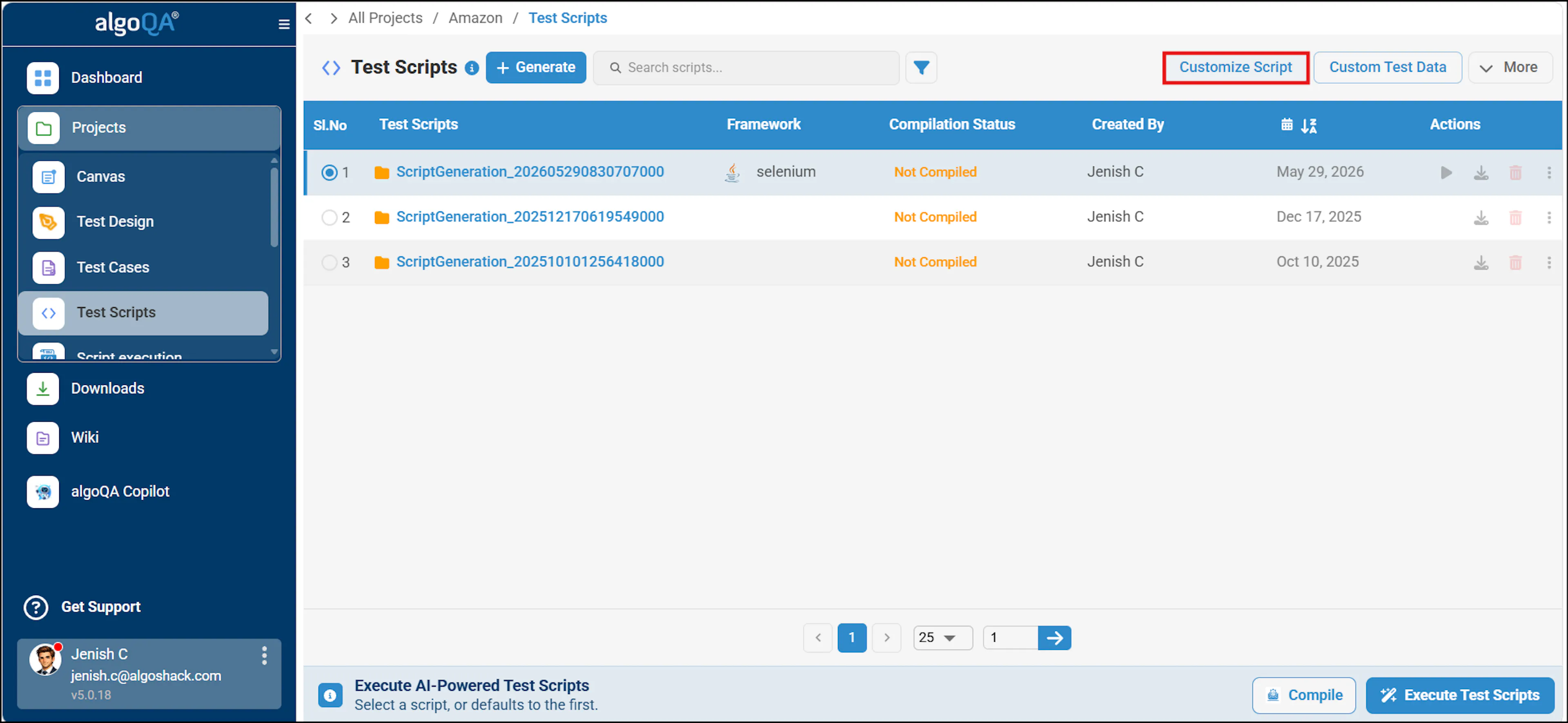
During the script generation process, the 'Customize Framework' option is used to modify existing files to meet specific requirements.
Here's how to access it:
In the Projects pane, select a project and navigate to Test Scripts folder, select Customize framework option.
Creating, Uploading, or Organizing Files and Folders
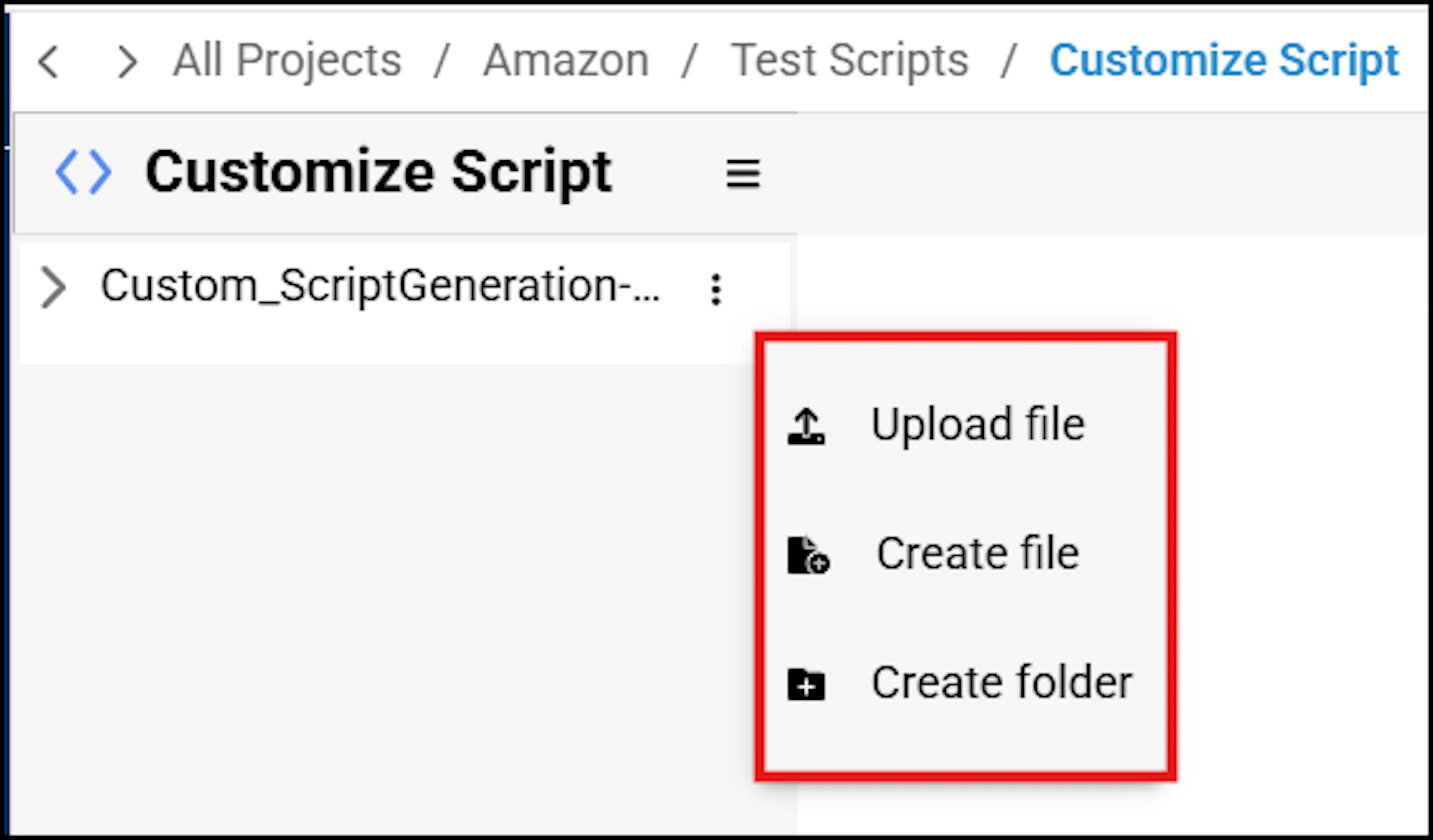
In the Code-Editor screen, by clicking on more icon( 3 dots ) you can perform the following:
- Upload file - upload an existing file
- Create file - create a new file
- Create folder - create a folder
Note: You can upload files whose names contain letters, numbers, and underscores only. Spaces are not allowed in the file name.
- Click arrow icon to expand the folder.
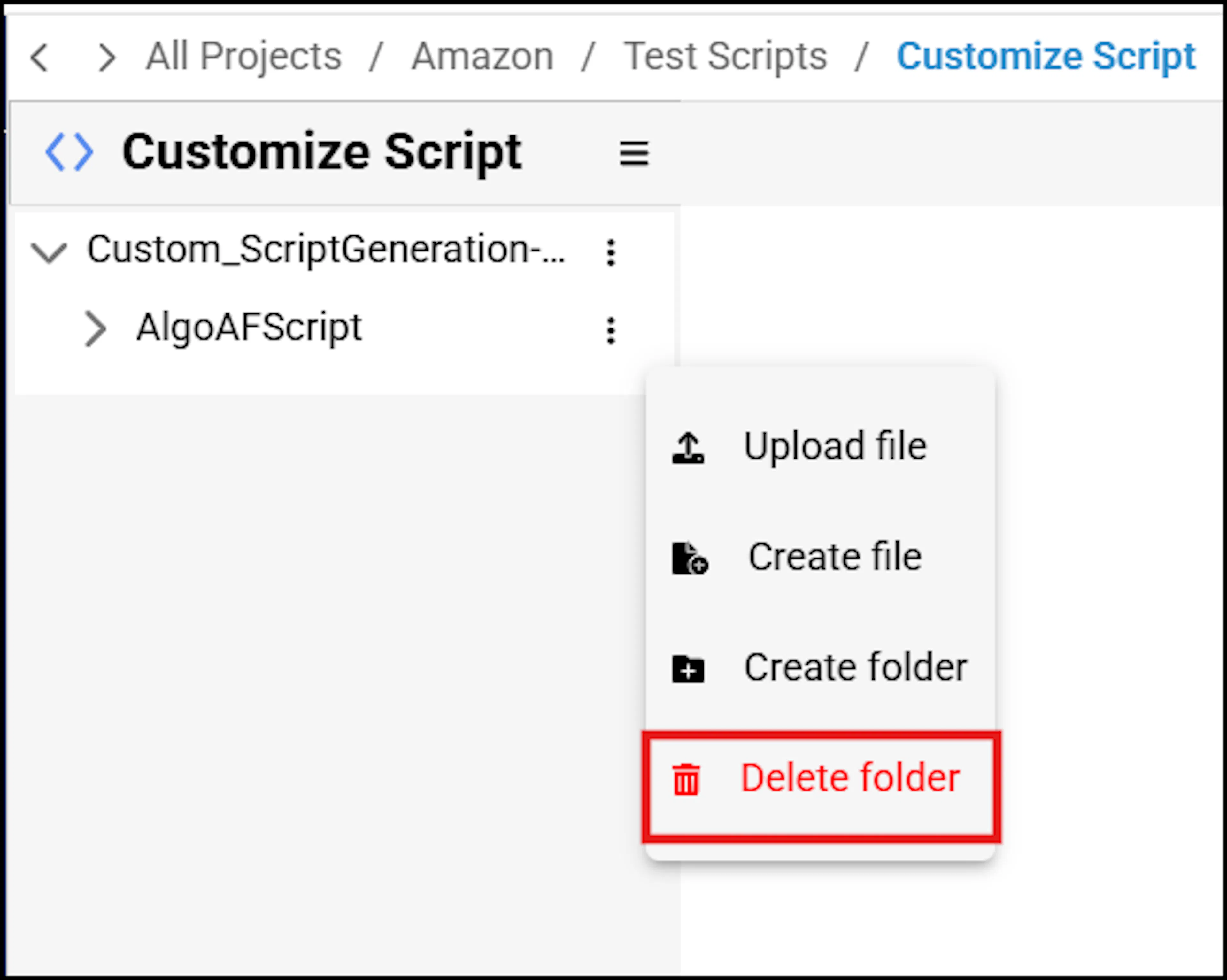
- If you wish to delete an algoQA script generated folder, click More Menu option and select 'Delete Folder' option.
Note: If the Steps folder is not present in the Customize Script, create it under the Shared folder (Open Project → Customize Script → Shared →click 3 dots → Create "Steps").
Functions and Features
In the Code-Editor screen, you can see the functions available on the top-right corner, as shown in the Field column:
| Field | Description |
|---|---|
 | Modifying Existing Files Expand the generated script files folder in the left pane. If you wish to modify any of the files, ensure to save using the Save button and update the script by clicking the Update button.Downloading Scripts The 'Download' button is enabled when you expand the scripts folder, allowing you to download scripts for reference.Update script button will be enabled only when you make changes to existing script. Warning: Clicking this button will update the entire script and replace the current version with the new changes. These changes cannot be reverted. Ensure to review all modifications before proceeding. |
Note: In a centralized project, multiple users collaborate on the same set of files simultaneously. To prevent conflicts, the platform offers a file locking feature. When a user begins working on a file, the platform identifies them as the active user for that file. As a result, when another user hovers over a file in the Script folder, they will see a tool tip displaying the name of the active user name who is currently working on the file. This helps prevent accidental edits.
When users are using customize Script, and if some basic capabilities are not working like auto healing or script is generating with an error, then users have to check if they have the latest code changes in their customize framework or not, if not then users have to manually make the code changes. For this users can create a dummy project without customizing the script and after generating scripts, users can manually compare both scripts and make the necessary changes manually.
Update Customize Script with Latest Global Changes
Compare your customized script with the latest global script and apply selected updates to your project. This feature applies to projects with a customized script across frameworks and automation types.
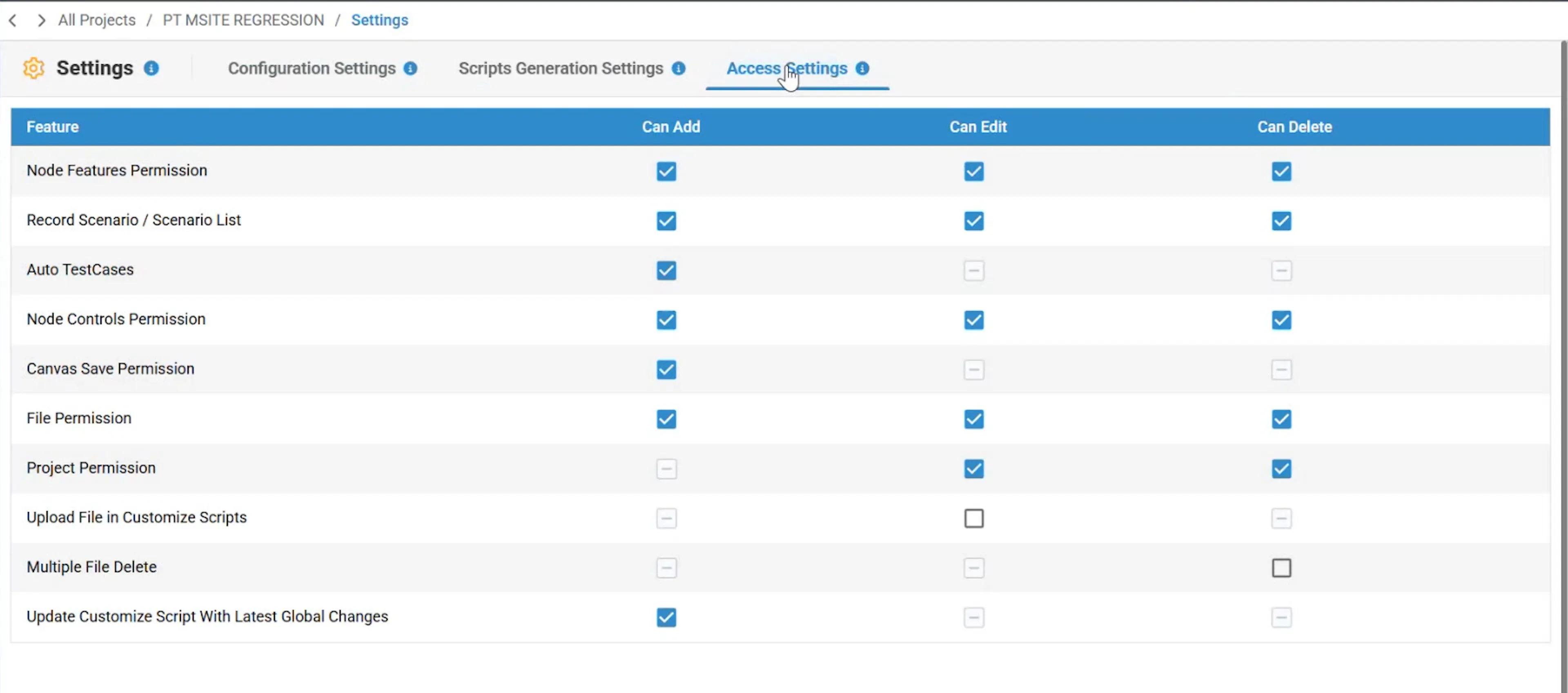
Before you begin, enable the Update Customize Script With Latest Global Changes permission for your project.
Enable the project permission
Open Settings, select Access Settings, and under Can Add, enable Update Customize Script With Latest Global Changes.
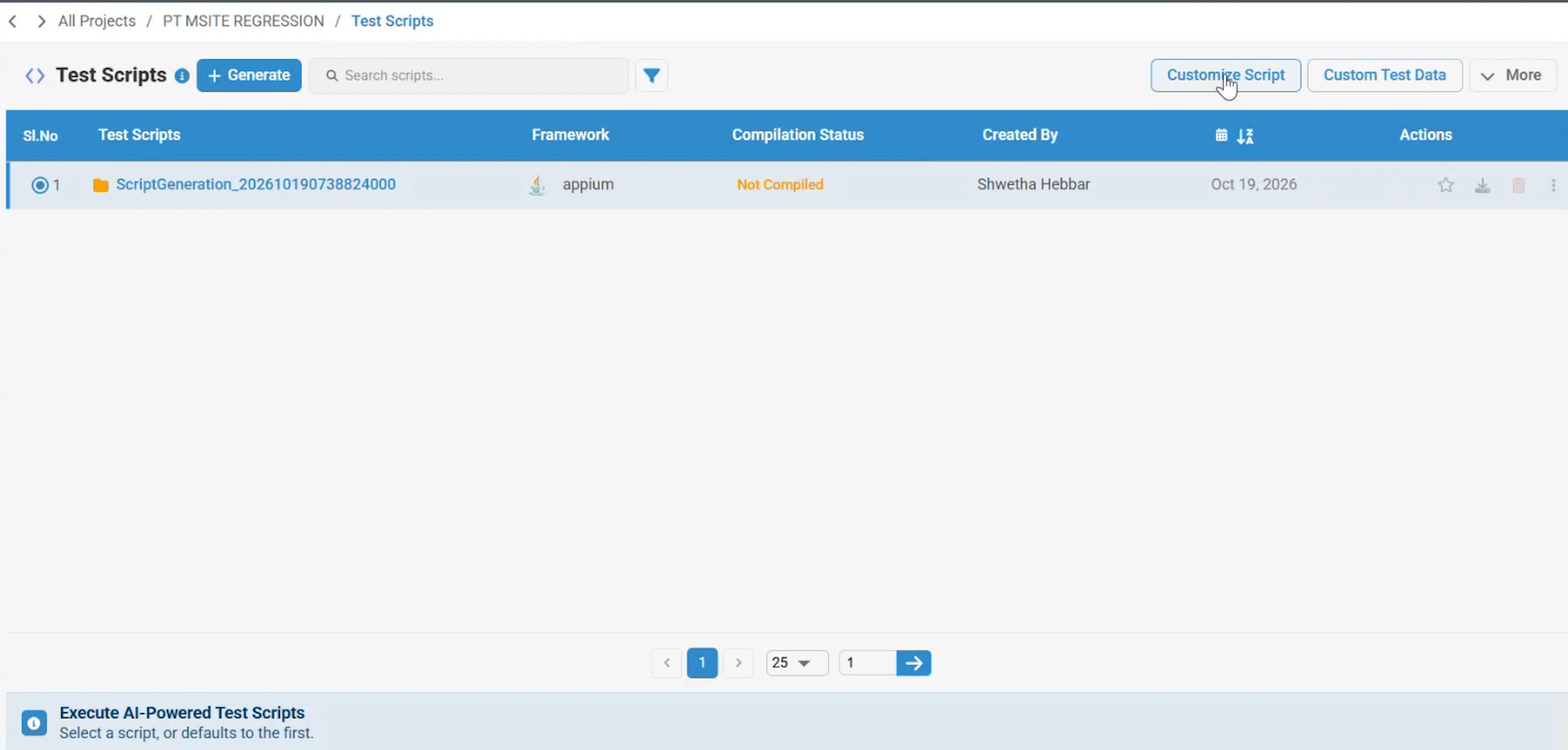
Open the customized script
Open Test Scripts and select Customize Script.
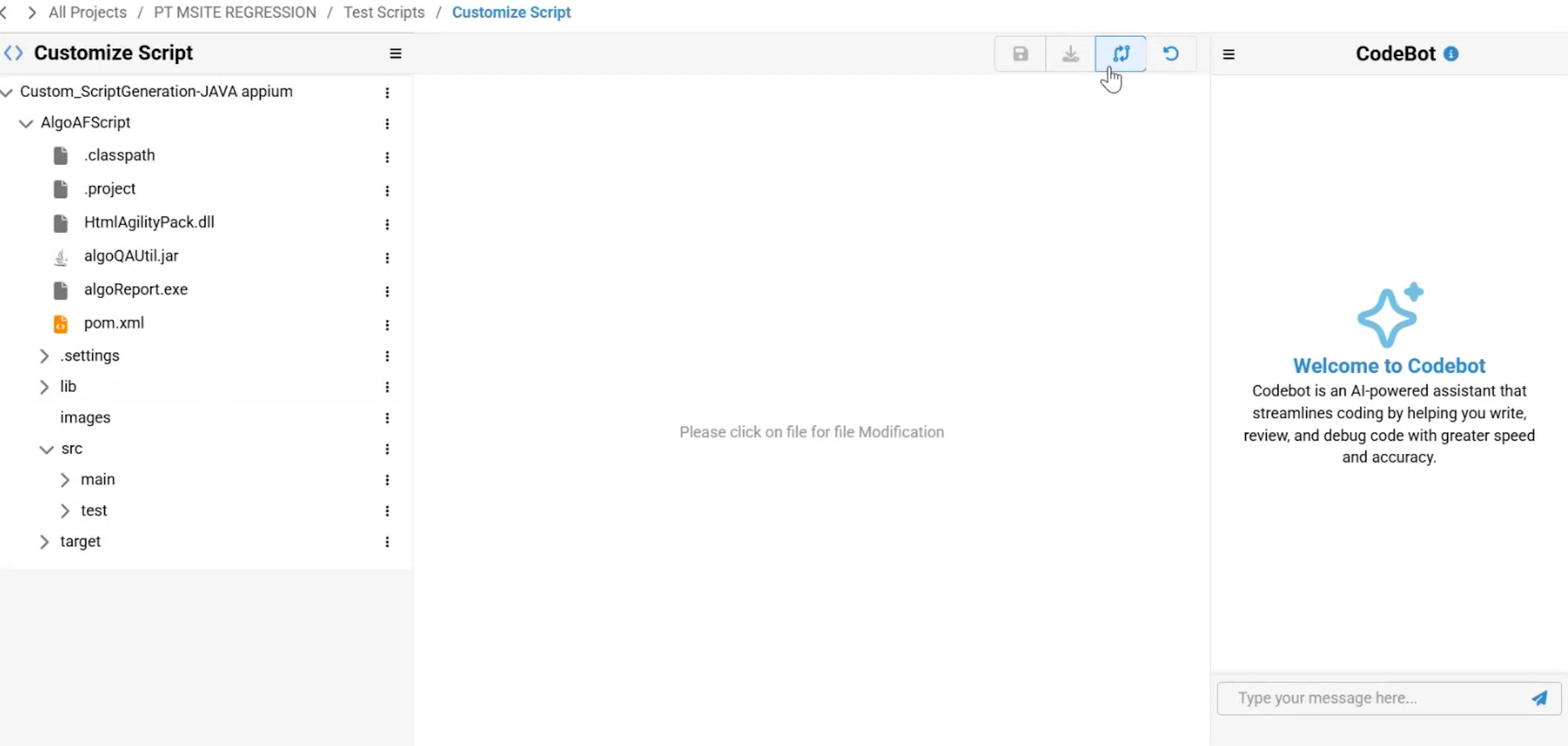
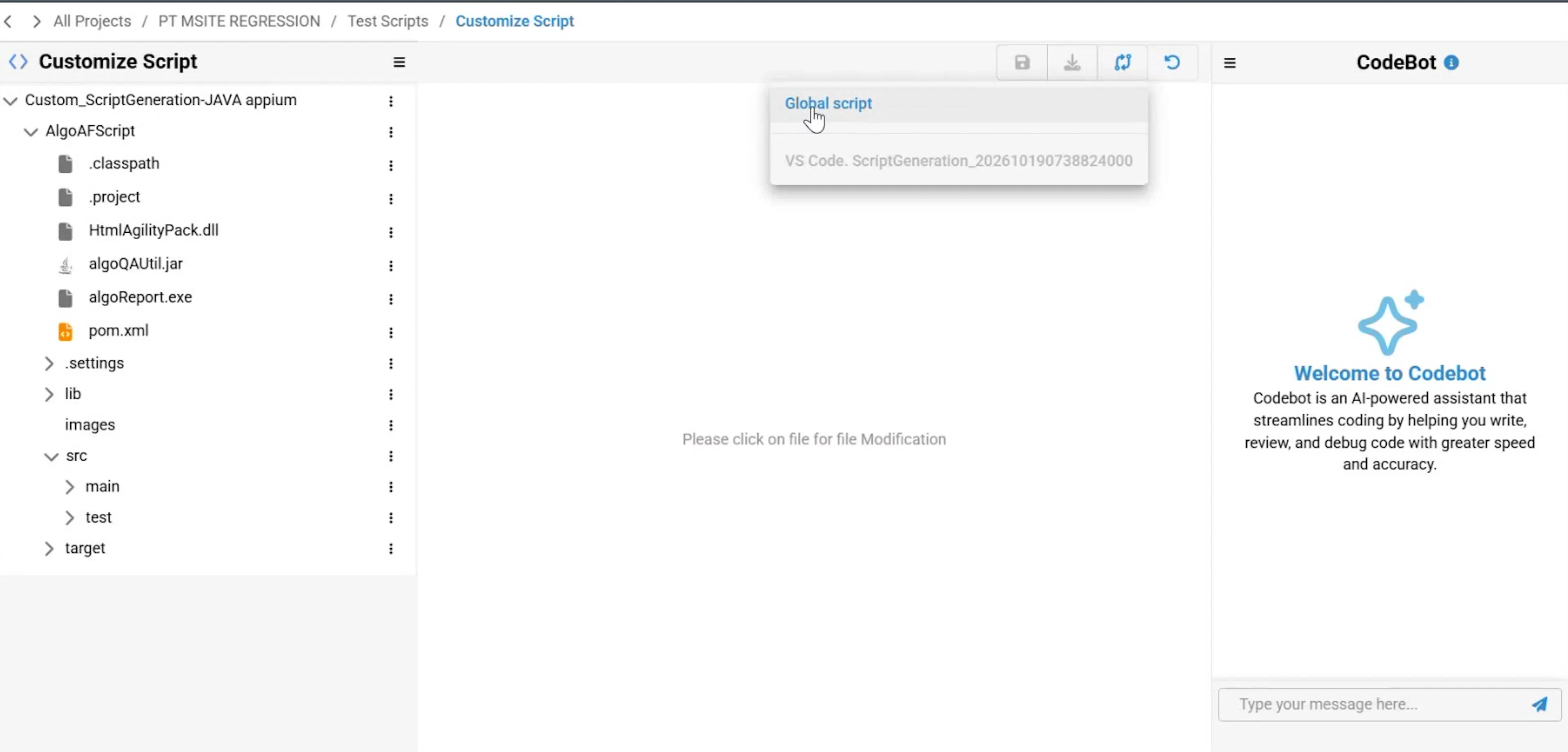
Click the highlighted Compare Customize script with Global script or VS Code script icon, then choose Global script.
Review the comparison
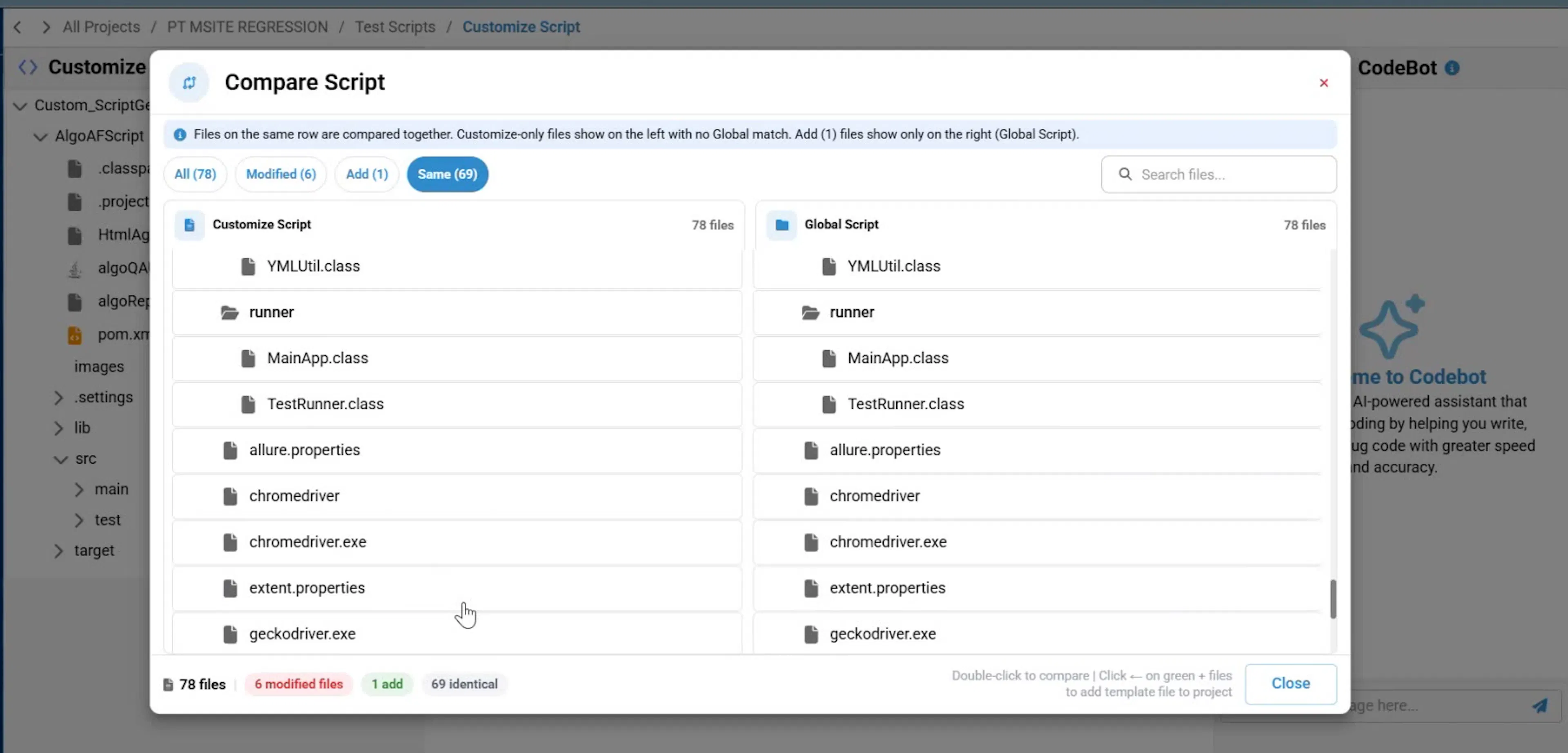
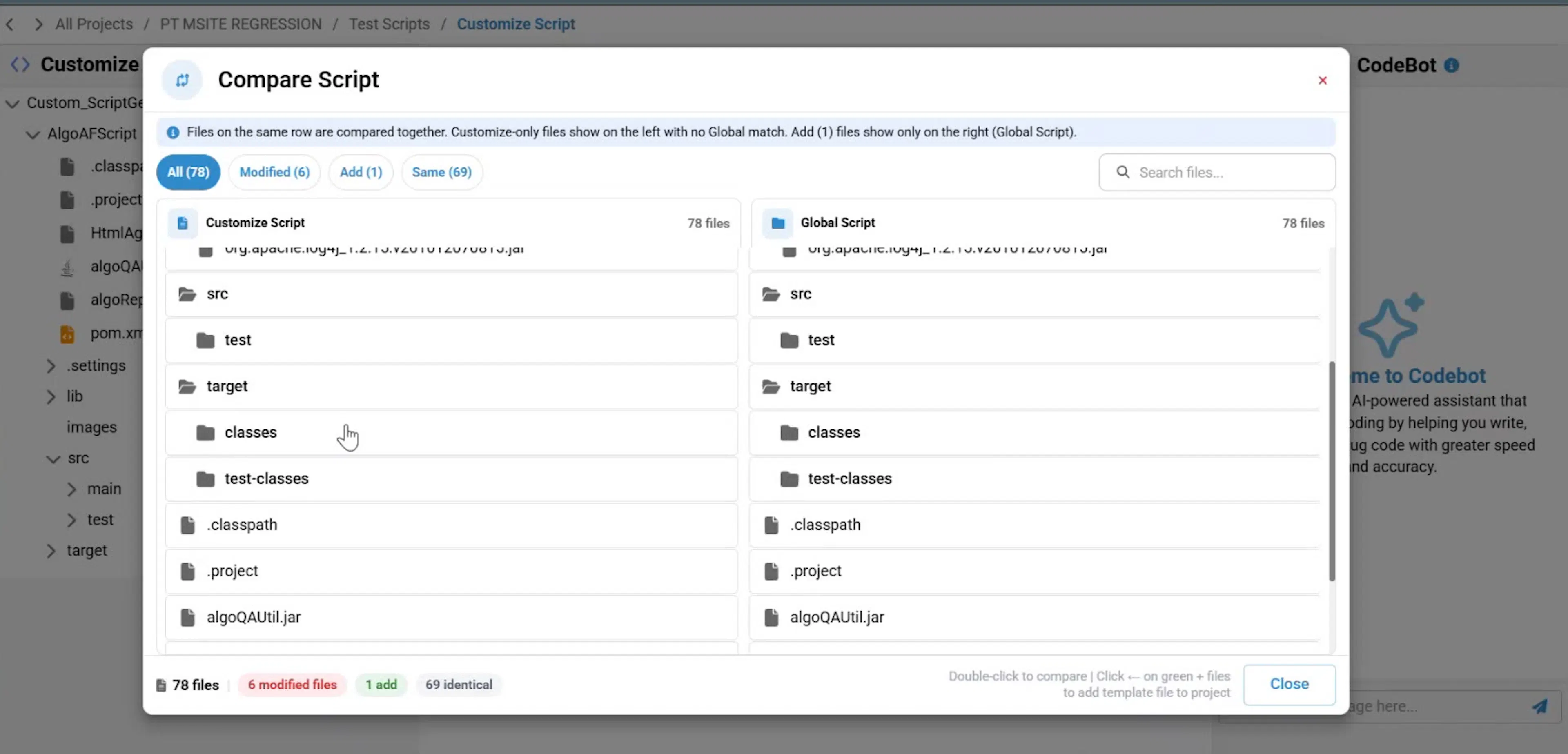
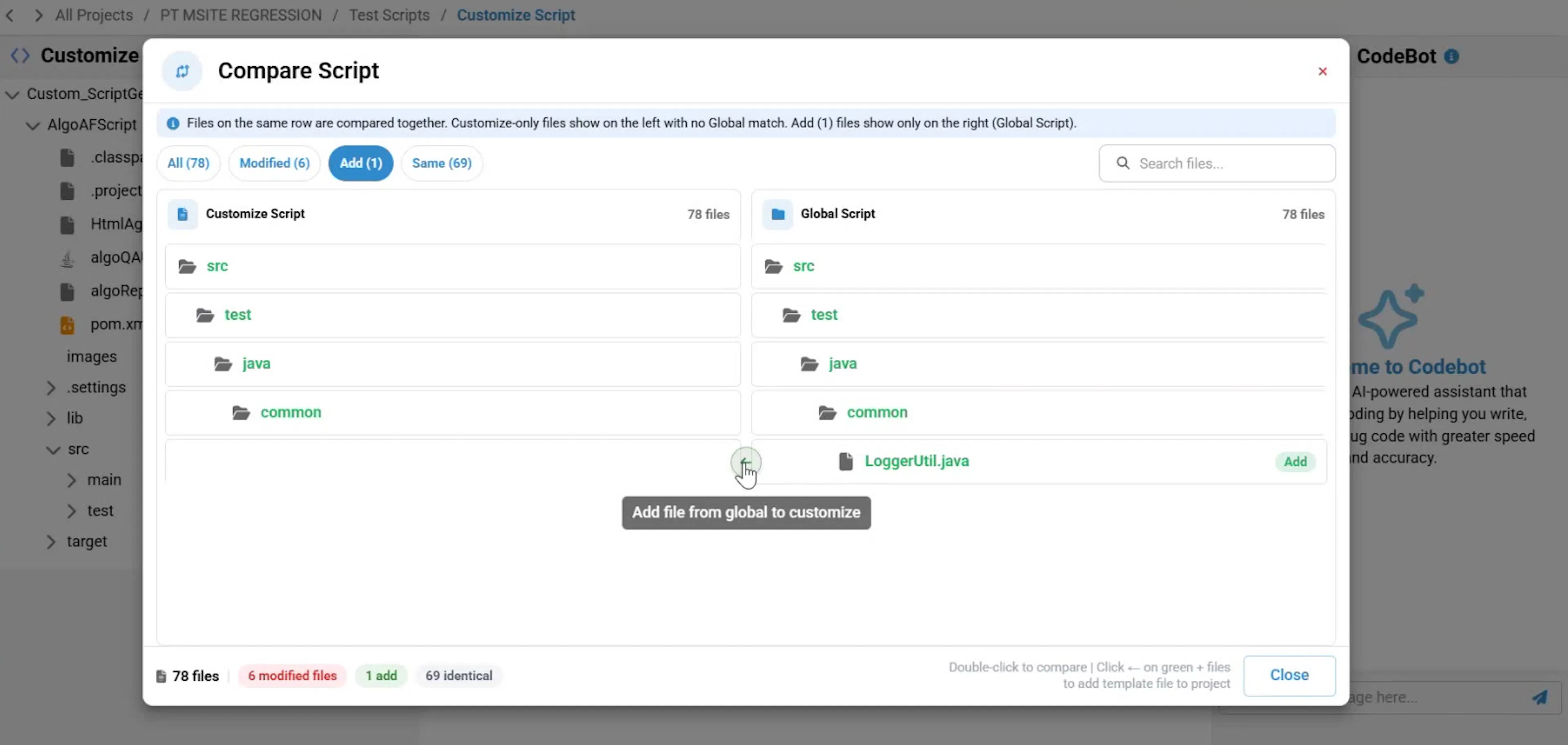
Review the Compare Script window. The window groups files into these tabs:
| Tab | Description |
|---|---|
| All | Shows all files included in the comparison. |
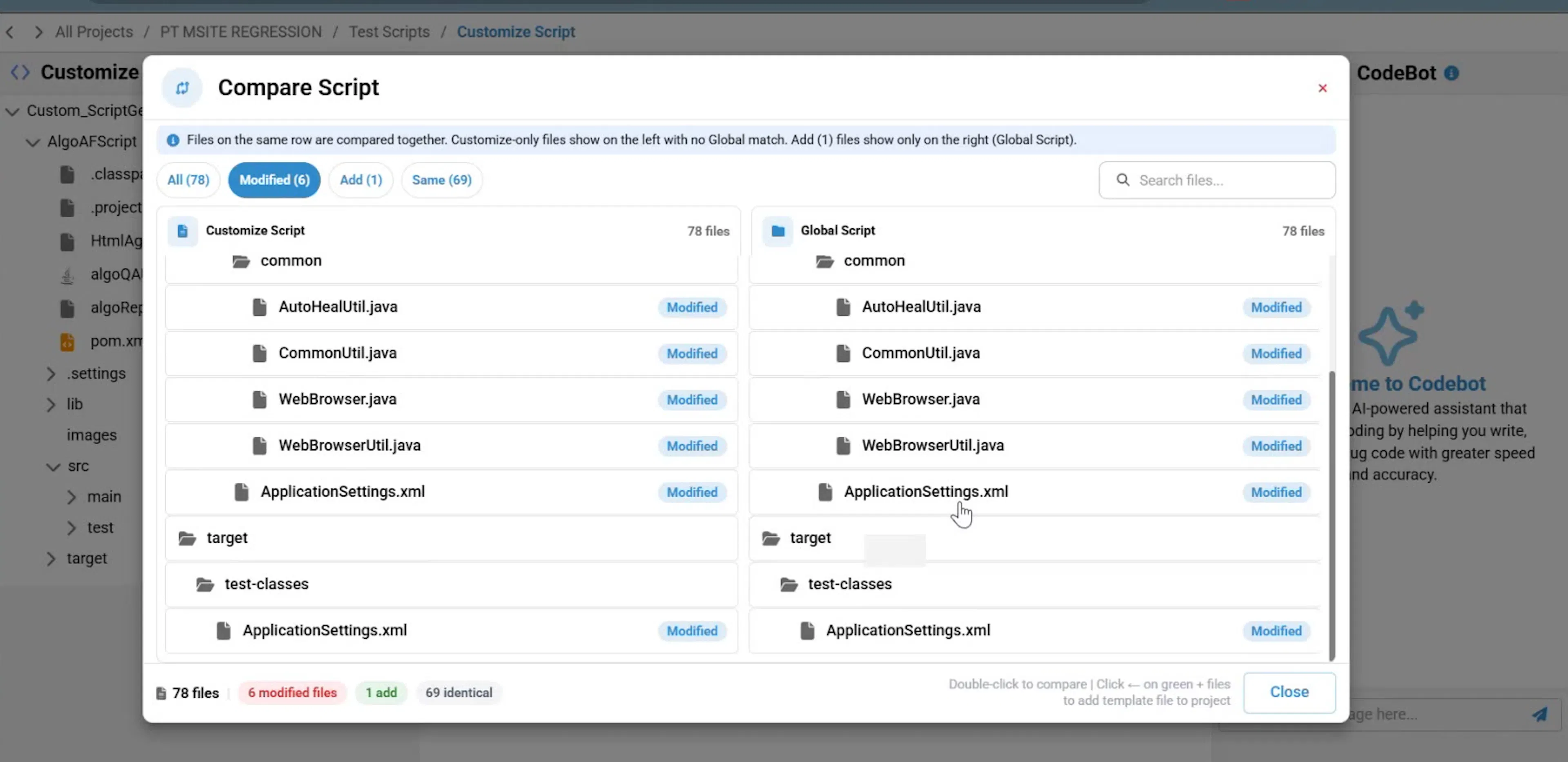
| Modified | Shows files that differ between the customized script and the global script. |
| Add | Shows files available to add from the global script. |
| Same | Shows files that are the same in both scripts. |
Apply changes from modified files
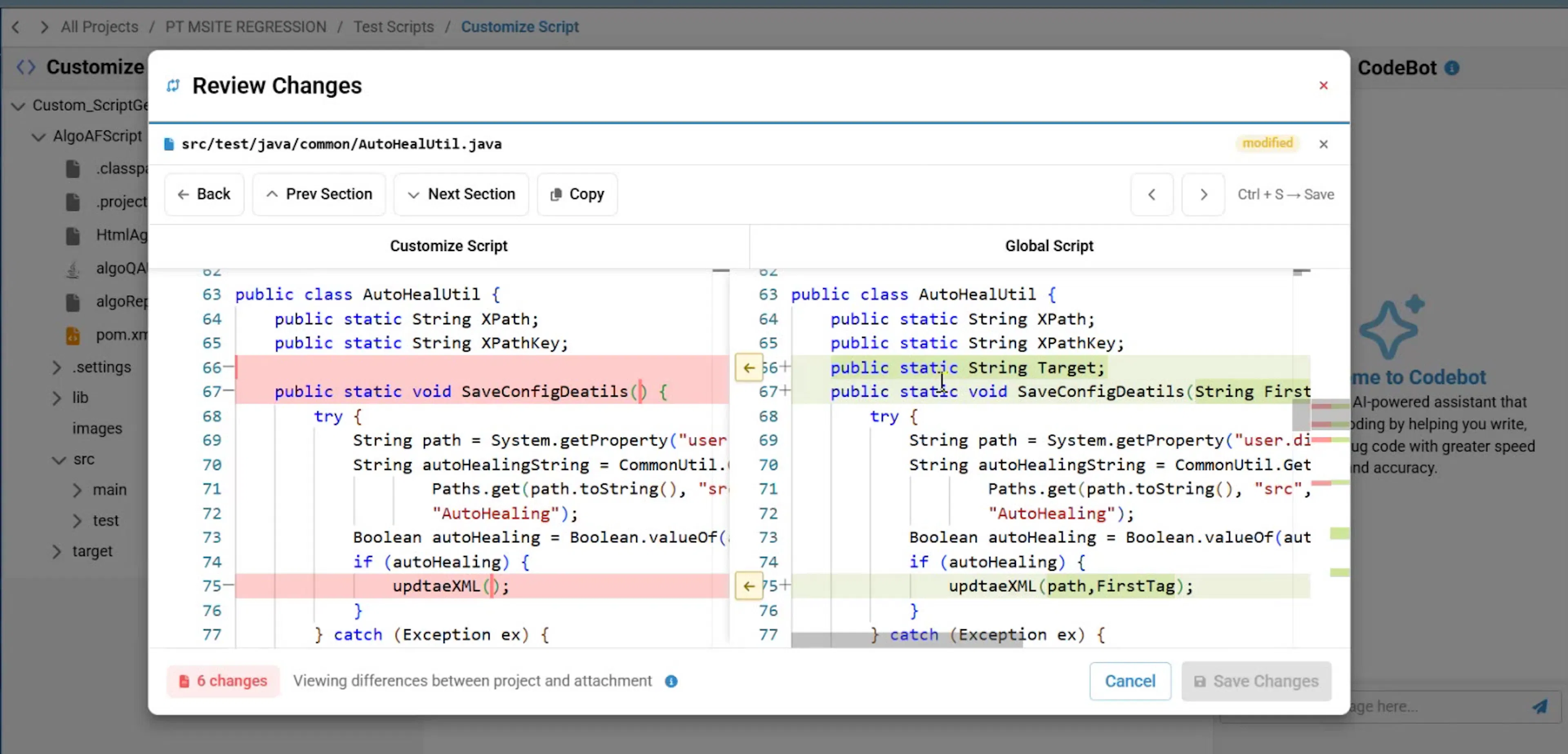
To update a modified file, double-click the file in the Modified tab to open its differences.
Use Prev Section and Next Section to move between differences. When you find a section to keep, copy it from the global version into the customized version, then click Save Changes.
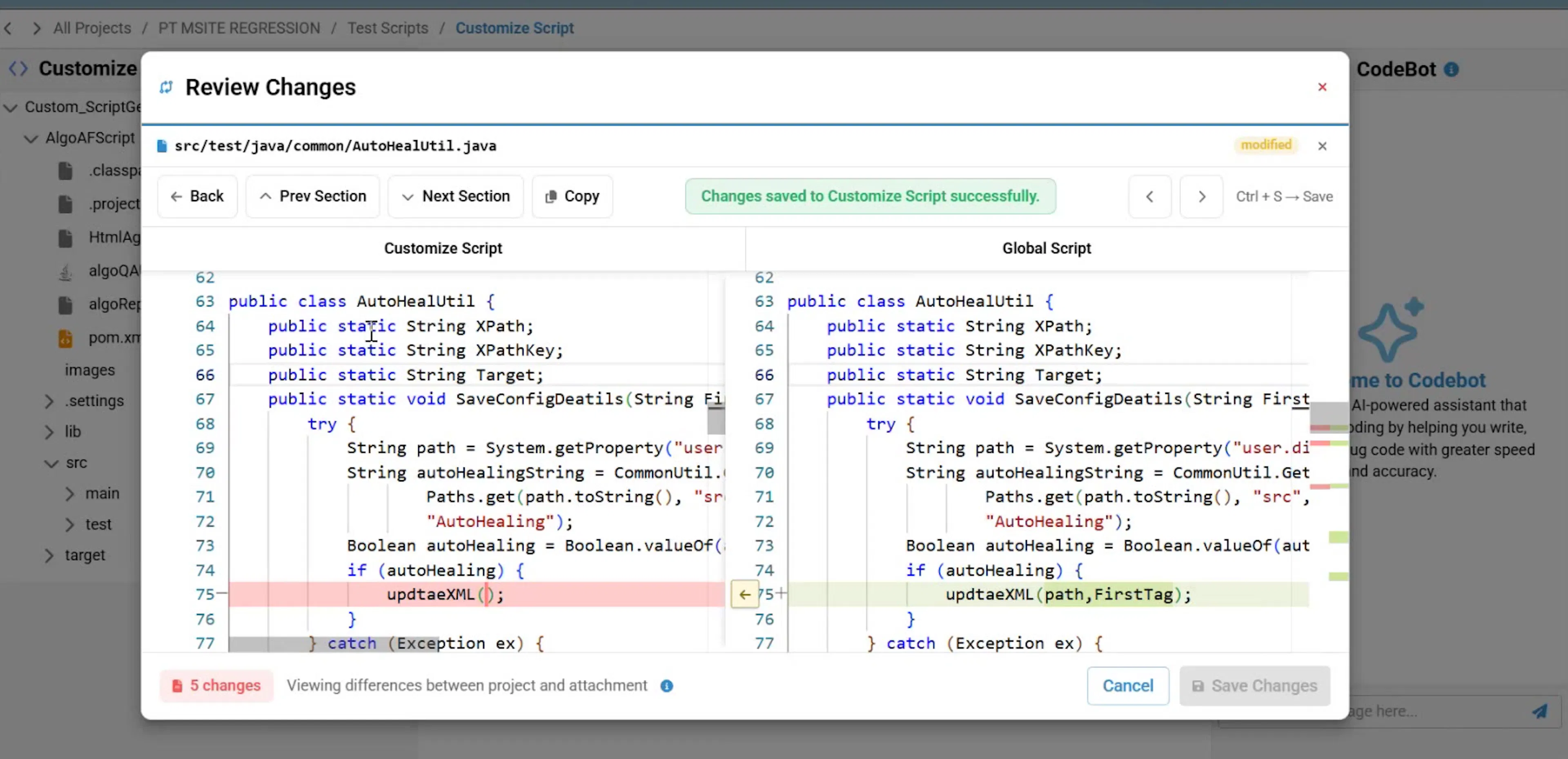
A banner confirms that the section was copied. After saving, a notification appears with the message Changes saved to Customize Script successfully. The change is added to your customized script, and scripts generated later include it.
Add files that exist only in the global script
In Compare Script, open the Add tab. The tab lists files present in the global script but missing from your customized script, such as src/test/java/common/LoggerUtil.java.
Click the arrow next to a file. The Add file from global to customize tooltip identifies the control that brings the complete file into your project.
Check identical files
The Same tab lists files that match the global script exactly. No action is needed for these files.