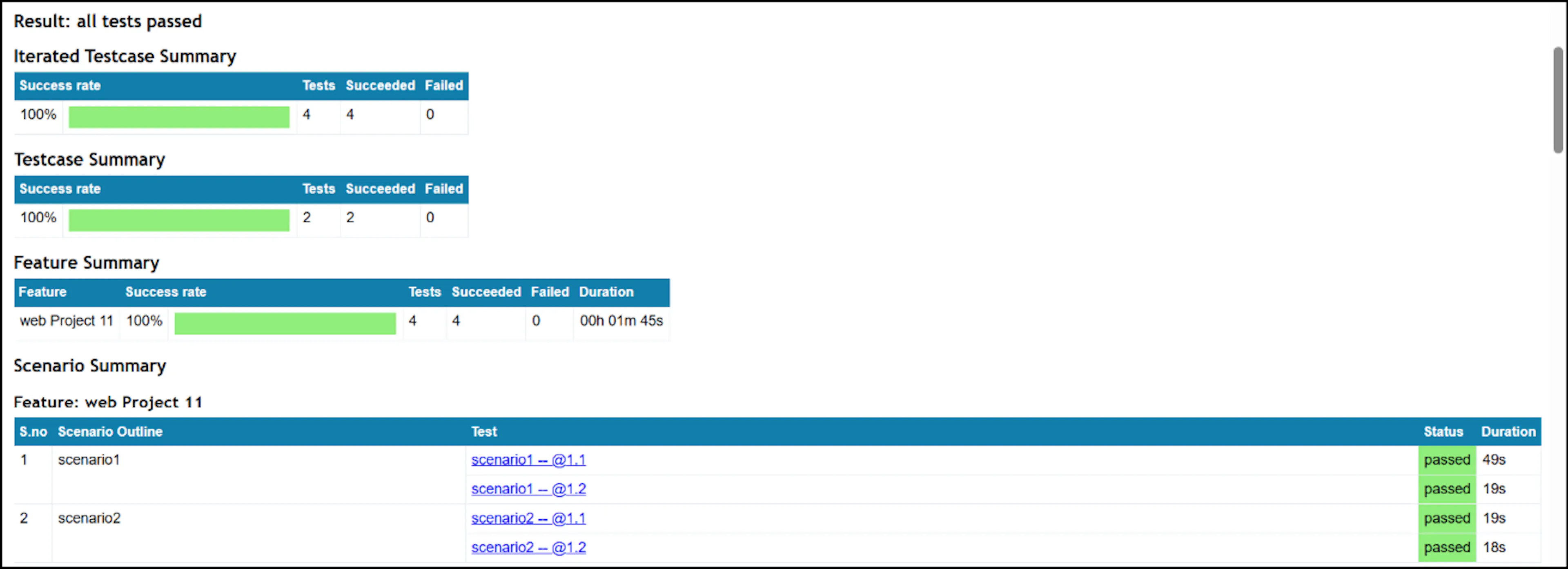
PDF Report and Extent Report Details
The following tables provides the details of PDF and Extent reports.
In Web Automation using the Python Selenium framework, when default actions are used, for basic default actions the log messages in the reports will include the control name along with the message.
| PDF Report | Extent Report |
|---|---|
| Test Results: Number of test cases that passed/failed and skipped | Test Results: Number of test cases that passed/failed and skipped |
Execution Time: Total duration taken to execute features, scenarios and steps in the graphical format.  | Customizable reports |
| Step Details: You can view preceding Information for each test step by clicking the feature name link. | Integration with Issue tracking tool, such as JIRA |
| Screenshots: You can also see screenshots captured for each verification step. | Summarizes the Test Summary (timestamp, test ID and scenario name) and drill-down capabilities for each test case. Click the down arrow in the timestamp line item to view test steps.  |
Visual charts (pie charts) for features, scenarios and steps.  | |
Tags used when you click on Tag icon in the left pane.  | |
For Web Automation using the Python Selenium framework, when default actions are used, for basic default actions the log messages in the reports will include the control name along with the message. Additionally sl.no, result and duration columns are added. To include a log message in the report after execution, provide the message as suggested below to avoid duplication. i) Without parameter – Only message needs to provide. ii) With parameter – Input provided: $inputvalue. iii) With parameter and content – Input provided: $inputvalue, Output value: $outputvalue. 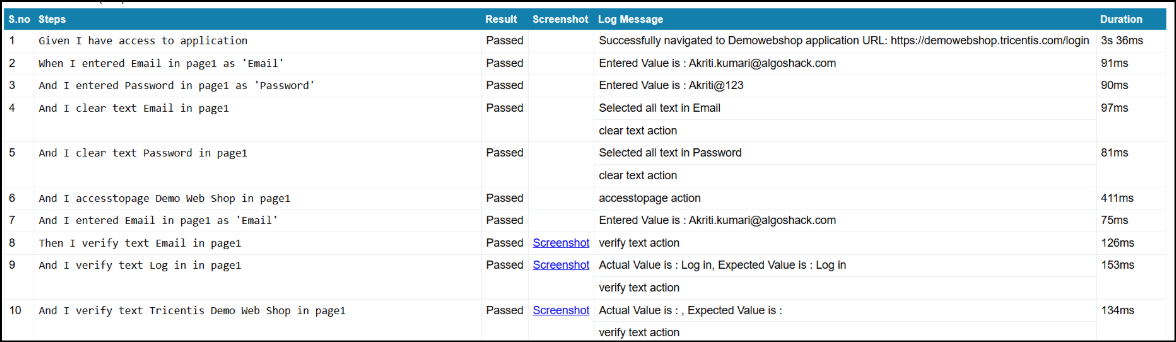 |
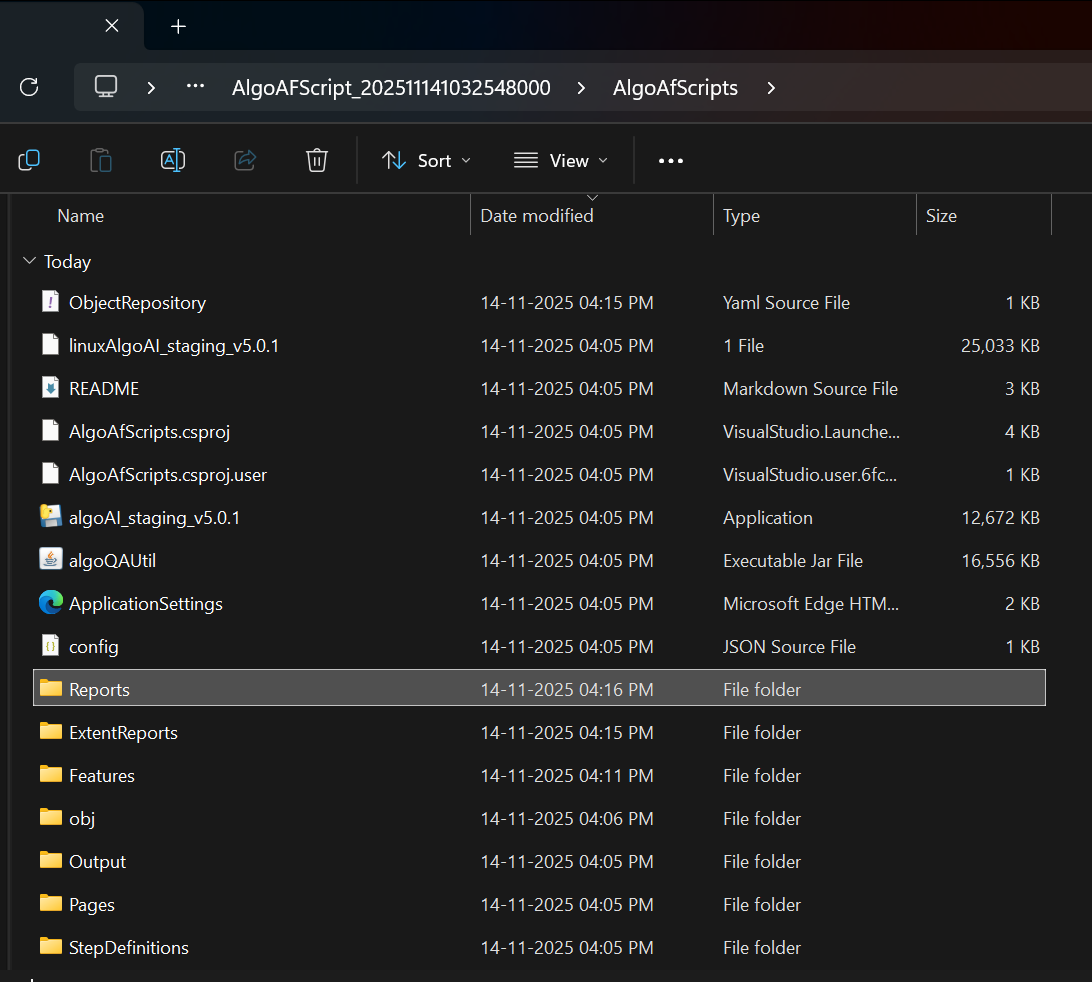
Note: In web automation using the C# Selenium framework, after execution, two folders will be created for reports:
- Reports – Contains HTML reports only.
- ExtentReports – Contains Extent reports only.
All reports generated during execution will be saved in these respective folders.
Example of a path to reports looks like this C:\Users\Admin\Downloads\ScriptGeneration_202511141032548000\AlgoAFScript_20251114 1032548000\AlgoAfScripts\Reports
Note: You can also merge multiple reports using the following command:
algoReport.exe behave "C:\Users\Dell\Downloads\ScriptGeneration_202604060503583000\AlgoAFScript_2026040605 03583000\features\TestReports\TestReport_2026-05-11_18-09-52" "C:\Users\Dell\Downloads\ScriptGeneration_202604060503583000\AlgoAFScript_2026040605 03583000\features\TestReports\TestReport_2026-05-11_18-09-52\report.html" "true"
Update the file paths according to your report location and execute the command using Command Prompt (CMD) to merge the reports successfully.
For Web automation using the Python Selenium framework, the HTML report provides the following summary sections:
- Iterated Test Case Summary: Displays the expected test case count along with the iteration count, passed count, and failed count.
- Test Case Summary: Displays the overall test case count along with the passed and failed counts.
- Scenario Summary: Displays scenario-wise execution details, including the test status and duration.