For the complete documentation index, see https://algoshack.documentationai.com/llms.txt. Every page is also available as Markdown: add .md to its URL, or request it with an Accept: text/markdown header.
Your algoQA profile holds your name, gender, country, and profile picture. Keeping your profile current helps teammates identify you and ensures notifications reach the right person. This guide walks you through editing profile details, uploading an avatar, and choosing a theme.
How to Edit Your Profile
Follow these steps to update your profile information and preferences:
Navigate to algoQA and sign in with your credentials.
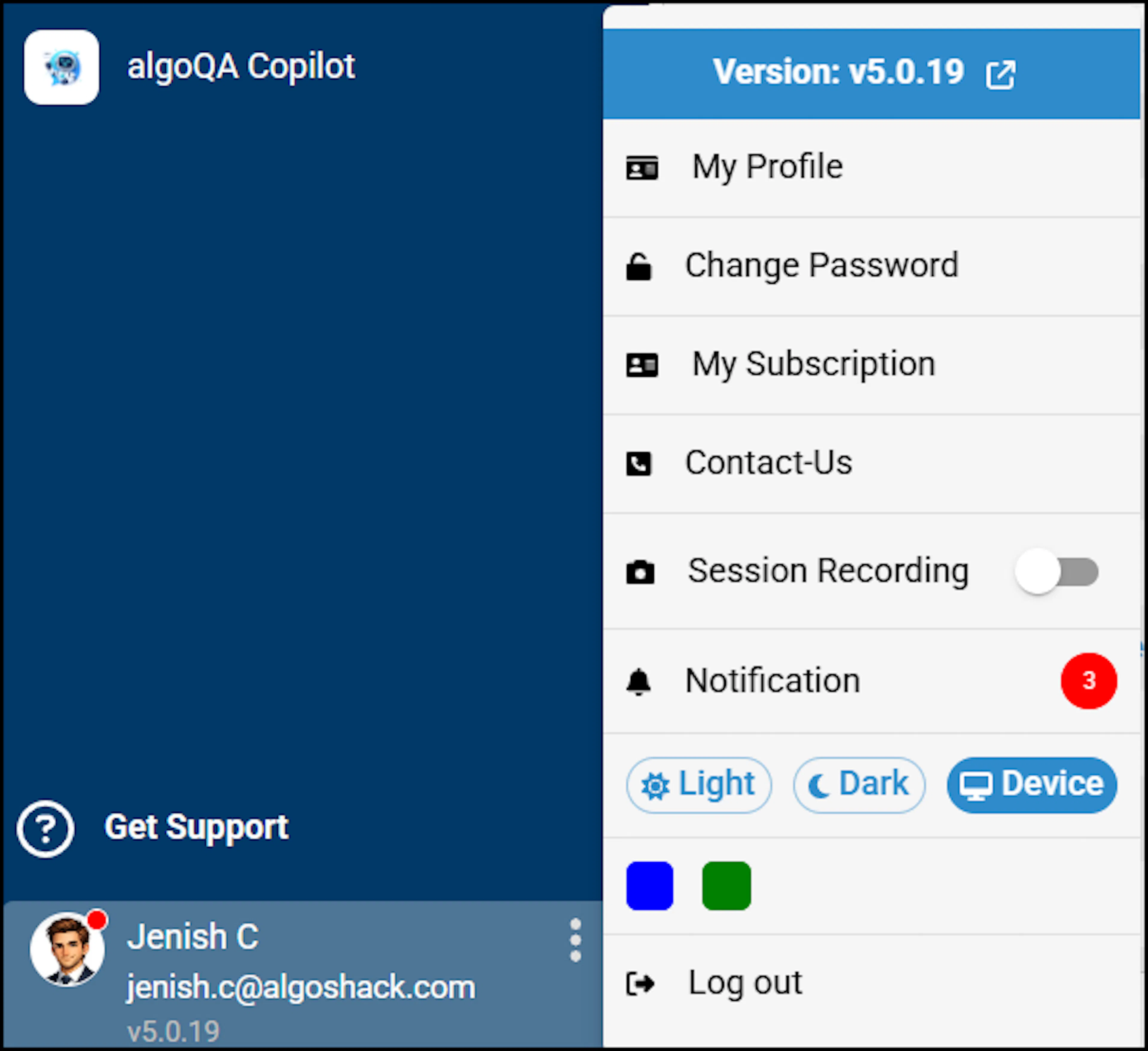
Choose a theme — customize the application appearance by selecting Light or Dark mode, each available in Blue or Green. You can also apply your device's default theme by selecting the Device option and choosing your preferred color.
Click your Profile Name or picture in the bottom-left corner. A pop-up menu appears.
Select My Profile from the pop-up menu. Here you can also view the current version of algoQA.
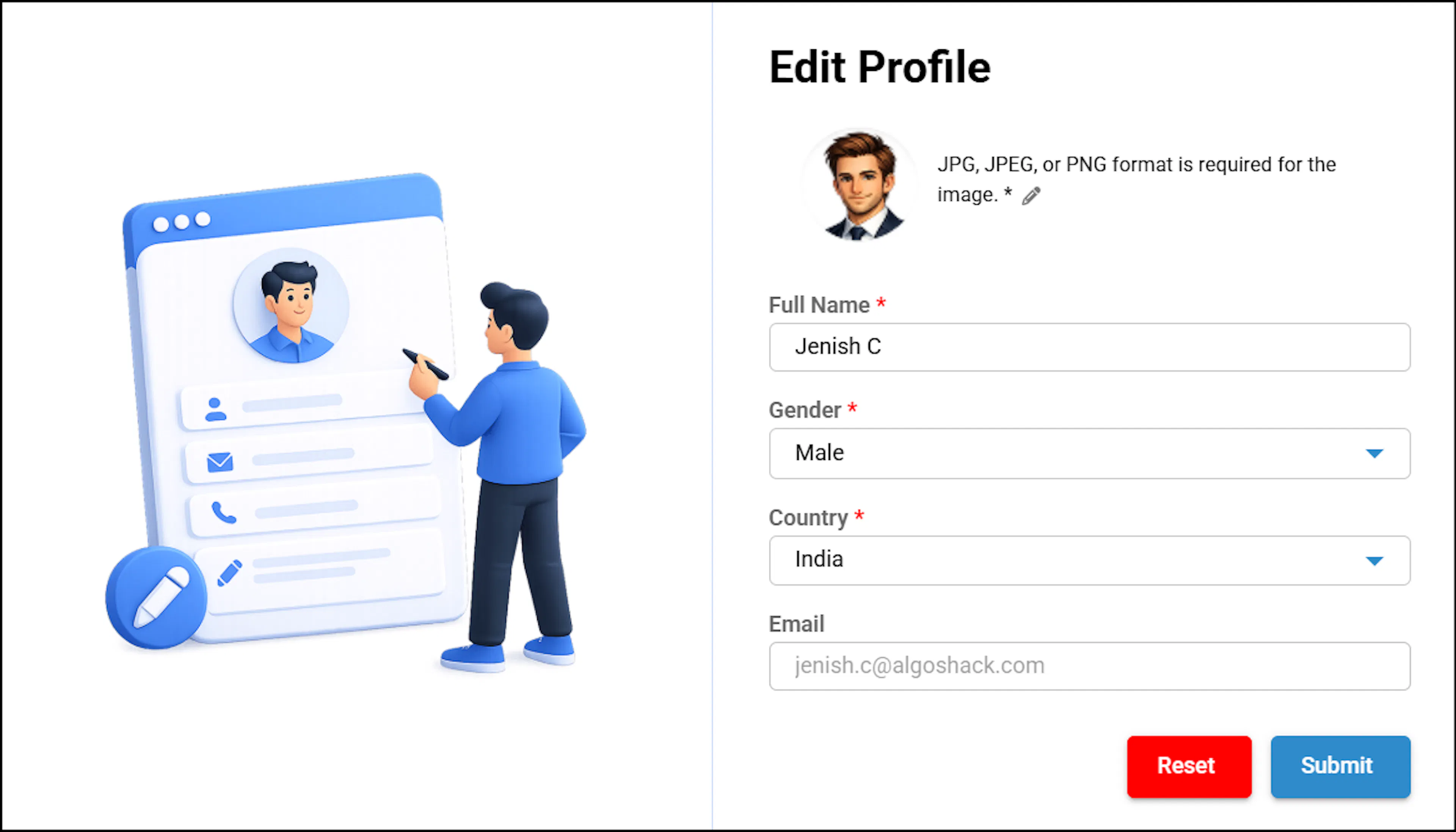
Profile dropdown menu showing Change Password option and current algoQA versionUpdate your profile fields — modify your name, select your gender (Male or Female), and choose the appropriate country from the dropdown list.
Note that the email field is disabled by default and cannot be changed.
Upload or change your profile picture — click the Upload Image button to add or replace your avatar. To remove your current picture, click the Remove button.\
Profile pictures must be in JPG, JPEG, or PNG format. For best results, use a square image (at least 200×200 pixels).
Click Submit to save your changes, or click Reset to revert to the original details.