
Logging into algoQA Platform and Changing Password
Sign in securely to the algoQA Platform, recover a forgotten password via OTP, and update your password anytime to keep your account protected.
Login to algoQA Platform
After subscribing, sign in to algoQA with the credentials provided by your administrator.
Open the algoQA website
Enter algoshack.com in your browser.
Open the login screen
Click Sign in in the status bar.
Enter your credentials
Enter your email address and password. Both fields are required.
If either field is blank, the platform asks you to enter the missing information. If your email address or password is incorrect, the platform displays Invalid Email or Password. The email address and password fields are not case-sensitive.
To verify your password before submitting the form, click the eye icon in the password field. The password is hidden by default.
Sign in
Click Log in to access the algoQA Platform.
Use Microsoft authentication
You can also click Sign in with Microsoft to authenticate with your Microsoft account.
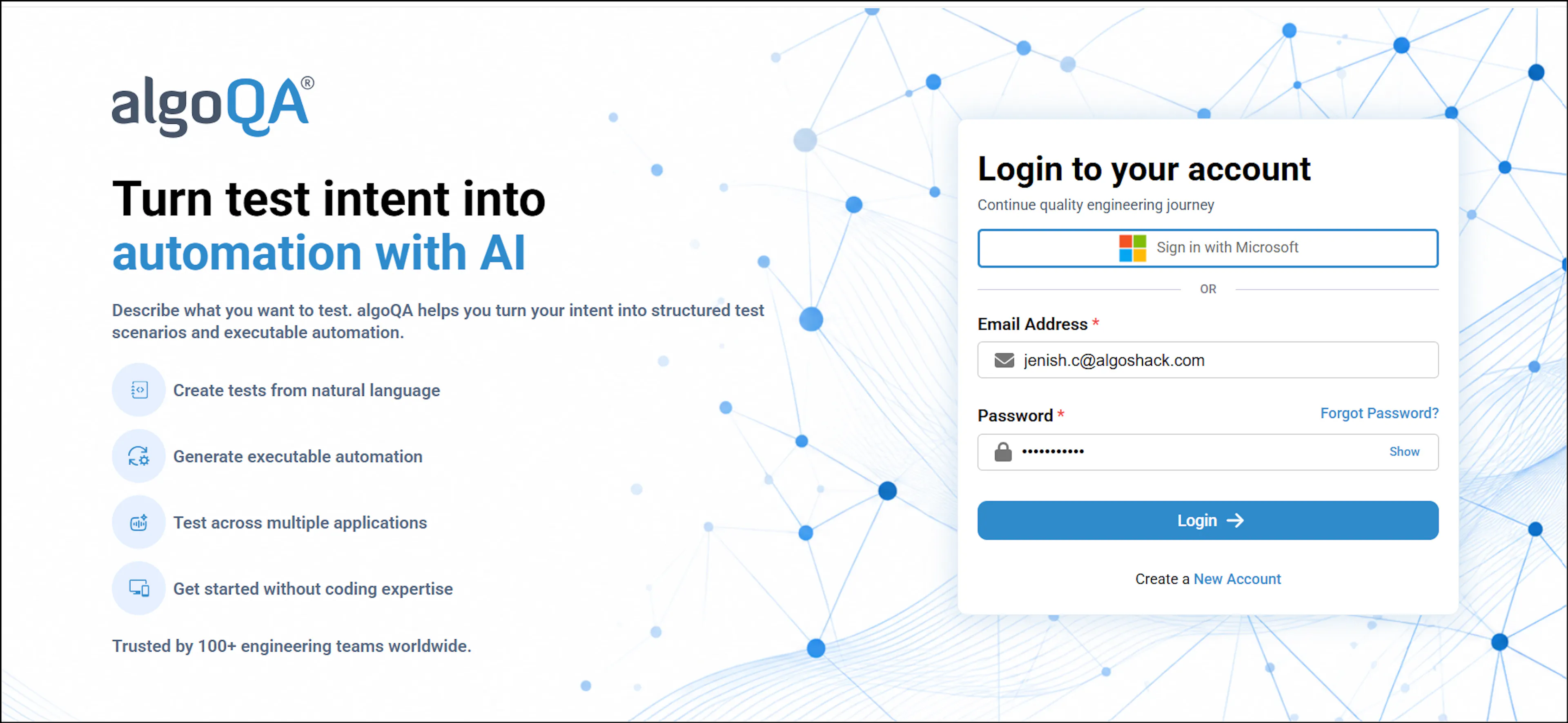
If you choose to create a new account, follow the steps in Kick Start Your Automation Journey. Save your login details when you create the account so that you can access them from the Manage Passwords link.
Forgot Password
Use the password recovery flow to reset your password when you cannot sign in.
Request an OTP
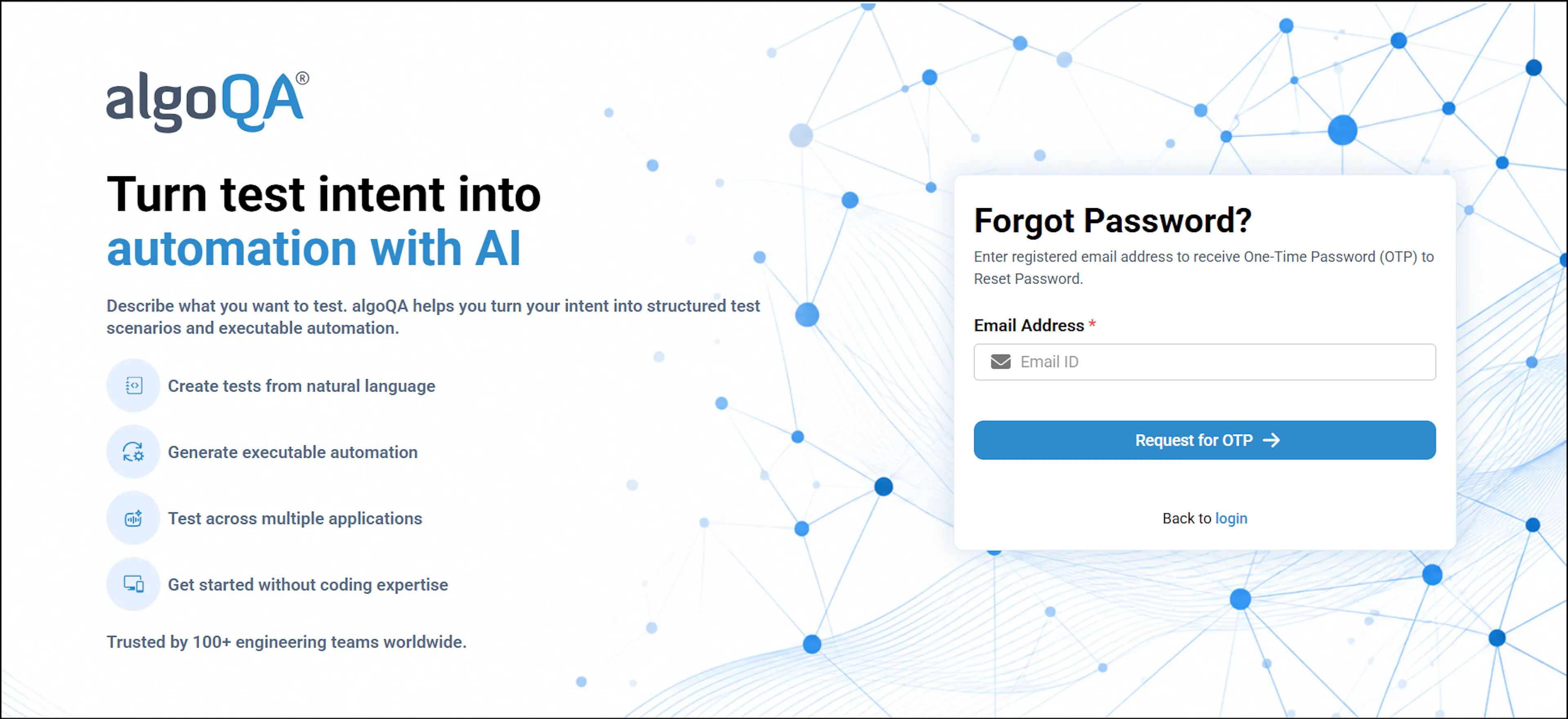
Click Forgot Password in the login window. Enter your registered email address on the password recovery screen, then click Request OTP.
Enter and verify the OTP
Enter the verification code and click Verify. If the code is invalid, the platform displays Invalid Code. After several unsuccessful attempts, the platform prevents further verification attempts, even if you enter the correct code.
If you need a new code, click Resend OTP to send another verification code to your registered email address.
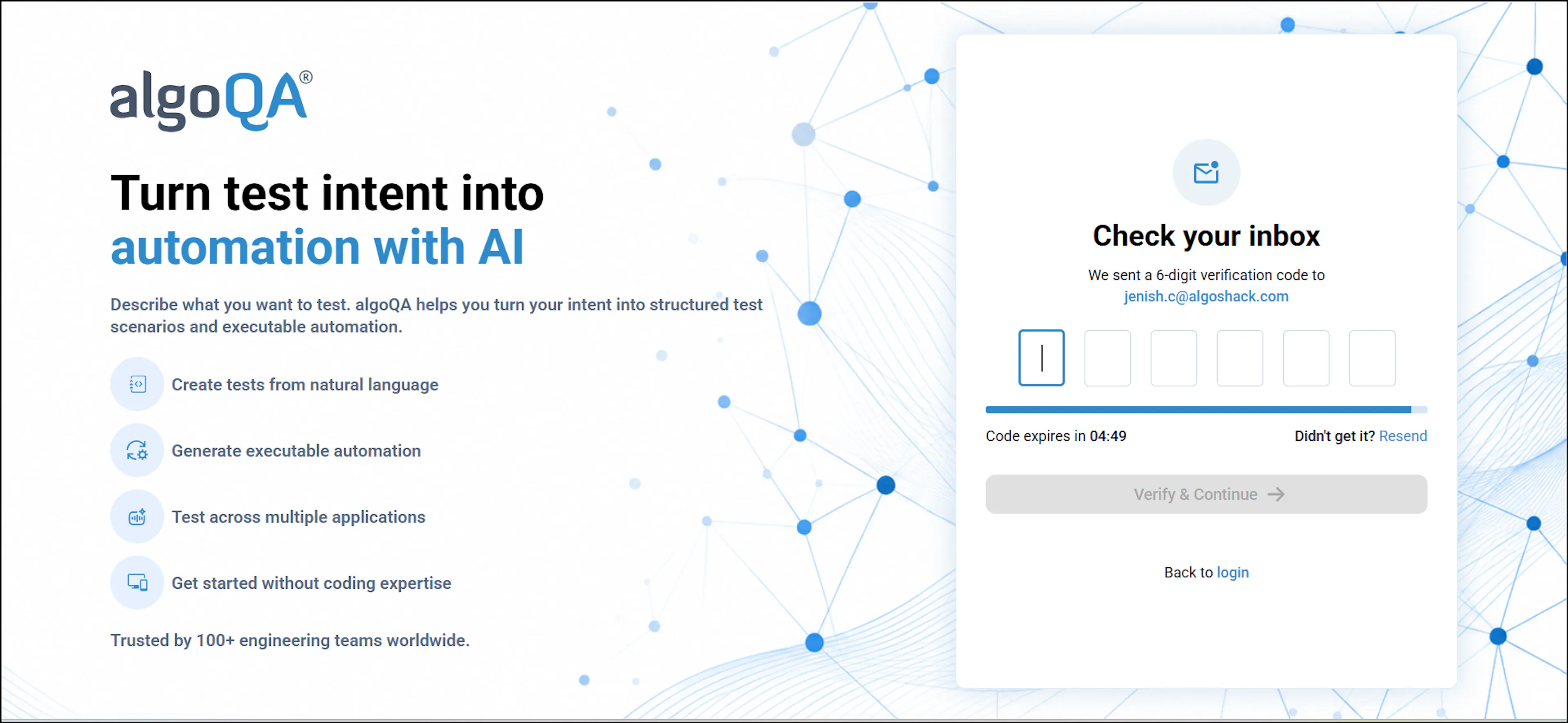
The verification code is valid for five minutes.
Check your email for the OTP
Check your registered email inbox for a message with the subject OTP Reset Password.
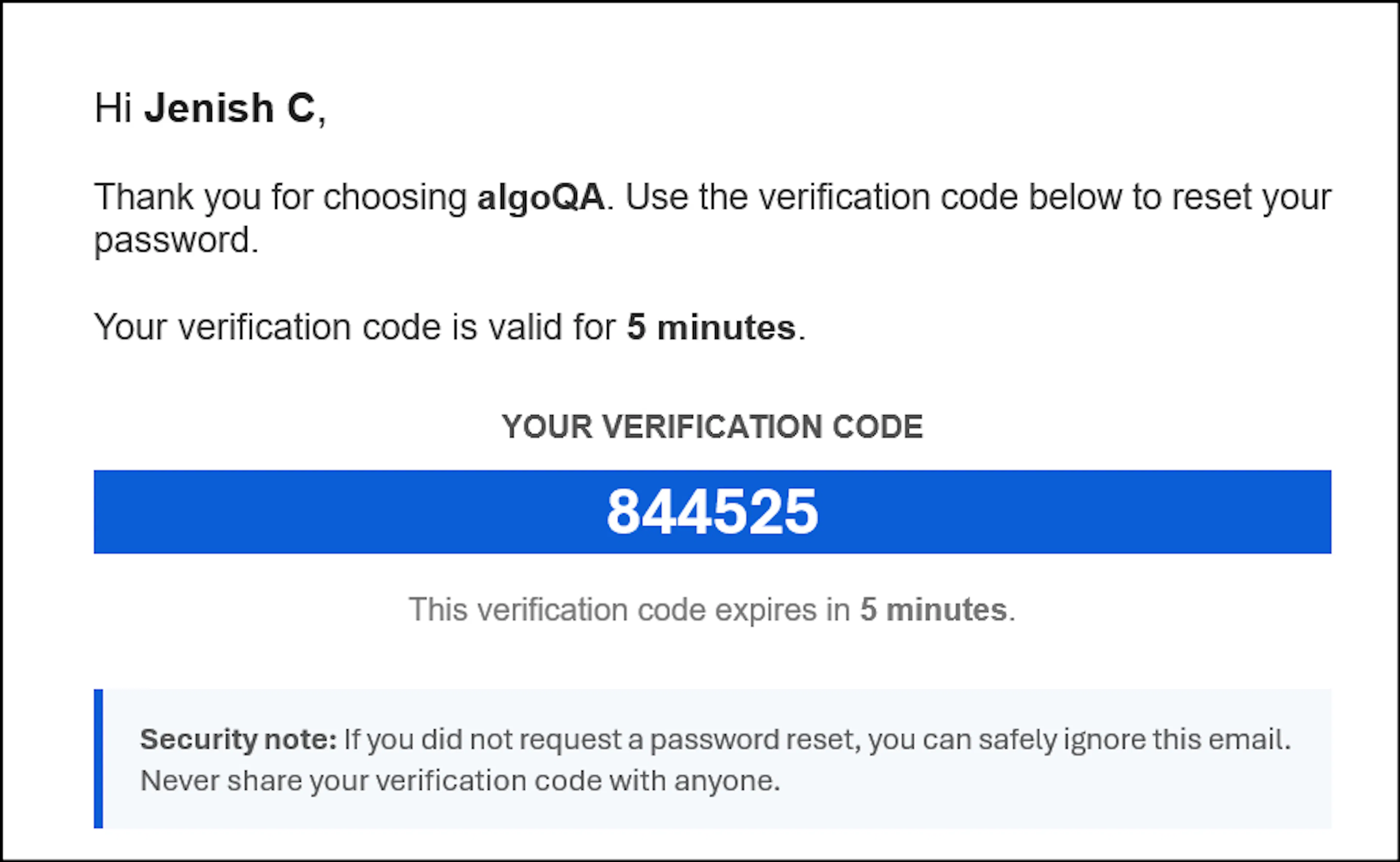
Enter the OTP from the email and click Verify & Continue.
Reset your password
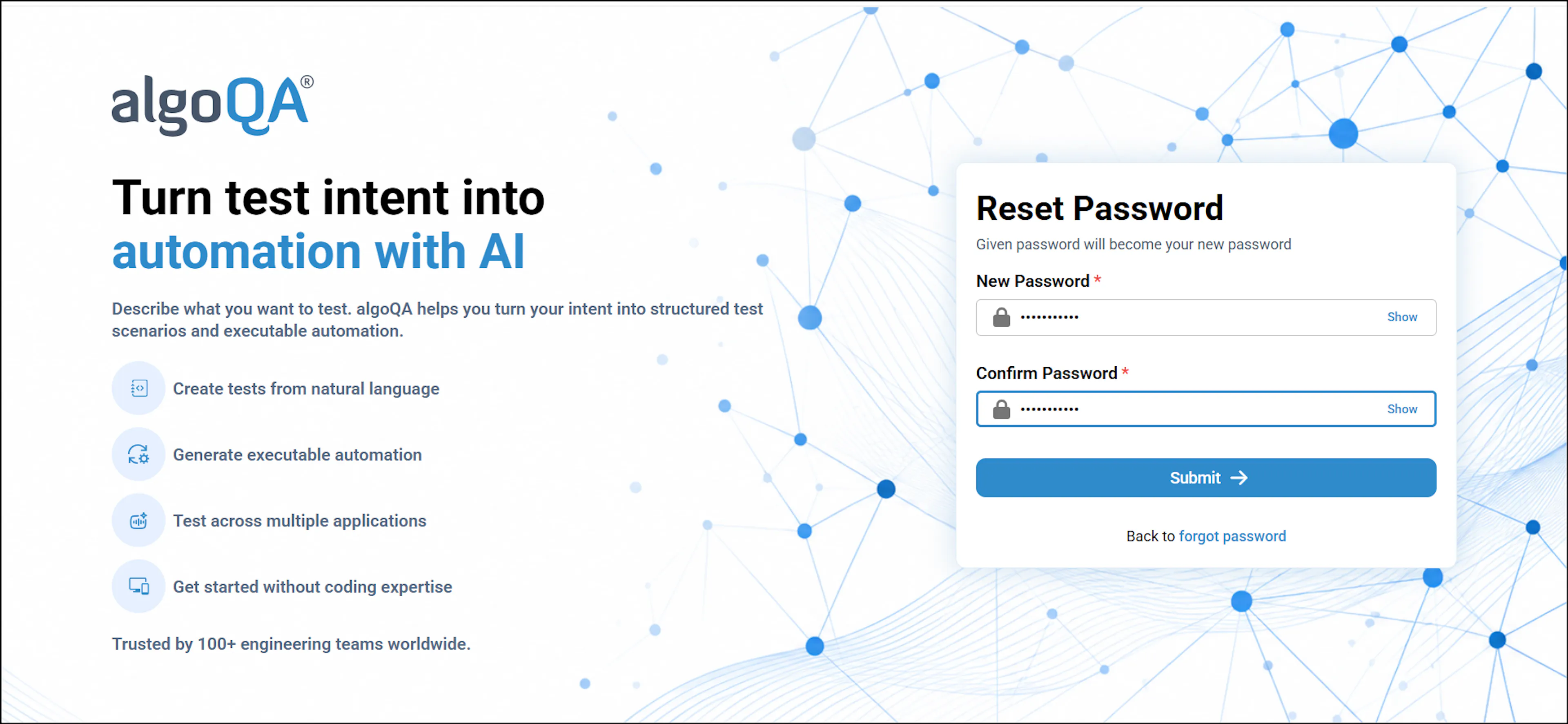
On the Reset Password screen, enter your new password and re-enter it in the Confirm Password field. To view a password while entering it, click the eye icon.
Click Submit to update your password.
Change Password
Update your password regularly to keep your account secure. You need your current password to set a new one.
Open Change Password
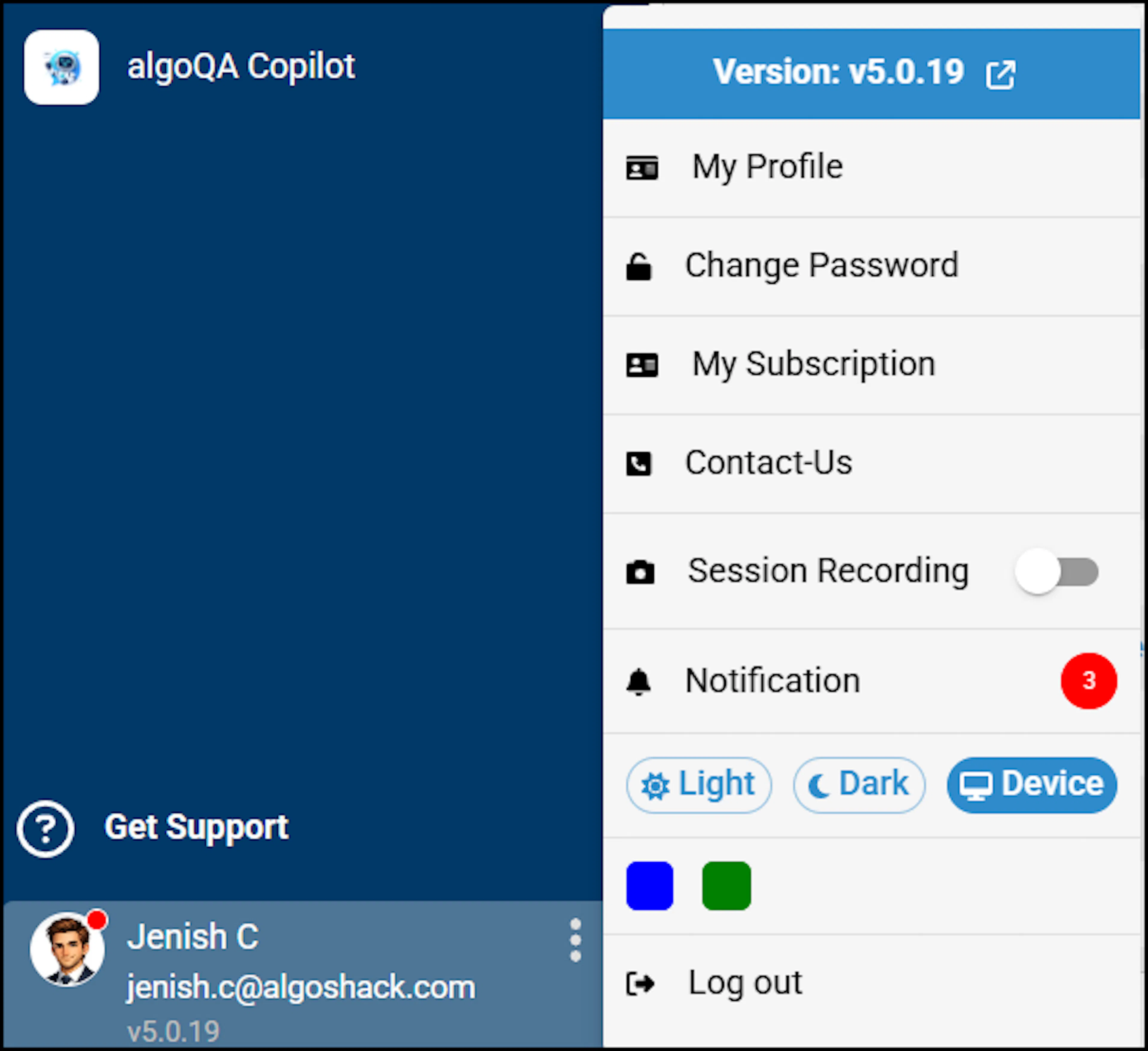
Log in with your credentials. Click your profile picture in the bottom-left corner, then select Change Password. The profile menu also displays the current algoQA version.
Enter your passwords
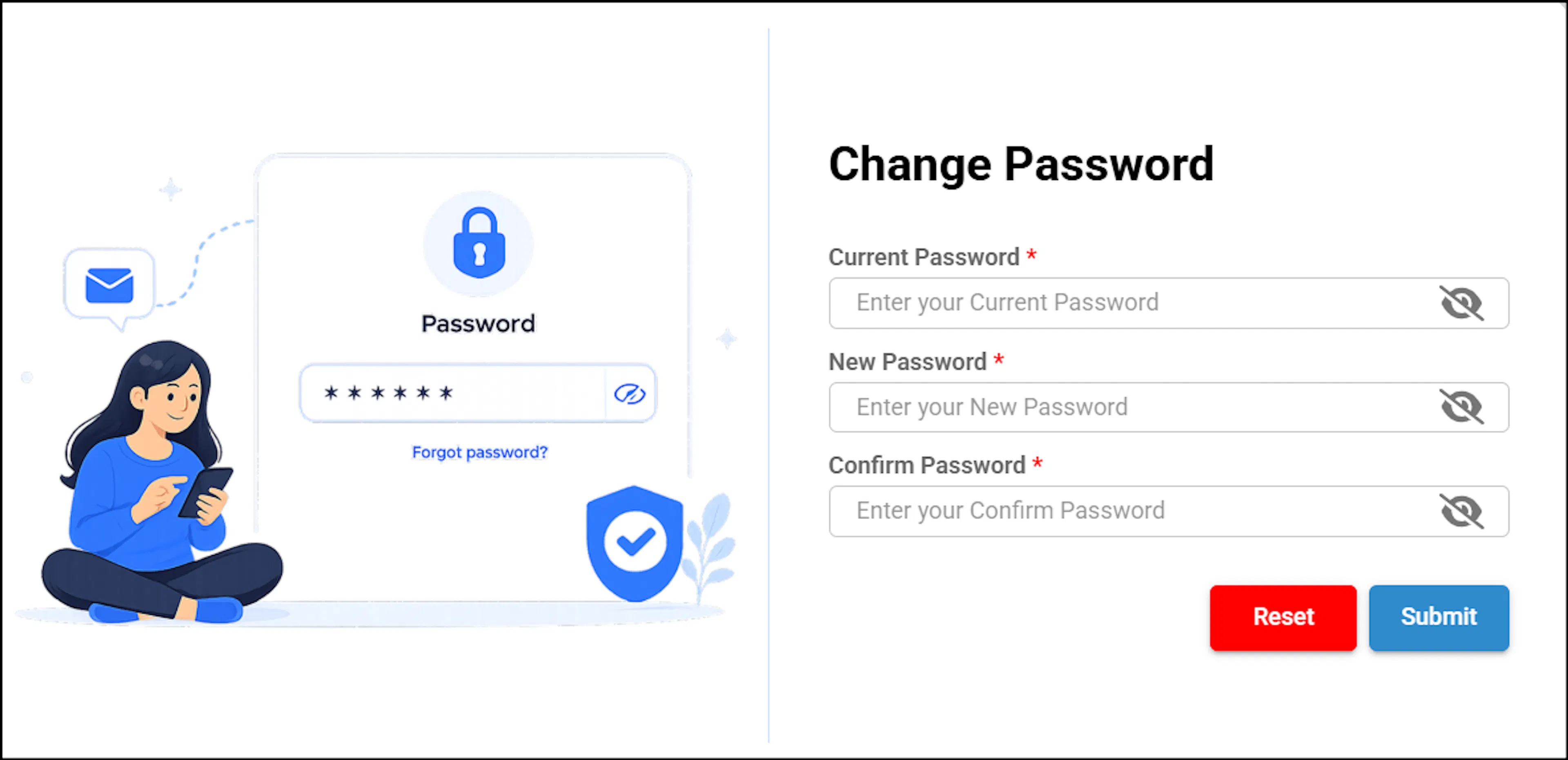
On the Change Password screen, enter your current password and new password. Re-enter the new password in the Confirm Password field.
You cannot change your password without knowing your current password. To view a password while entering it, click the eye icon. Passwords are hidden by default.
Submit the new password
Click Submit to save the new password. To clear the password fields and start again, click Reset.
Ensure that your new password meets these requirements:
- The password must be at least 6 characters long.
- The password must contain at least one uppercase letter, such as A, B, or C.
- The password must contain at least one lowercase letter, such as a, b, or c.
- The password must include at least one special character, such as @, #, $ or %.
- The password cannot contain spaces.