
How to Automatically Attach Generated Reports to Emails for Java Appium
After script execution leveraging algoQA for a Java Appium framework, the report generated will be attached to the recipient's email automatically. The second section provides the procedure to generate module-wise reports, which are then attached to the recipient's email automatically.
Configuring Application Settings file
To address this, perform the following:
-
Scripts generated follow an organized folder structure. Search and locate the ApplicationsSettings.XML file. Copy and paste the ApplicationsSettings.XML file to the location where POM and Report.exe files are located.
-
In the ApplicationSettings file, update the 'To email', 'From Email' and 'From Password' parameters with the appropriate details. Note that the preceding details must be added manually. You can find Applications.XML file available at - ScriptGeneration_202310311222 (2).zip\AlgoAFScript_202310311222\src\test\java.

-
To open the command prompt from the same location where the POM, Report.exe, and Applications.XML files are located in the folder, type 'cmd' in the same address bar to open the command prompt. Then, run the following command for Java Appium:
algoReport.exe JUnitSpark EmailAlerts "script_path"
Make sure to update the script path with the actual script path. The full path must be specified within the quotes.
If the size of the generated script file is more than 24.5 MB, the recipient will only be able to view the execution summary report. If the size of the generated script file is less than 24.5 MB, you will be able to view the execution summary report along with the actual report.
Generating Reports Module-wise and Attaching them to Emails
To generate reports module-wise, save the report files to the specified output folder for the given project and attach it to the recipient's email, perform the following:
- Repeat the steps for locating and copying the ApplicationSettings.XML file as outlined in steps 1 and 2 in the Configuring Application Settings File section.
- Open the command prompt from the same location where the POM, Applications.XML and Report.exe files are located in the folder, type 'cmd' in the same address bar. Then, run the following command:
Sample execution command will be as follows:
algoReport.exe JUnitSpark ModuleWise "<scriptpath>" <projectName>In the preceding command,algoReport.exe JUnitSpark ModuleWise "C:\Users\Admin\Downloads\ScriptGeneration_202502200833583000 \AlgoAFScript_202502200833583000" Sample Project Name.- script path will be similar to the sample path -
C:\Users\Admin\Downloads\ScriptGeneration_202502200833583000 \AlgoAFScript_202502200833583000" - replace 'projectName' with the name of the project for which the report is being generated. The project name will appear as the report title.
- script path will be similar to the sample path -
- Report will be attached to the recipient emails module-wise and all the generated reports will be sent.
- Auto-Healing Summary is also available, which includes details such as the Test Case Name, Tag, Steps, Original XPath, Healed XPath, Step Status, and Test Case Status.
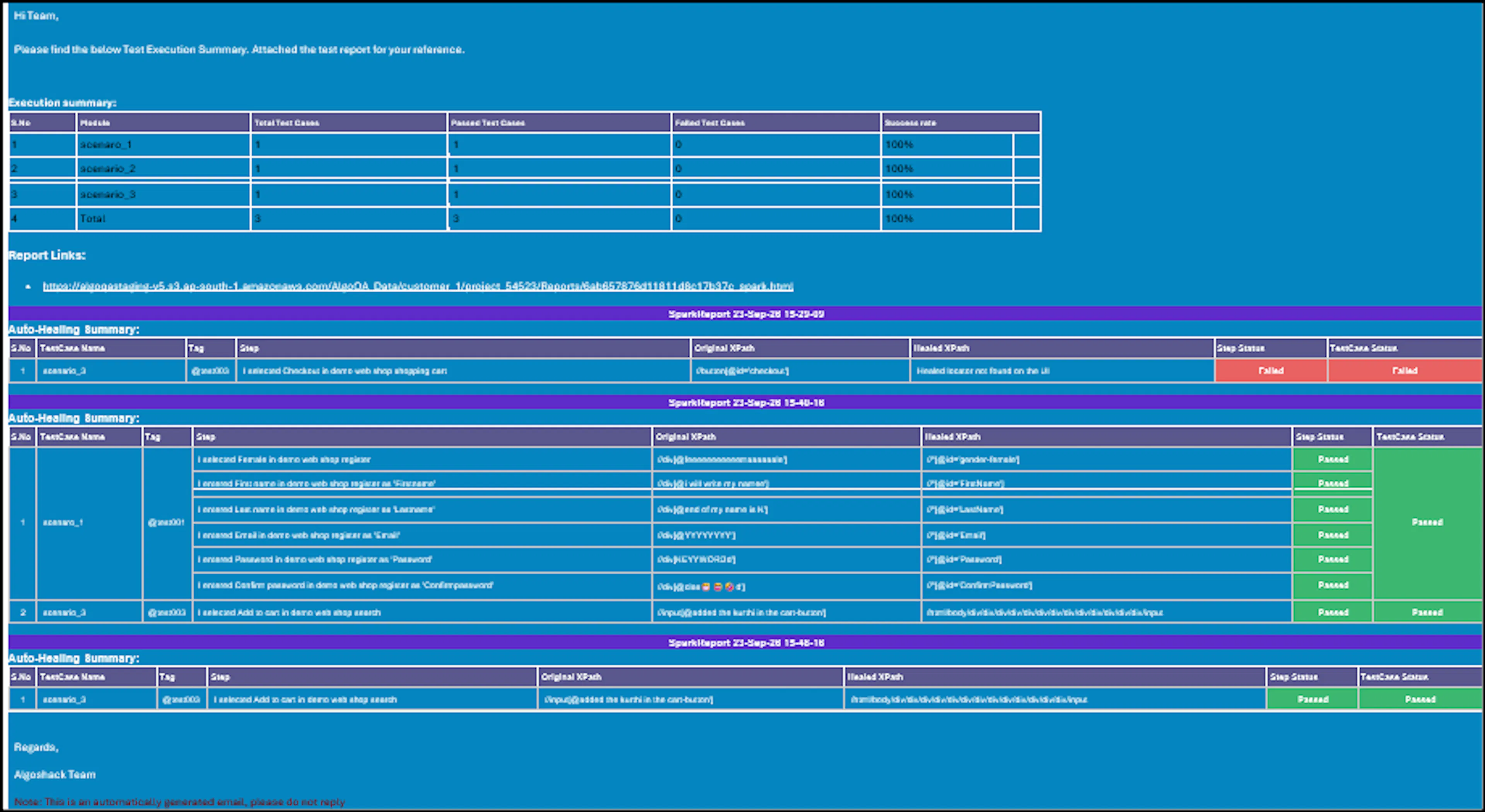
There won't be any failure summary in the report if there is no execution failure.