
How to Automatically Attach Module-wise Reports to Emails Via Jenkins
After script execution, the reports generated will be attached to the recipient's email automatically to generate module-wise reports.
Configuring Application Settings file
To address this, perform the following:
- algoQA scripts generated follow an organized folder structure. Search and locate the ApplicationsSettings.XML file. Copy and paste the ApplicationsSettings.XML file to the location where POM and Report.exe files are located.
- In the ApplicationSettings file, update the 'To email', 'From Email' and 'From Password' parameters as shown in the following example screenshot. For example, you can find Applications.XML file in an algoQA script generated folder for a web automation available at - ScriptGeneration_202310311222.zip\AlgoAFScript_202310311222\src\test\java.

Installing Mono on Ubuntu
- Use the algoReport command: If you are unable to generate the reports module-wise and attach them to recipient emails in Jenkins hosted on AWS using the following command, you can use Mono as an alternative platform to execute the report command.
In the preceding command, replace "output folder path" placeholder with the actual path where the generated report files will be saved. Replace 'projectName' with the name of the project for which the report is being generated.
algoReport.exe JUnitSpark ModuleWise "output folder path" projectName - Install Mono: Mono is an open-source platform for running and developing cross-platform applications. Perform the following to install the Mono runtime on an Ubuntu system.
- Login as root user. Ensure you have root privileges to install packages and modify system configurations.
- Install prerequisites: Run the following command:
ca-certificates: Installs a set of CA certificates to ensure secure connections. gnupg: Installs GNU Privacy Guard (GPG), a tool for secure communication and data storage, necessary for handling cryptographic keys.
sudo apt install ca-certificates gnupg - Add the Mono GPG key: Run the following command:
sudo gpg --homedir /tmp --no-default-keyring \ --keyring /usr/share/keyrings/mono-official-archive-keyring.gpg \ --keyserver hkp://keyserver.ubuntu.com:80 --recv-keys 3FA7E0328081BFF6A14DA29AA6A19B38D3D831EF - Add the Mono repository: Run the following command:
echo \ deb [signed-by=/usr/share/keyrings/mono-official-archive-keyring.gpg] https://download.mono-project.com/repo/ubuntu stable-focal main" | \ sudo tee /etc/apt/sources.list.d/mono-official-stable.list - Update the package list: Run the following command:
This command updates the list of available packages and their versions from the newly added Mono repository.
sudo apt update - Install Mono: Run the following command:
sudo apt install mono-complete mono-dbg -y- mono-complete: Installs the complete Mono runtime and development environment.
- mono-dbg: Installs debugging tools for Mono.
- -y: Automatically answers "yes" to any prompts during the installation.
- Verify Mono installation: Run the following command:
This command displays the version of Mono installed, verifying that the installation was successful. The preceding commands ensure that Mono is installed and configured on your Ubuntu system.
mono -V - Attach reports to emails: Repeat step 1 to attach the report to the recipient emails module-wise.
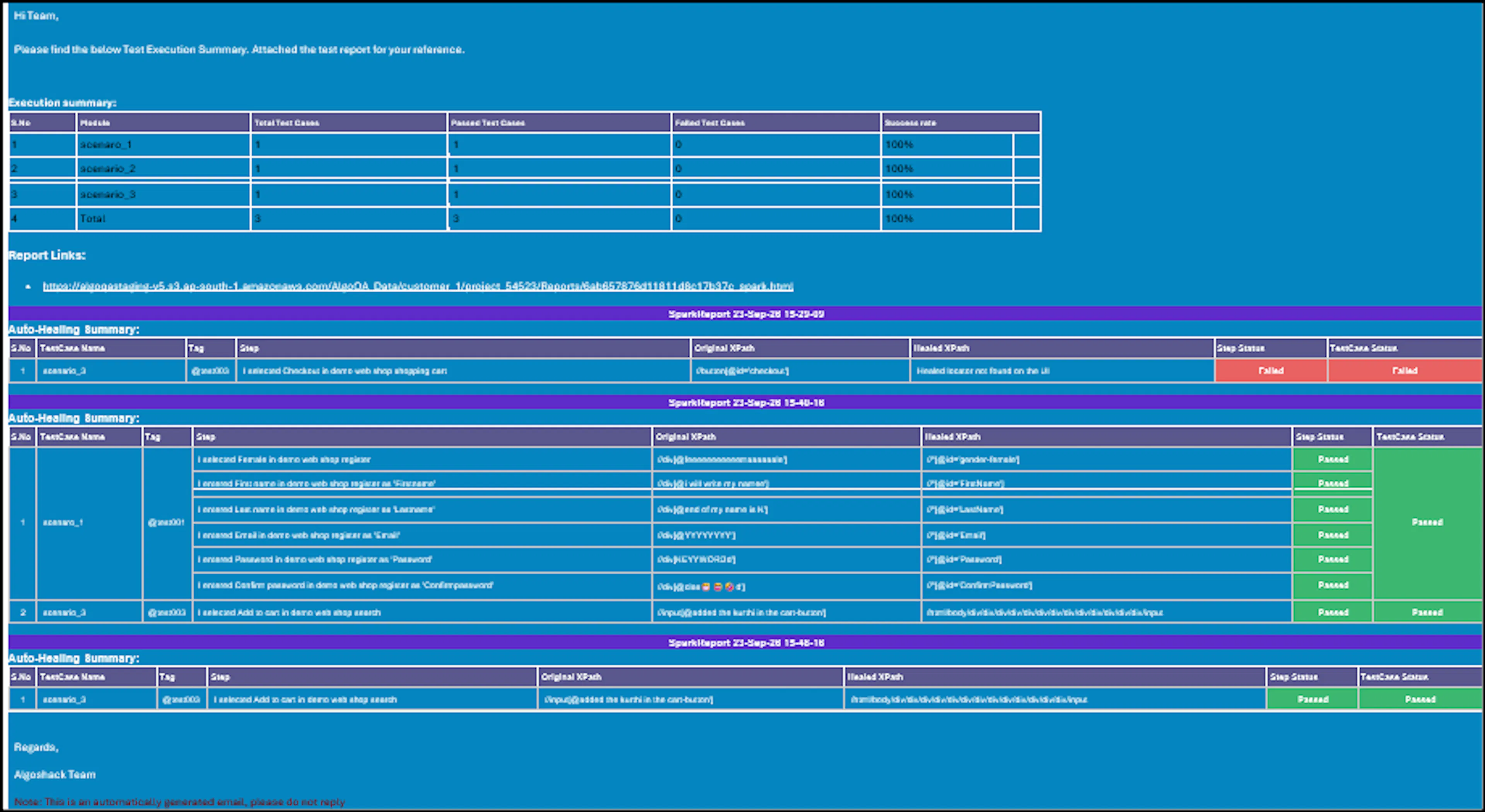
In this report, test cases are organized by module. For example, the TC_Filter module includes 21 test cases, each named sequentially from TC_Filter_01 to TC_Filter_21. Similarly, the TC_Cart module and other modules follow the same naming convention. These names are assigned during recording of a scenario using the Record Scenario feature. The report consolidates and lists all test cases under their respective module tags, such as TC_Filter and TC_Cart. There won't be any failure summary if there is no execution failure.
Auto-Healing Summary is also available in reports, which includes details such as the Test Case Name, Tag, Steps, Original XPath, Healed XPath, Step Status, and Test Case Status.