
Assertions
Assertions serve as validations or checkpoints within an application, confirming whether the expected behavior is met. They act as statements of confidence regarding the application's functionality. For example, in a web automation, assertions validate automated test cases, assisting testers in determining whether tests have passed or failed.
The following are the two types of assertions:

Hard Assertions
Hard assertions, also known as regular assertions in test automation that validate a condition and immediately stop the test execution if the condition is not met. When a hard assertion fails, it throws an 'AssertionError,' which halts the test execution and marks the test as failed.
Soft Assertions
When a hard assertion fails, it terminates or aborts the test. If the tester does not want to terminate the script, they can use soft assertions. Soft assertions allow you to collect multiple assertion failures during a test case execution, instead of failing the test immediately after the first assertion failure. This allows you to continue executing the test case and gather information about all the failures before marking the test as failed. Soft assertions are useful when you want to verify multiple conditions in a single test case without stopping at the first failure.
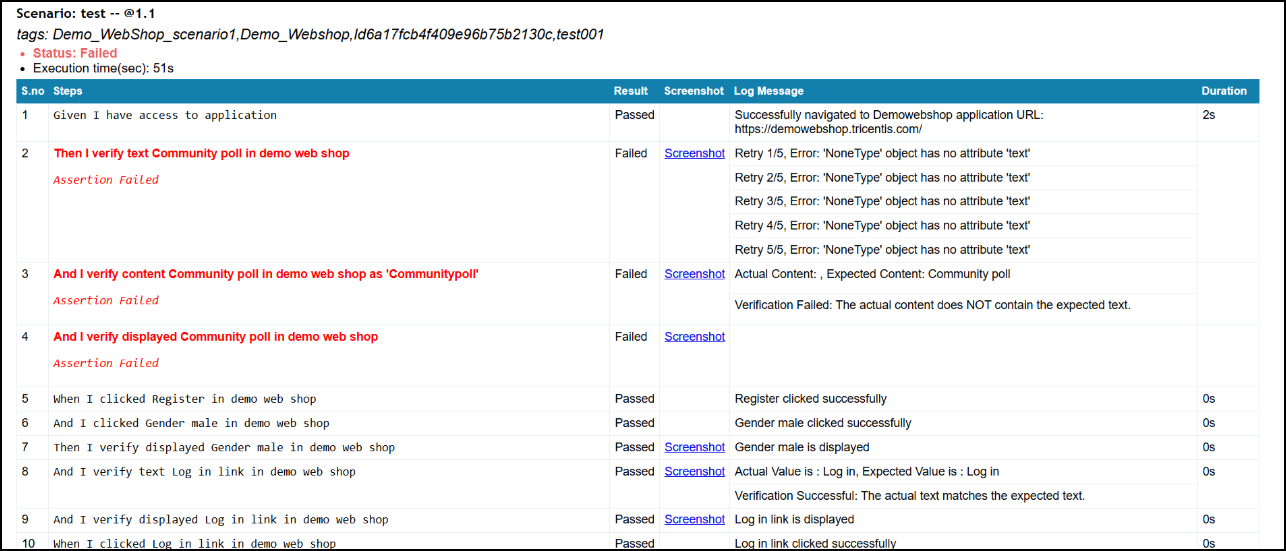
The following screenshot displays a sample report with soft assertion enabled for a web automation using the Java Selenium framework. In a scenario where the user clicks particular text on a web page for verification, an error message is shown when the verification step fails. However, the test case execution continues using a soft assertion.

In the preceding example, the last step displays all the assertions. Alternatively, if you wish to skip the default last step, then you can use the 'verify assert all' default action.
Soft assertions are supported for the Python Selenium framework also. To enable this behavior, set Soft Assertion to True in the application settings. When enabled, test execution continues after failures, and all failed steps are reported in the HTML and PDF reports with a Failed message.
How to Enable Soft Assertions for Web Automation
Perform the following:
After generating the script, download it to your local folder.
This folder must contain the script file that you have generated.
Open the folder where you downloaded the script.
For example, if your script is located at AlgoAFScript_202402121131\src\test\java, navigate to this folder. The Applications.xml file will be available in the Java folder.

In the ApplicationSettings.xml file, set the EnableSoftAssertion to True, save the changes you have made to the application settings file.

You can add assertions in the Record Scenario and Scenario Steps List features. For more information, refer to Adding or Modifying Default Actions.