
Kick-Start Your Automation Journey for First Time
Sign up for a plan, then follow the workflow from project creation through to script execution.
Sign Up to Create Your Account
As a new user, perform the following to set up your account.
- Enter https://www.algoshack.com/ into the browser bar.
- Click Pricing from status bar. The Pricing page appears.
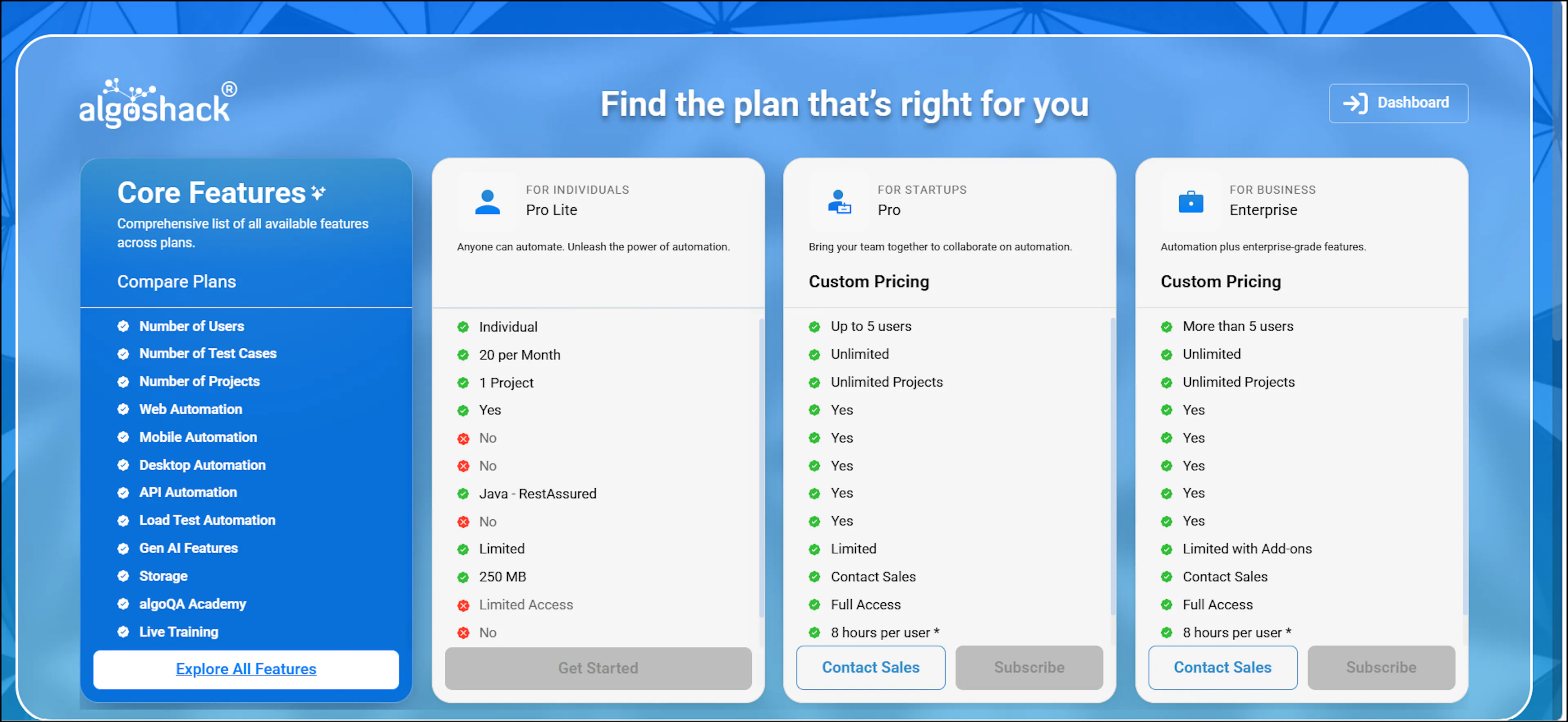
Pricing page showing available subscription plans - In the Pricing page, choose the appropriate plan.
- To sign in for the first time as a Pro Lite user, see Pro Lite Users.
- To sign in for the first time as a Pro user, see Pro Users.
- To sign in for the first time as an Enterprise user, see Enterprise Users.
- Enter all the required details in the Sign Up window. Select the appropriate registration type if you are registering as a user or as a company.
- Select the terms and conditions checkbox.
- Register to start using the algoQA platform according to the chosen plan.
Begin Your Automation Journey Prerequisites
To scrape the UI elements of an Application Under Test (AUT), you can use the following methods:
- For Web Test Automation and Mobile Site Automation, add algoScraper as an extension to your Chrome browser. To add it as an extension, click here or you can download from downloads.
- For Mobile App Automation and Desktop Automation, download algoScraper as a tool. To download it, click here. For detailed installation steps, refer to Installation steps for algoScraper.
New User Workflow
For new users: In your browser bar, enter algoshack.com. Log in and select algoQA to access the Home page.
- Create a New Project: Click the Plus icon on the Projects page to open the Create Project page. Enter the Project Name, select the Application Type, Framework, Language, and Application URL, then click Create Project. The scenario creation screen appears with three methods:
- Record Scenarios: Record the scenario directly using the algoScraper browser extension on a live web page. After recording, review the scenario and generate test cases.
- Create Manually: Upload an existing scraped file in
.jsonformat or create an offline model. After uploading, configure nodes and proceed with recording a scenario using the offline recorder. - Generate with AI: Generate scenarios from a text or voice description using algoAI. AI credits are consumed for each generation. To learn more about each method, refer to Creating a Project.
- Generate Test Cases:
- Click Generate to generate test cases.
- Generate Test Scripts:
- Click Generate Scripts to produce executable test scripts.
- Execute Scripts: Execute scripts in your preferred technology from anywhere or in algoQA.
You are now ready to explore the algoQA platform.
Was this page helpful?