
Project Actions
Search, assign, download, delete, and import projects, and configure access settings for team members.
Project Actions
Search for an existing Project
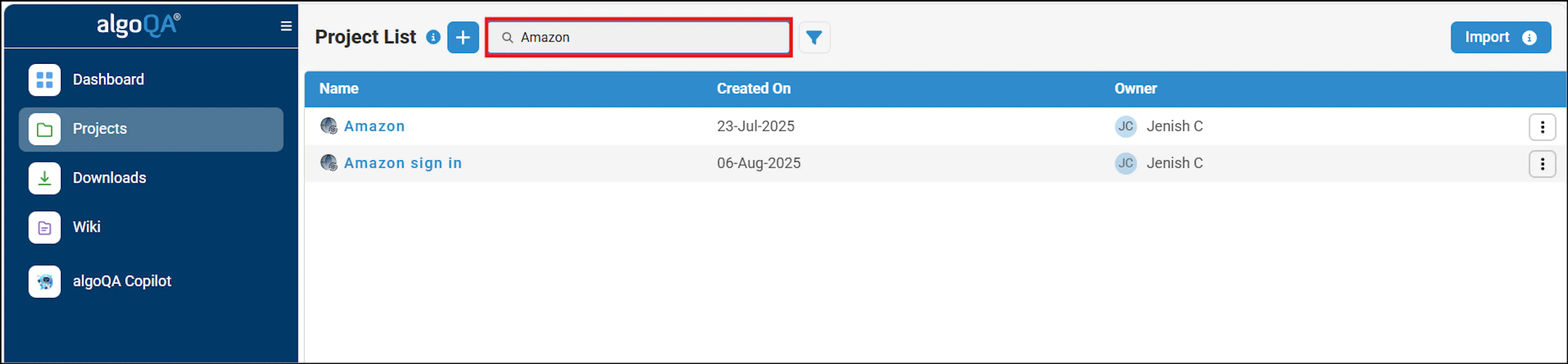
You can search for an existing project.
To do this, perform the following:
- Navigate to the Projects page.
- Enter the required project name in the search bar to view the project.
Assign a Project
As an project admin, you can assign a project.
Perform the following:
Navigate to the Projects and search for the required project.
Click the More Menu options (three dots) to view the pop-up window.
Select Assign Users option.
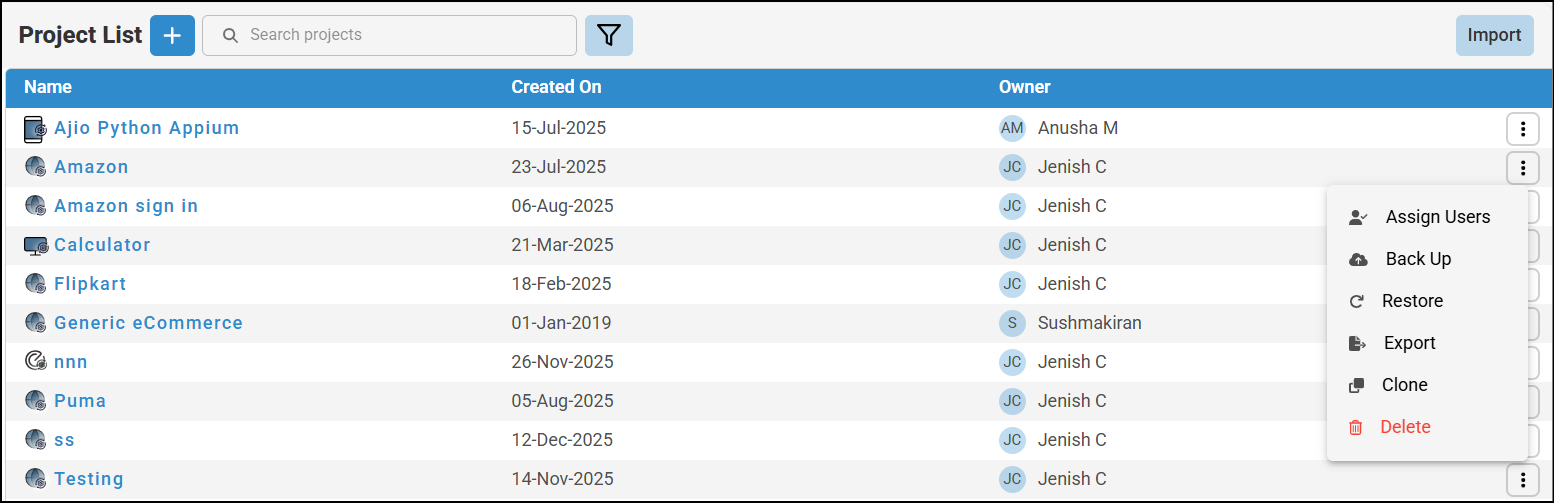
Assign pop-up window appears.
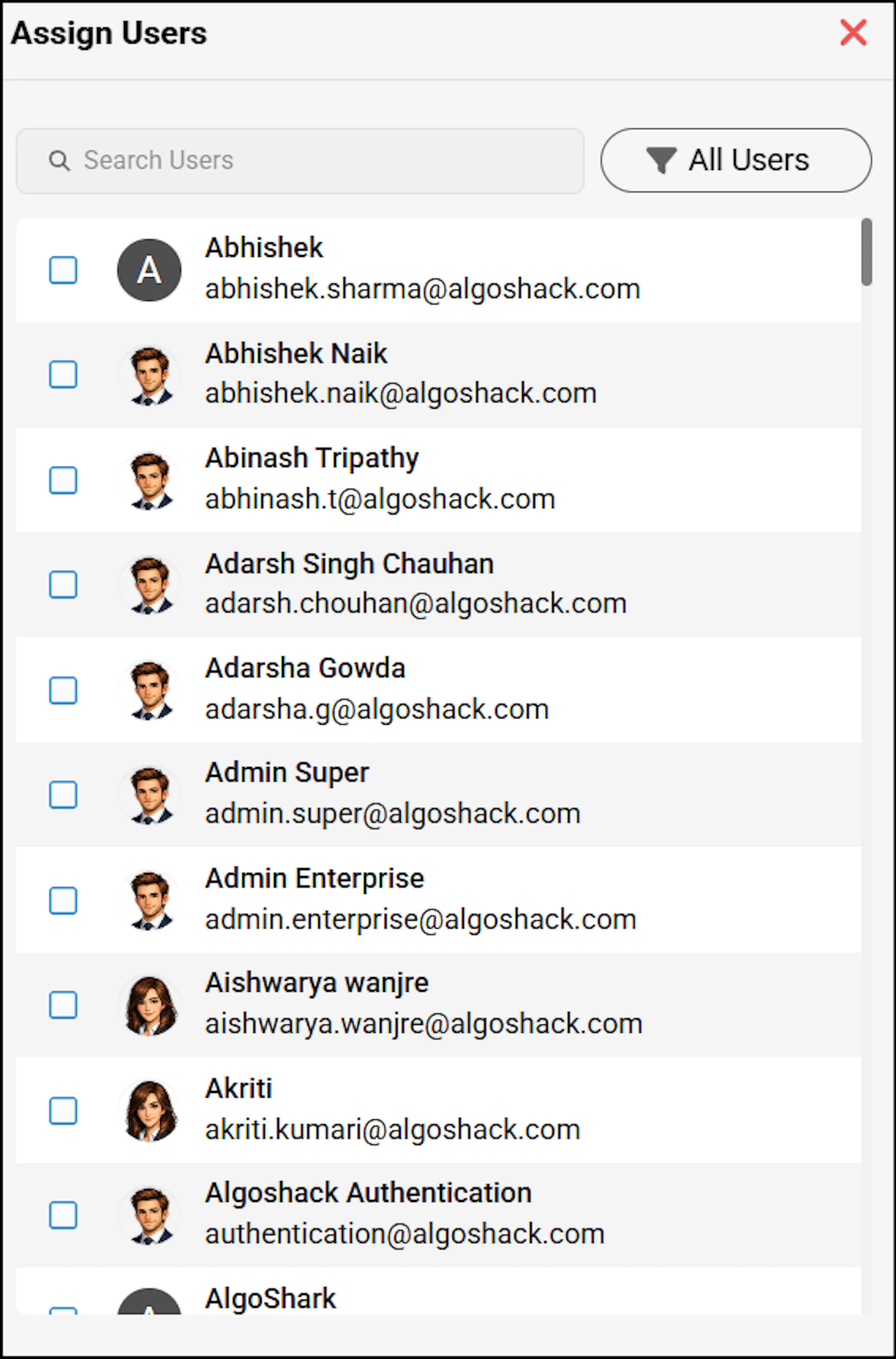
In Assign pop-up window, you can search for the required user and select the checkbox next to the username to assign the project.
Upon assigning the project, you can grant required permissions to that user by clicking the expand icon to expand the access settings. For more information, see the Access Settings section. If a user is from an external organization, you can still assign the project and grant permissions. However, the platform will display the message saying, "This user is from an external organization."
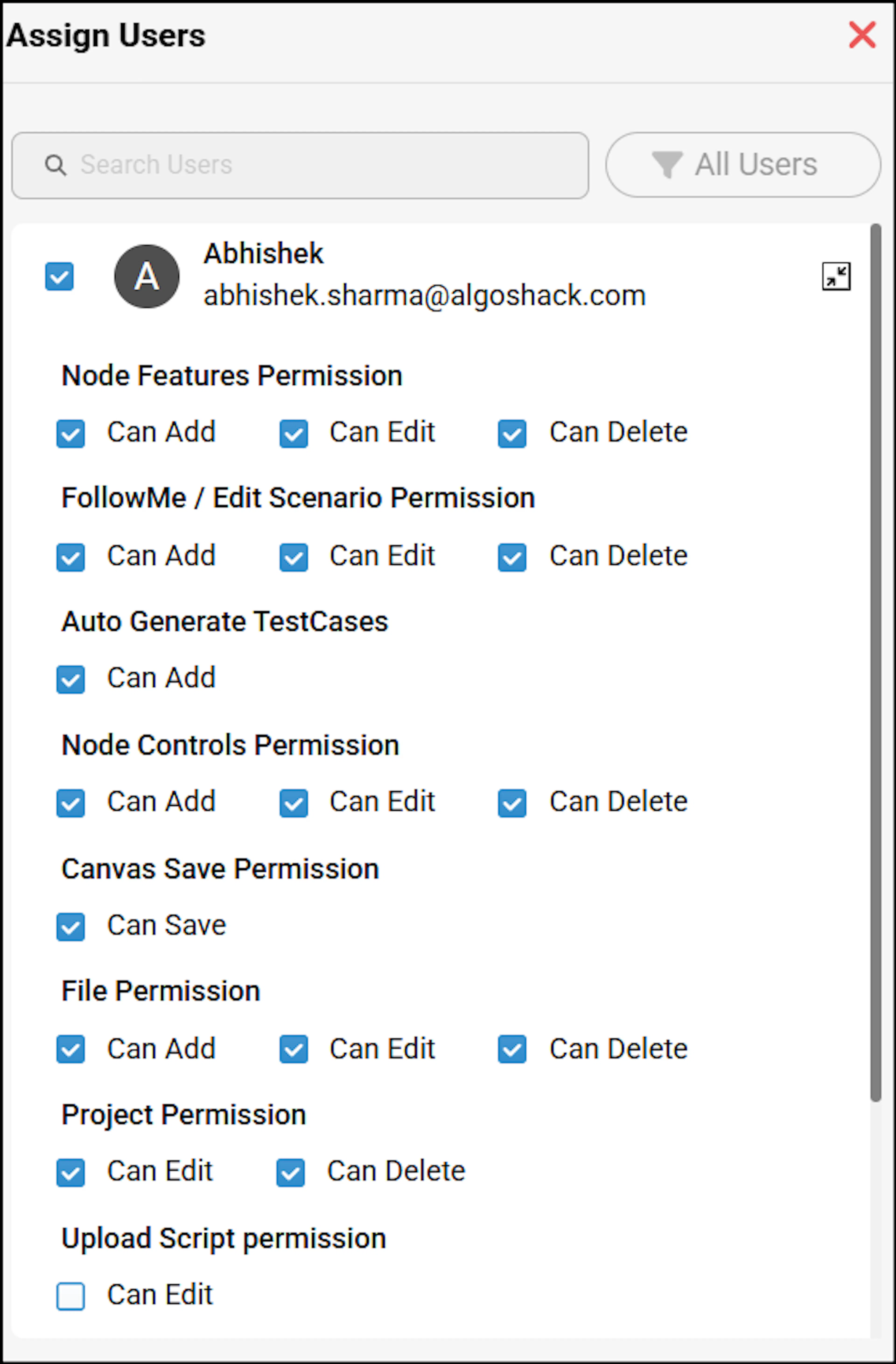
You can filter the user list by Assigned Users, Unassigned Users or All Users by clicking the Filter icon in the Assign pop-up window.
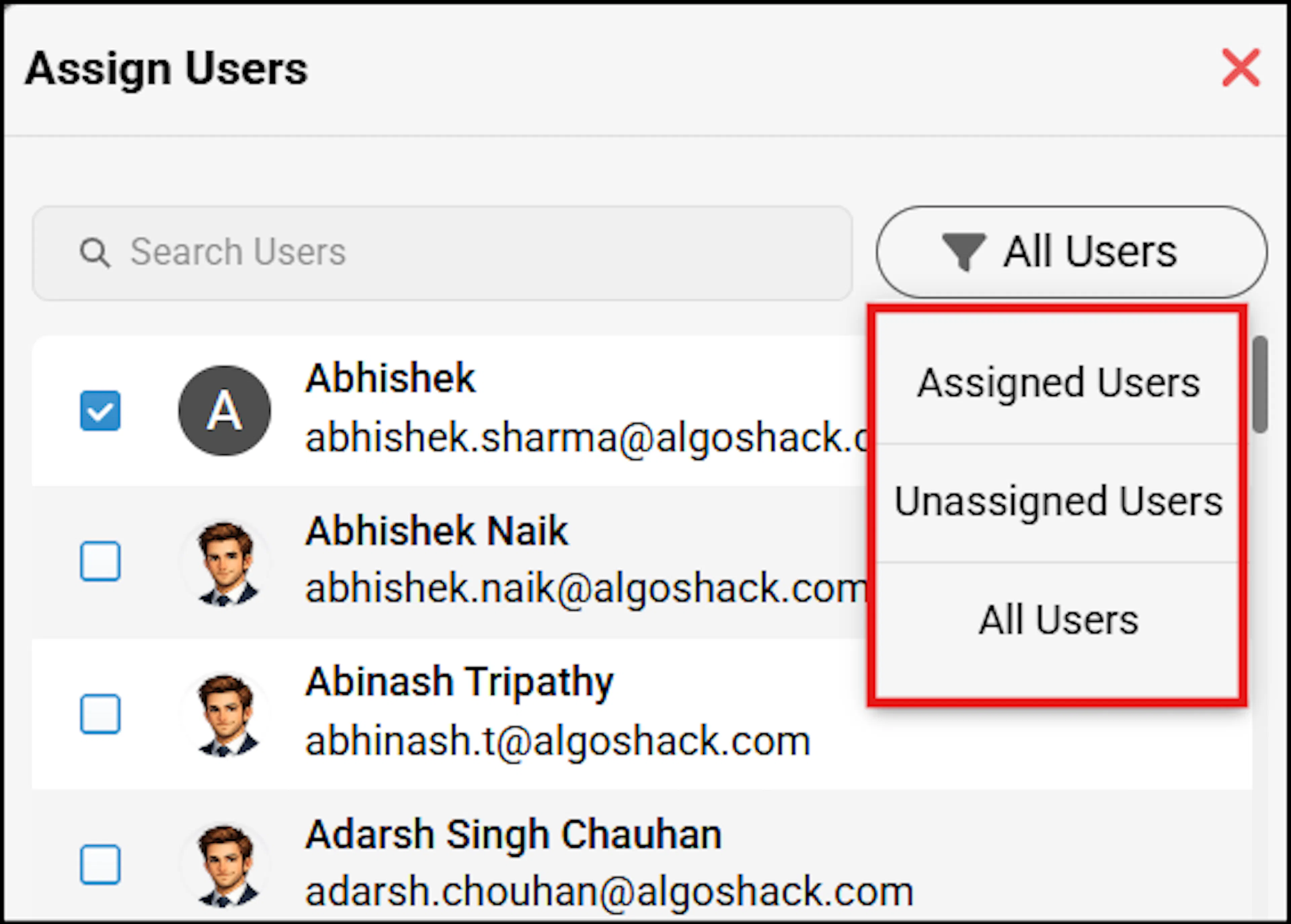
By default, the assignee will have the same settings as the admin.
The admin can modify these settings and assign projects as needed. If the admin prefers the assignee not to have access to certain settings, adjustments can be made before the assignment.
Clone a Project
To make a copy of your project, perform the following:
Navigate to the Projects and search the required project.
Click the More Menu options (three dots) to view the pop-up window.
Select Clone option.
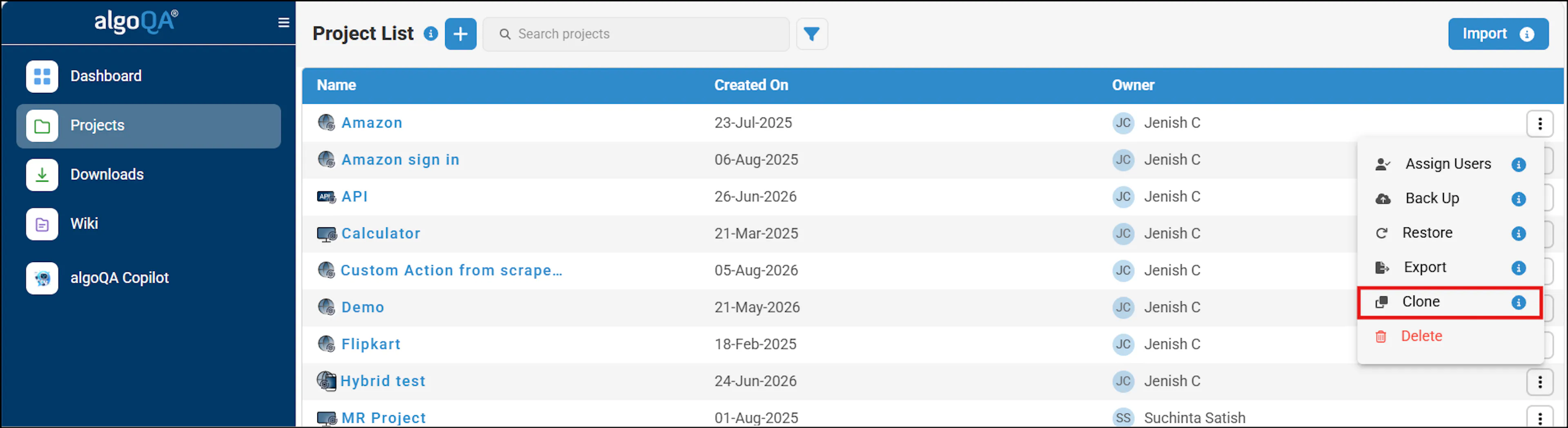
Clone project pop-up window appears.
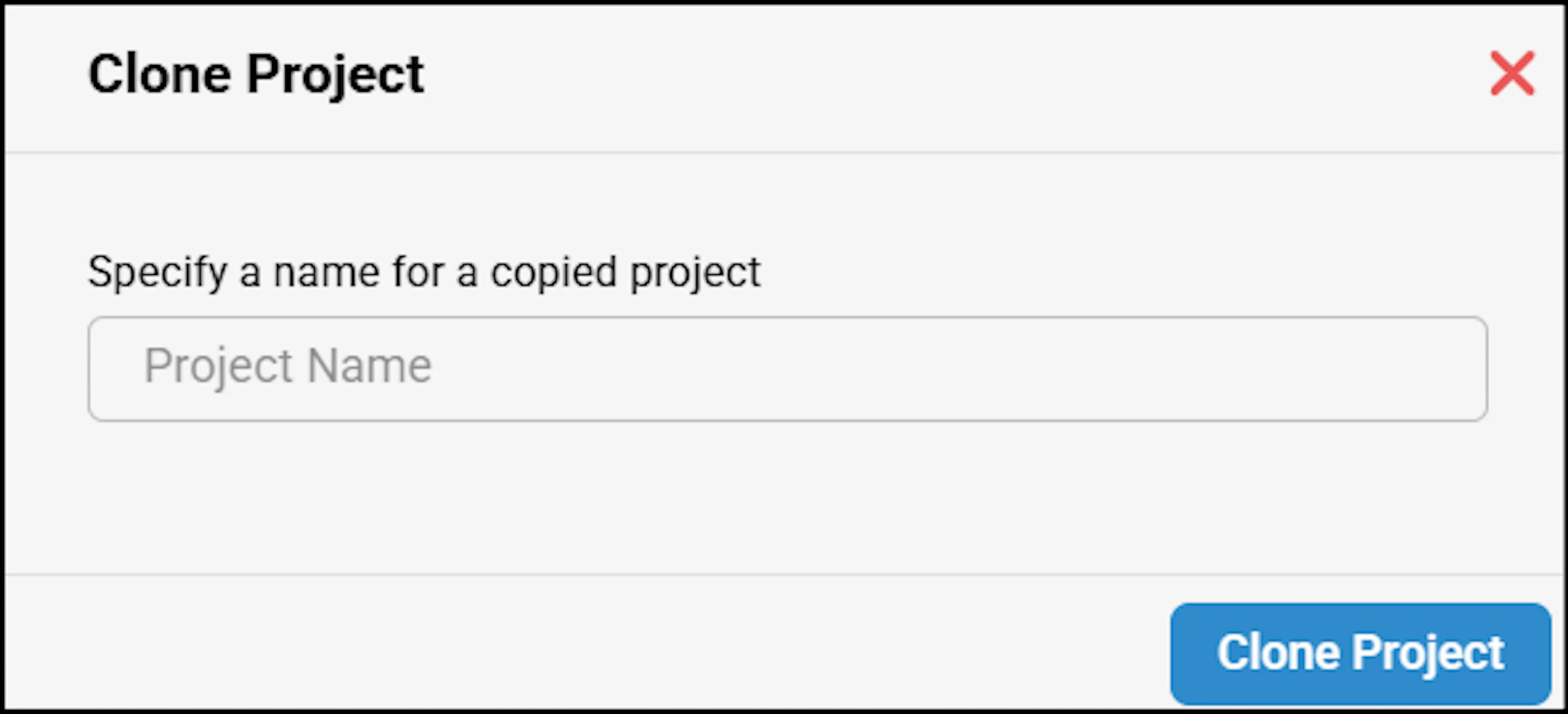
In the Clone pop-up window, enter a name.
Note that the name used to clone the project must be different from the original name.
Download a Project
Perform the following:
Navigate to the Projects and search for the required project.
Click the More Menu options (three dots) to view the pop-up window.
Select the Export option to download the project.
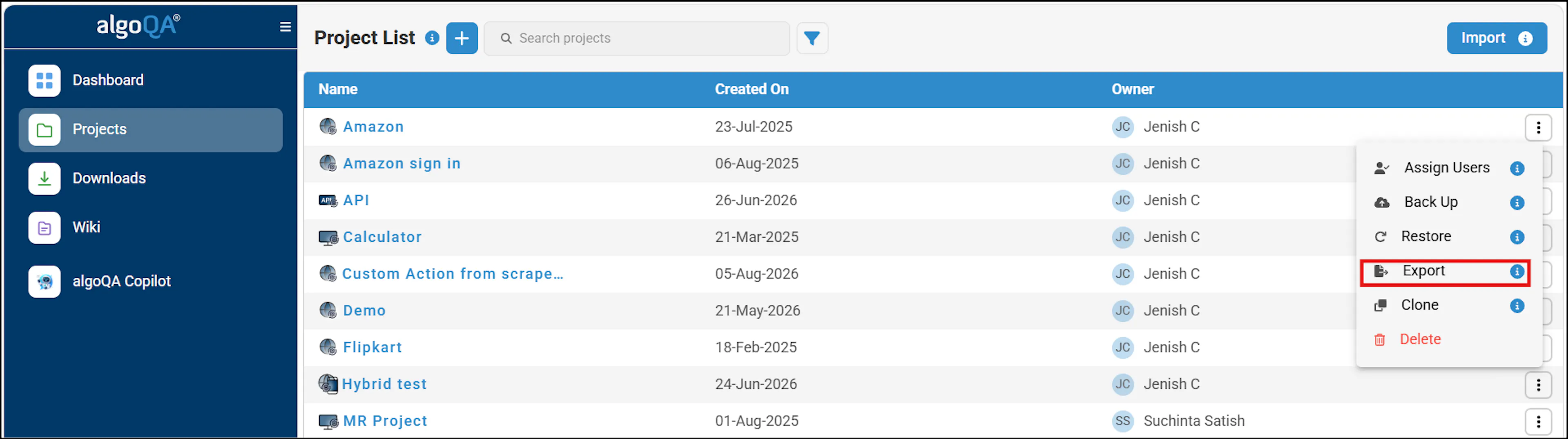
Project will be downloaded in the zipped file format.
You can then save the downloaded project.
Delete a Project
Perform the following:
Navigate to the Projects and search for the required project.
Click the More Menu options (three dots) to view the pop-up window.
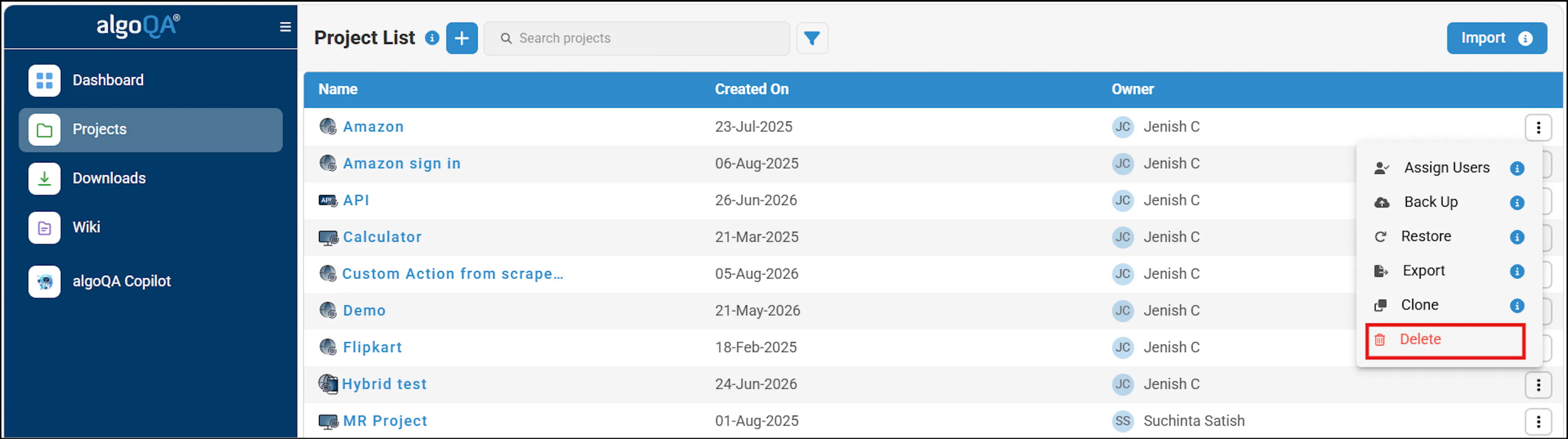
Select the Delete option.
The platform will prompt you to confirm whether to delete the project.
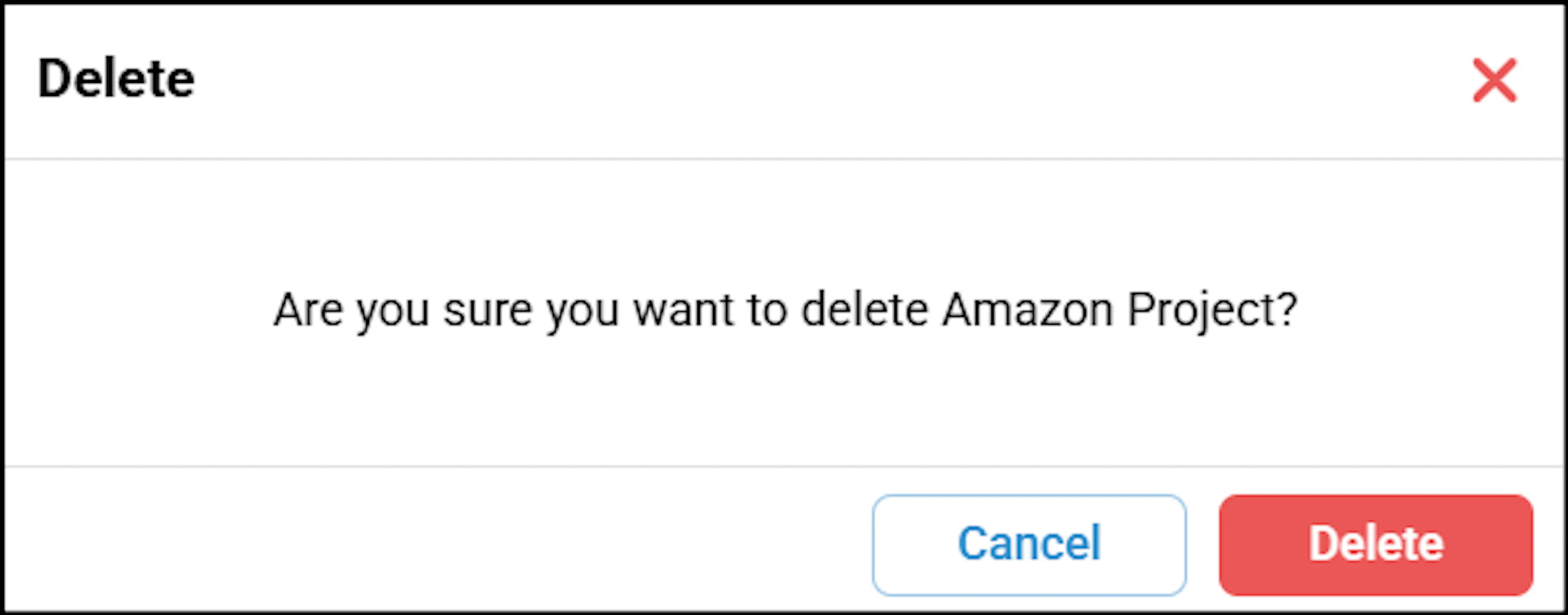
Click Delete to delete the project or Cancel to retain it.
Import a Project
- Navigate to the Projects list and click the Import button, which is available at the top-right corner.
- Select the file which has to be imported and the project will be imported.
Access Settings
In Access Settings, as an admin, you can assign permissions to users to perform the tasks.
Perform the following:
Select a project created by you and navigate to the settings.
Select the Access Settings option.
In this Access Settings page, you can assign permissions to add, edit and delete the capabilities.
For example, as an admin, if you uncheck the permissions for generating Auto Generate Test Cases, then the team member will not have access to use Auto Generate Test Cases feature.
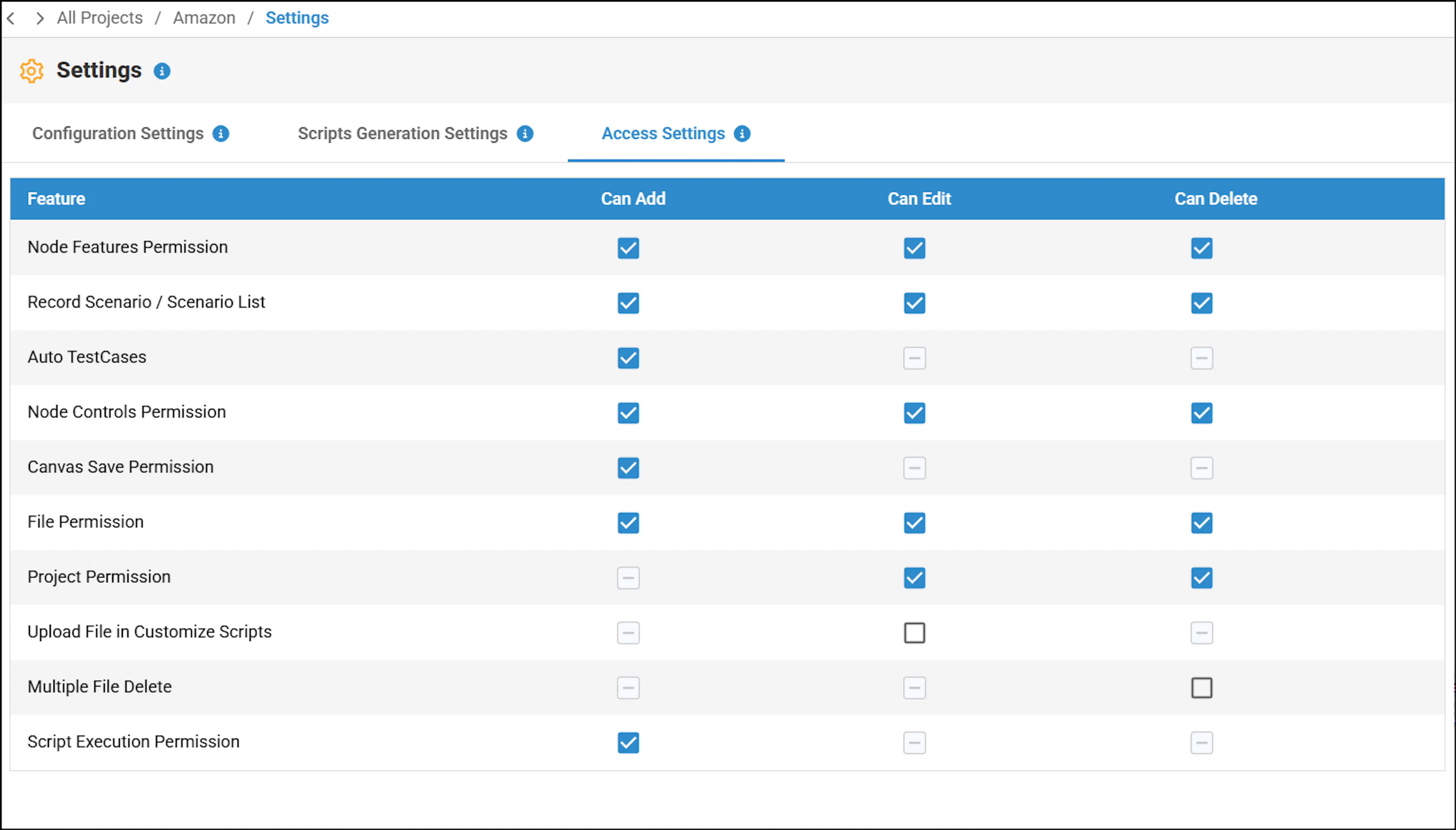
The following table provides the available access settings options that an administrator can assign to a user:
This applies to web and mobile automation
| Access Settings option | Description |
|---|---|
| Node Feature Permission | As an admin, you can assign access to the user to add, edit, and delete a feature associated with a node. As a user, when the admin removes access to add a node, the Add Features button will be disabled, preventing you from adding new features. However, you will still be able to modify existing features. Similarly, when access to edit or delete is removed, you will be restricted from performing those actions. |
| Record Scenario and Scenario List | As an admin, you can assign access to the user to record a scenario by selecting or unselecting the 'Can add' checkbox. By doing this, Record Scenario button is enabled or disabled in the Main Canvas. Additionally, you can provide access to the user to add, edit and delete a test case in the Edit Scenario window. |
| Auto Test Cases | As an admin, you can assign or unassign access to the user to use Auto Generate Test cases feature by enabling and disabling this feature. |
| Node Controls Permission | As an admin, you can assign access to a user to add, edit and delete a UI element (control) associated to a feature. |
| Canvas Save Permission | As an admin, you can assign or unassign access to a user to save the modifications made in Canvas. |
| File Permission | As an admin, you can remove access to a user to upload or create any file. Upload file or create file option will be disabled for a particular project. As a user, you will be still be able to edit and delete an uploaded or created file. Additionally, as an admin, you can also restrict the access to edit and delete a file by removing access to edit and delete options. |
| Project Permission | As an admin, you can remove access to a user to delete a created project. Delete button will be disabled when you access as a user. Also as an admin, you can remove access to a user to edit a project. Update button of project settings will be disabled when you access as a user. |
| Upload File in Customize Scripts | As an admin, you can grant a user access to edit the generated scripts for a specific project. |
| Multiple Files Delete Permission | As an admin, you can assign access to a user to delete multiple files from the project folder. By default, Delete all option will be disabled to prevent any unintended file deletion from a user. |
| Script Execution Permission | As an admin, you can grant user access to execute generated scripts. |
This applies to API automation:
| Access Settings option | Description |
|---|---|
| File Permission | As an admin, you can remove access to a user to upload or create any file. Upload file or create file option will be disabled for a particular project. As a user, you will be still be able to edit and delete an uploaded or created file. Additionally, as an admin, you can also restrict the access to edit and delete a file by removing access to edit and delete options. |
| Project Permission | As an admin, you can remove access to a user to delete a created project. Delete button will be disabled when you access as a user. Also as an admin, you can remove access to a user to edit a project. Update button of project settings will be disabled when you access as a user. |
| Upload Script Permission | As an admin, you can grant a user access to edit the generated scripts for a specific project. |
| Collection Permission | As an admin, you can assign access to a user to Add, Edit and delete API collections from API project. |
| Request Permission | As an admin, you can assign access to a user to Add, Edit and delete API Request from API project. |
| Multiple Files Delete Permission | As an admin, you can assign access to a user to delete multiple files from the project folder. By default, Delete all option will be disabled to prevent any unintended file deletion from a user. |
| Environment Variable Permission | As an admin, you can assign access to a user to Add, Edit and delete Environment variable from API project. |