
Creating a Project
Create a new algoQA project using the Create Project page, manual upload, or AI-assisted generation, then record your first scenario and generate test cases.
You can create a project in algoQA using one of three methods: using the Create Project page with the online recorder, creating manually with an offline model or scraped file upload, or generating scenarios with AI.
Record Scenarios
This method uses the algoScraper browser extension to record scenarios directly from a live web page. It applies to Web Automation projects.
Log in to algoQA
Log into algoQA using your credentials.
Open the Projects page
Click Projects to view the Projects page.
Create a project
Click the Plus icon to create a new project. The Create Project page appears.
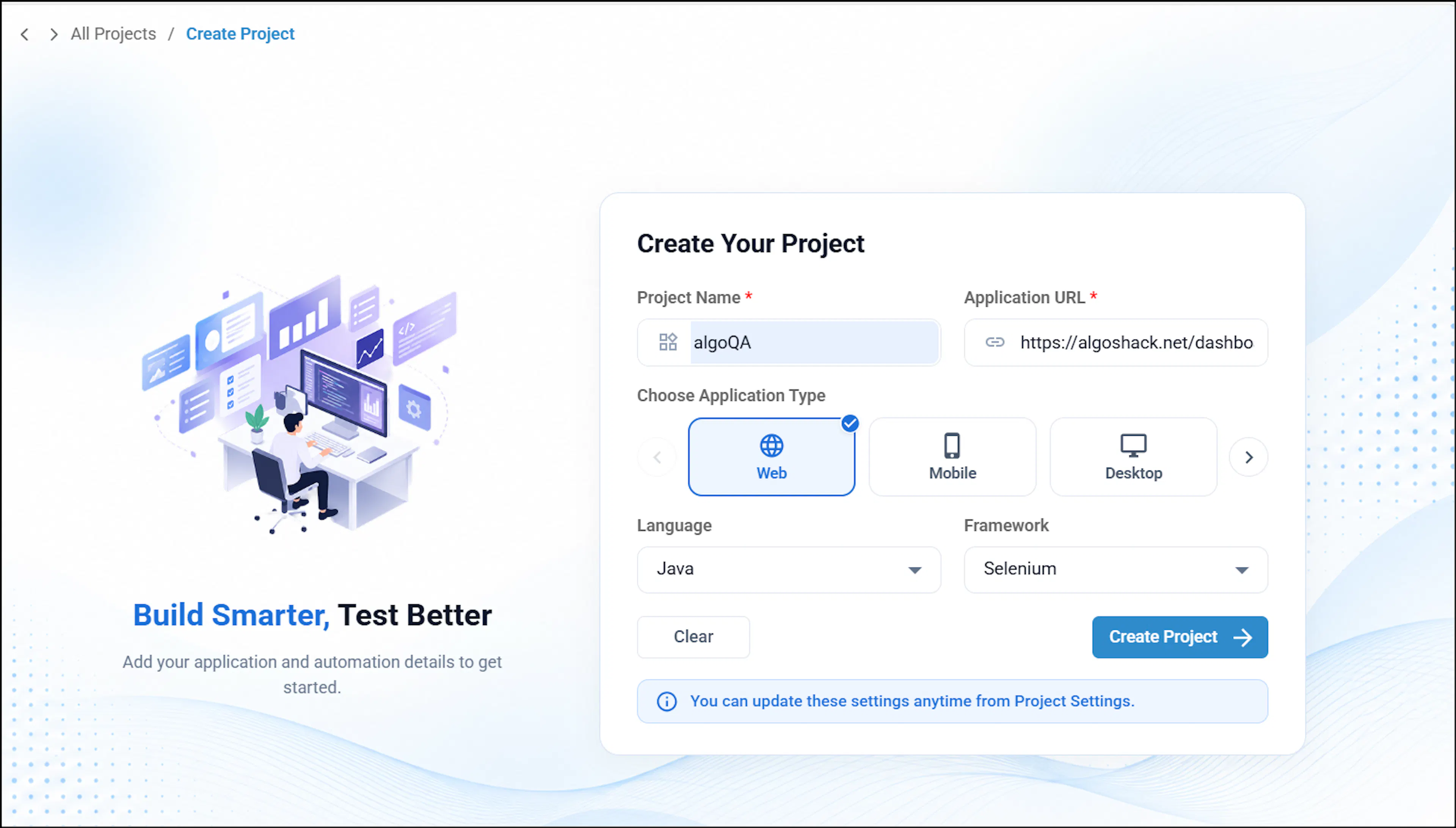
Enter the project details
Enter the Project Name, select the Application Type, Framework, Language, and Application URL, then click Create Project.
Open the online recorder
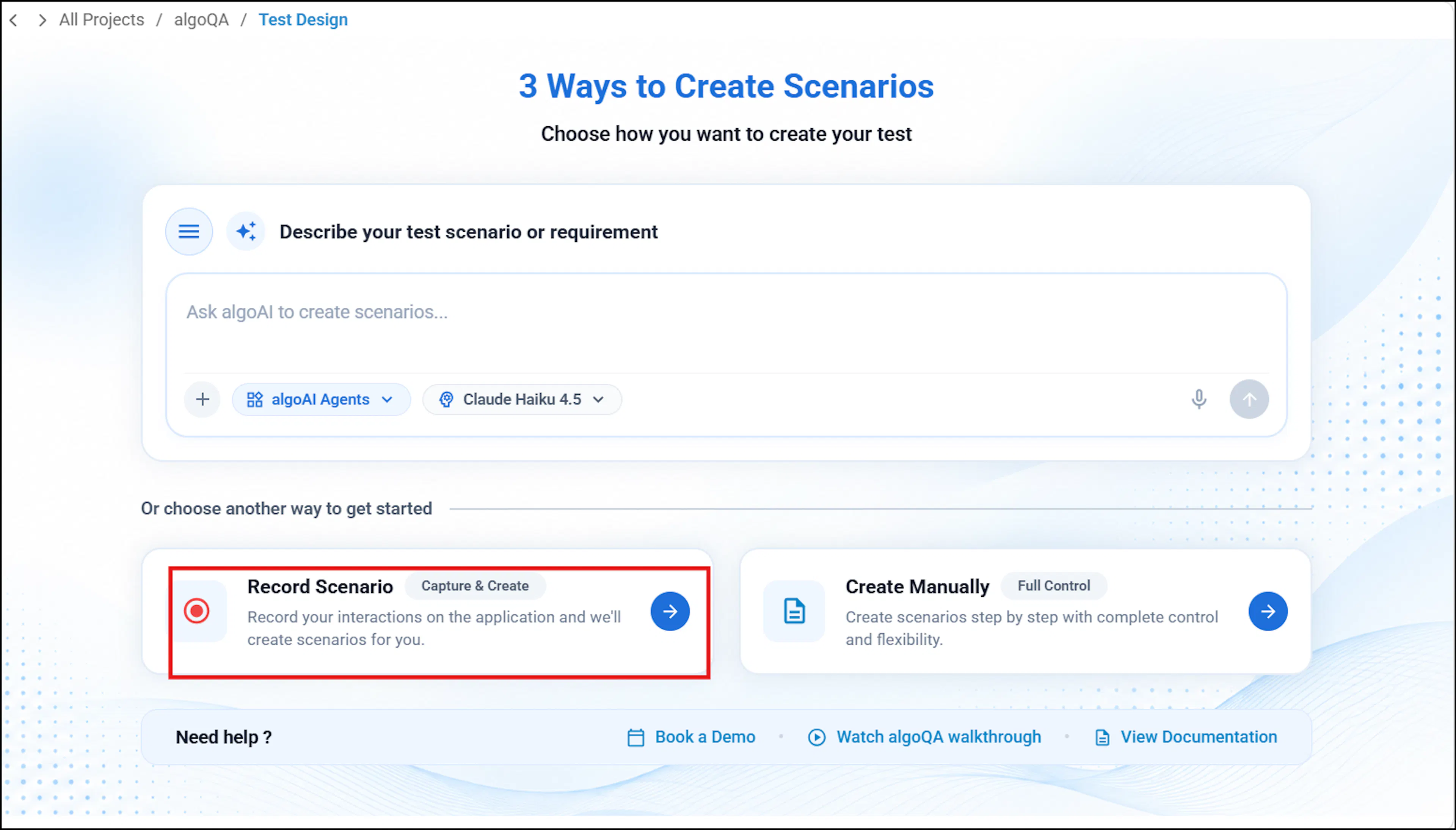
The project is created, and the scenario creation screen appears with three options. Click Record Scenarios to launch the scraper on the specified web page.
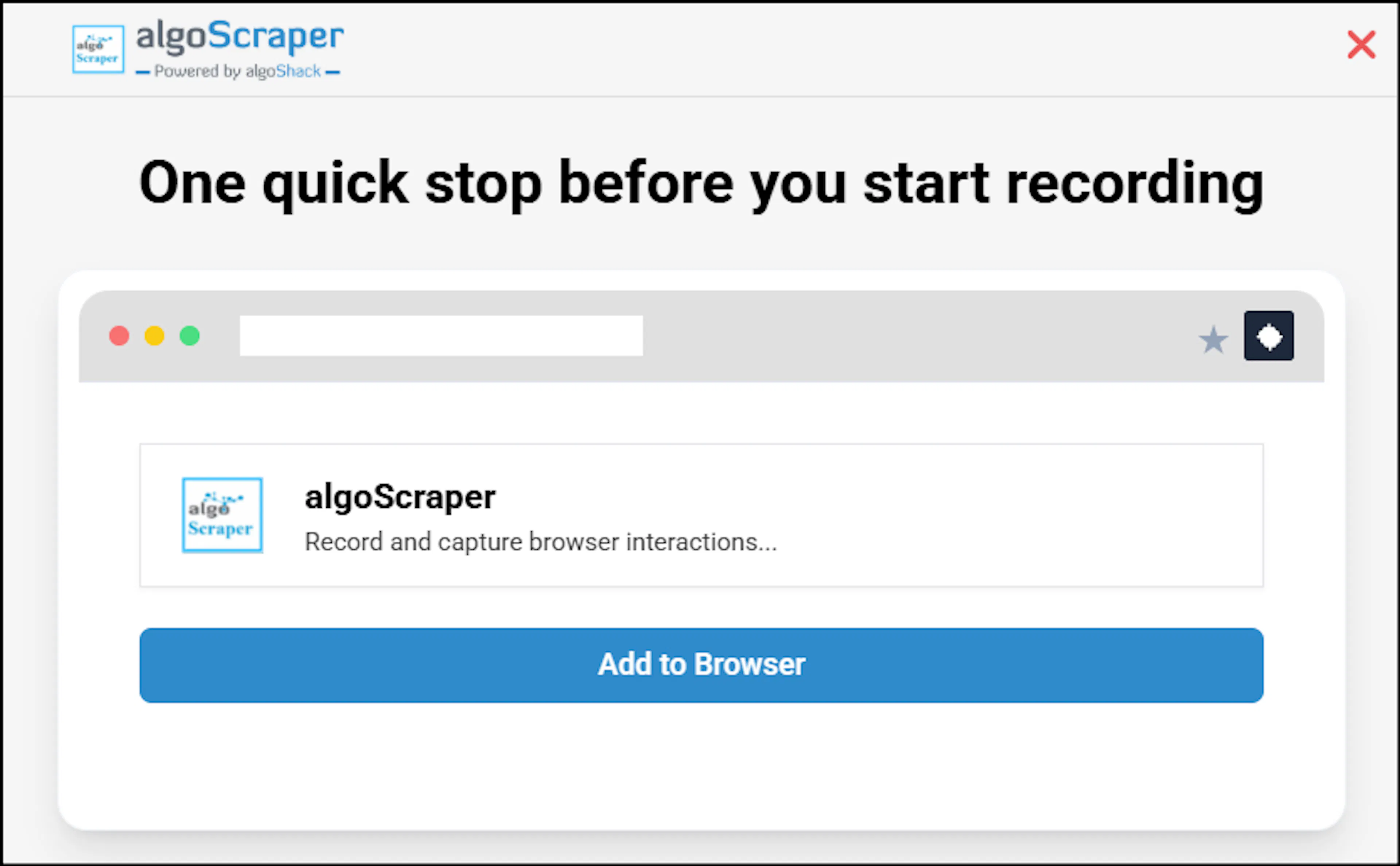
Add the algoScraper extension
Before launching the algoScraper, add it to your browser as an extension. The extension will then be installed.
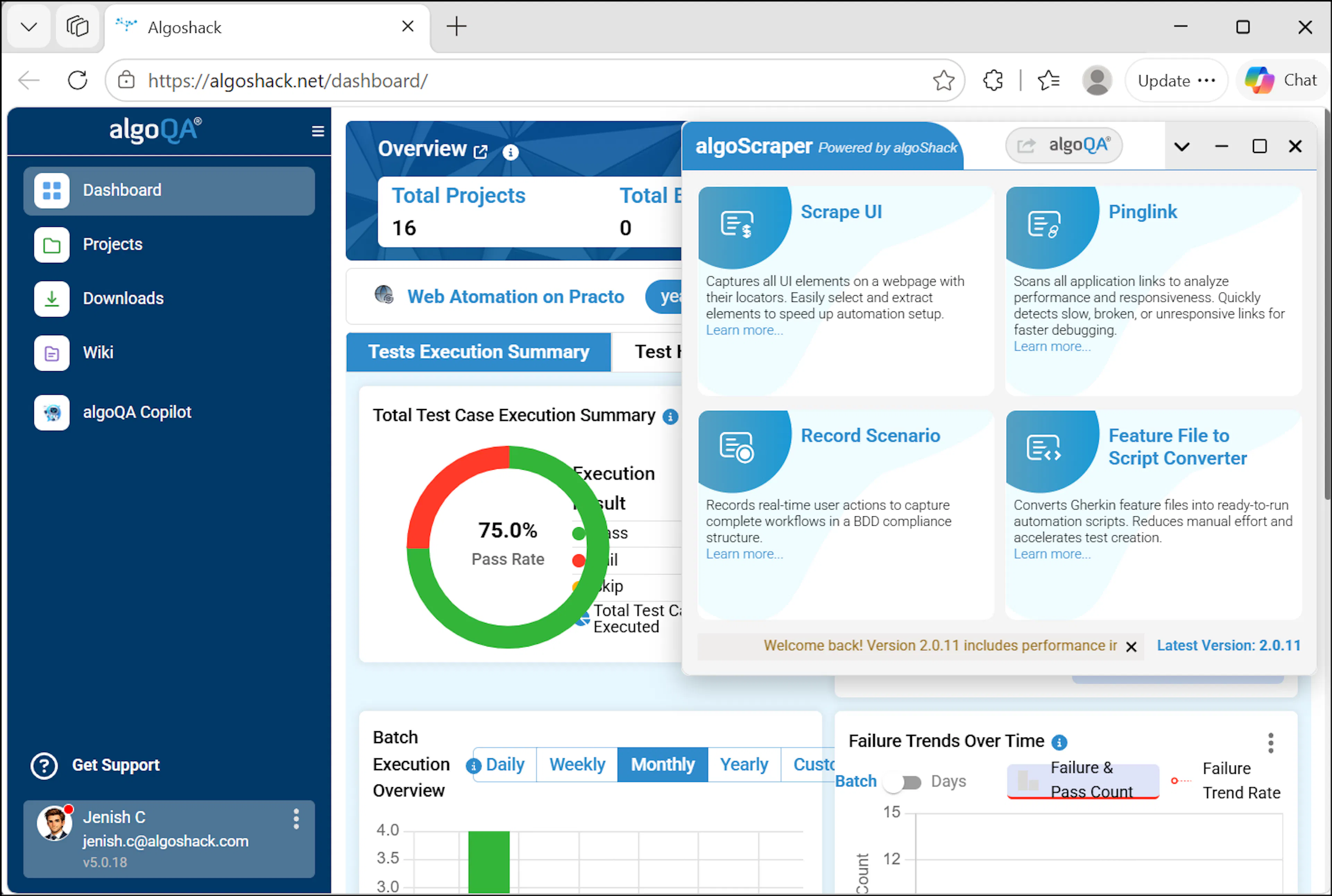
Launch the scraper
The scraper launches on the specified web page. Click Record Scenario.
Confirm the page name
The page name is added automatically. Click Record Scenario.
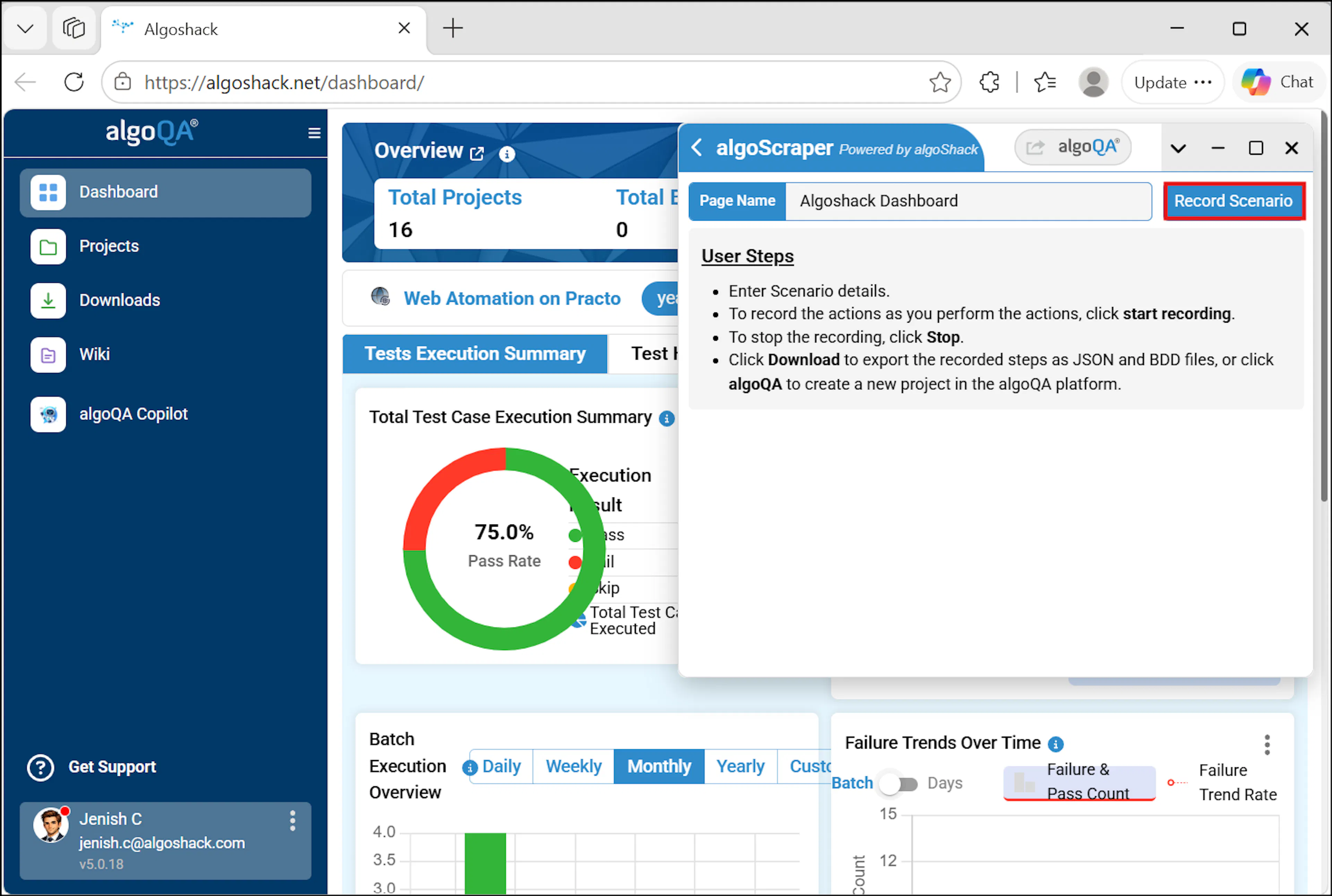
Start recording
Add a scenario outline and click Start Recording.
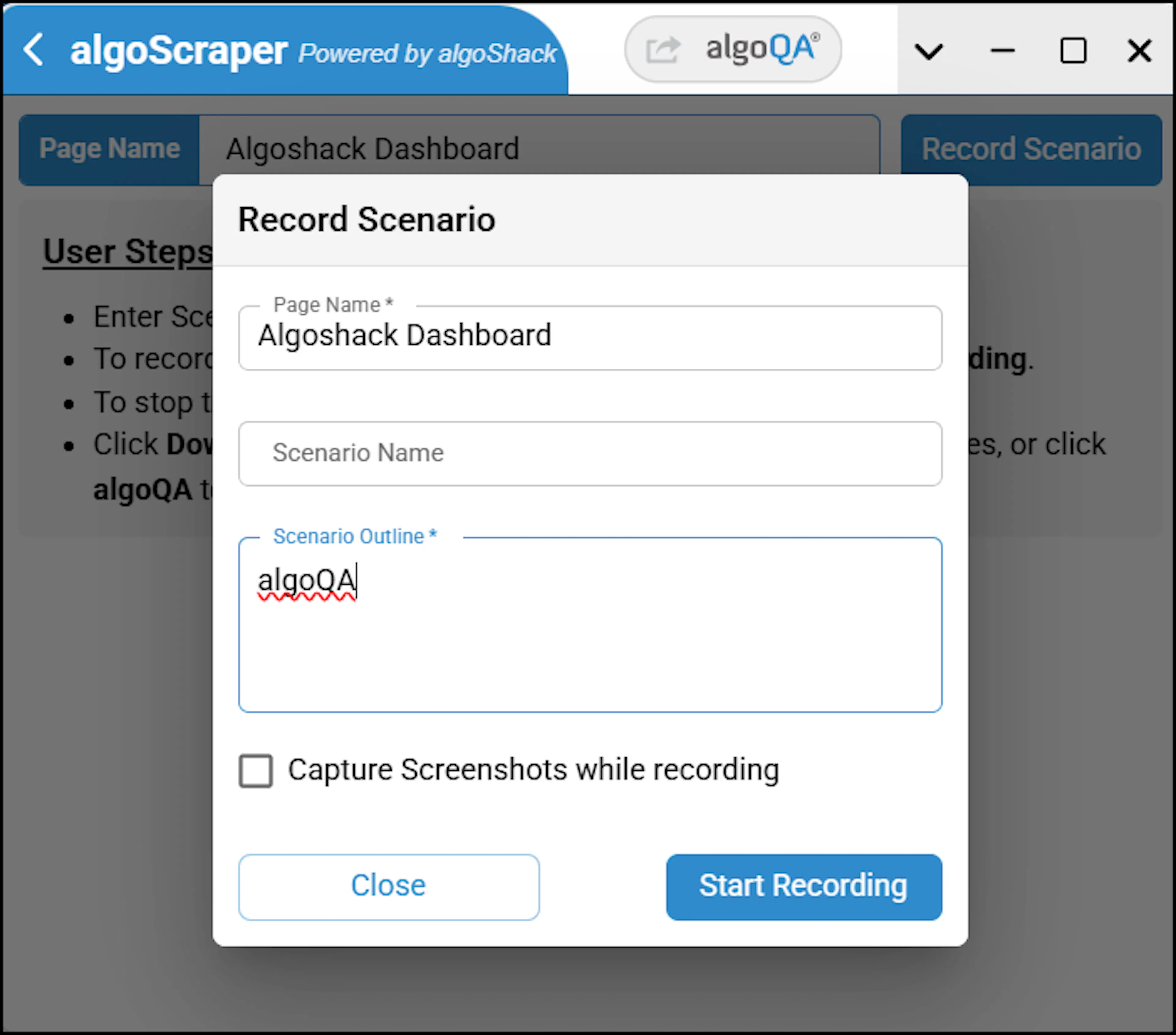
Record the scenario actions
Perform the actions that need to be recorded. After recording, click Stop Recording.
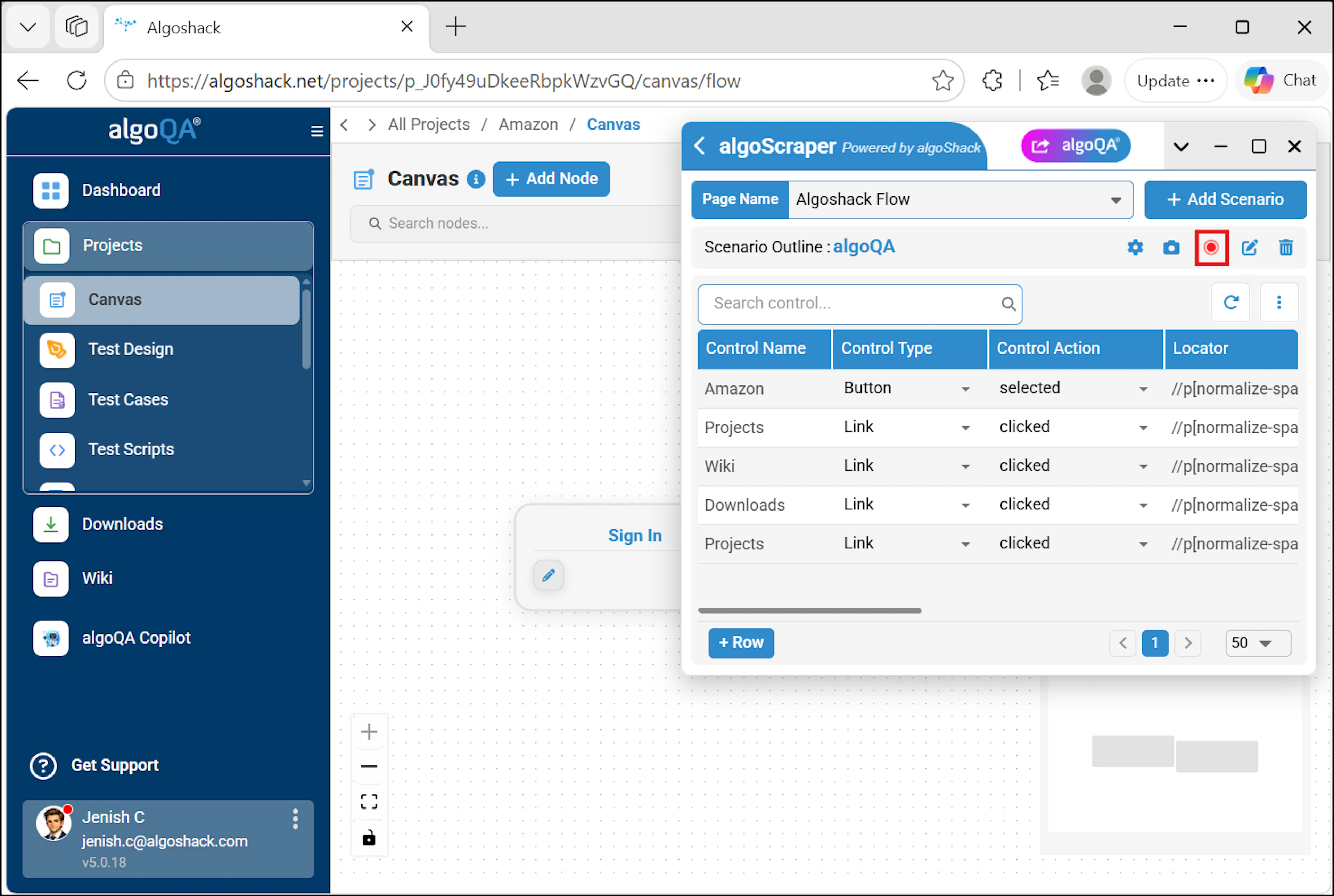
Return to algoQA
After recording the scenario in the scraper, click the algoQA button in the scraper to return to the Test Design screen in algoQA with the recorded scenario. To learn more, refer to Record a Scenario using Online Recorder.
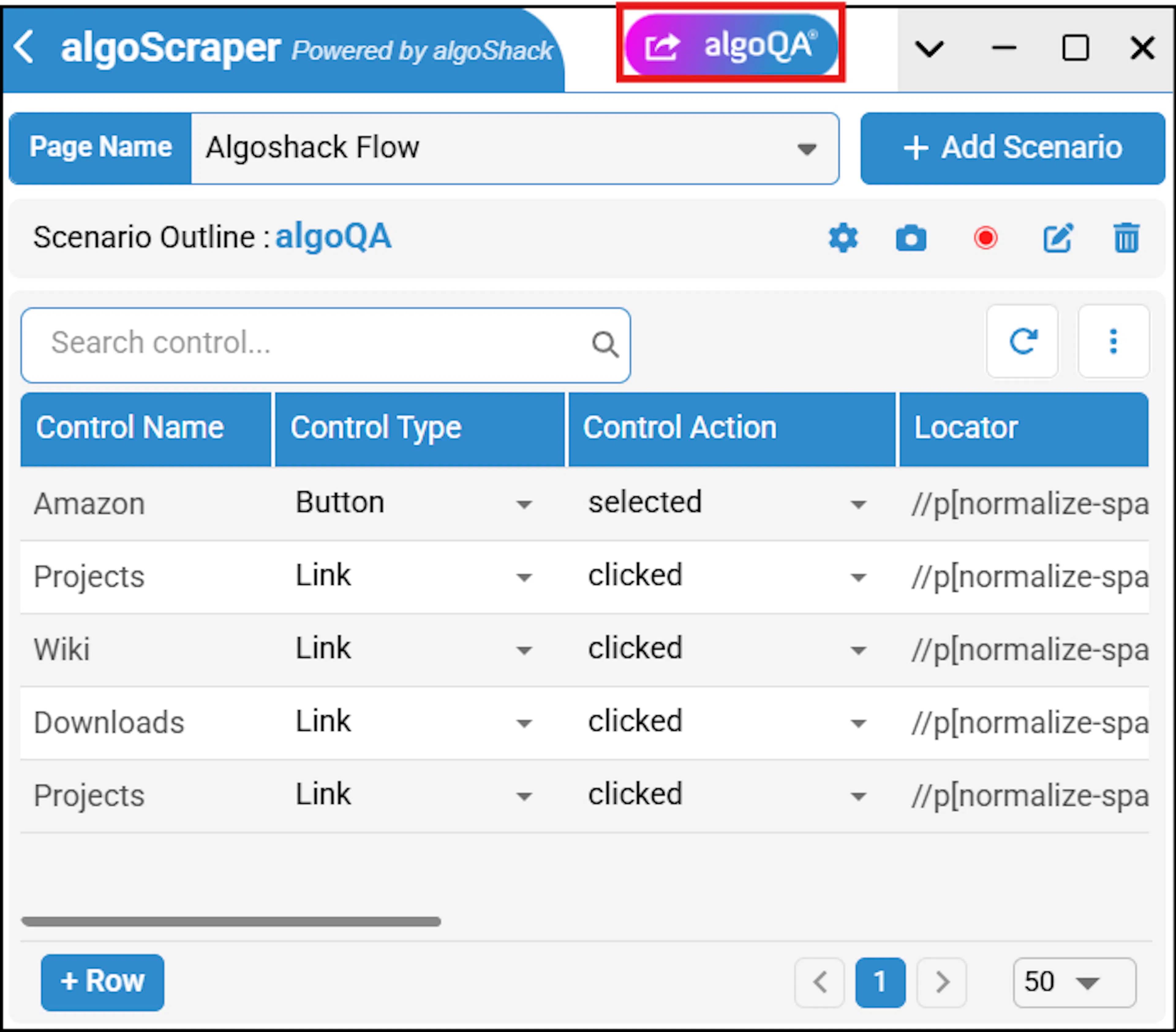
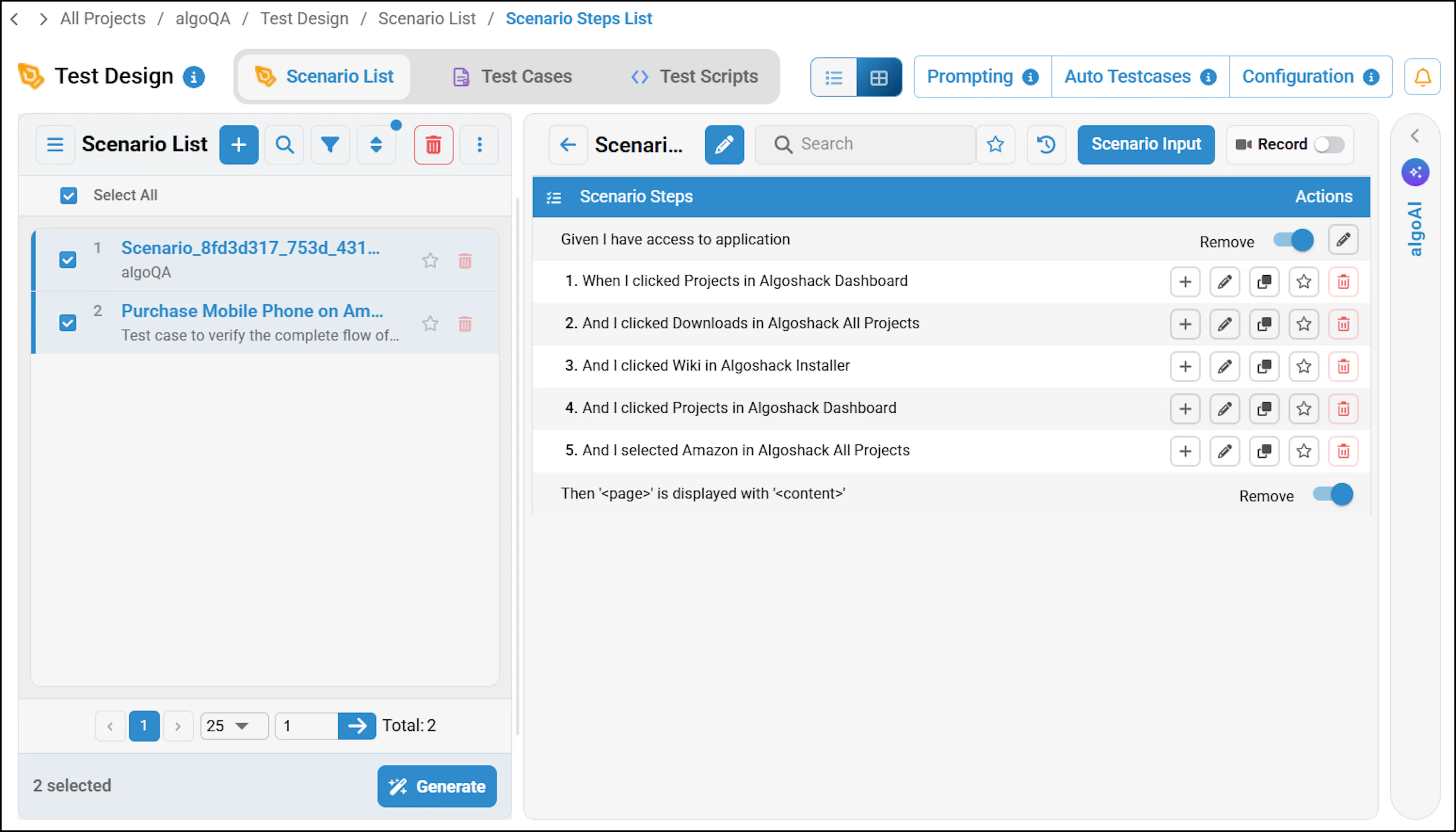
Review the recorded scenario
Review the recorded scenario and generate the test case.
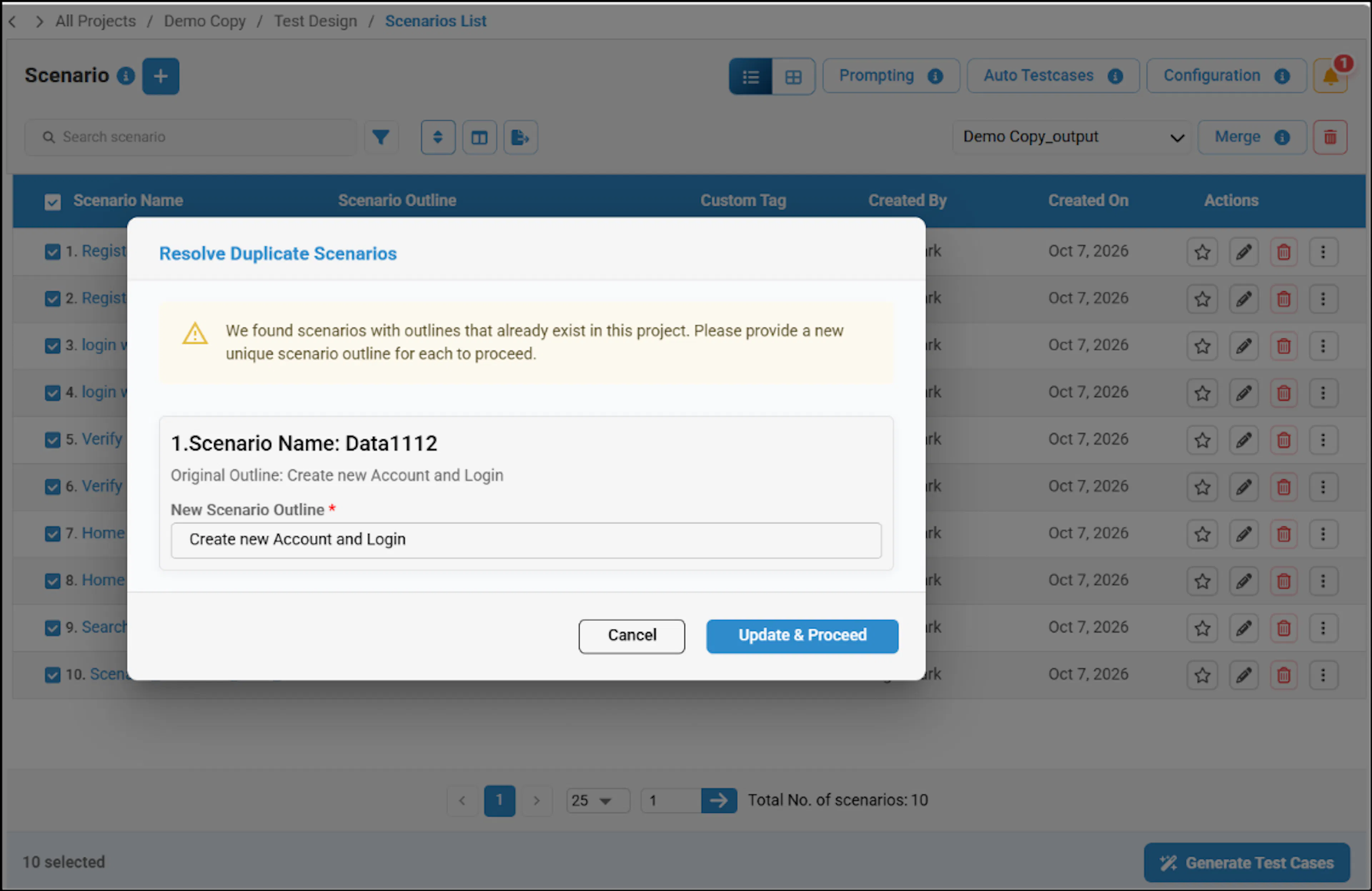
If you use an existing Scenario Outline in the scraper, a popup will appear when you navigate back to algoQA indicating that the Scenario Outline is already present. You will need to change the Scenario Outline and update it.
Generate test cases and scripts
Refer to Generate Test Cases and Test Scripts to generate test cases and test scripts.
Create Manually
This method lets you upload an existing scraped file or create an offline model, making it suitable for projects where you already have UI element data.
Log in to algoQA
Log into algoQA using your credentials.
Open the Projects page
Click Projects to view the Projects page.
Create a project
Click the Plus icon to create a new project. The Create Project page appears.
Enter the project details
Enter the Project Name, select the Application Type, Framework, and Language, then click Create Project.
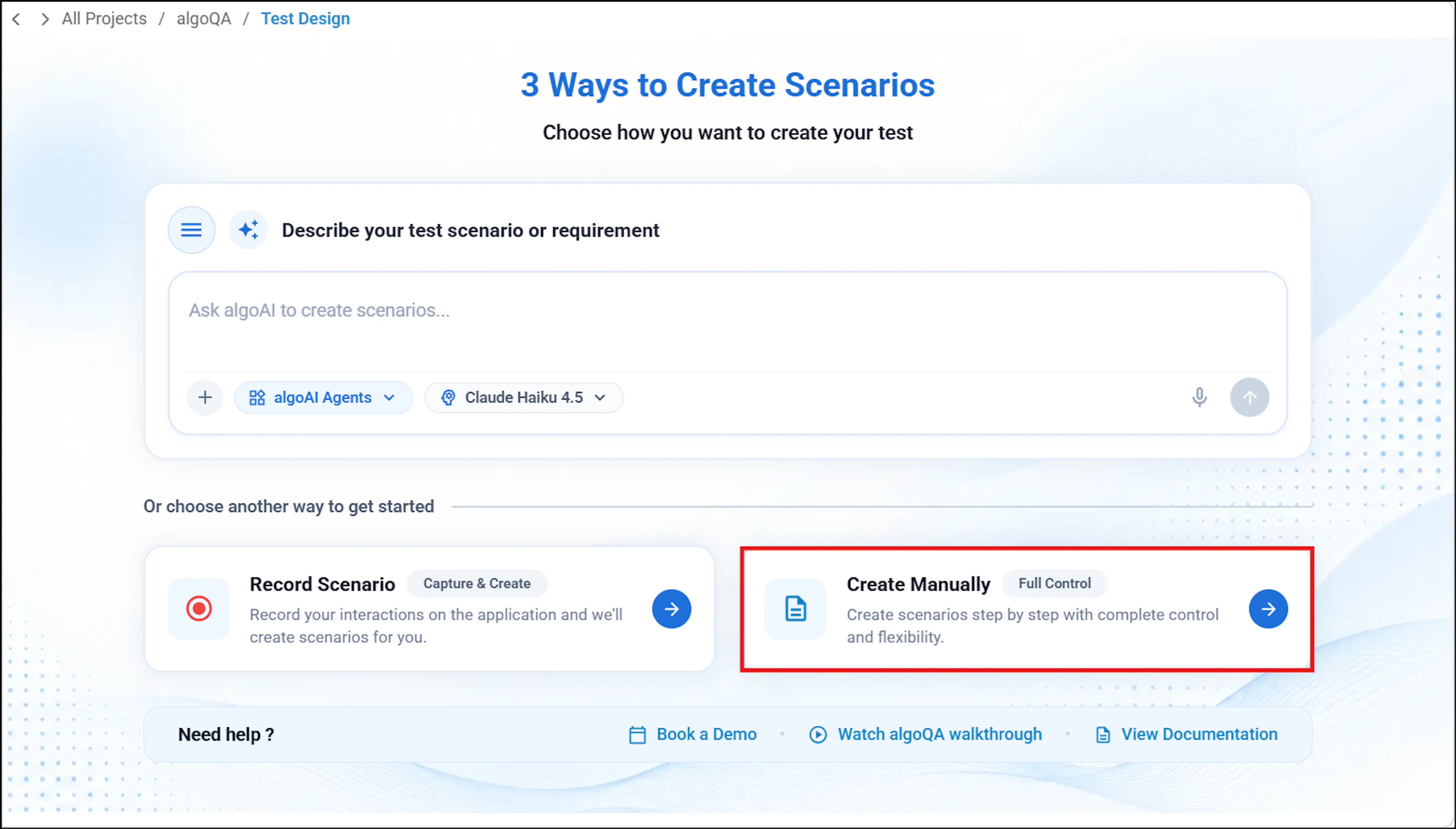
Open the manual creation options
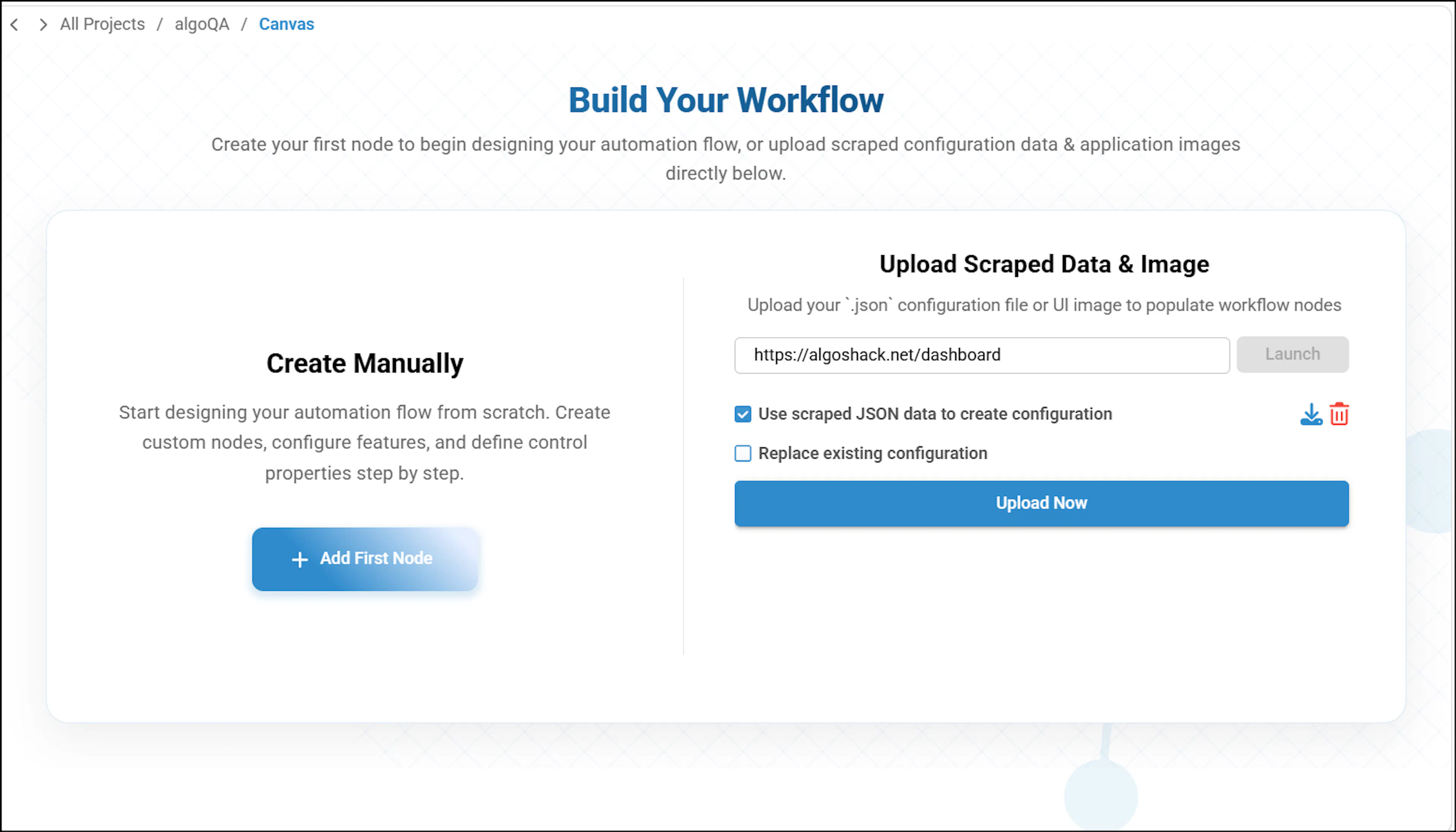
The project is created, and the scenario creation screen appears. Click Create Manually to upload scraped data or create an offline model.
Upload or create scraped data
Enter the URL to launch the scraper on the web page. You can scrape the UI elements and navigate back to algoQA with the scraped file, or if you have an existing scraped file in .json format, you can upload it. To learn more, refer to Record a Scenario using Offline Recorder.
Configure an offline model
You can also manually configure your scenarios. To learn more, refer to Create an Offline Model.
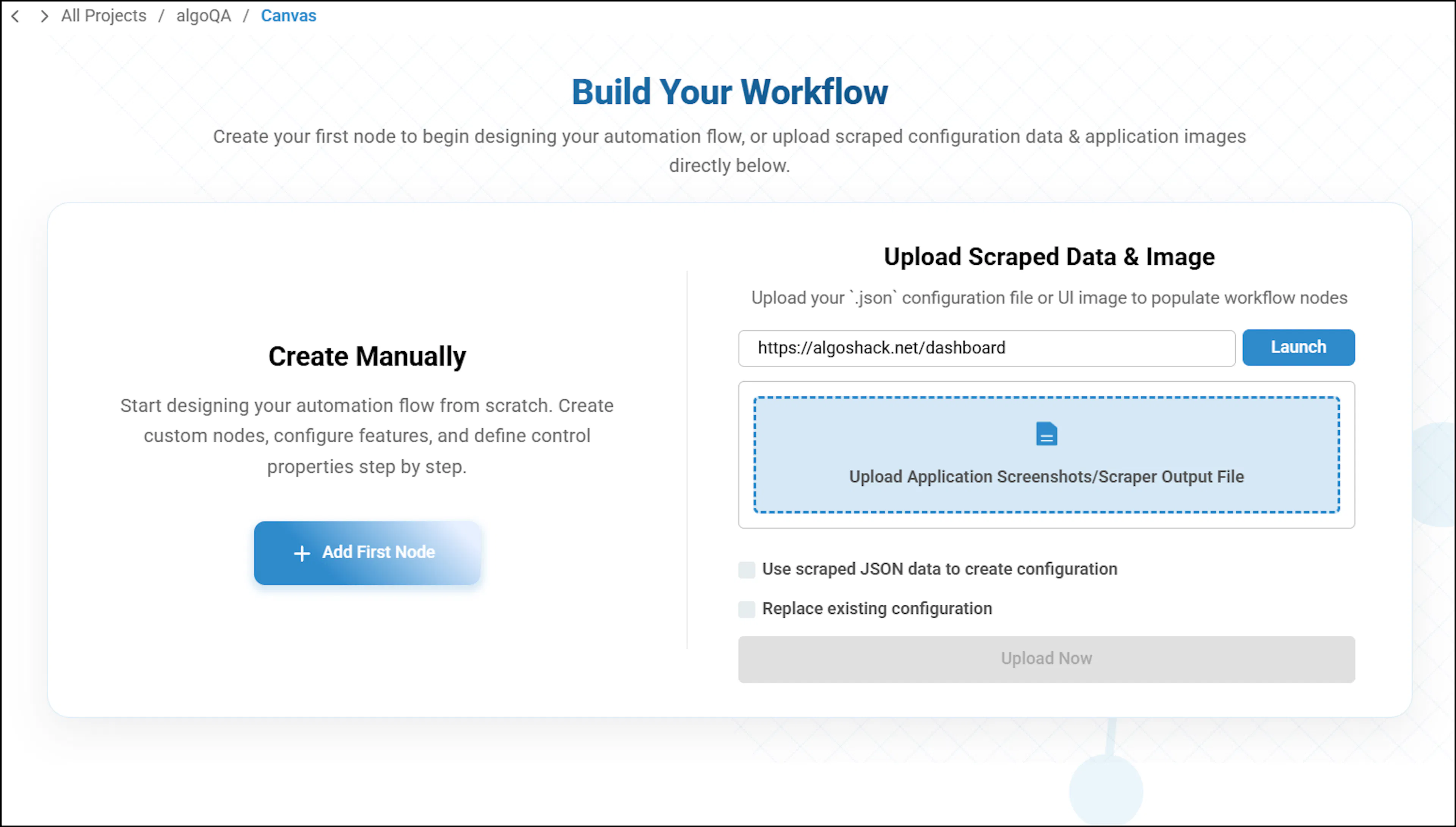
Upload the scraped data
After uploading the scraped data, click Upload Now. A configuration will be created, and you can proceed with recording a scenario using the offline recorder and generating test cases.
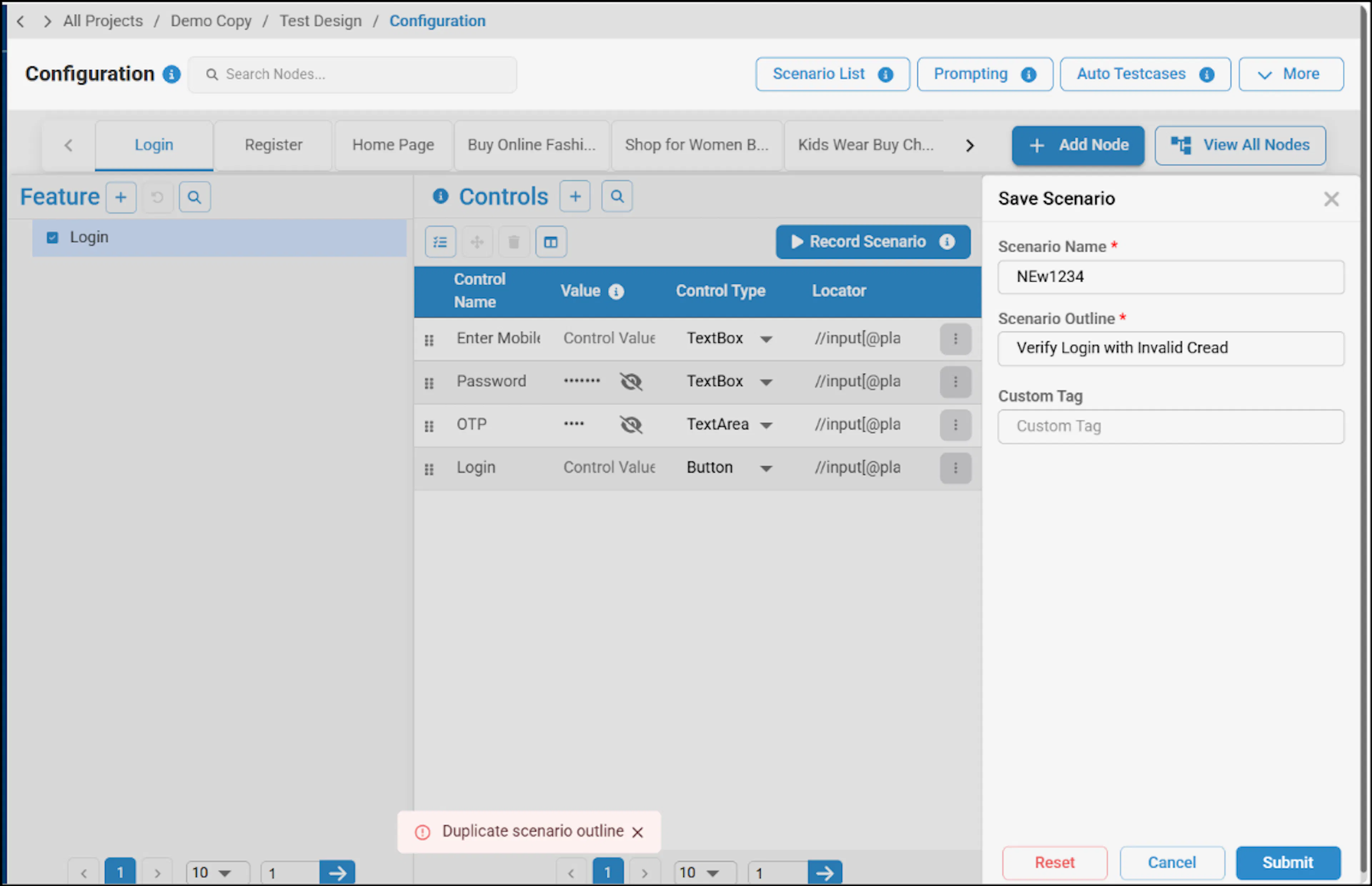
Handle duplicate scenario outlines
If you enter a scenario outline that is already in use, a warning appears indicating a duplicate scenario outline. Change the scenario outline to a unique value and update it.
Generate with AI
This method uses algoAI to generate scenarios from a text or voice description. AI credits are consumed for each generation.
Log in to algoQA
Log into algoQA using your credentials.
Open the Projects page
Click Projects to view the Projects page.
Create a project
Click the Plus icon to create a new project. The Create Project page appears.
Enter the project details
Enter the Project Name, select the Application Type, Framework, Language, and Application URL, then click Create Project.
Open the scenario creation screen
The project is created, and the scenario creation screen appears.
Describe the scenario
Enter a description of the scenario you want to generate. You can also use the microphone by clicking it once and speaking the scenario description, then click Send.
AI credits are used when generating scenarios with algoAI. Pro Lite users receive 2,000 credits, Pro users receive 30,000 credits, and Enterprise users receive 100,000 credits. You will receive a notification when you exceed your credit limit.
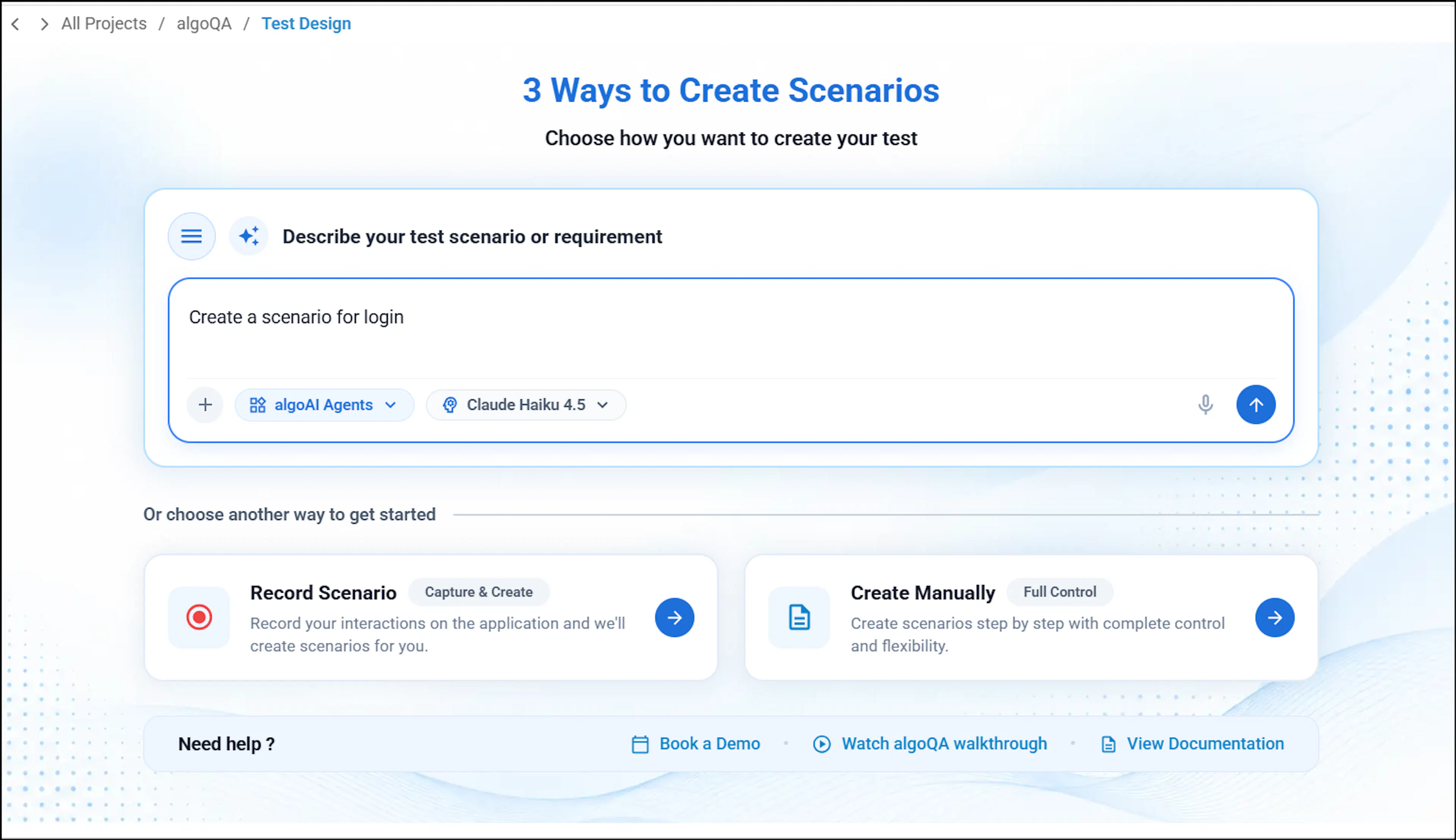
Create the scenario
A scenario will appear. Click Create for the scenario to be generated.
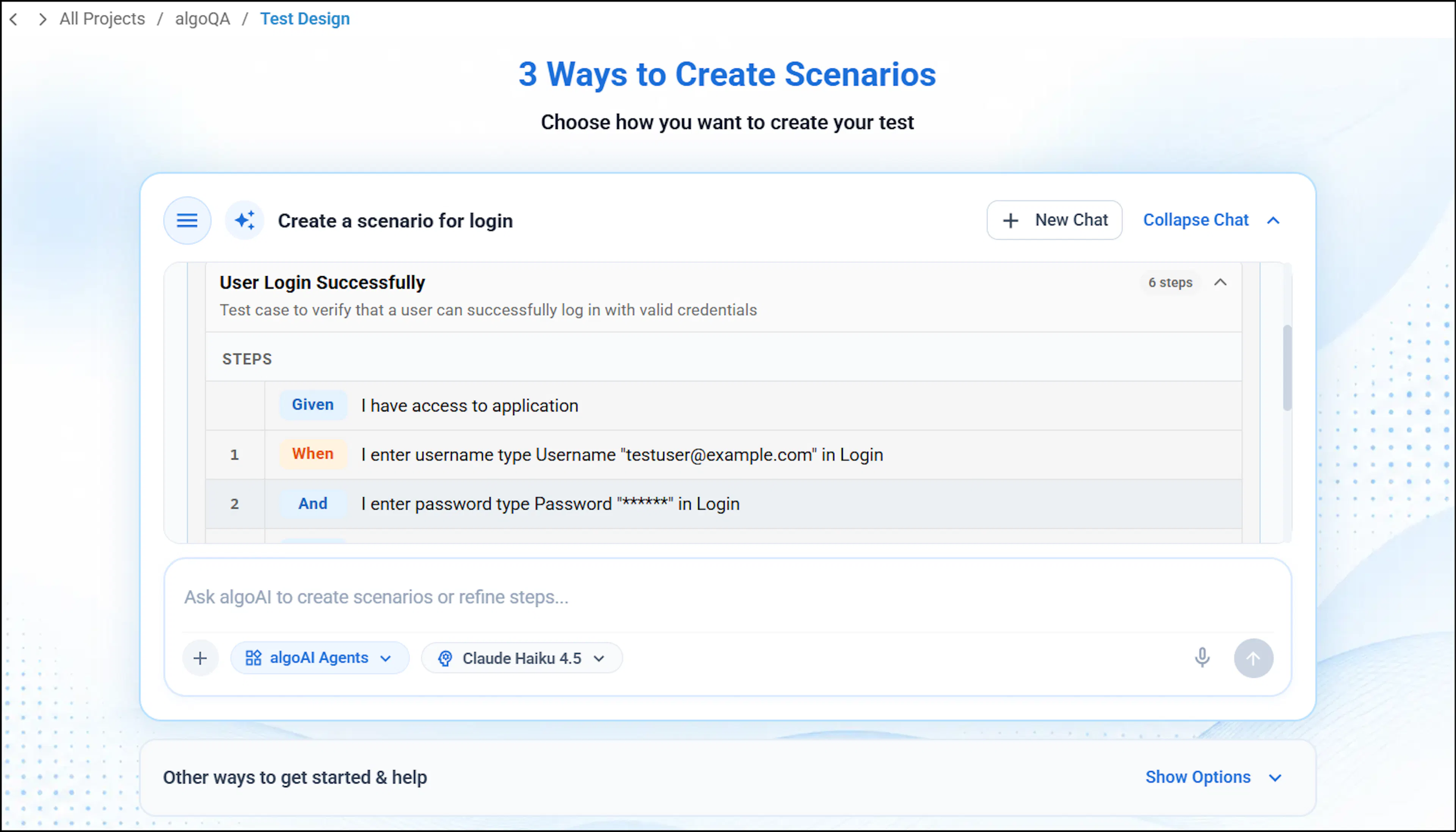
View the generated scenario
A test case will be created. Click View Tests to view the scenario.
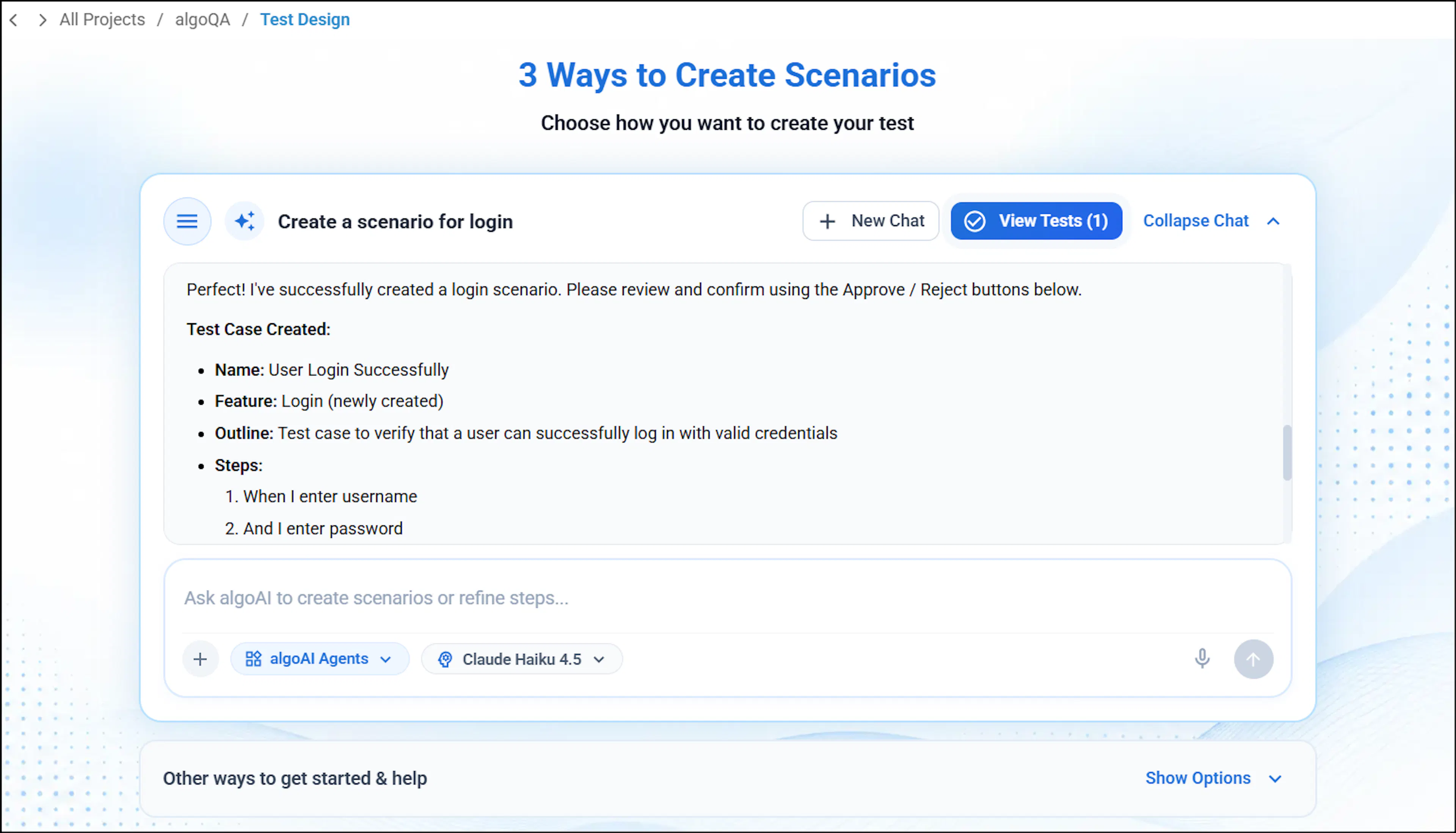
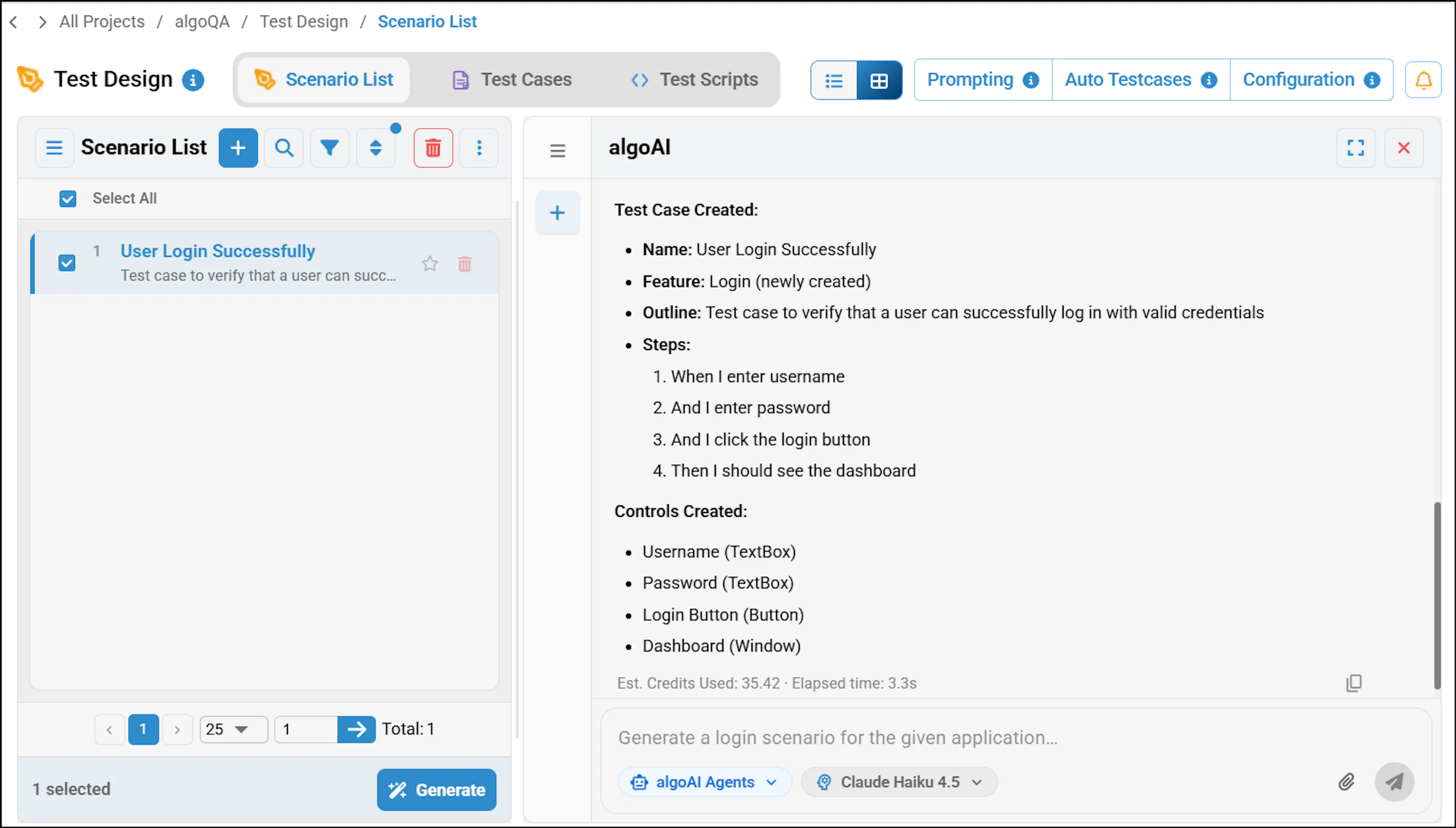
Generate test cases
After reviewing the scenario, click Generate to generate test cases. For more information, refer to Generate Test Cases and Test Scripts.
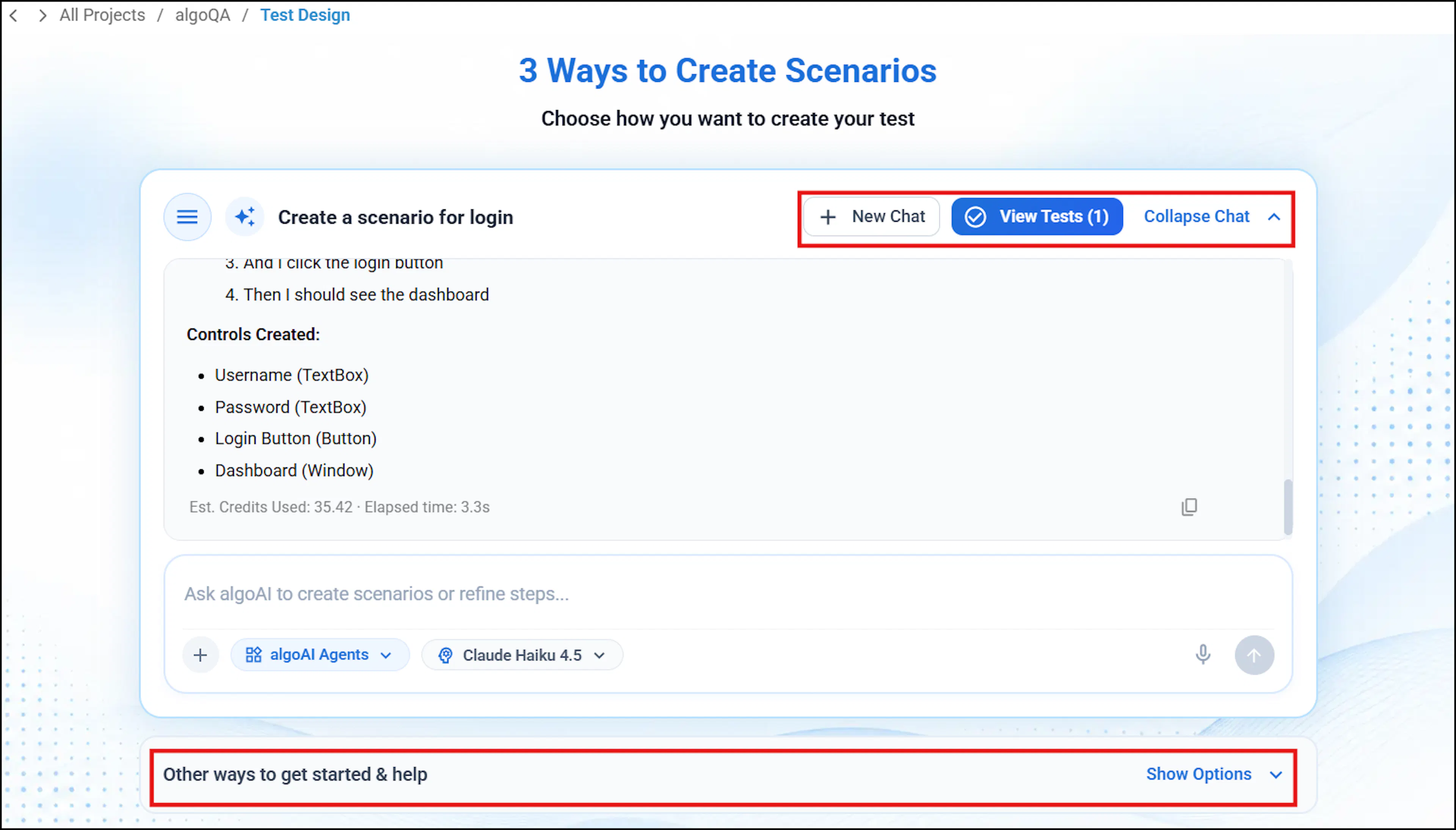
Manage the chat
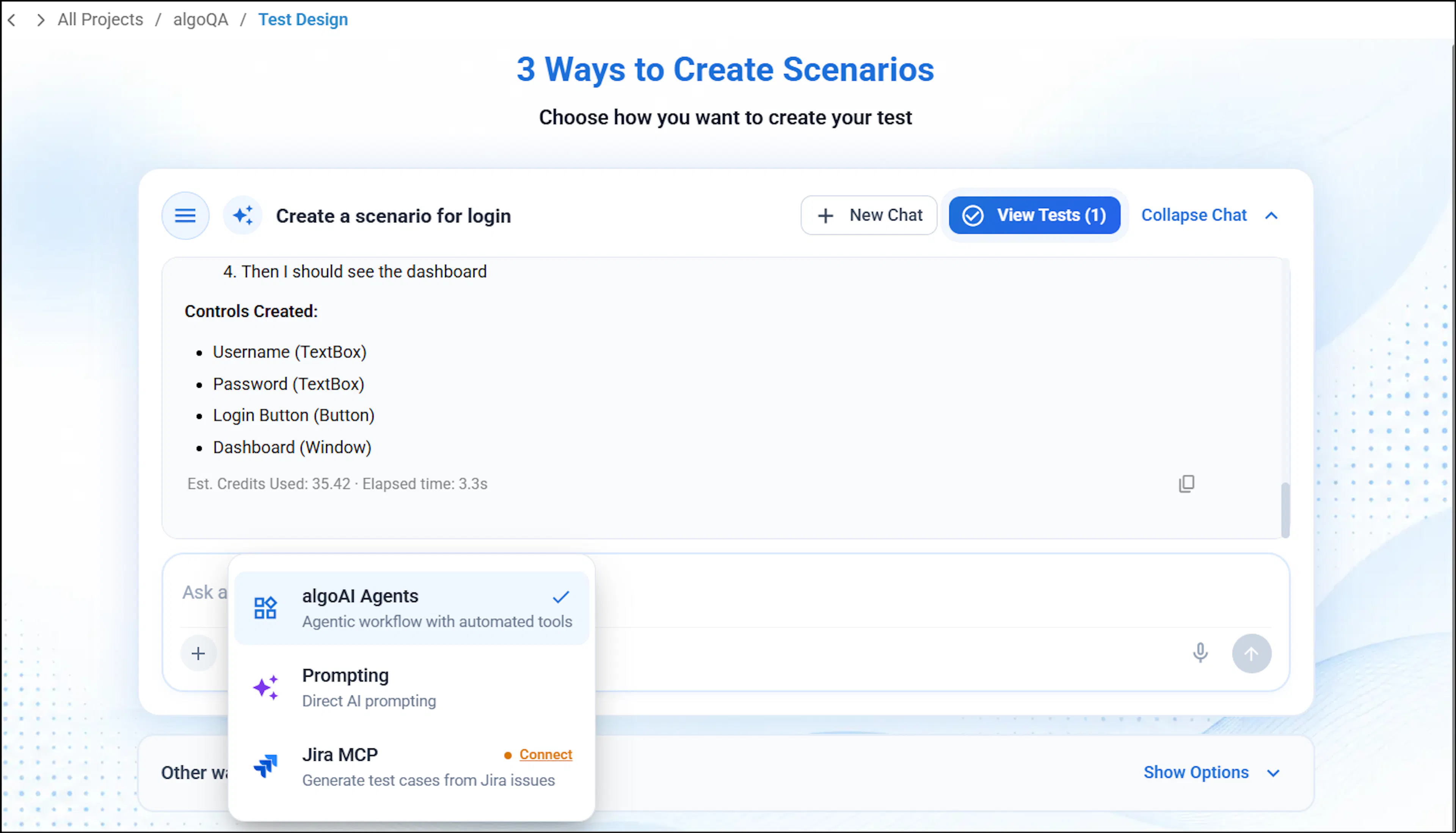
Click Collapse Chat to collapse the current chat. You can expand it again by clicking the Expand chat button. Click New Chat to start a new conversation. You can also view other ways to create a scenario by clicking Show Options.
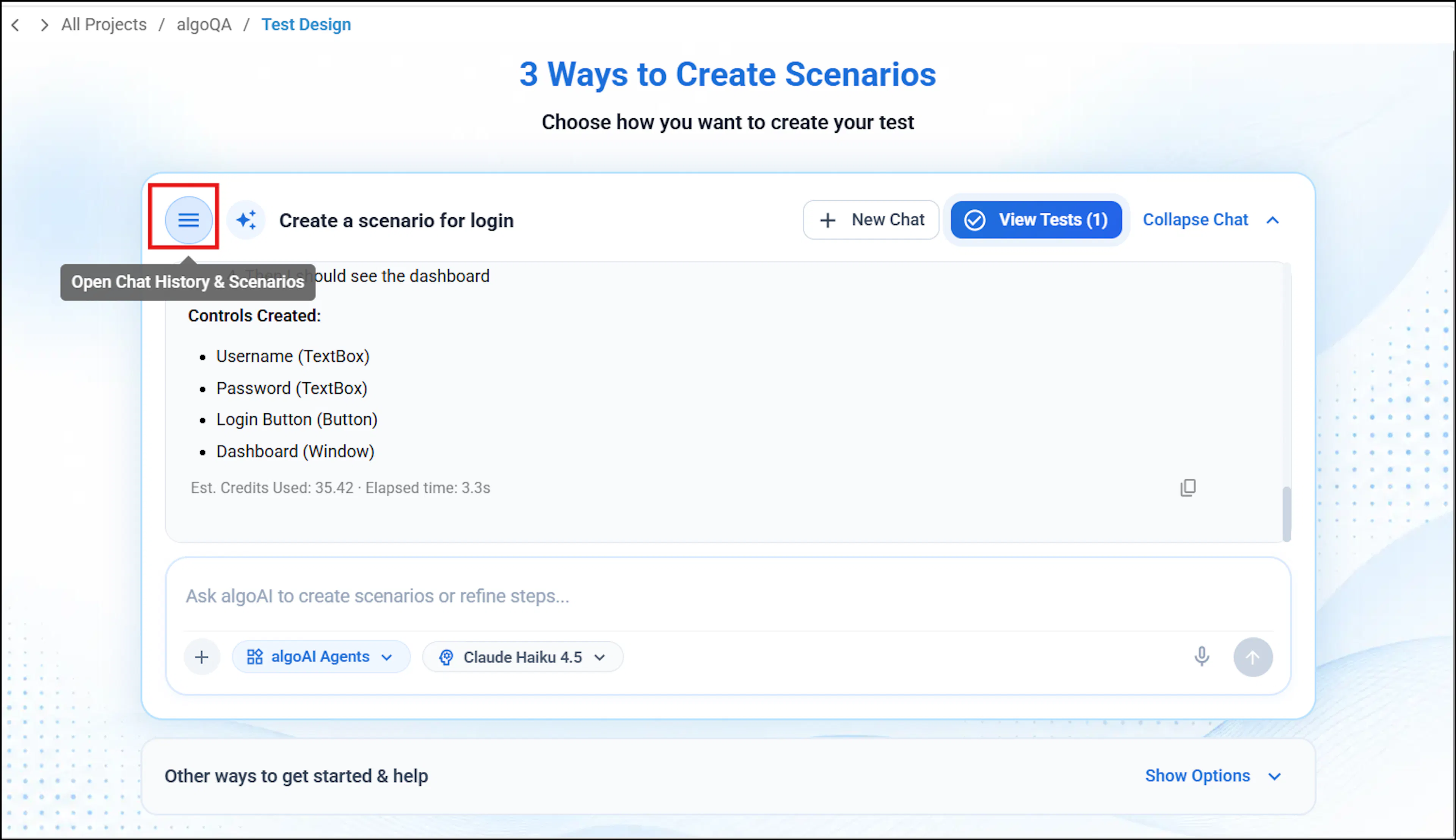
Open chat history and scenarios
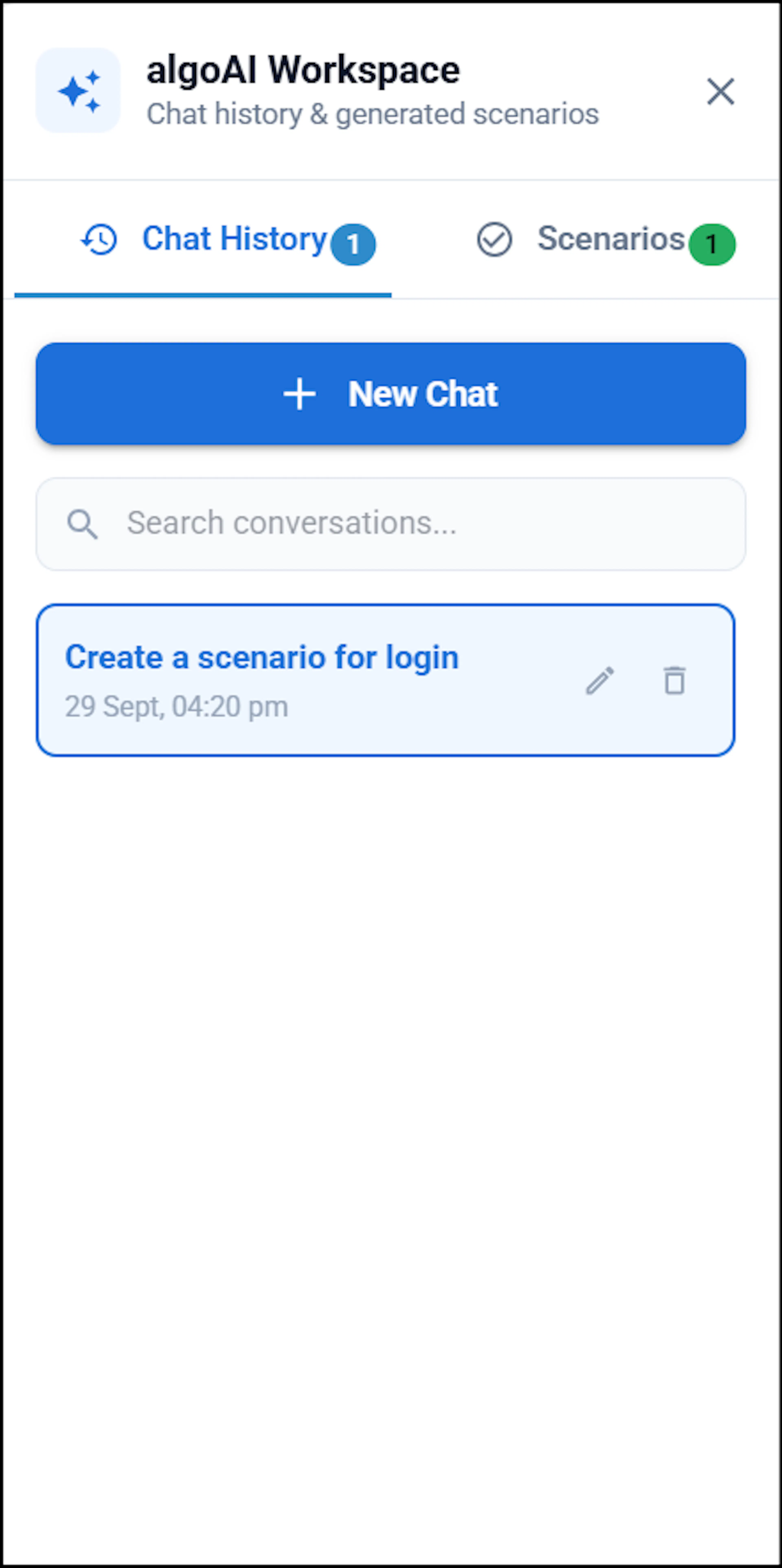
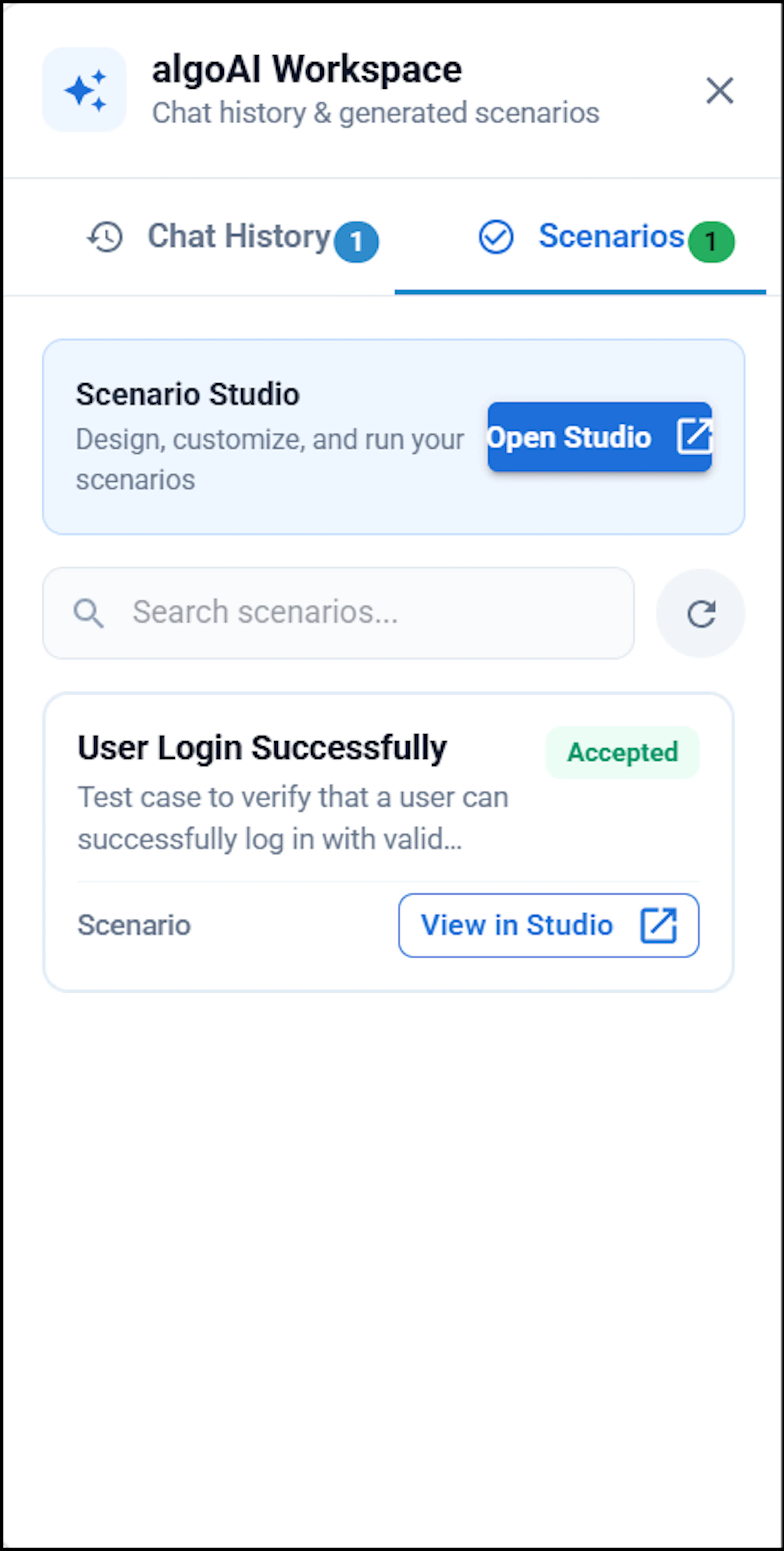
View chat history and scenarios by clicking the Open Chat History and scenario button.
Review chat history and open the scenario in Studio
In the Chat History tab, you can view previous conversations. You can also view the generated scenario and open it in the Test Design Studio by clicking View in Studio.
Choose the AI model
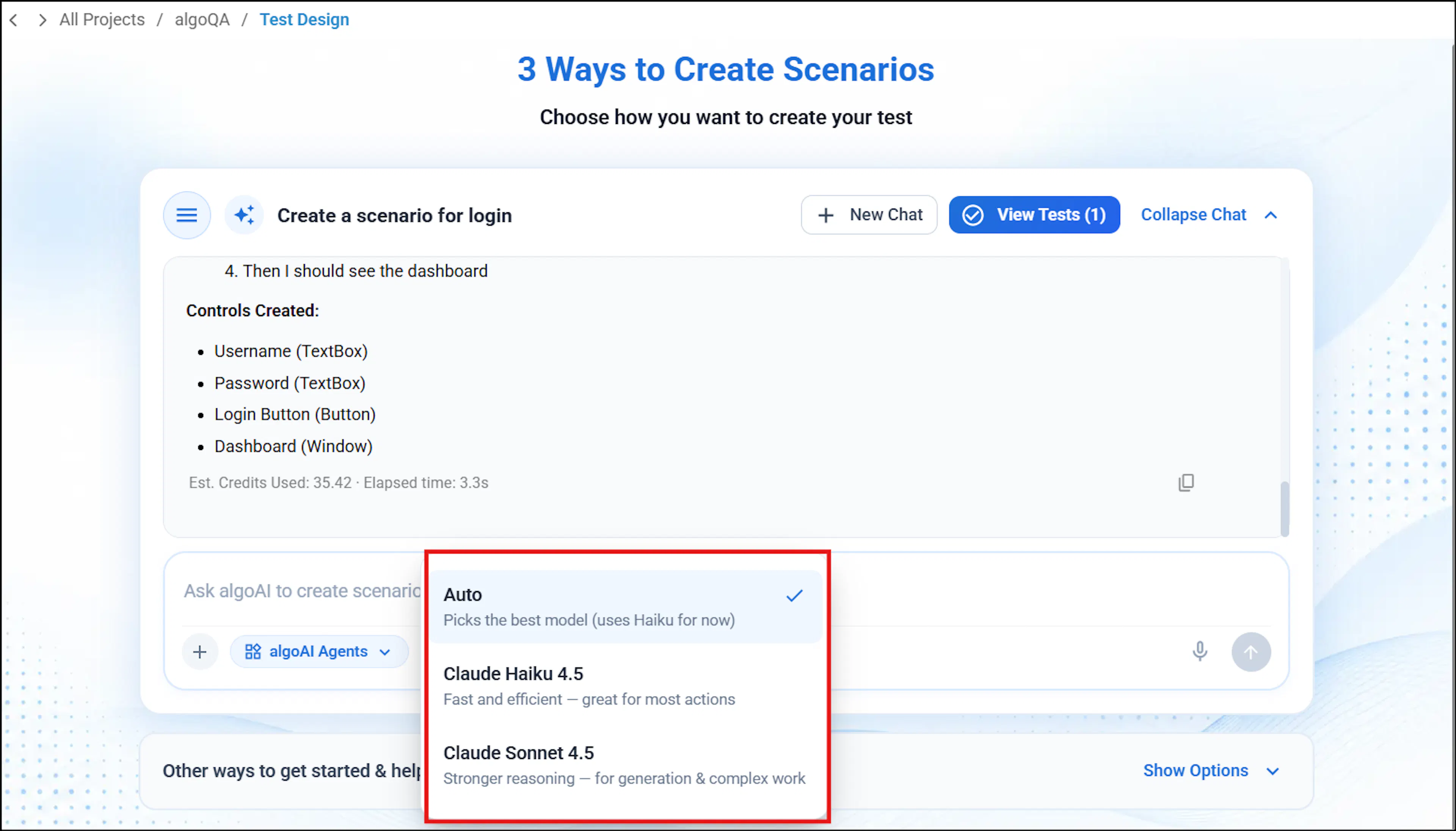
Click the Choose the AI Model dropdown to select a model. The Auto option selects Claude Haiku 4.5 by default and uses Claude Sonnet 4.5 for generating complex scenarios. You can also manually choose Claude Haiku 4.5 or Claude Sonnet 4.5 based on complexity.
Choose an agent
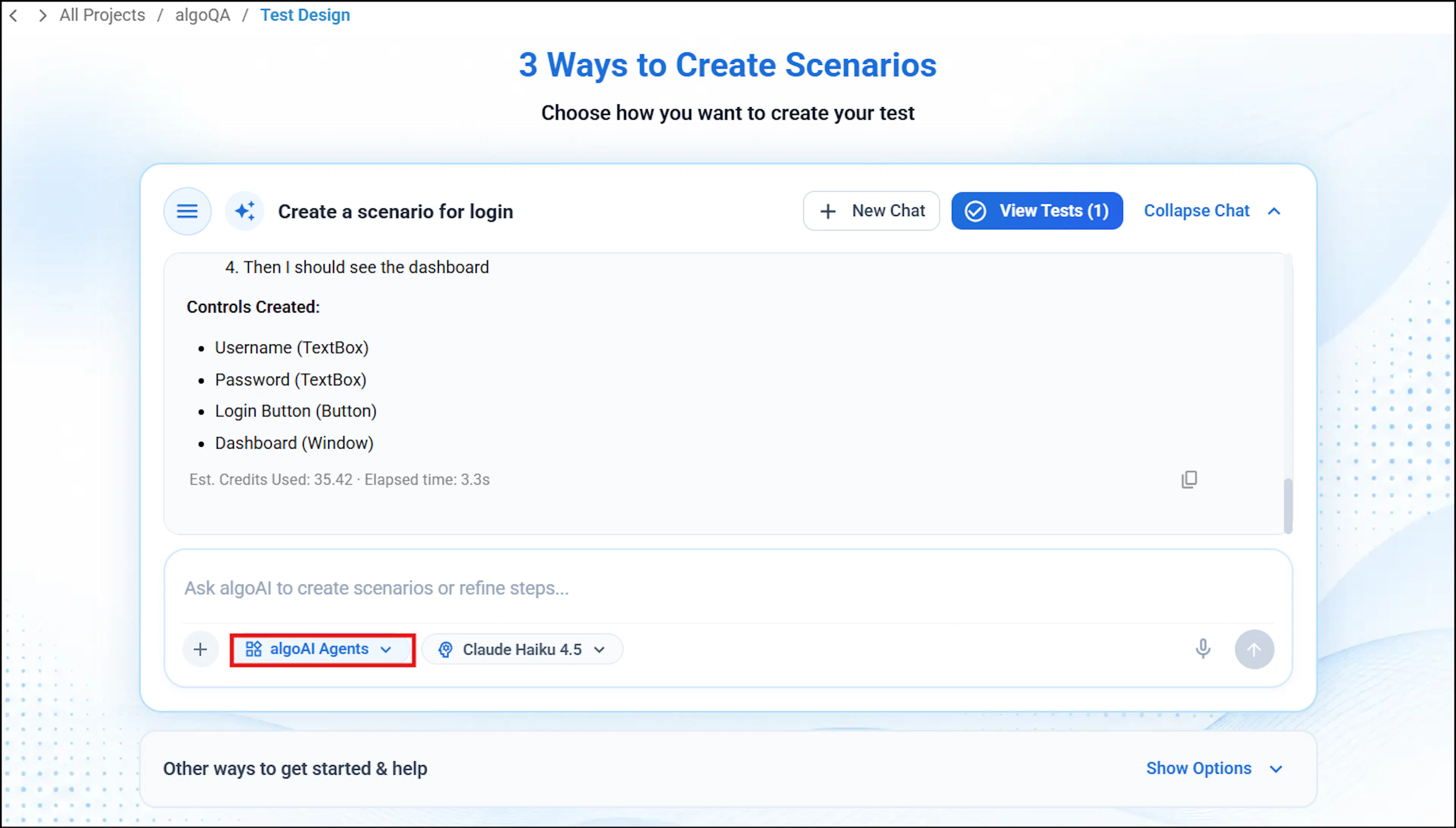
Click the Agents dropdown to choose between algoAI Agents, Prompting, and Jira MCP. To learn more about prompting, refer to Prompting. To learn more about integrating Jira and generating scenarios based on Jira defects, refer to Jira Defects to Test Case Generation.
Note: If there are any application changes, such as when a new button is introduced on a page, then you can re-scrape the elements using the algoScraper extension and upload the scraped file using the upload option to see automatic placement of nodes in the Canvas. For more information, see Uploading the existing Scraped file.