
Understanding Business Rules in Node Configuration
Business rules help to validate text fields, text areas, and dropdown lists. The following are the Business Rules categories: Correct values, Incorrect values, Illegal values, Invalid values, Boundary values.
Understanding Business Rules in Node Configuration
Business rules validate values entered in text fields, text areas, and dropdown lists. Configure a node and its feature before you access the Business Rules button.
The Business Rules categories are:
- Correct values
- Incorrect values
- Illegal values
- Invalid values
- Boundary values
Navigate to the Canvas.
To navigate to the Canvas, refer to Canvas.
Add a node to the Canvas.
Click Add Node to add a node to the Canvas.
Configure the node.
Click the node to edit it. In the Node Name text box, enter the same name as the page name or screen name.
Configure the feature.
After you configure the node, the UI elements for the feature are displayed. By default, one feature is configured. Rename the feature as needed.
Update the UI element attributes.
In the required feature, update the UI element attributes, such as the control name, control value, assertion, business rules, test data or control value, and locator XPath.
Enable Business Rules.
Select Assertion and Business Rules, then select the Business Rules checkbox. The Business Rules button is displayed in Node Configuration.
Business Rules are enabled only for the following UI element types:
- Textbox
- Text Area
- Dropdown list
Assertions and page names
After you enable assertions, click Assertions to view the Current Page Name and Transition To content fields.
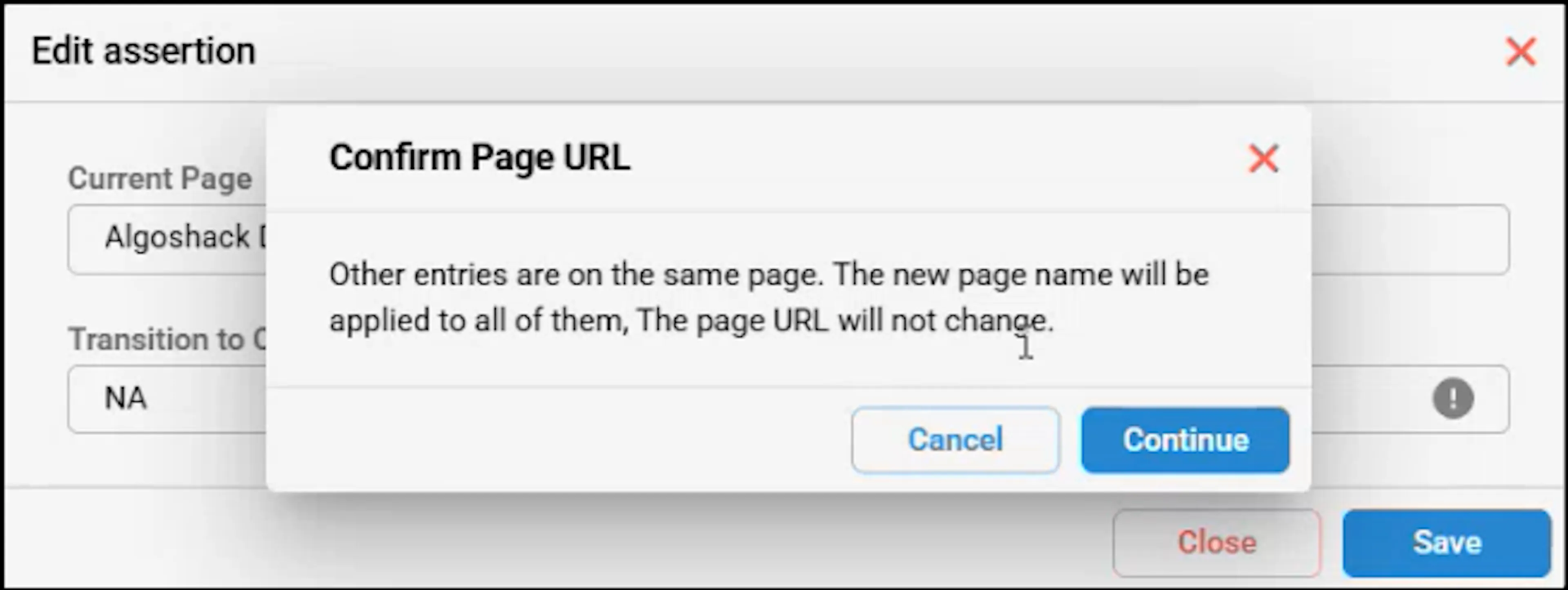
When you edit the page name, a pop-up appears if other entries use the same page. The new page name applies to all entries with the same page URL, but the page URL does not change. Select Continue to confirm the update. The updated page names are also reflected in the object repository.
Business Rules parameters
The Business Rules section contains the following parameters.
| Parameter | Description |
|---|---|
| Regex | Regex patterns search for specific types of information within text. They define matching rules for patterns such as email addresses and phone numbers. For more information on Regex Patterns, see the Troubleshooting guide. |
| minLen, maxLen, and exactLen | These parameters set the minimum, maximum, and exact length of generated data. They apply only to string data. |
| minVal and maxVal | These parameters define the minimum and maximum numeric values accepted in the textbox. The step defines how to generate boundary values between the minimum and maximum values. Select Boundary values in the Data Generation option to generate these values. |
| Data Generation | By default, this option is set to Y. Data Generation determines whether a text field or text area requires a business rule. When the value is Y, the combinational data set is generated in the feature file. When the value is N, the value entered by the user as test data or a parameter during Node Configuration is generated in the feature file. Select all values in the Data Generation option to generate negative test data. For more information, see Configuring Combinatorial Data Generation in algoQA. |
| Custom Regression Types | Generate test data with values such as invalid_boundary_illegal_incorrect instead of selecting the corresponding checkboxes in the Data Generation section. Replace any value with NA when it is not applicable, then generate the test data. |
| Case-sensitivity | CaseSensitivity generates case-sensitive or case-insensitive test data according to the provided value. Case-sensitive data uses the user-fed input. Case-insensitive data includes combinations of uppercase and lowercase letters. |
| String Type - Only Alphabets | Use the StringType Business Rule to generate different data types, including alphabetic, numeric, and alphanumeric data. |
| ShouldBeDuplicate | ShouldBeDuplicate generates duplicate values when the key value is Y. It does not generate duplicate values when the key value is N. |
| CaseCondition | CaseCondition generates test data containing at least one uppercase character, at least one lowercase character, or both in the string. |
| QuotesAroundString | QuotesAroundString generates string data enclosed in quotes. |
| SpecialCharacter | SpecialCharacter generates test data containing at least one special character in the string. |
| Date_Format | Generate date test data in the following formats: NOT SELECTED, dd-mm-yyyy, mm-dd-yyyy, yyyy-mm-dd, and yyyy-dd-mm. |
| Message Categories | Message Categories verify validation messages for negative scenarios. For example, if a user clicks Continue without entering a username or email address, the application may display the validation error message Enter your email or mobile phone number. Update the Message Categories fields to verify these validation error messages. |