Managing the Scripts
Manage the test scripts generated in the algoQA platform, including generating, downloading, editing, executing, and deleting scripts.
Managing the Scripts
In the Test Scripts page, you can:
- Generate the scripts
- Delete the scripts
- Download the scripts
- Rename script files
- Delete all
- Update the scripts
- Execute scripts
Generating Scripts
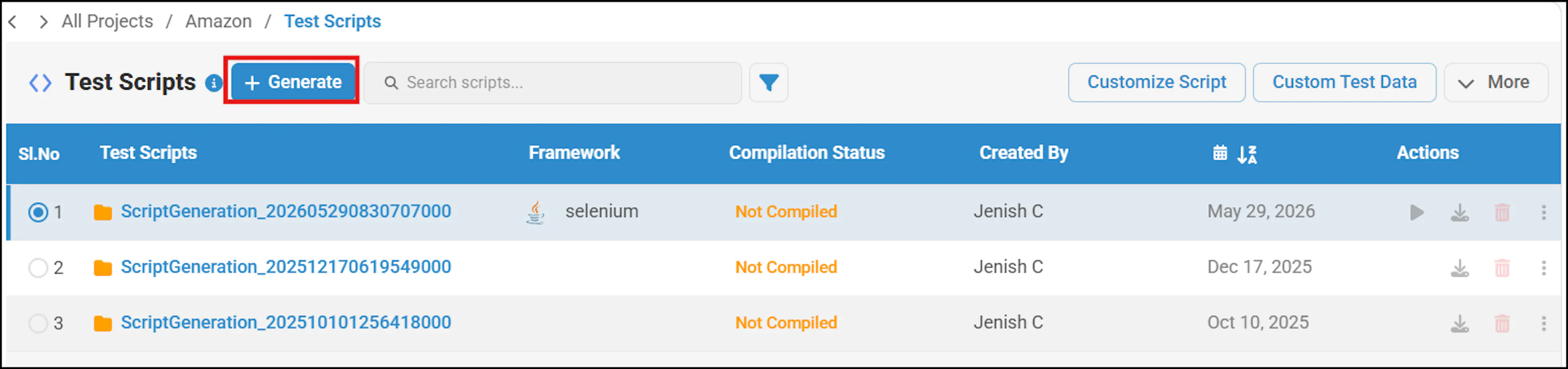
To generate scripts, follow the instructions outlined in the Generating and Executing Scripts section. You can also generate scripts from the Test Scripts page by clicking the Generate button, selecting files from the Test Case folder, and then clicking Generate Scripts.
Delete All Scripts
In the Test Scripts, navigate to the script you want to delete, click the More Menu (three dots) and the Delete All button. By default, this option is disabled. If you need access, contact your administrator. For more information, see Delete script generation files and test generation files all at once
Download the Script
To download a script, navigate to the Test Scripts, click the download icon beside the script folder.
Managing Individual Script Generation Folders
In the Script Generation Folder, you can perform various actions:
- Delete the Script
In test scripts page, click on delete icon next to the script. A confirmation pop-up will appear, allowing you to click Delete to confirm deletion or cancel. - Download the Script
To download the script, click the download icon next to the script to download your script to the local folder or upload to the cloud. - Edit the Script
In Test Scripts, select Customize Script to modify the content of the script. You can either download the scripts to your local folder or edit it in the Editor screen by choosing the Open in Editor option. - Execute Scripts
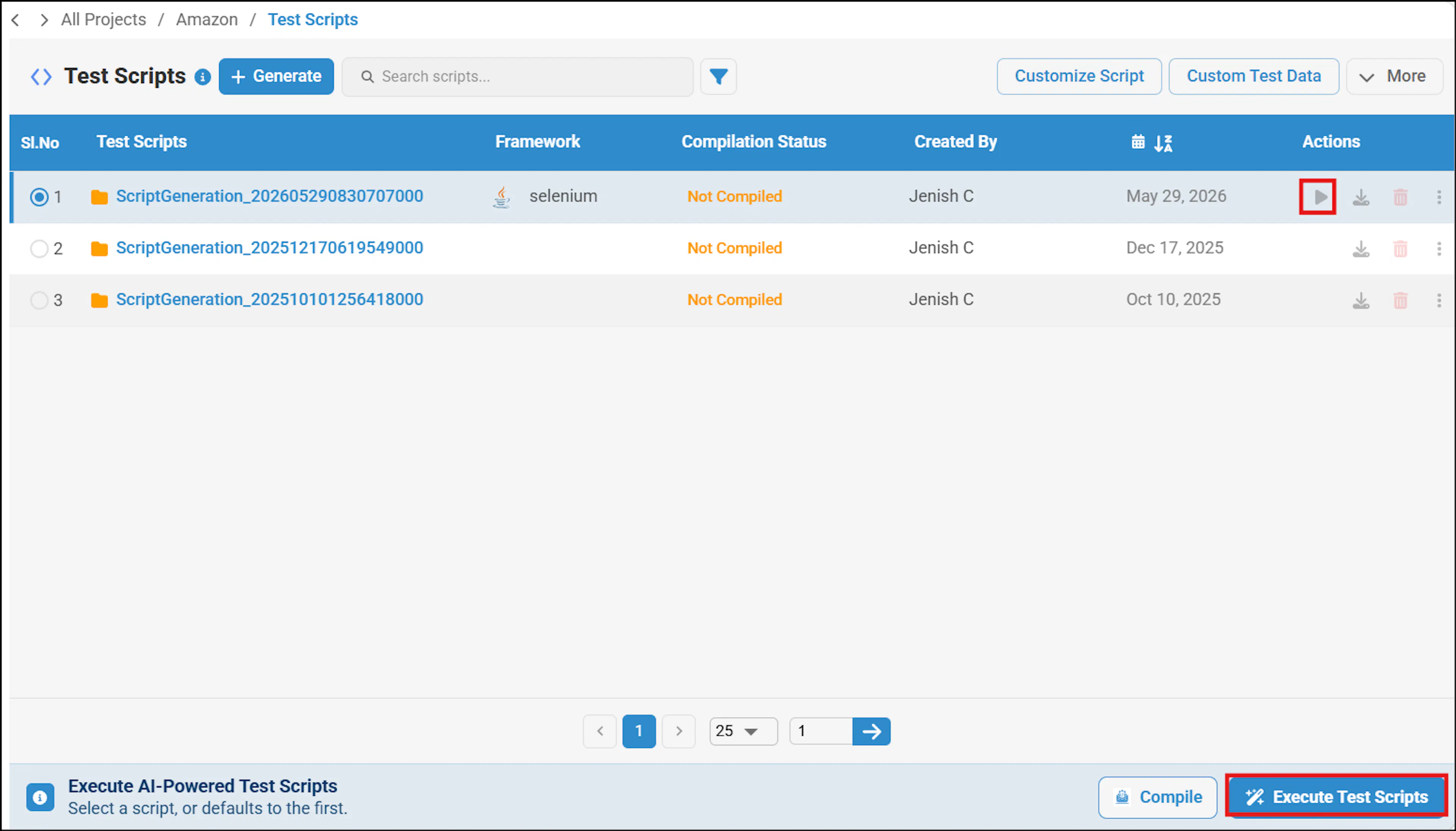
You can execute scripts in algoQA by clicking the play icon next to the scripts or by clicking on Execute Test Scripts, to learn more, see Script Execution in algoQA
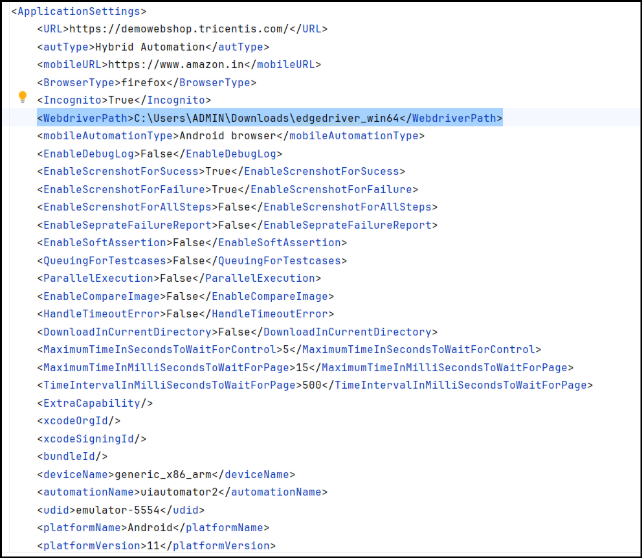
You can run scripts in incognito mode across web automation frameworks (Java Selenium, C# Selenium, Python Selenium, TypeScript Playwright, JavaScript WebdriverIO) and hybrid automation (Python Selenium Appium), with compatibility for Google Chrome, Mozilla Firefox, and Microsoft Edge (requires the WebDriver path in the application settings).
XPaths scraped from both iframes and shadow DOM can also be executed.
To run scripts in incognito mode, <Incognito>True</Incognito> Set this tag to True in Application settings.
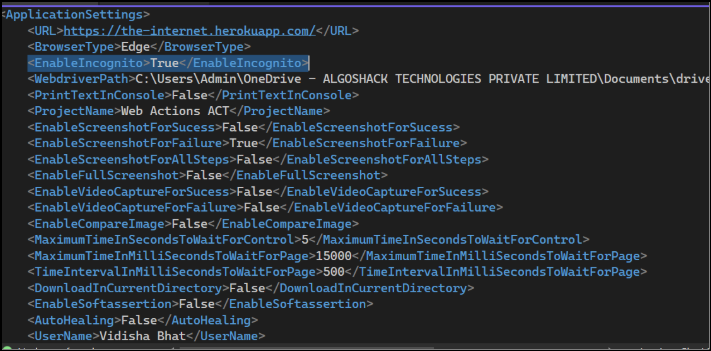
For Microsoft Edge, the WebDriver path must be added in application settings.
Include and exclude common dependencies while generating the script
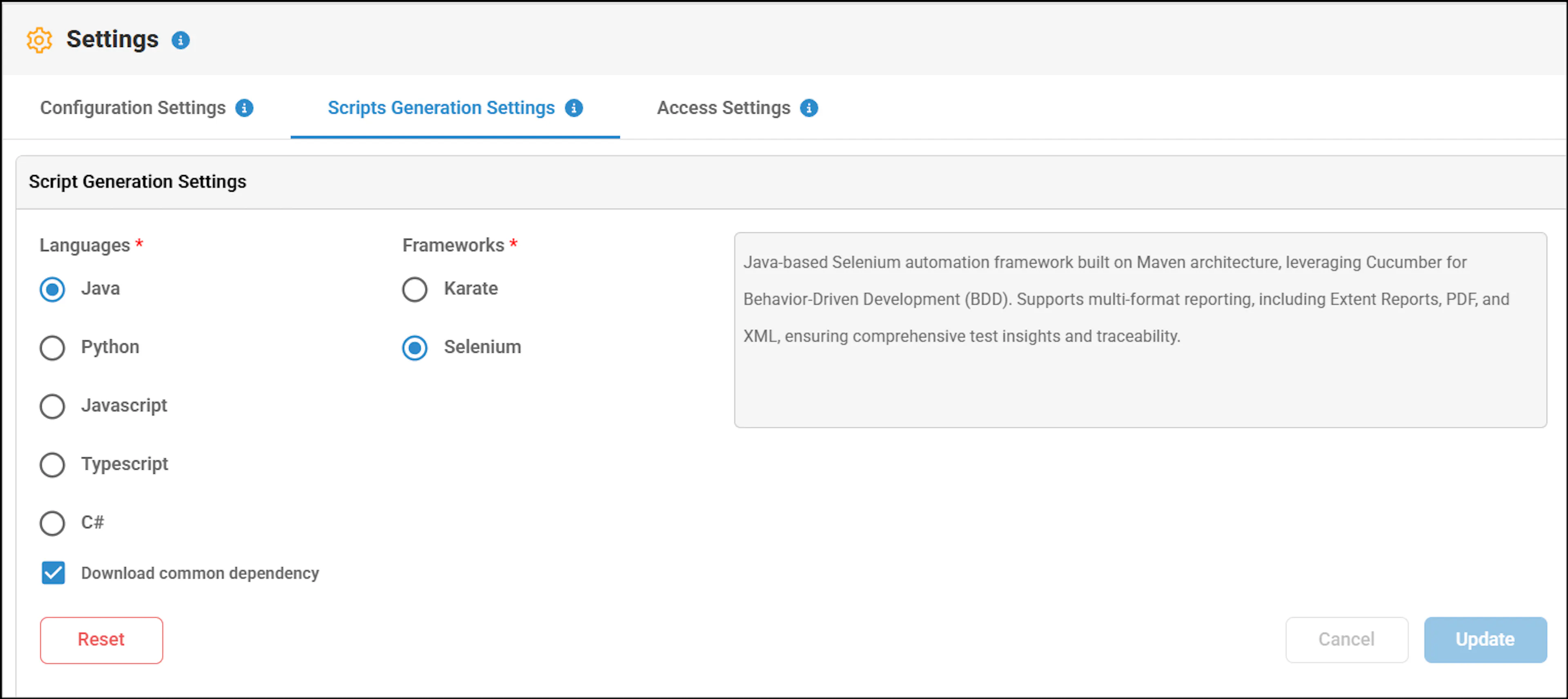
You can choose whether to include common dependencies when generating the script. Before generating the script, go to Script Generation Settings and select the Download Common Dependency checkbox to include them, or clear the checkbox if they are not required.