
Pro Lite Users
Get started with AlgoShack's free Pro Lite tier. Register as a Student or Company professional to access core test design, web automation, and script generation features at no cost. The Pro Lite model gives individual users lifetime free access to algoQA's core testing capabilities. When you need more, upgrade to Pro or Enterprise from the My Subscriptions page.
algoQA's Pro Lite model gives individual users and students lifetime free access to core test design and web automation features. Register as a Student or a Company professional to start designing tests, generating scripts, and running web automation at no cost.
Student Registration
Register as a working student to get Pro Lite-only access. Provide your college name and personal details to create your account.
Company Registration
Register as a working professional to unlock all subscription options, including Pro Lite, Pro, and Enterprise. Provide your organization name, job title, and contact details.
Pro Lite users receive 2,000 AI credits per month, 250 MB of storage, up to 20 generated test cases, and up to 10 test script executions. For a full comparison of features across all subscription tiers, see Key Capabilities of Subscription Models.
How to Register as a Pro Lite User
Follow these steps to create your Pro Lite account:
- Enter the URL algoshack.com into the browser address bar.
- Click the Pricing button.

AlgoShack website homepage with Pricing button highlighted - The Pricing page appears. Click the Get Started button to subscribe as a Pro Lite user. You can view the available core features. For more information, visit the Pricing page.
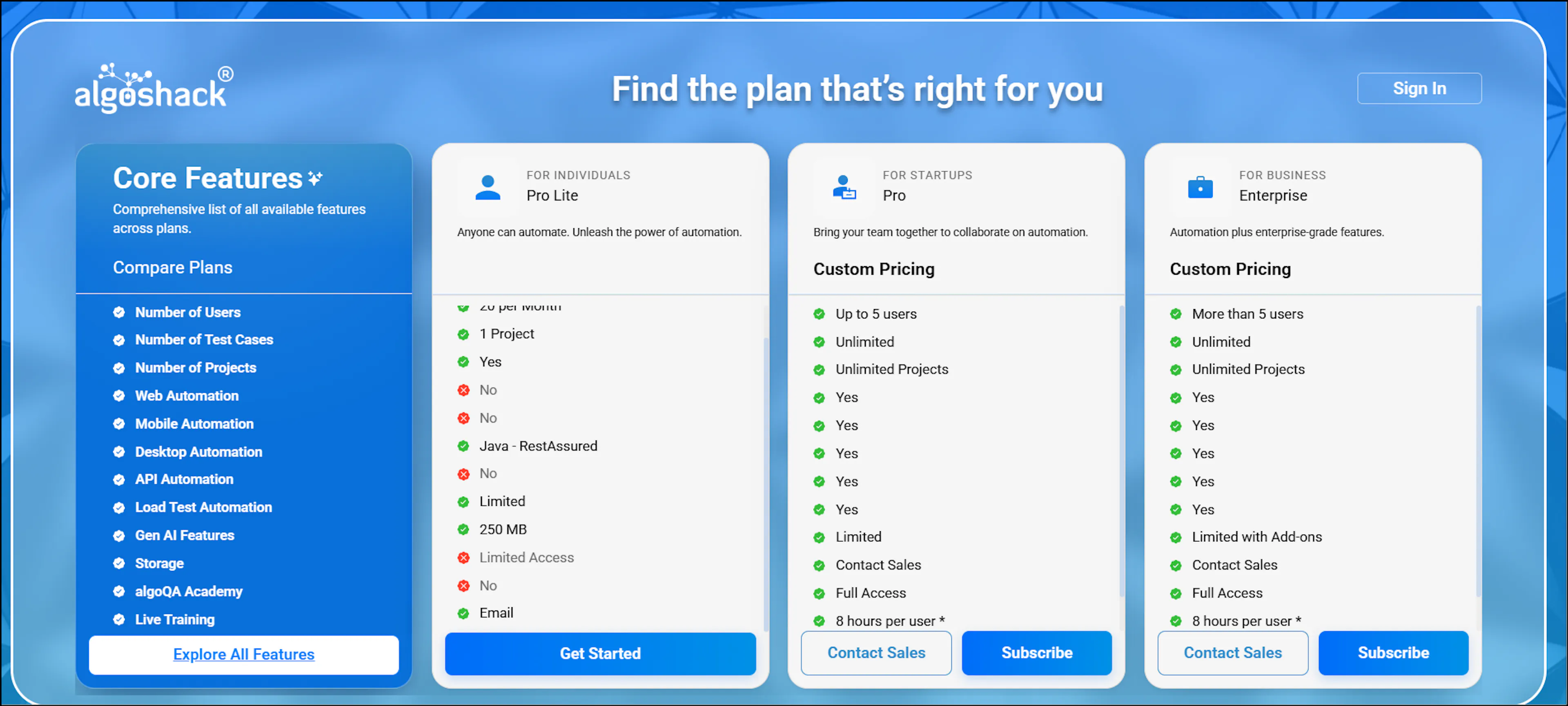
Pricing page showing Pro Lite plan details and Get Started button - On the sign-up page, enter the required details, select the Terms and Privacy checkbox, and click Create Account.
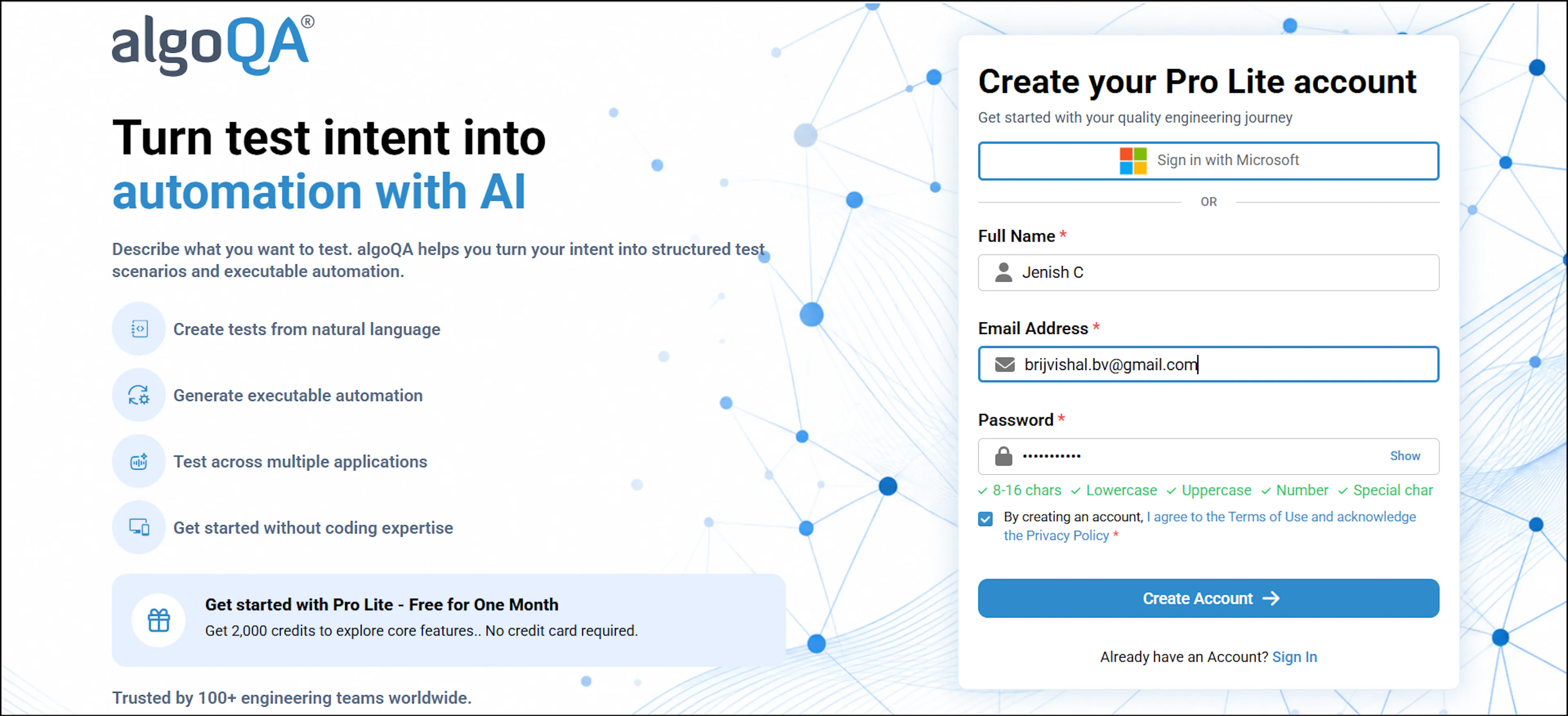
Pro Lite sign-up form with personal detail fields and Create Account button - You will receive an OTP at your email address. The OTP is valid for 5 minutes. Click Resend if you do not receive it or if it expires before you enter it. After entering the OTP, click Verify & Continue.
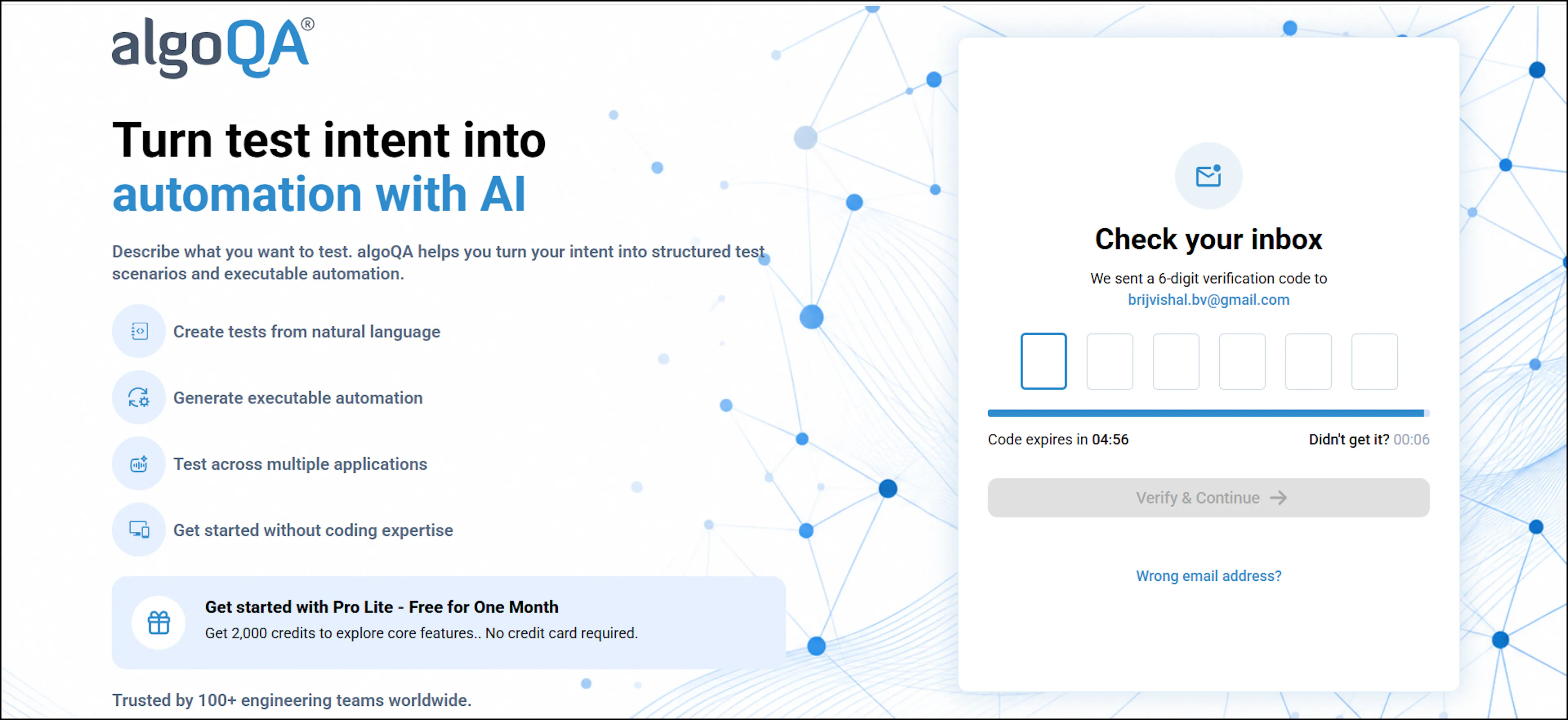
OTP verification screen with code input field and Verify & Continue button - You will be directed to the Welcome to algoQA screen, where you have two options. You can explore a demo project by clicking Explore Demo to understand the platform's flow and features, or proceed with creating a new project by clicking Set Up My Project. If you are new to the platform, we recommend exploring the demo project first. For more information on setting up a project, see Creating a Project.
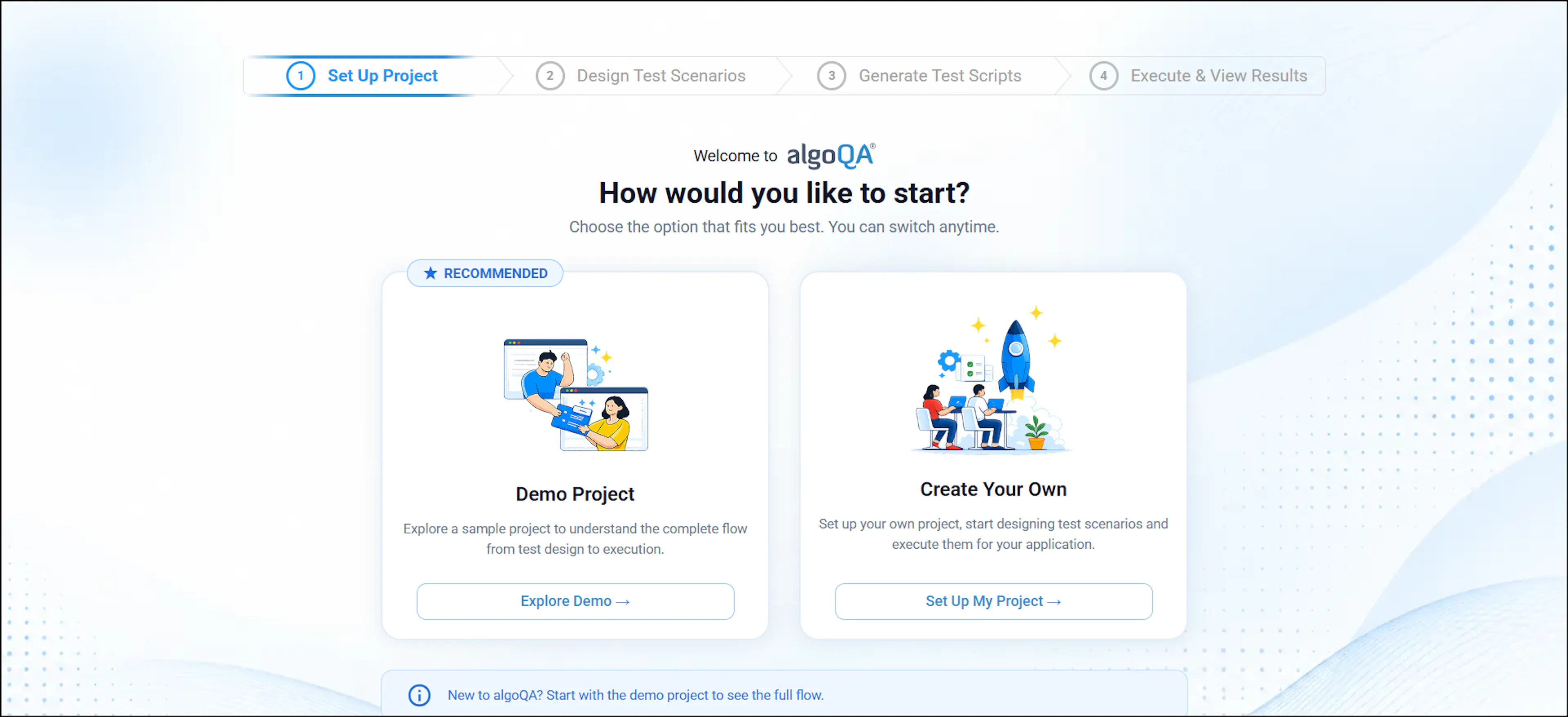
Set Up Project screen with Explore Demo and Set Up My Project options - Click Explore Demo. algoQA will launch with the demo project. A product tour will appear first — you can watch the next steps or skip it.
- A video walkthrough of demo project creation appears. Watch the video to learn about creating a project.
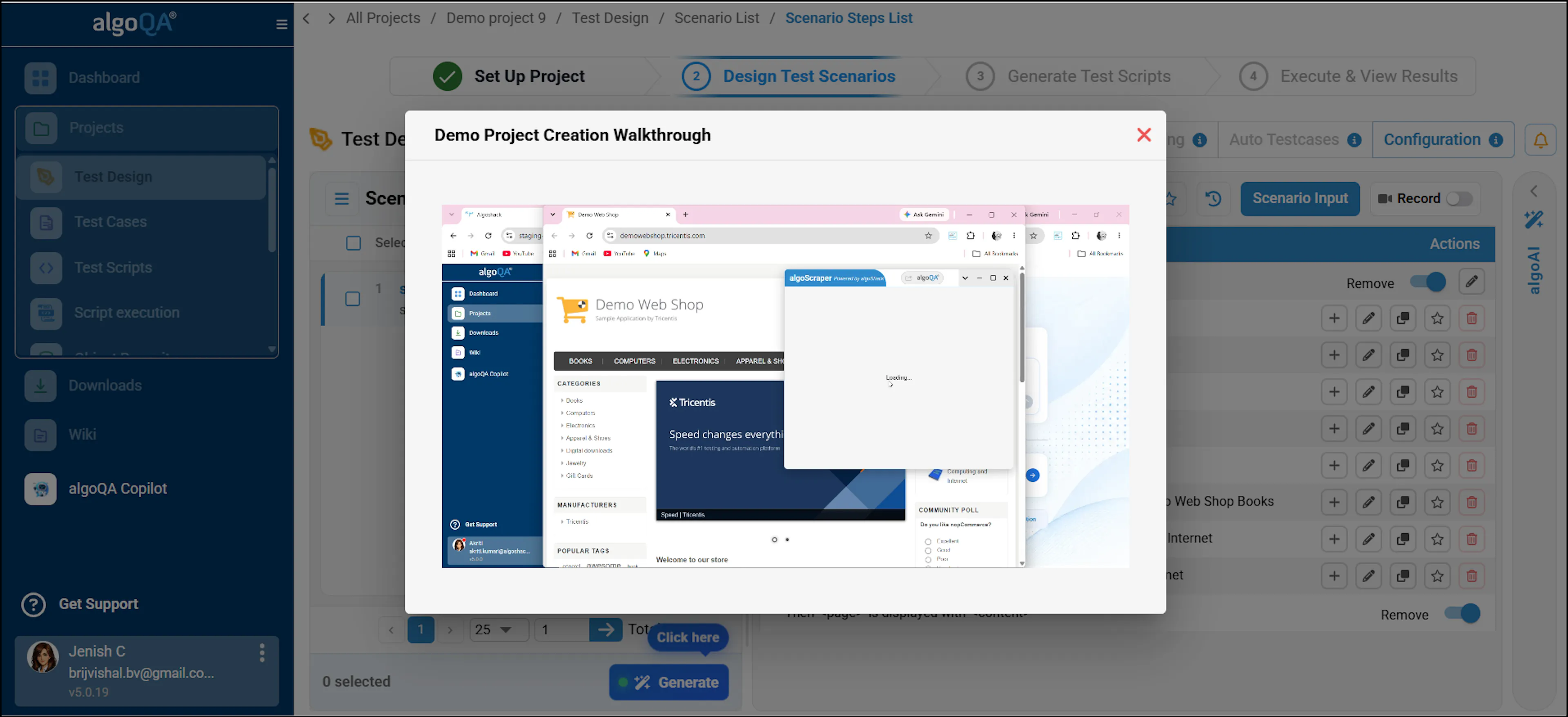
Demo Project Creation Walkthrough video player on algoQA platform - After the video, the Test Design screen appears. Review the scenario and its steps. Click Generate to generate test cases.
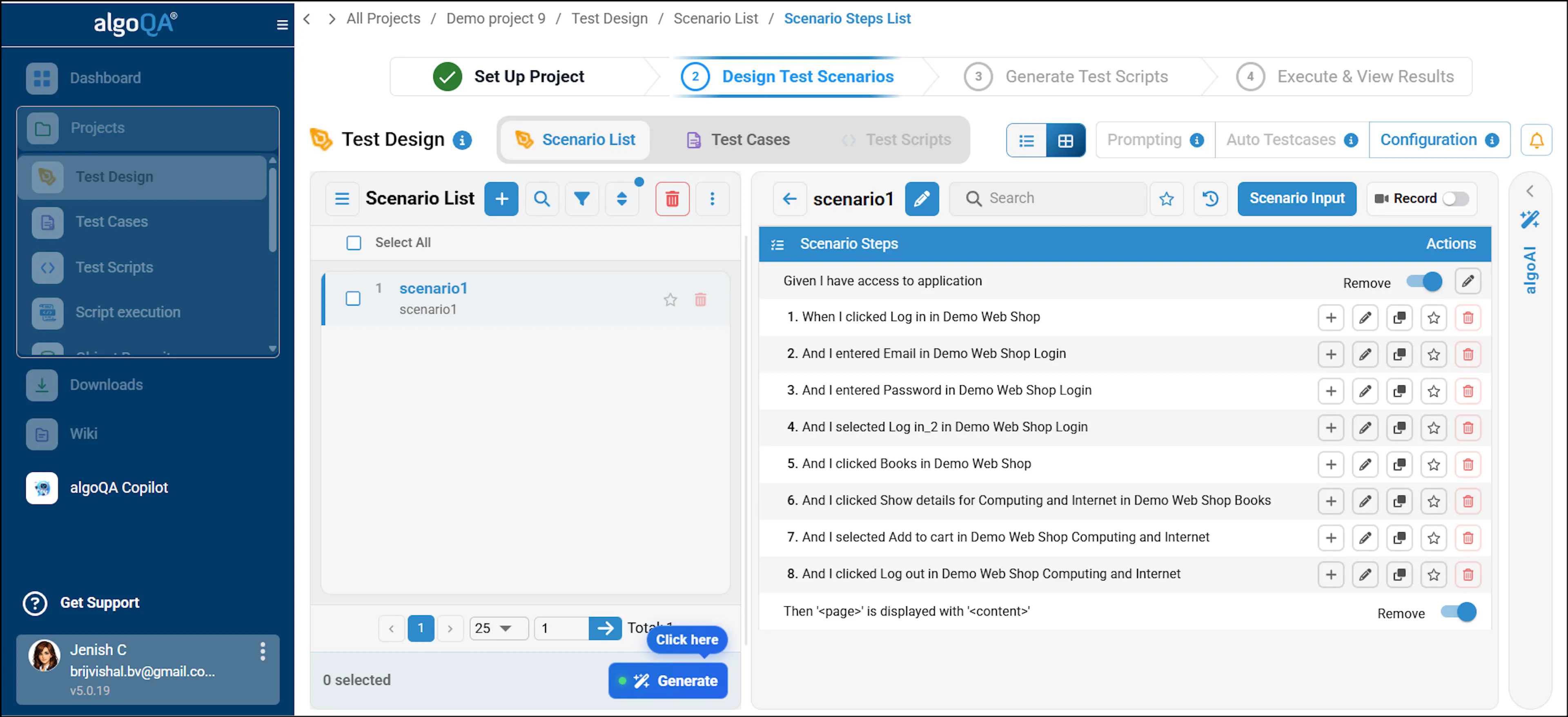
Test Design screen showing scenario list and scenario steps - Select a scenario and click Generate. The test cases are generated and a confirmation pop-up appears.
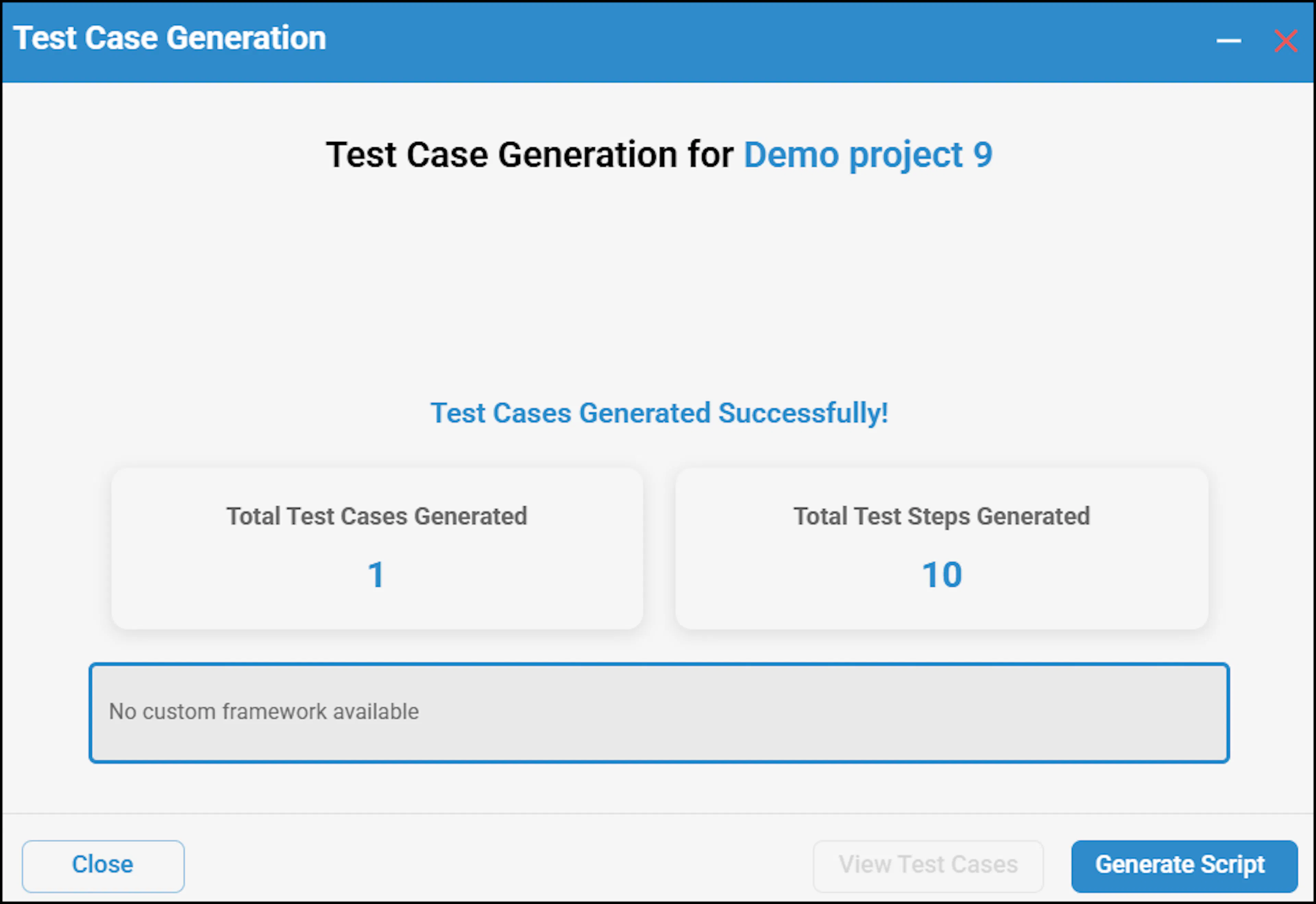
Test case generation success confirmation pop-up - Click Generate Script to produce the executable test script. For more information, see Generate Test Cases and Test Scripts.
- The script is generated successfully. Click Execute to run the script. For more information, see Script Execution.
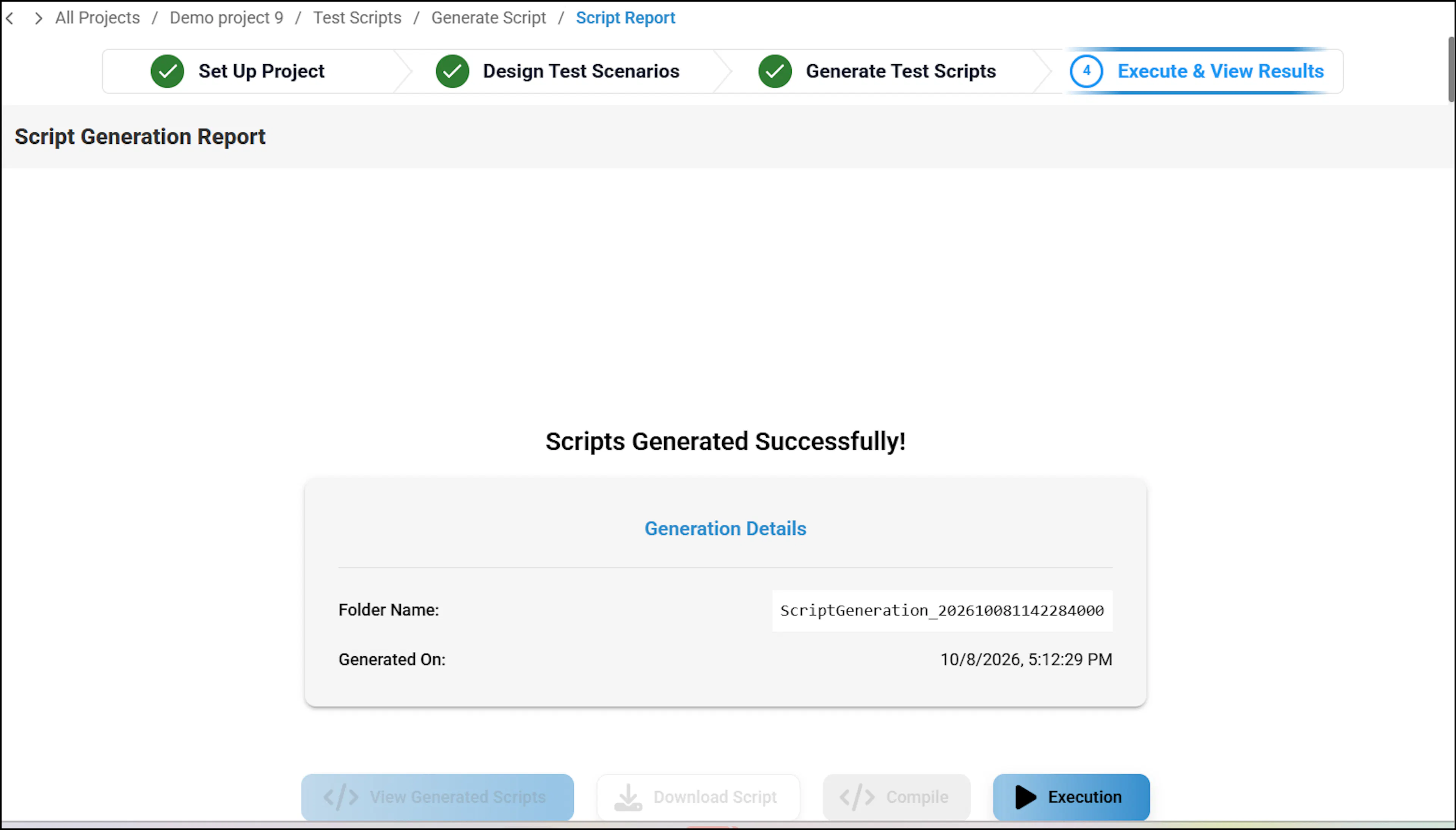
Script generated successfully screen with Execute button - Select whether to execute in headless or GUI mode. Enter the batch name and test suite name in the respective fields so the report appears in the dashboard. Select the Execute with custom tag checkbox if you want to execute with a custom tag, and select the Auto-heal the script during execution checkbox if you want to auto-heal. Click Proceed.
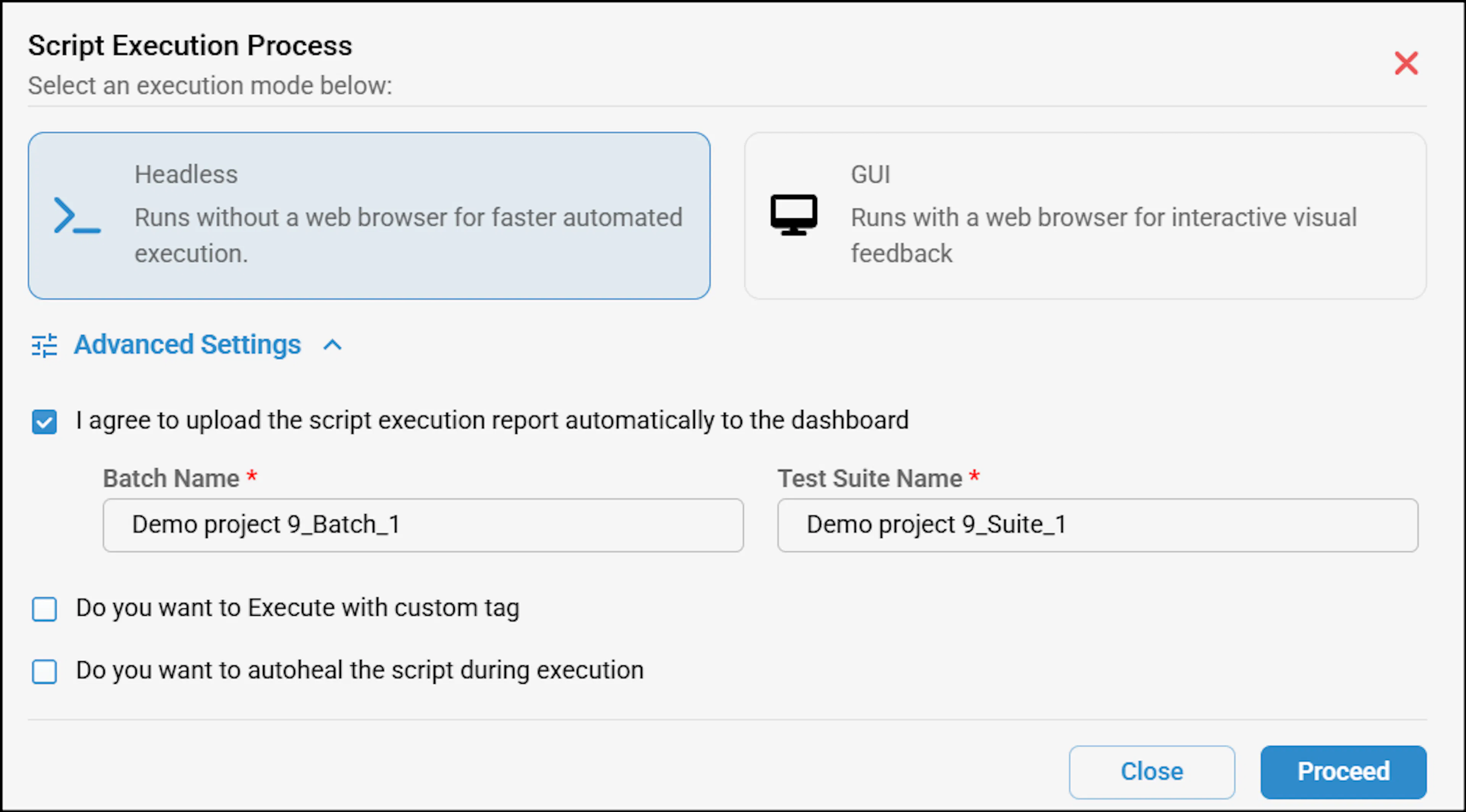
Execution configuration dialog with headless mode, batch name, and auto-heal options - The execution will start, and you can view the execution pipeline.
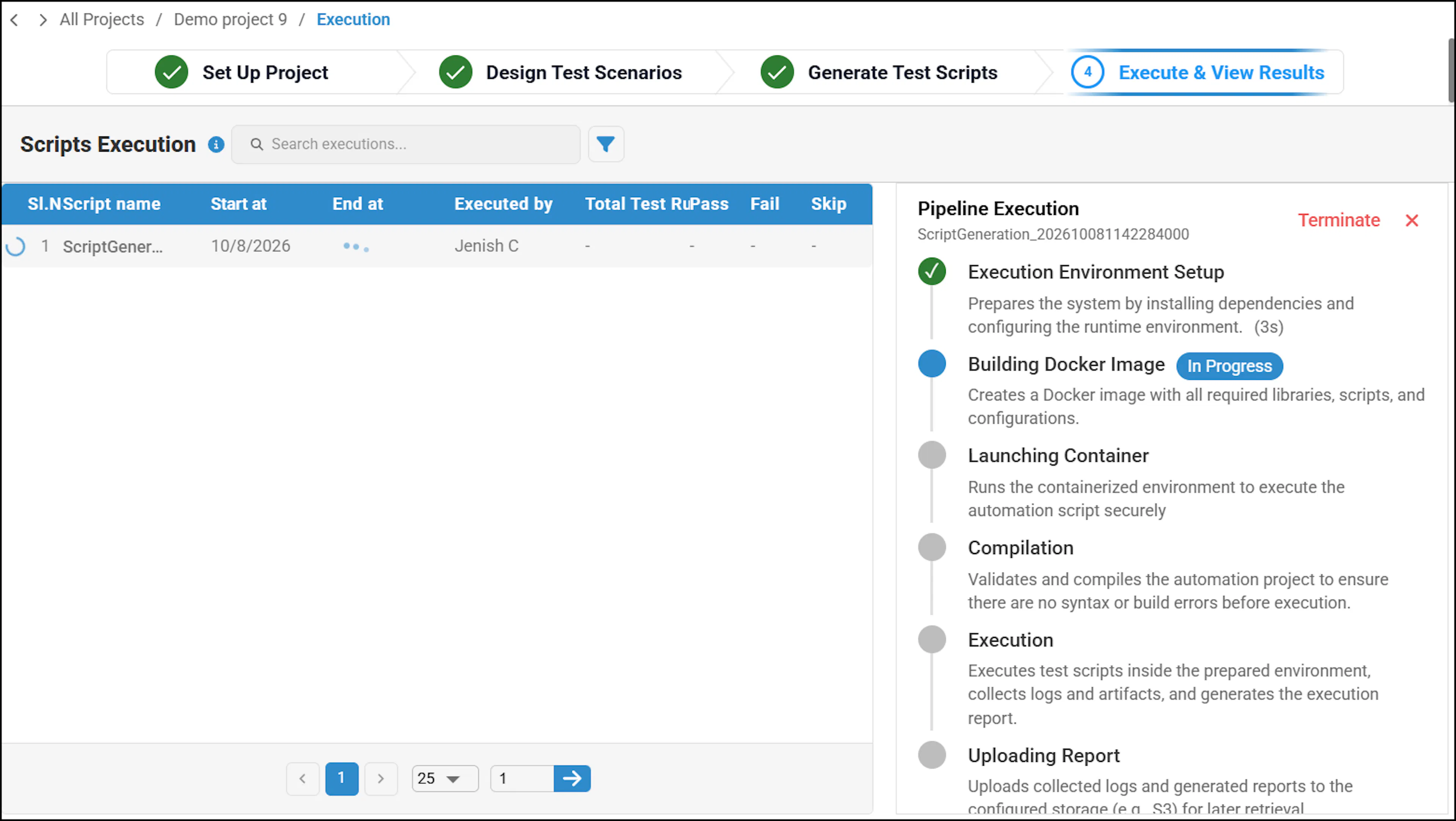
Execution pipeline view showing script execution progress - An Execution Completed pop-up appears. Click Dashboard to view the published results. For more information, see Dashboard.
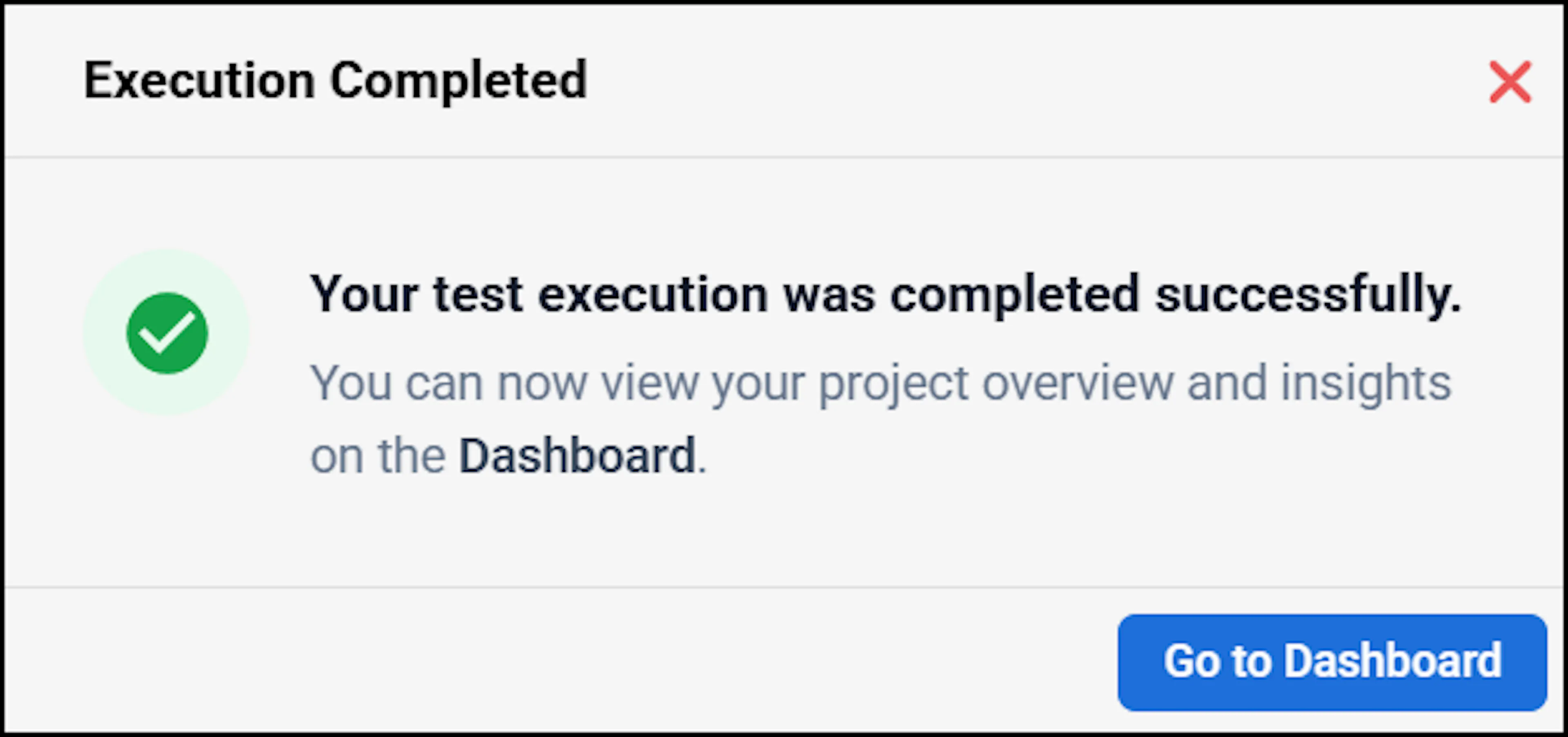
Execution Completed pop-up with Dashboard button
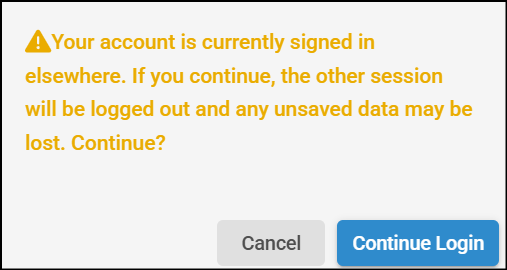
If the same account is used on a different device, a pop-up notification appears indicating that an active session already exists. You will be prompted to confirm whether you want to continue. If you choose to continue, the new session is activated and the previous session is logged out automatically. A notification email is then sent to the registered email address with the login details, prompting you to review the activity if it was not initiated by you.
Pro Lite users can generate up to 20 test cases with 250 MB of storage. To unlock unlimited test cases, expanded storage, and advanced automation capabilities, upgrade to the Pro or Enterprise subscription model from the My Subscription page.
Next Steps
- Key Capabilities of Subscription Models — Compare features across all subscription tiers
- Pro Users — Learn about the Pro subscription model
- Creating a Project — Set up your first test automation project
- Kick-Start Your Automation Journey — A guided walkthrough of your first project
- Dashboard — View execution results and usage insights
- My Subscriptions — Track your subscription usage and AI credits