
Configuring Combinatorial Data Generation in algoQA
The Combinatorial Data Generation capability in algoQA generates all possible combinations of input values for different parameters for a given scenario. This ensures that all possible input combinations are tested for the scenario, providing comprehensive test coverage.
Consider an example scenario to test the login functionality of a website using different username and password combinations.
User actions include:
- Enter a username from the list:
- User1, User2, Guest, Admin.
- Enter a password from the list:
- Pass123, Pass245, Guest@123, Admin@123.
- Click the Login button.
Possible combinations of test cases:
The combinatorial data set will consist of all possible pairs of usernames and passwords.
In the preceding example, you have 4 parameters for username and 4 parameters for password. algoQA will generate 16 combinations (4 usernames × 4 passwords = 16 test cases).
Configuring Combinatorial Data Generation in algoQA
Perform the following:
-
Log into algoQA using your credentials.
-
Refer Creating a Project article to create a project.
-
After creating a project, you must configure the node.
Perform the following:
- Click the Add Node ‘+’ button to add a node in Canvas and enter the name in the Node by clicking the edit icon in node.
- Click on the node to view the configuration, then configure the feature and UI elements for a specific node.
Node Feature UI Elements Login Screen Login username with parameters as User1| User2|Guest| Admin Login Screen Login password with parameters as Pass123, Pass245, Guest@123, Admin@123 Login Screen Login login button In Test Design, configure the feature and UI elements for a specific node. 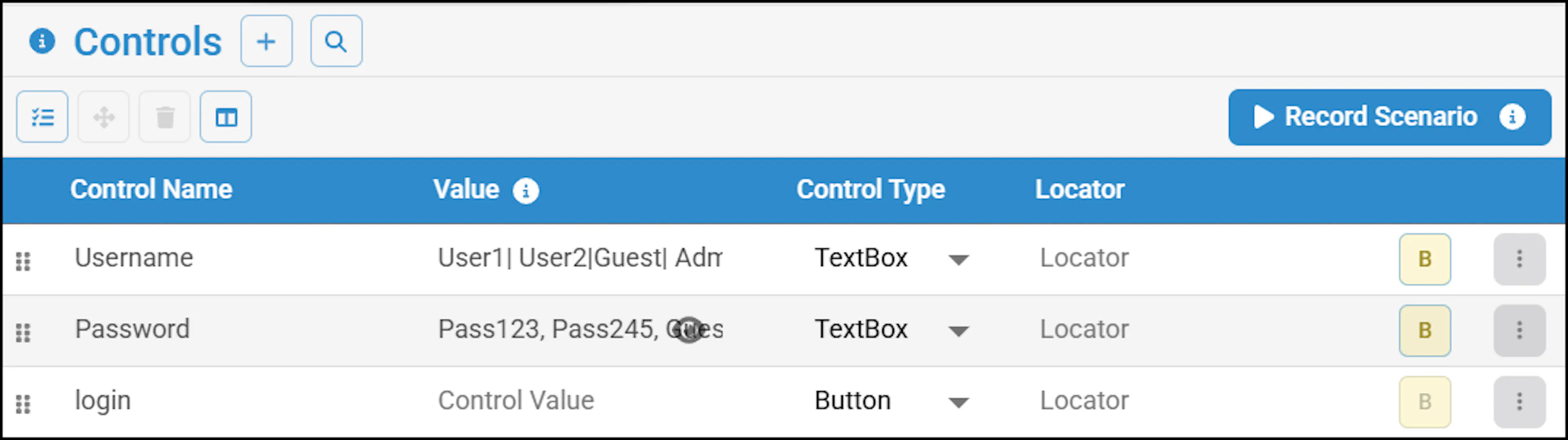
- After configuring all the UI elements, you must set the data generation to N for only required UI elements (username and password) by clicking the Business Rules button and click Save.
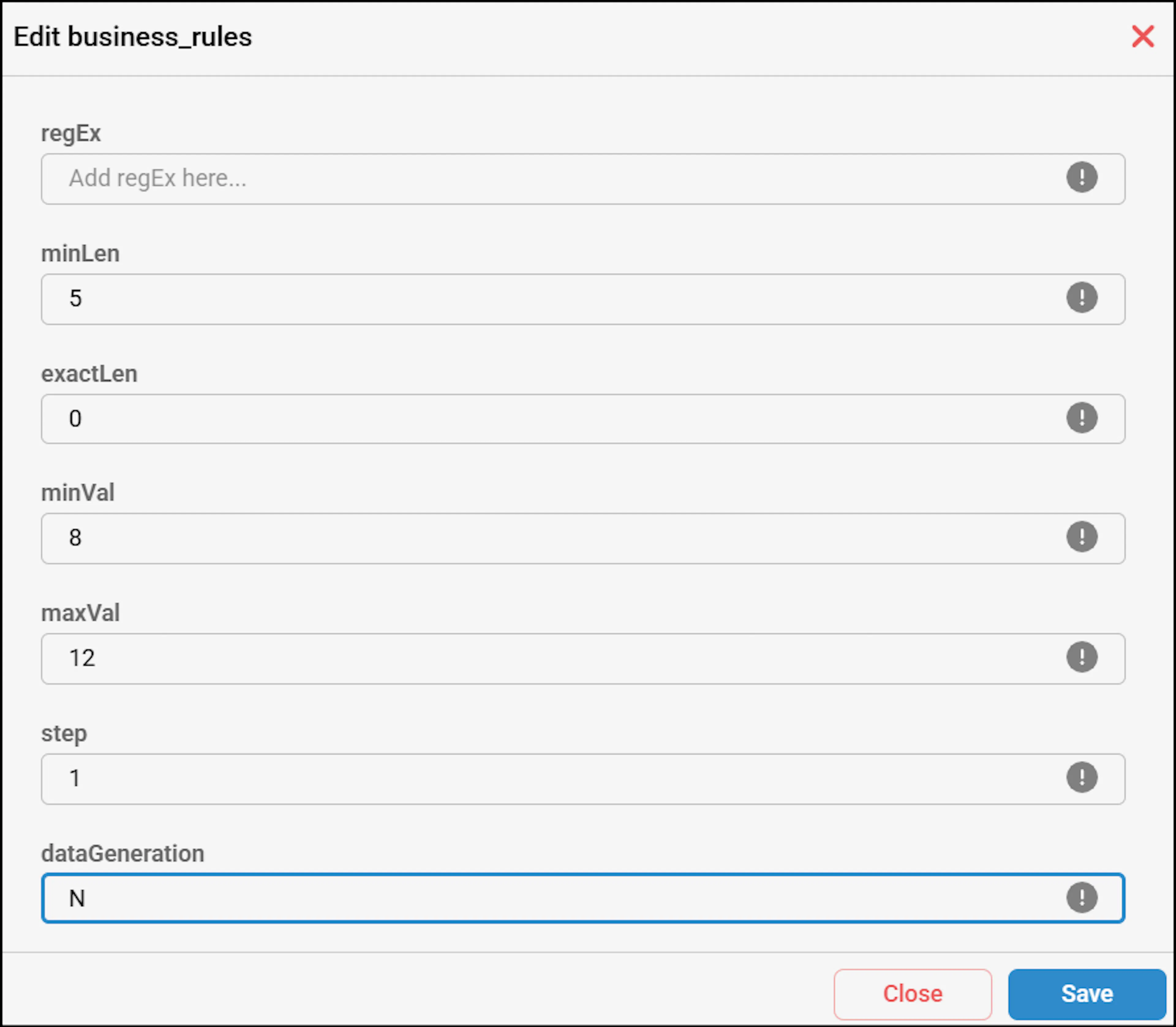
-
Check that all options in the Data Generation settings are selected. To find this, Navigate to Settings > Data Generation Settings. By default, Correct Values is selected. Enable the rest of the options and click Update.

-
After Node configuration, you must record a scenario using Record Scenario feature. For more information on recording a scenario, see Record Scenario article.
-
Upon recording the scenarios, you have to generate test cases.
-
To generate test cases, click the Generate button in Test Design after checking the scenario list.
-
Test Cases are generated successfully pop-up appears. Click View Test Cases to view test cases.
-
The algoQA platform generates a Feature File with combinatorial data sets.
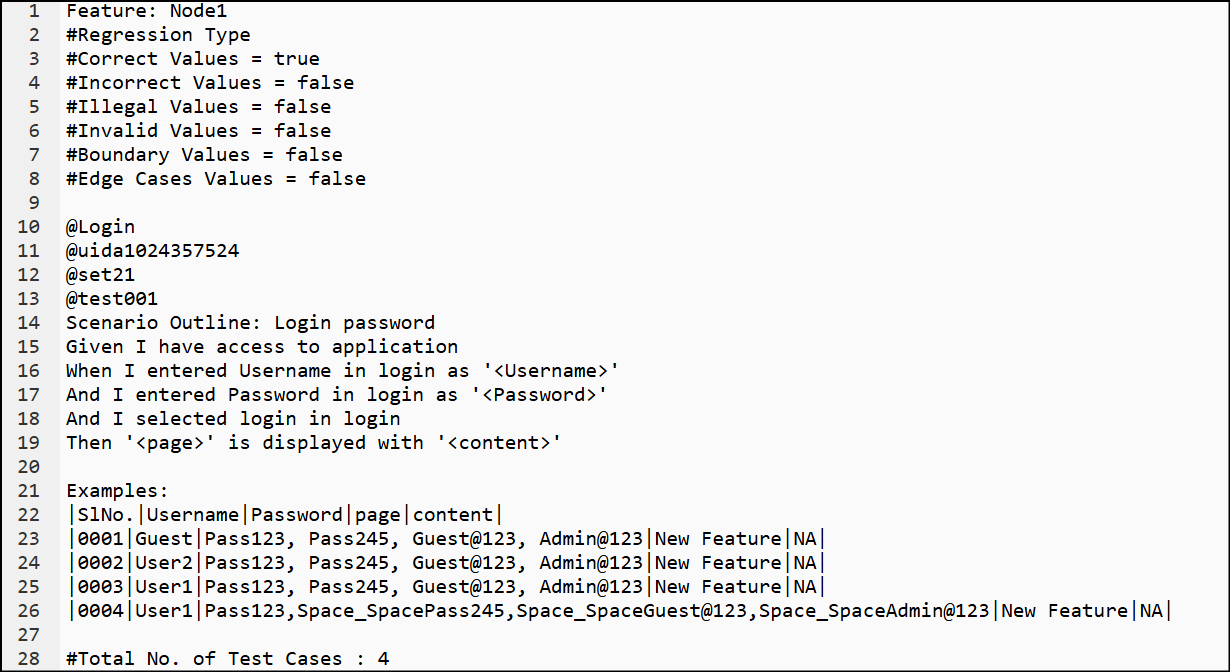
Configuring User-Specific Combinatorial Data Generation Using Node Configuration
Perform the following:
Similarly, you can configure the user-specific parameters in Edit Step Feature.
Navigate to the Test Design> Scenario List and click the edit icon beside a scenario to view Scenario Steps List.
In the Scenario Steps List, click the edit icon of the required test step to view the details.
Click More Options.
Add the required parameters for both username and password test steps in the Custom Value textbox.
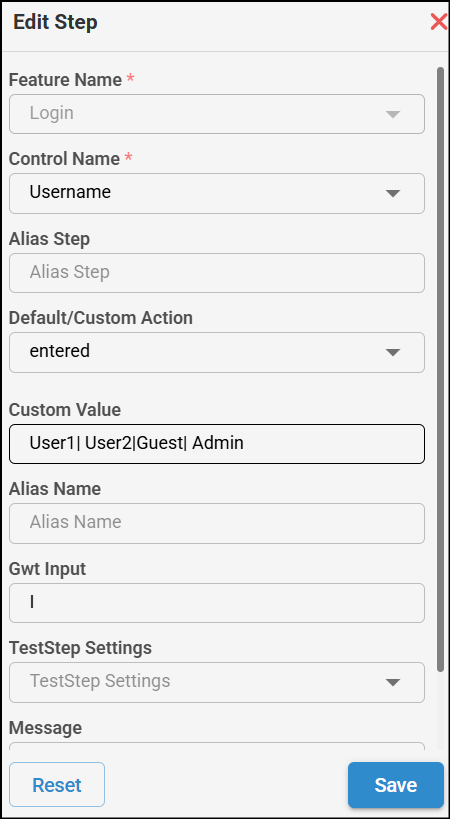
Click Save.
After making changes in the Edit Steps, you must regenerate the Test Cases by navigating back to Test Design > Scenario List and click the Generate TestCase button.
A pop-up appears saying that test cases were generated successfully.
The 'Test Cases are generated successfully' pop-up appears.
Click View Test Cases to view test cases.
The algoQA platform generates a Feature File with combinatorial data sets.