
View Logs
The View Log feature allows you to review the history of your actions using SYS log format. You can search for specific logs using keywords, choose a category to filter out based on categories available in the dropdown options, and also copy payload data when needed.
Accessing the View Logs Feature
Perform the following:
- Navigate to the Projects.
- In the Projects, search by the required project name and select it.
- Click View Logs.
- User-specific logs will be available.
Functionality Summary
The View Logs feature lets users review their action history in SYS log format, accessed by navigating to Projects, selecting the required project, and clicking View Logs (which then shows user-specific logs). The screen offers:
- Search functionality
- Pagination
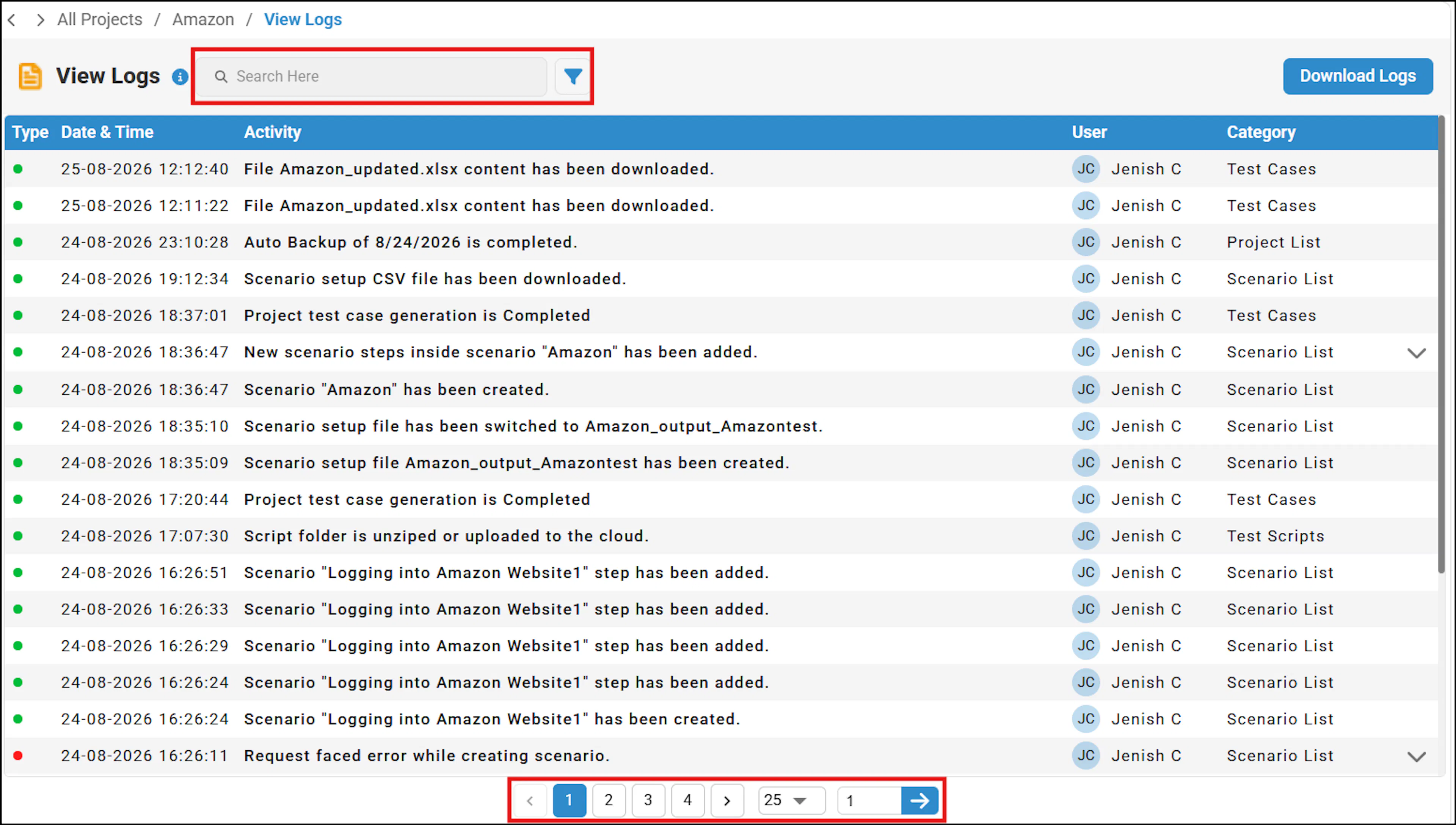
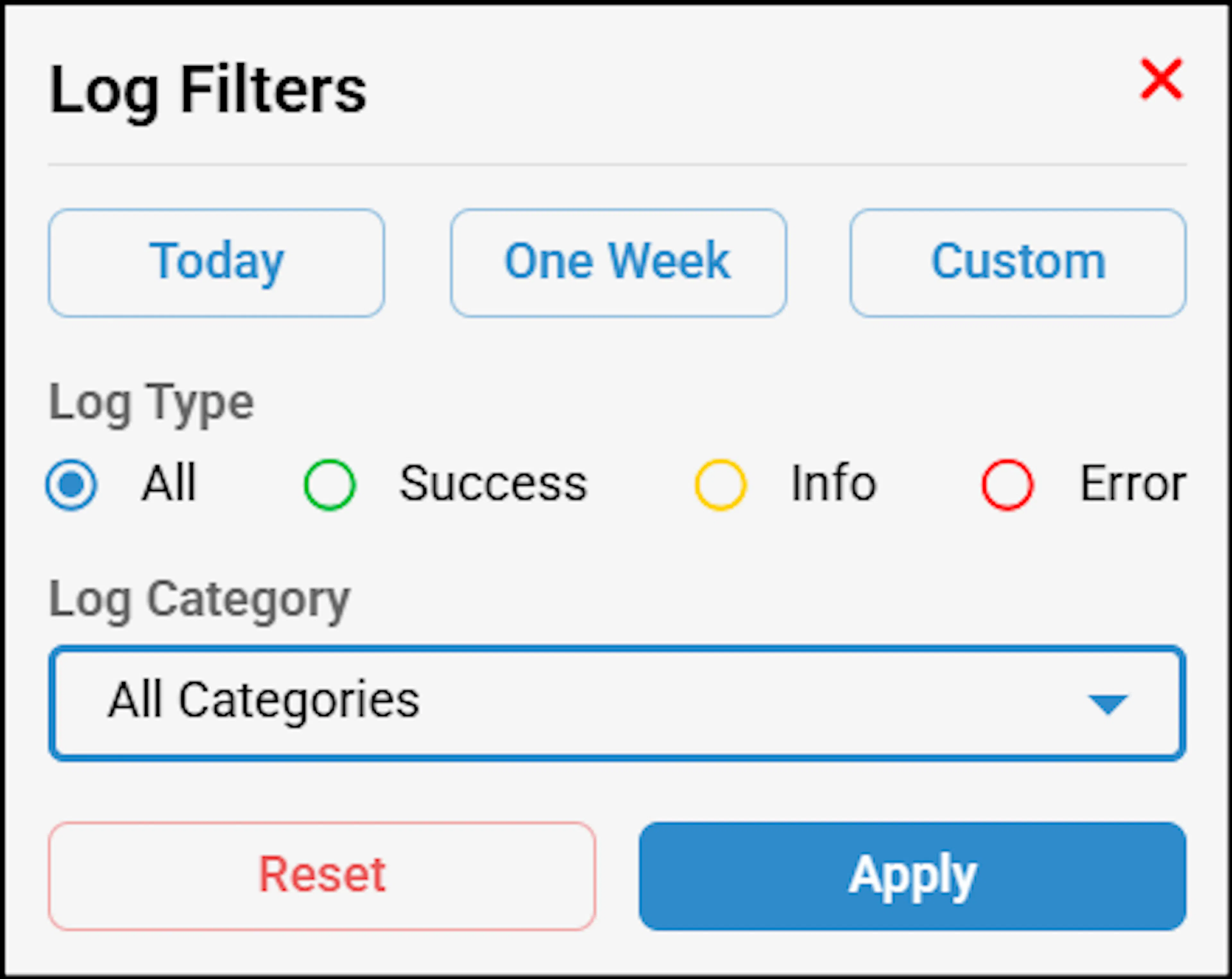
- Filter by category and log type, including today, One week, and custom timeframes.
Search functionality
In the search bar, you can enter a specific action keyword and press Enter to search for user actions. Additionally, you can filter by selecting the appropriate category.

Selecting the Categories
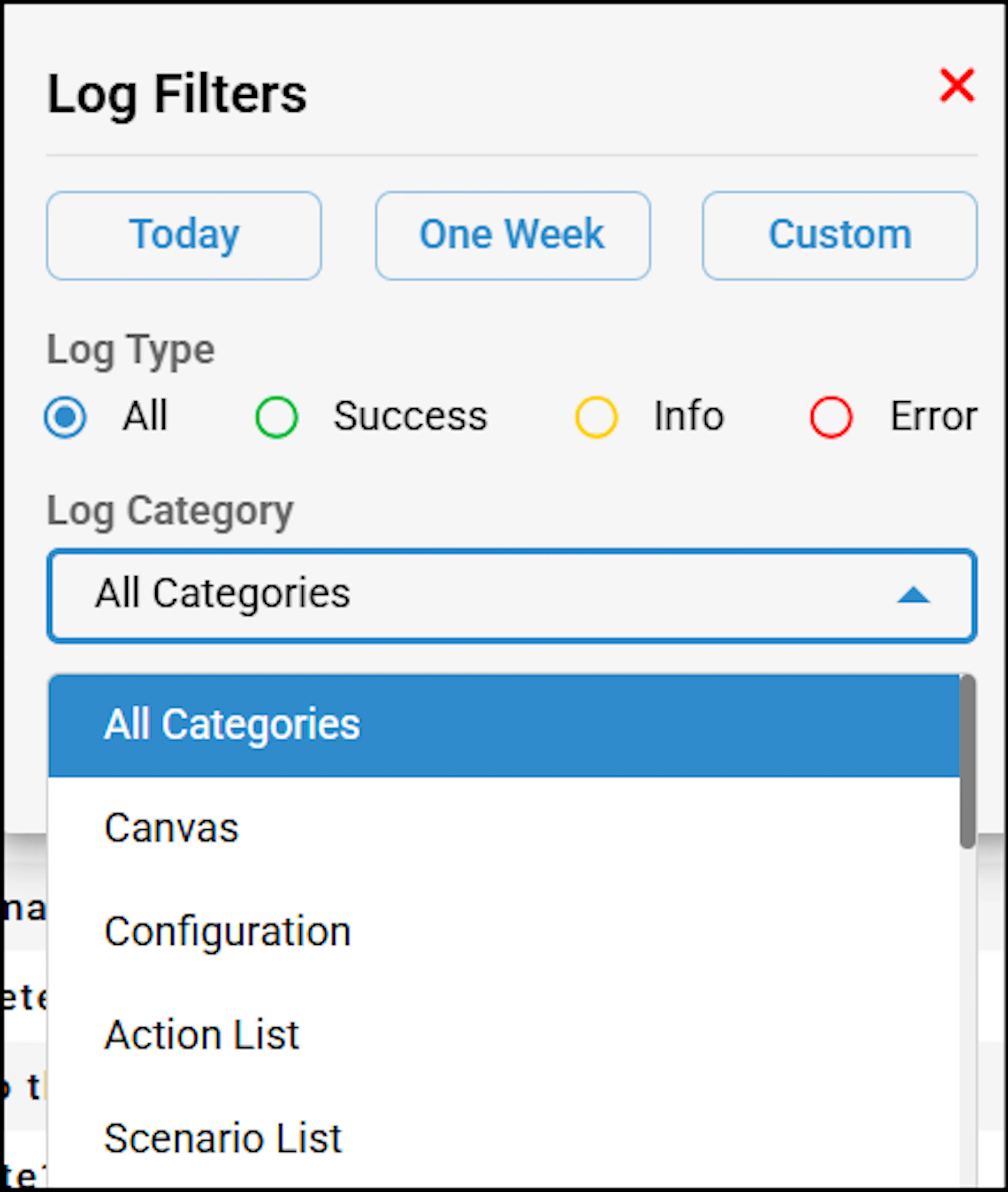
You can select the appropriate category from the dropdown list in Log Filters. By default, the 'All categories' option is selected. Available categories are:
Downloading the Logs
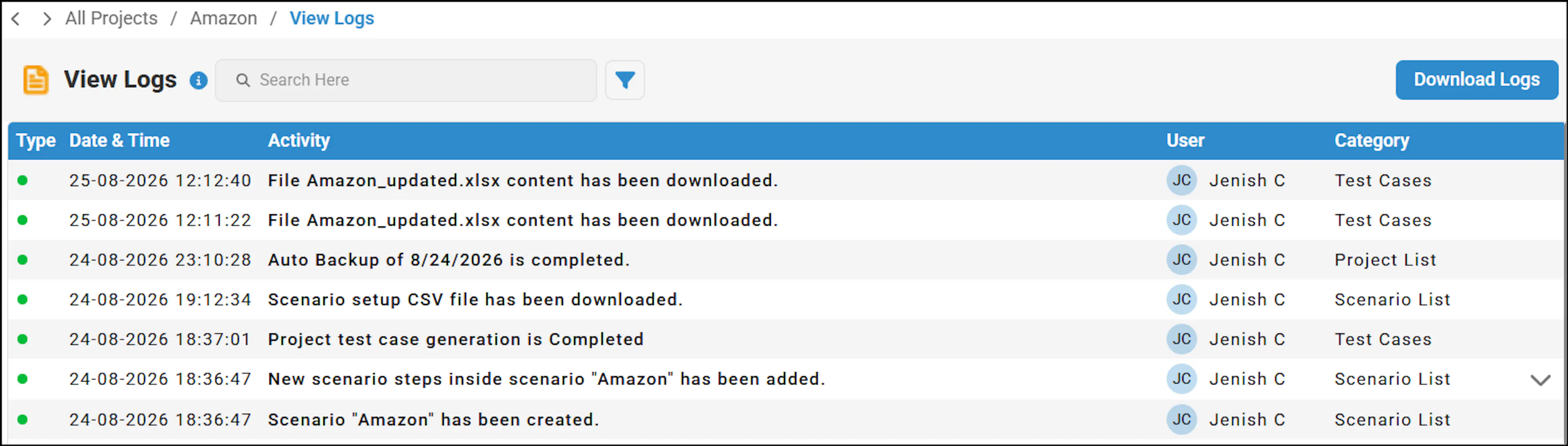
You can download the logs in Excel format, which includes details such as Username, Type, Date & Time, Activity, Category, and Sub-logs. To download, click Download Logs located in the top-right corner.
Pagination
If there are more than 10 user actions, you can use the pagination functionality to navigate to different pages.

Copying the Payload Data
Perform the following:
- Hover over the Data column in the corresponding line item of the log to enable the down arrow.
- Click the down arrow.
- Click the copy icon.
- Upon copying the payload data successfully, a 'Copied Successfully' message is displayed.
- User-specific information will be displayed.
