
Options for Generating Test Data in a Separate YAML File
This article explains how to generate test data in a separate YAML file using different options.
Options for Generating Test Data in an API Test Automation Process
- Data Decoupling Option:
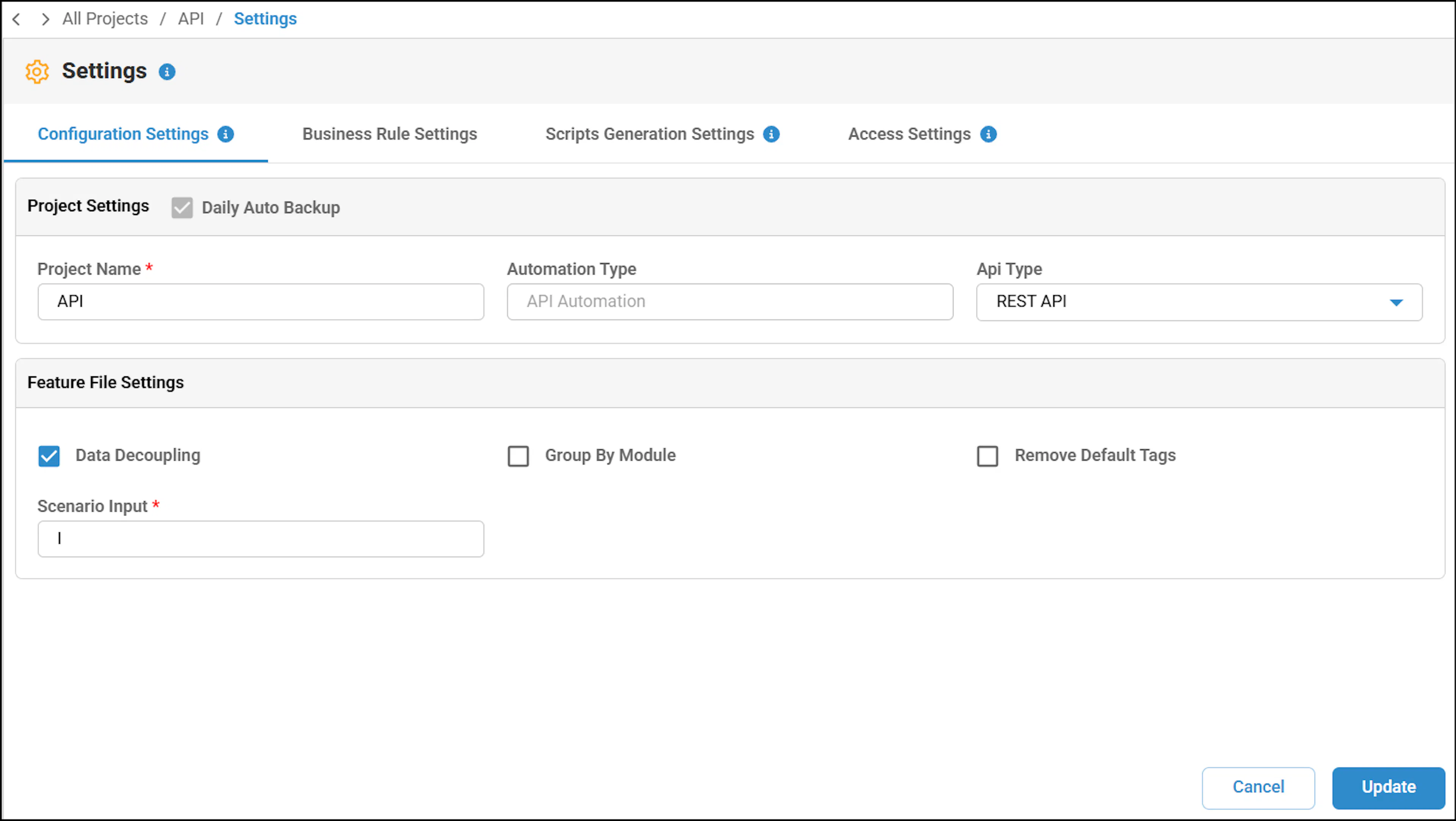
- Navigate to the Settings >> Feature File Settings.
- In the Feature File Settings, select the Data Decoupling option and click on update.
- This will trigger the generation of a separate YAML file.
- Data Set Option:
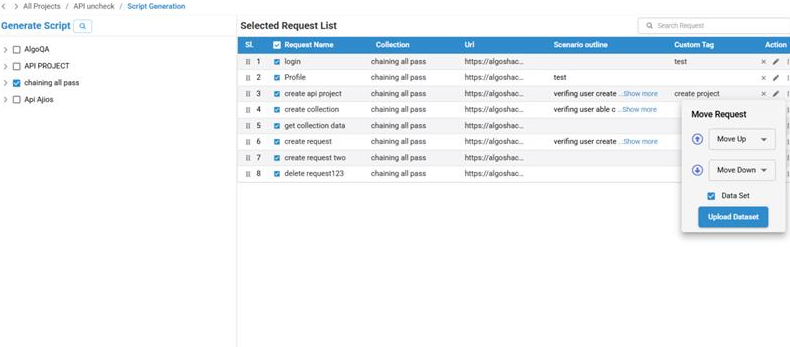
- Navigate to the Generate Script screen.
- In this screen, you can enable the data set option by selecting the More Menu (3 dots) corresponding to the Request Name.
- Upon selecting the data set option for the first time, a YAML file will be generated automatically.
- Upload Data Set Option:
- If you have an existing data set, upload it onto the Platform using the Upload option, the test data values will be generated in a separate YAML file.
- To access Upload option, in the Generate Script screen, select the More Menu corresponding to the Request Name.
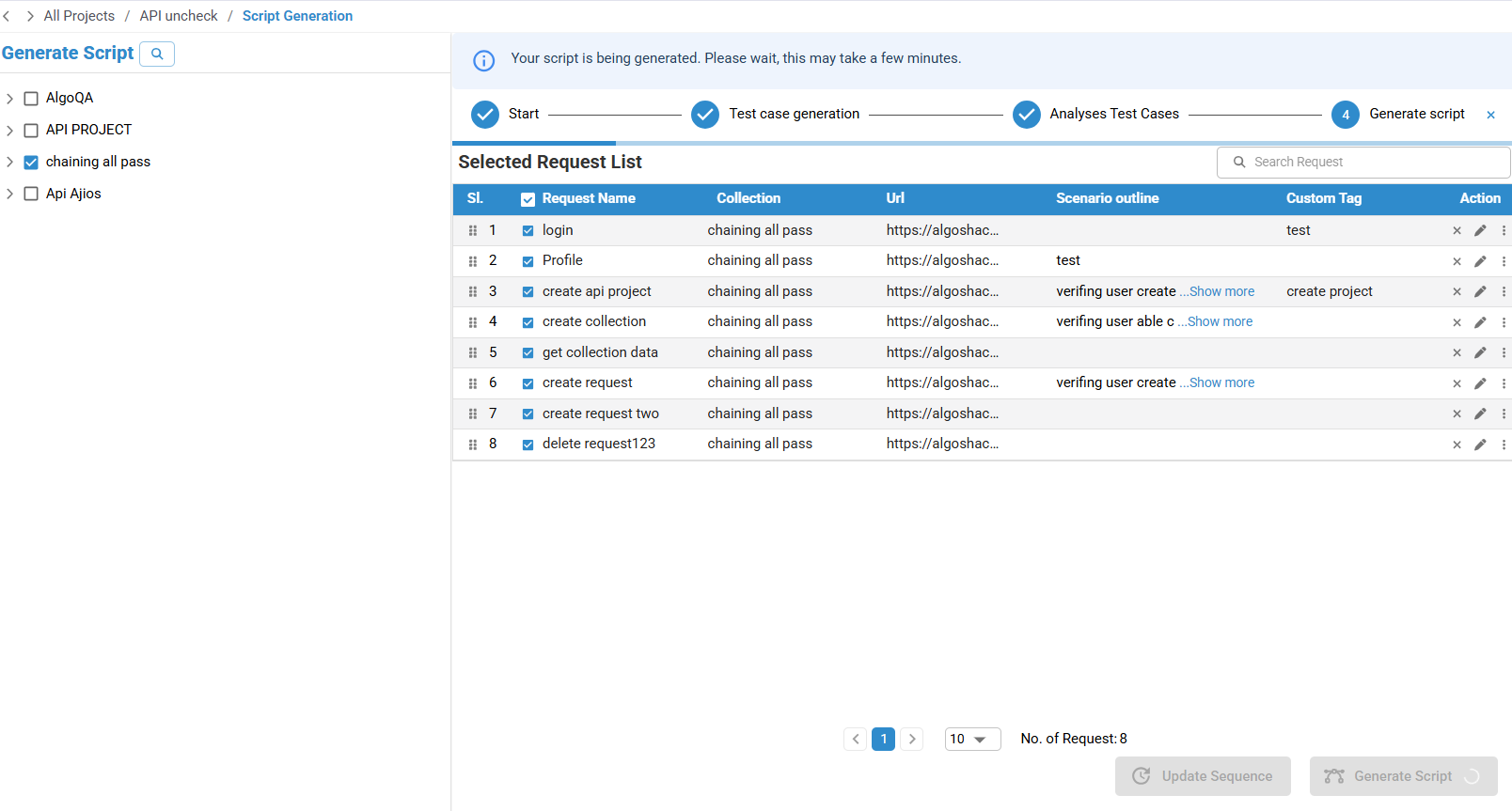
- For the script to be generated click on Generate Scripts.
Accessing the Test Data
Upon generating test data in a separate YAML file, perform the following:
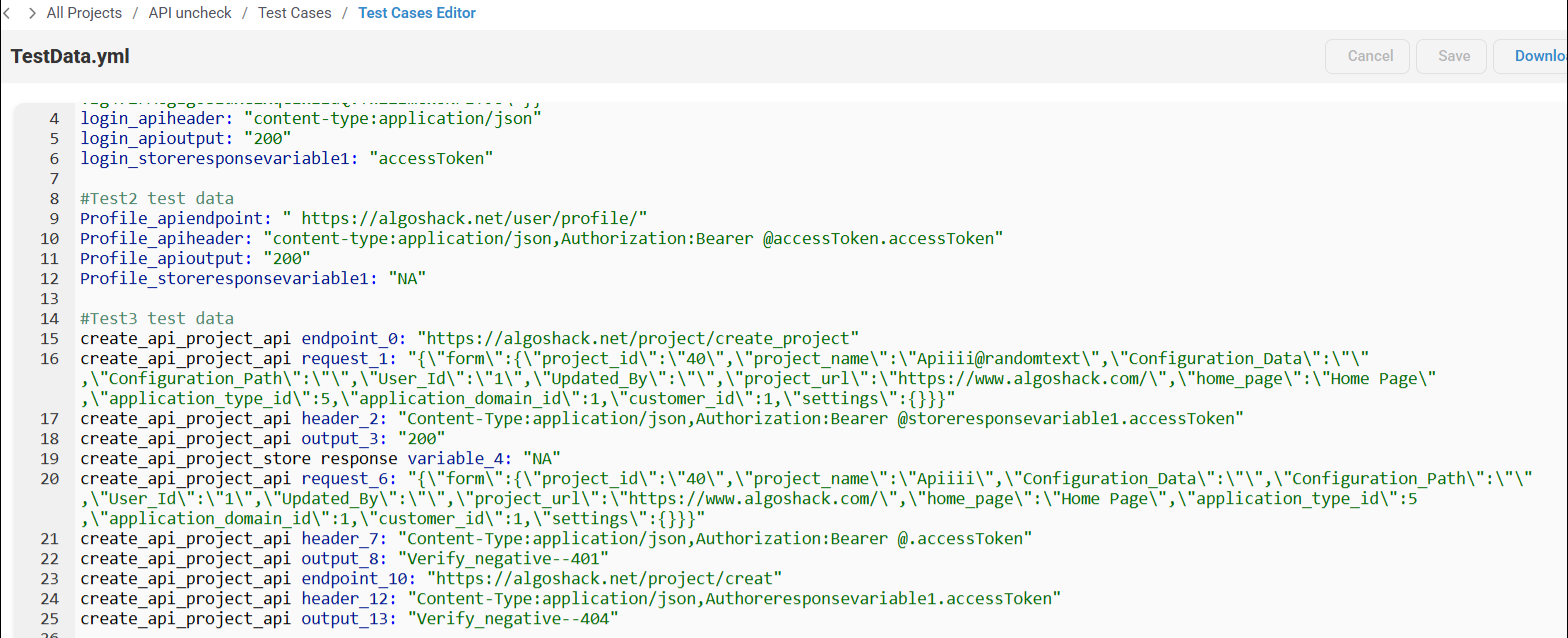
- Navigate to the Test Cases and expand the respective Test Case folder to access the YAML file.
- A system-generated separate YAML file can be viewed and downloaded from here.
Was this page helpful?