
Prompting
Generate automated BDD test cases by describing scenarios in plain English, the LLM processes your prompt and produces reusable test cases ready for script conversion.
How It Works
- Describe the scenario to test in plain English. Example: "I want to test user login with valid and invalid credentials."
- The underlying LLM processes the input and generates test cases in standard BDD format, which can be readily converted to executable scripts.
- The output consists of reusable, BDD-compliant test cases ready for test automation.
How to use Prompting
To generate test cases using the prompts, start by creating a new project. To know more about how to create a project, access Creating a Project. After the project is created, add nodes to the canvas as required. Clicking on a node will open its configuration and you can add features and controls as required. From there, select the Prompting option from the top menu to generate test cases using prompts.
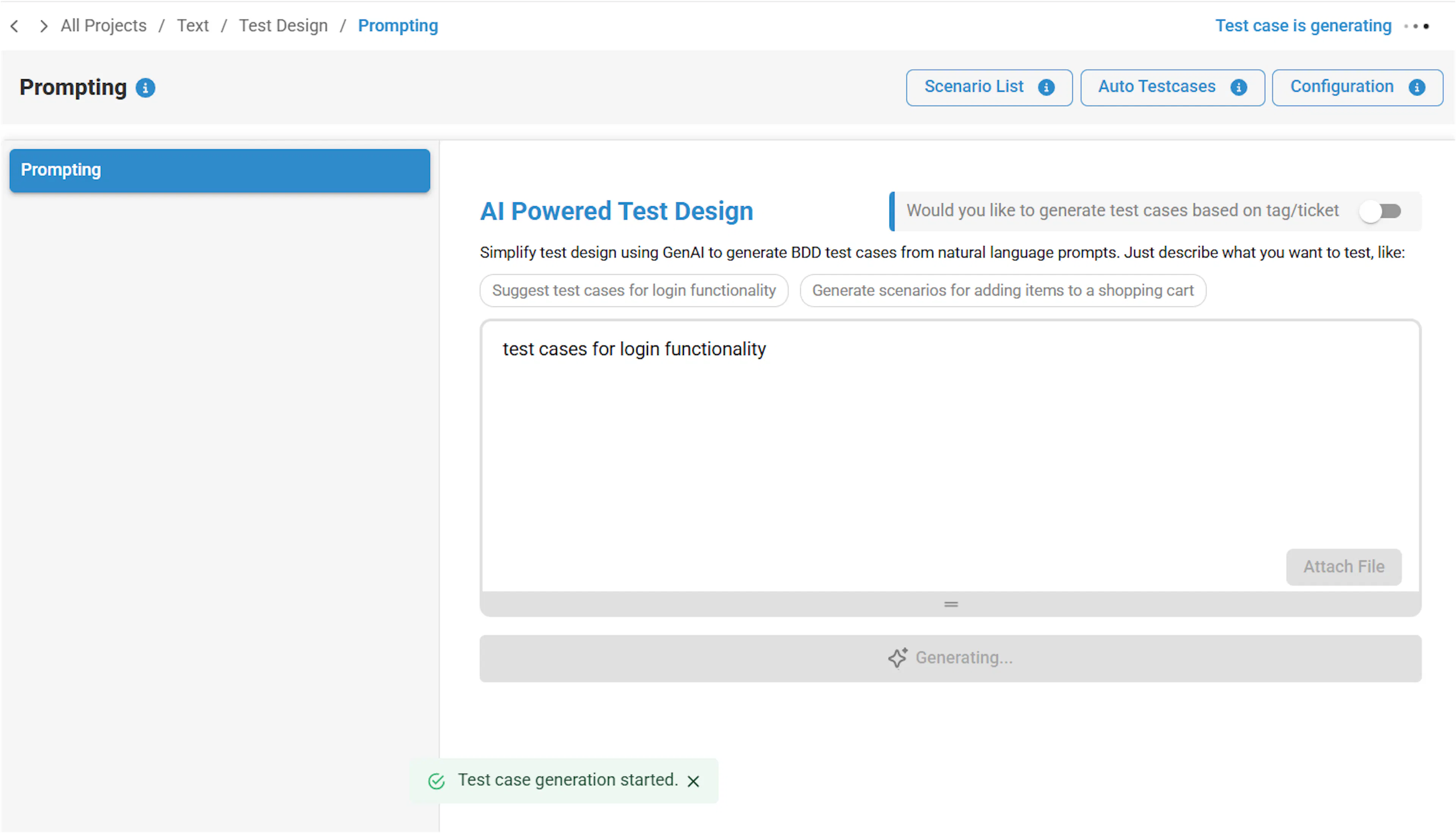
Enter your prompt, select the Do You Want To Include Features? checkbox to view the features and nodes associated with the project.
Scenarios can be generated even when the prompt contains special characters. The prompt input field is also resizable, allowing you to adjust its size by clicking and dragging the resize handle at the bottom of the input box.
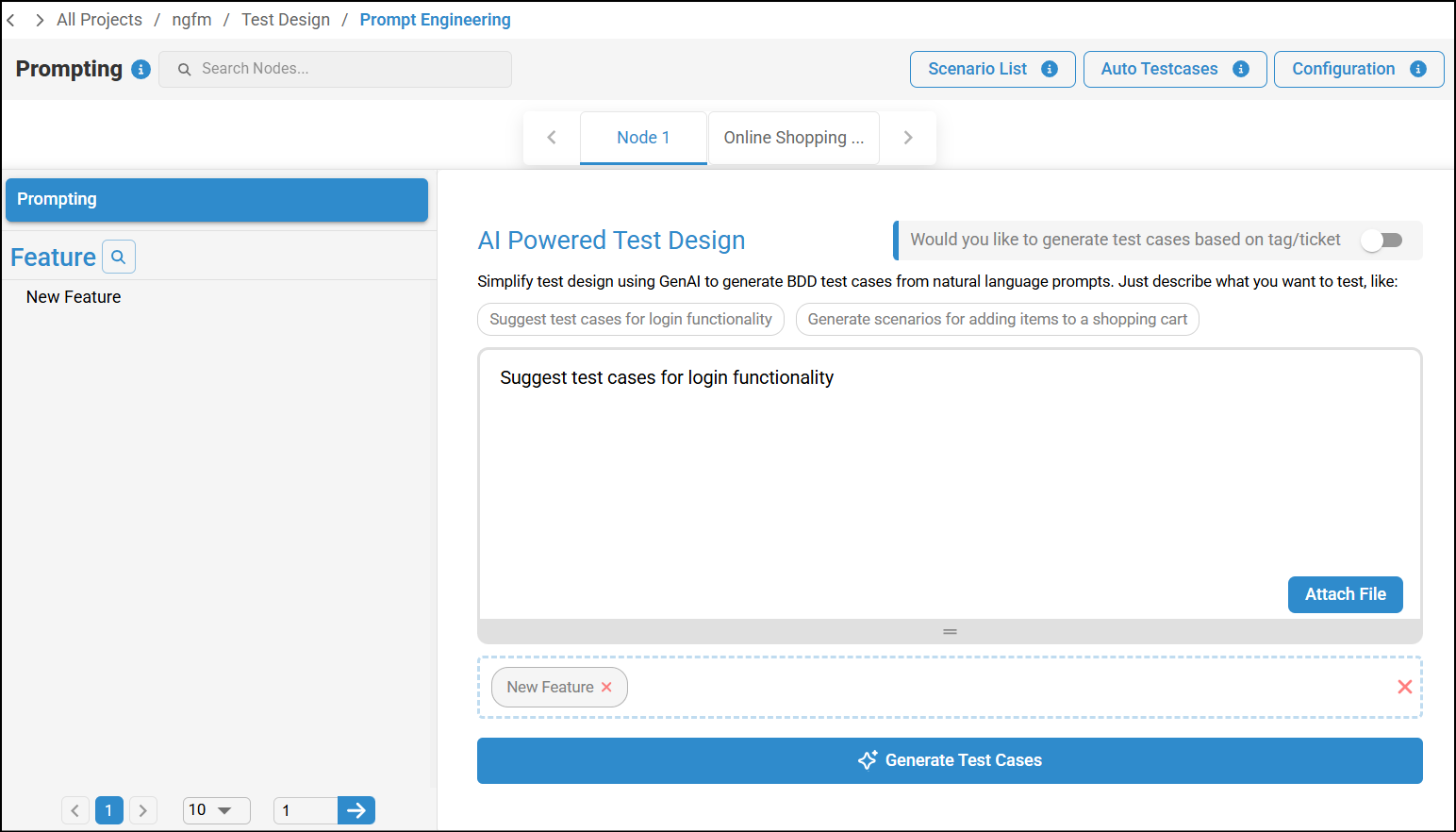
You can select features from the left pane, which helps to generate more refined scenarios.
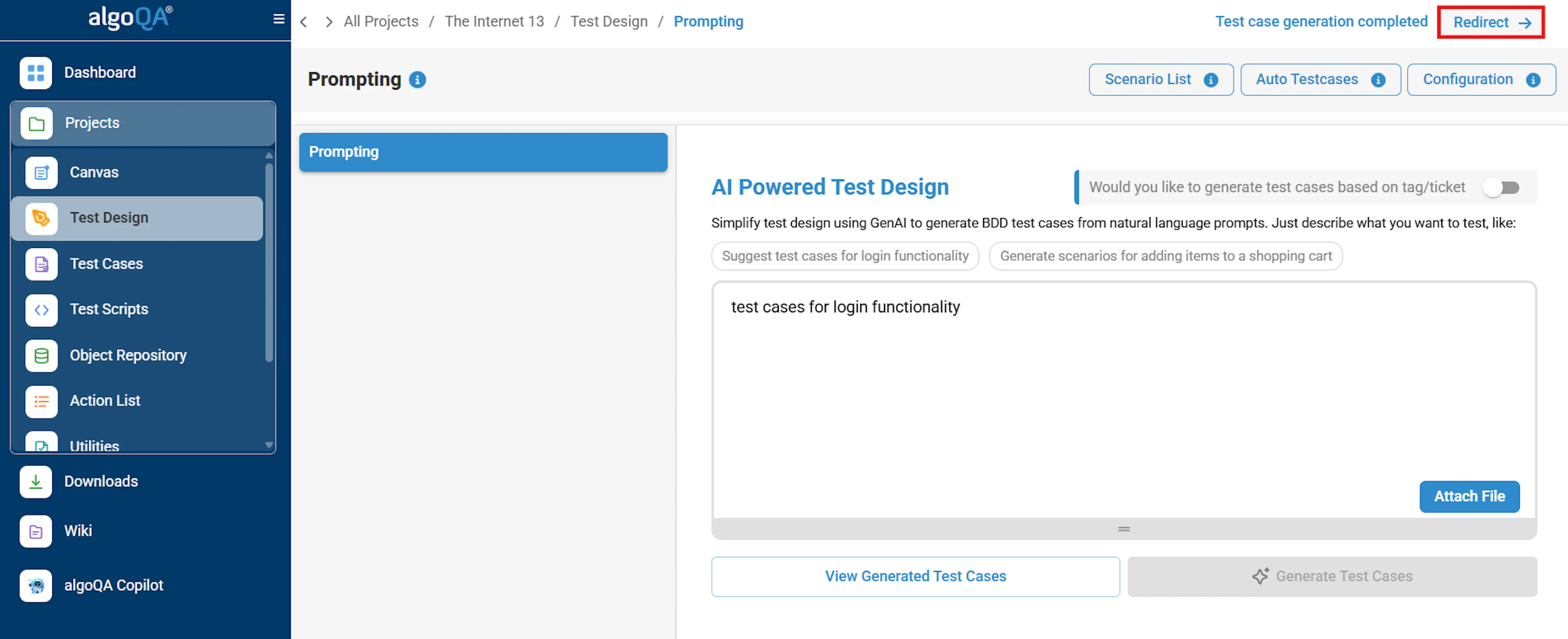
Click Generate Test Cases to automatically generate scenarios. Click Redirect to view the scenarios, where you can review and make any necessary modifications before proceeding.
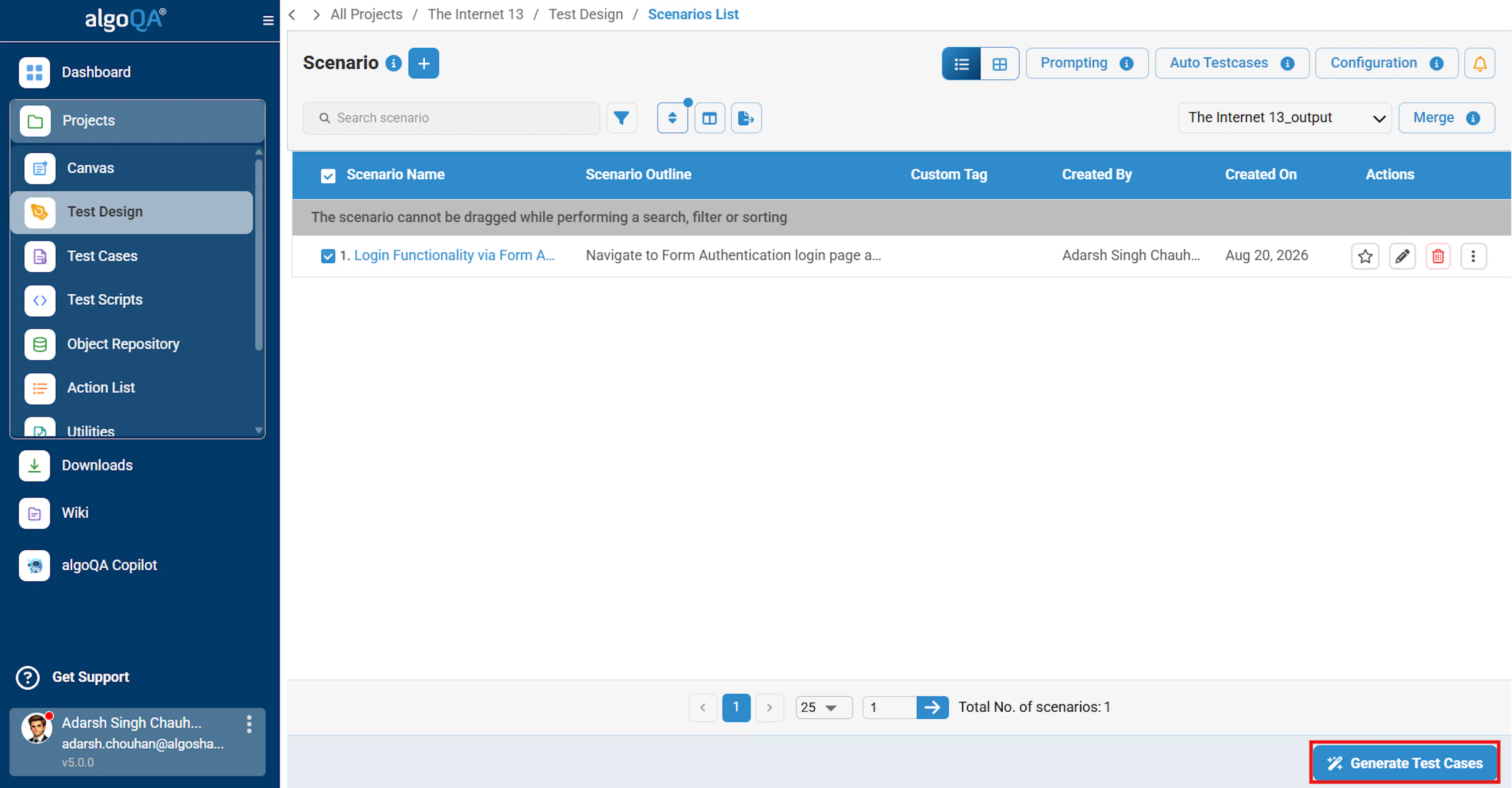
After reviewing the scenarios, click Generate Test Cases again. The platform will automatically generate test cases in BDD (Behavior-Driven Development) format.
How to Generate Custom Values for Scenarios using Prompting
Once the configuration is created, navigate to Prompting and enter your prompt. Enclose all custom values in single quotes ('') so they are treated as dynamic input values.
Example:
Scenario Name – Add product and verify the price in cart

Scenario Outline – Verify product price in the cart

When I clicked Tricentis Demo Web Shop in demo web shop

And I entered Register in demo web shop home as 'My product'

And I entered Search in demo web shop home as 'Testing@123'

And I clicked Books2 in demo web shop home

Then I verify text Books in demo web shop books
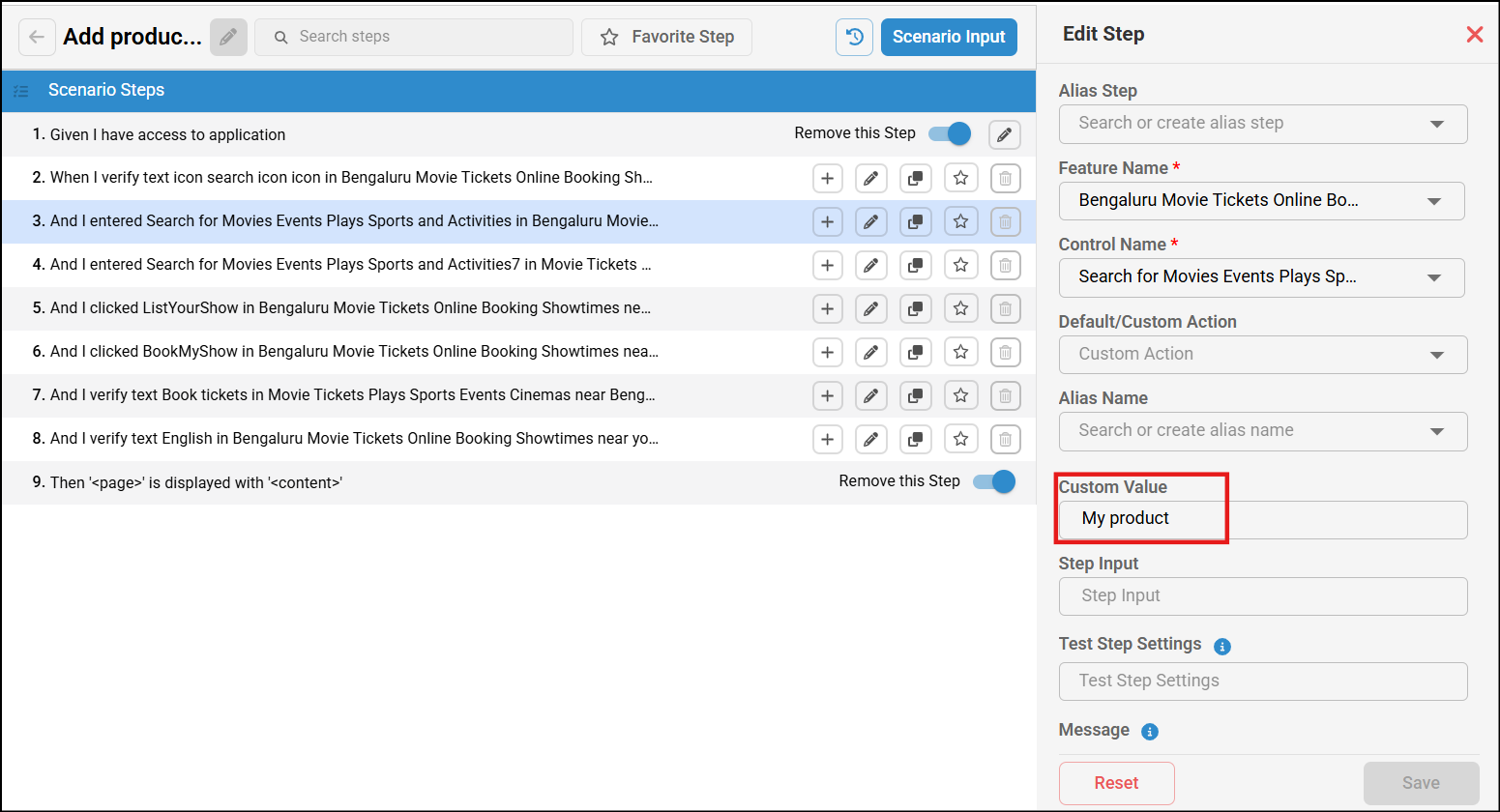
In the above example, 'My product' is the custom value for the Register field, and 'Testing@123' is the custom value for the Search field.
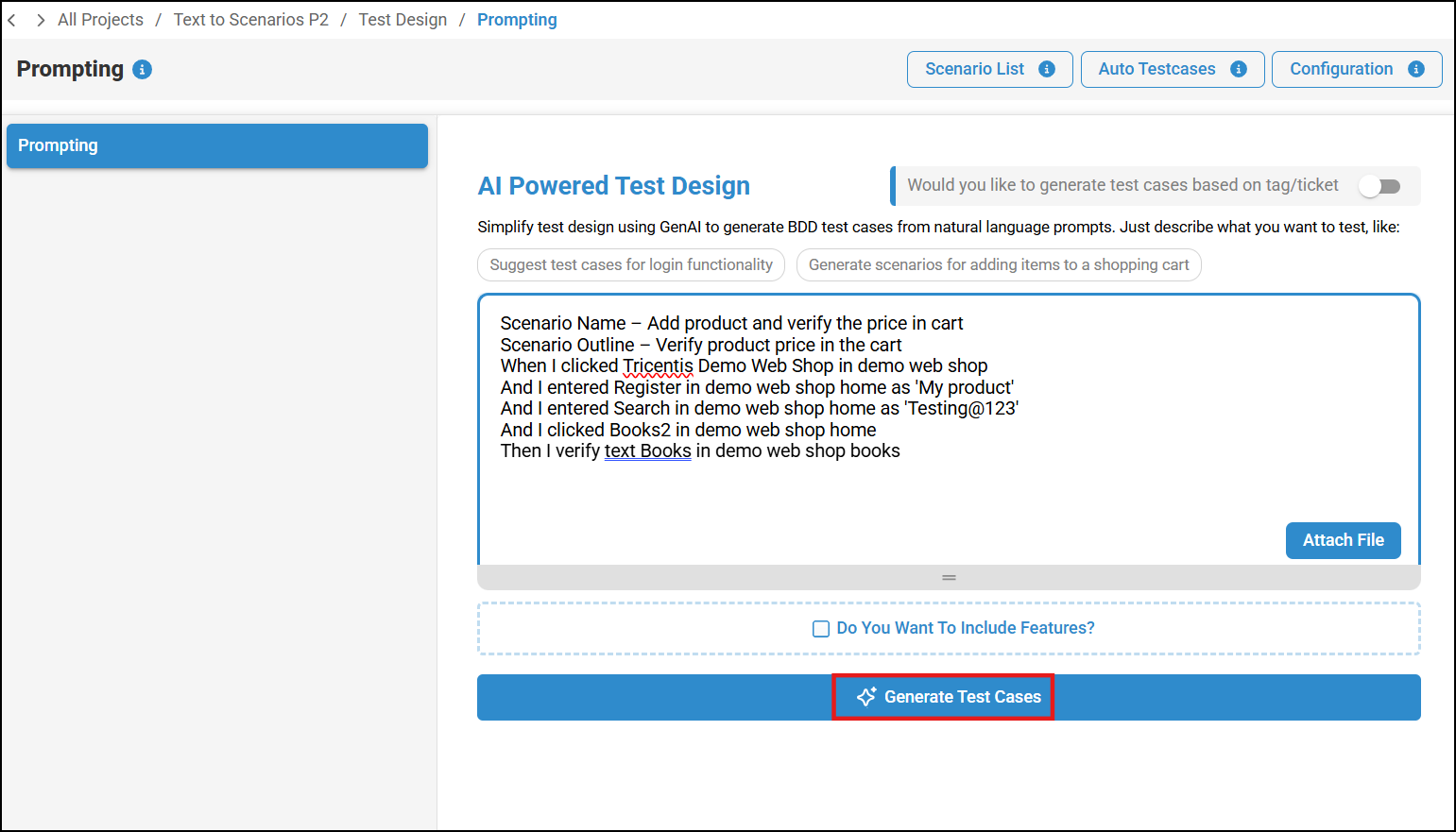
Click Generate Test Cases to generate the scenario. Once the scenario is generated, click Redirect.
Select the scenario to view the list of scenario steps.
Click the Edit icon next to the step where a custom value was provided. The specified custom value will be displayed in the Custom Value field.
Note: Angle-bracket tokens are not treated as custom values. Any text enclosed within angle brackets (< >) is interpreted as a Scenario Outline parameter and is skipped during custom value processing. As a result, it is not populated in the Custom Value field, and the system falls back to the next resolution priority.
Blank, whitespace-only, or null values are ignored. Empty quotes ('') or values containing only whitespace are treated as no value provided, causing the system to fall back to the next available resolution priority.
Advantages of Prompting
- Ease of Use: Generate structured BDD test cases from plain English descriptions. Test cases are tailored to the specific context of the application under test (AUT) and are ready for script conversion.
- Intelligent Test Case Generation: Understands complex, multi-step user inputs (e.g., "Login to the application and book an appointment") to produce relevant test cases covering full workflows.
- Accelerated Test Design: Speeds up the test creation process by automating the generation of accurate, context-aware test scenarios.
Limitations of Prompting
- Clean UI Metadata: The underlying LLM uses an offline model built during the profiling process as input for test case generation. Following best practices during profiling, such as meaningful naming of UI elements and adopting a structured layout that reflects the AUT, greatly enhances the quality of generated test cases.
- Prompting Strategy: As LLMs are sensitive to input prompts, users may need to experiment with prompt variations (e.g., rephrasing) to achieve the desired results.
- Validation of Generated Steps: The generated test steps are not automatically validated against the actual application under test (AUT), and manual verification is required.
- Stateless Functionality: The feature operates in a stateless manner, meaning it does not retain context or information from previous prompts.