
Backup and Restore Features
The Back Up feature allows you to create a backup of your project. This ensures that you have a version saved in case something goes wrong with the original files.
Accessing the Back Up Feature to Take a Manual Back Up
Perform the following:
- Navigate to the Projects.
- In the Projects, search for your project.
- Select the project, click the More Menu beside the project to view sub options.
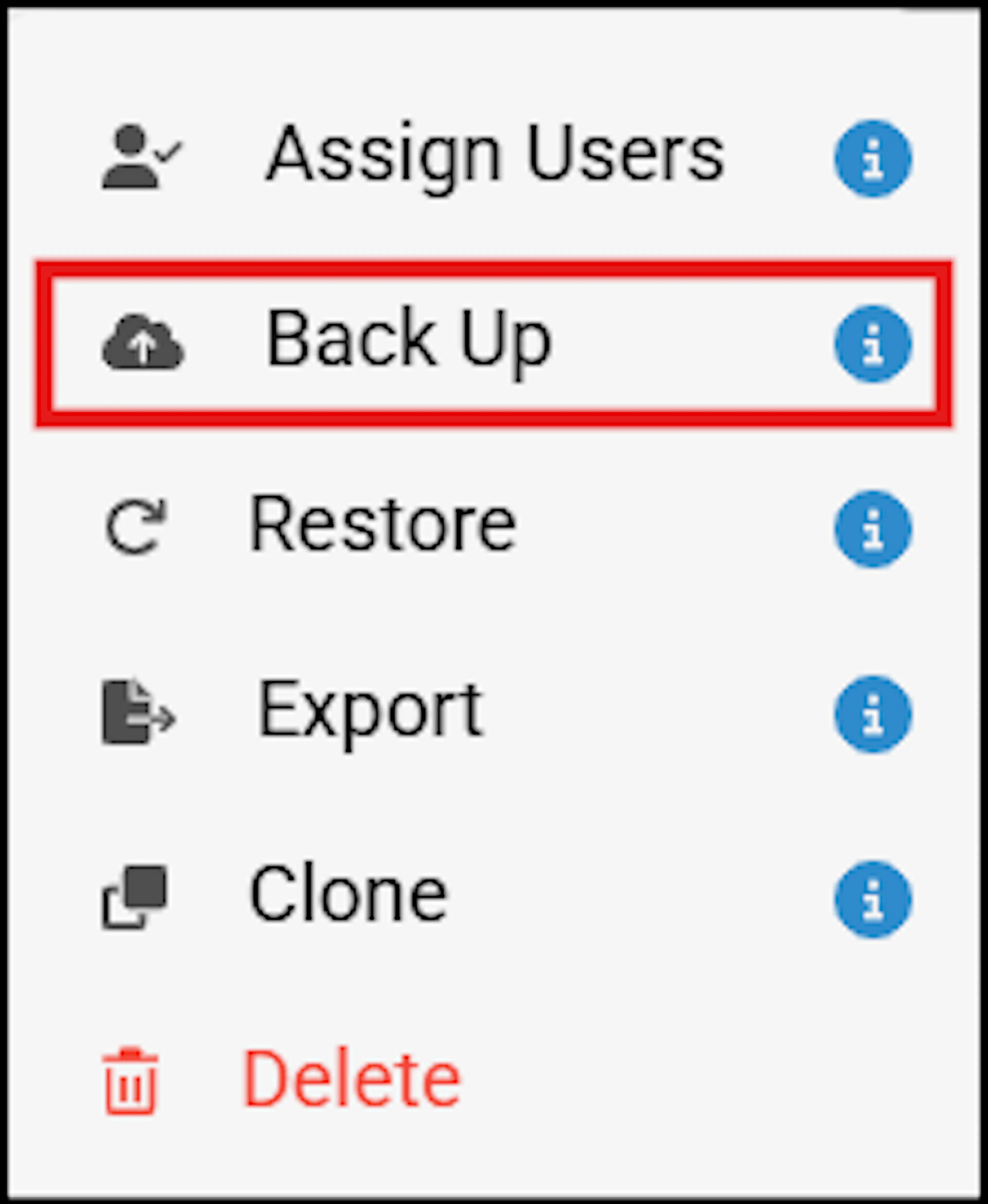
- Choose the Back Up option to view the Back Up pop-up window.
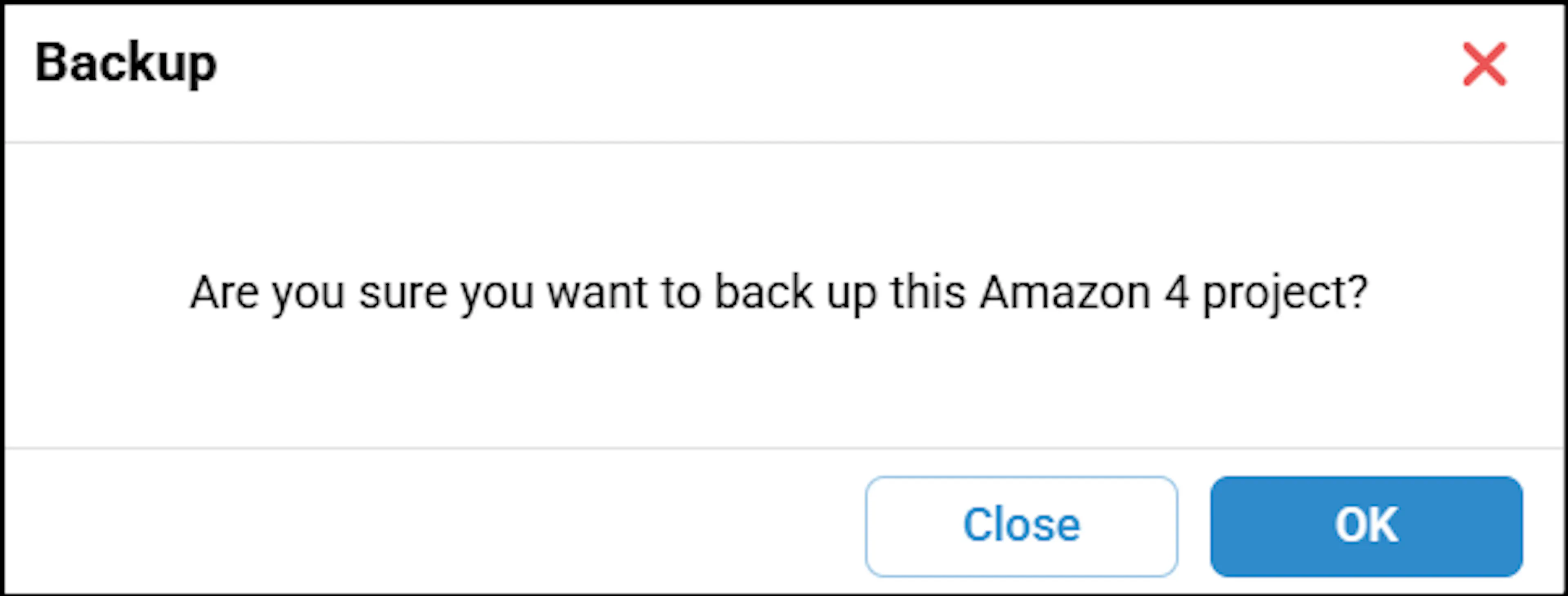
After a successful backup, a confirmation message will appear in the top-right corner of your screen, stating: "Backup completed successfully".
The backup file also includes scenario status, comments, selected or unselected datasets, checked and unchecked scenarios, favorite scenarios, scenario steps, favorite custom actions, custom action creation date and author, edited step data, scenario input data, access settings, and Settings page data.
Restore Feature Overview
The Restore feature allows you to recover your files from a previous backup. If something goes wrong with your current files or settings, you can use this feature to return to a saved version.
Accessing the Restore Feature
Navigate to the Projects.
In Projects, search for the same project where you had previously backed up your files.
Select the project, click the More Menu beside the project to view sub options.
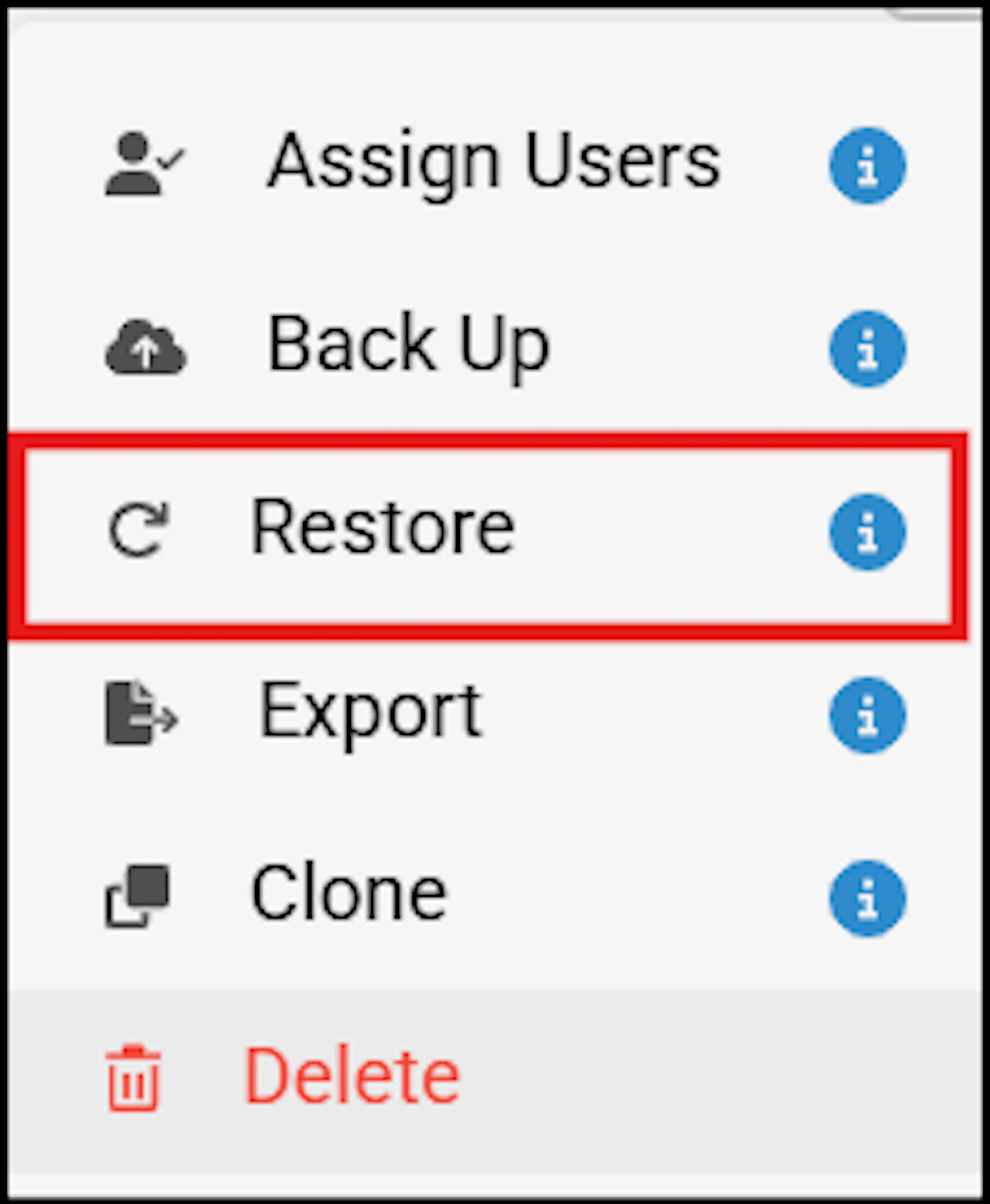
The Restore pop-up window displays the serial number, date, time frame of when the action was performed, and the Action options.
In this window, select the required options in the Action column.
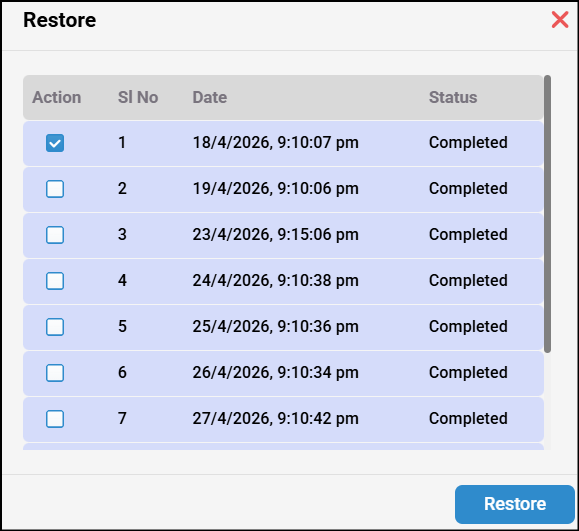
Click the Restore button and click OK.
During restore, if there are changes in the project after the last backup, the system creates a backup of the current state and marks it as a revert backup.
After restoring a backup, a Revert button is available, allowing users to return to the project's default state.
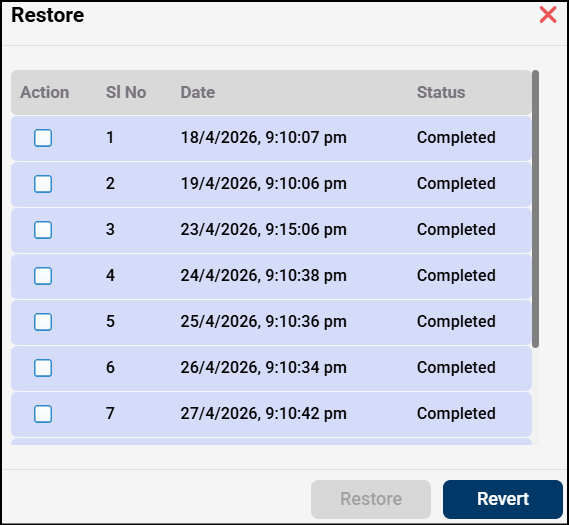
When the Revert button is clicked, a pop-up appears asking, 'Are you sure you want to revert the restore?'
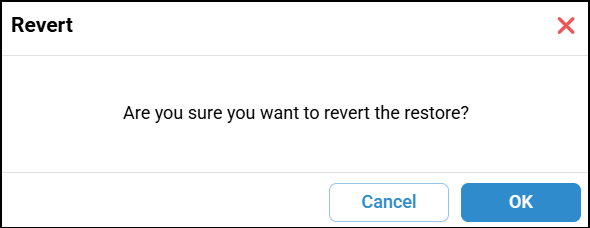
The system restores the default-state backup and then deletes the revert backup.
Configuring Auto Backup
- Auto-backup is enabled by default for all projects, and the auto-backup checkbox is disabled on the project settings page.

- As an administrator, if you assign a project to a user, the user will not have permission to set the auto-backup settings. If the user wants to create a backup, they must inform the administrator to handle the backup process.
Note: If you try to access the Backup and Restore feature while test cases are being generated, you will see an error message.