Generating Separate Modules with Different Names
In the process of test automation, working with modules that have different naming conventions but represent the same functionality can be essential for ensuring coverage across various scenarios. This overview explains how to generate test cases using feature files that share similar content but differ in their filenames, all stored with different file names in different folders. For example, if you are registering a user on an e-commerce website, you might generate a module name for the scenario of OTP verification via email instead of mobile OTP verification.
This feature is also available for Desktop Automation and Python TestComplete framework.
Generating Modules
To generate feature files with a Module name, perform the following:
- After creating a project with the scraped file attached, record the scenario. The scenario will be created.
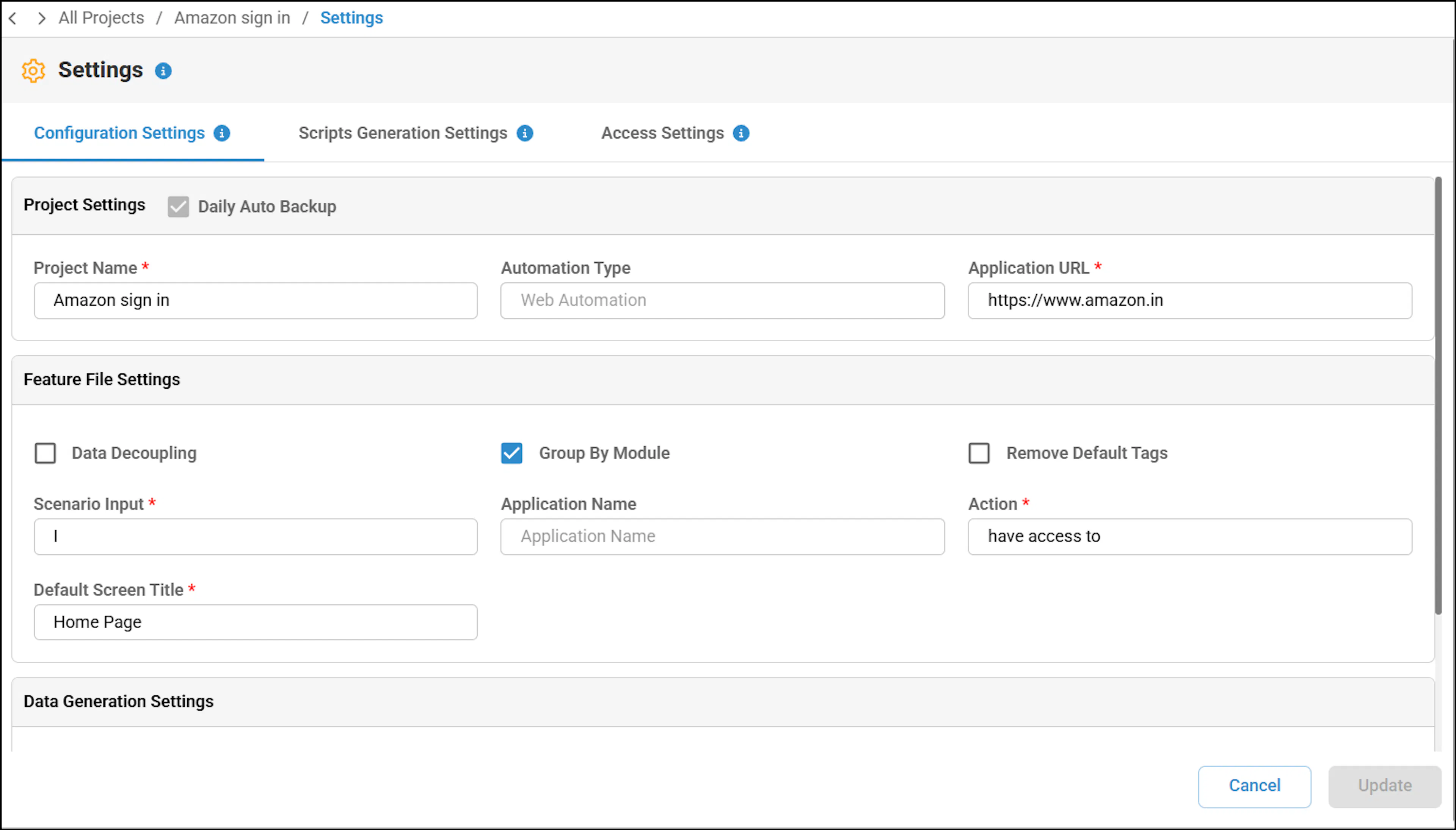
- Make sure to select the 'Group By Module' option in the Feature File Settings page and click Update.
In the Test Design screen, after recording a scenario.
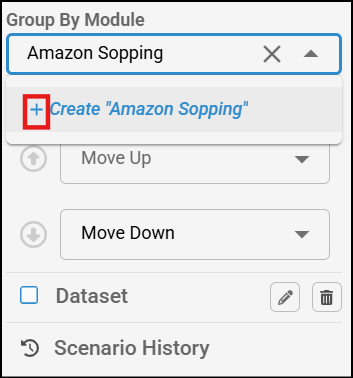
In Scenario List, add Group by module in Scenario List by clicking the more option beside the scenario (3 dots) and enter or select the module name.
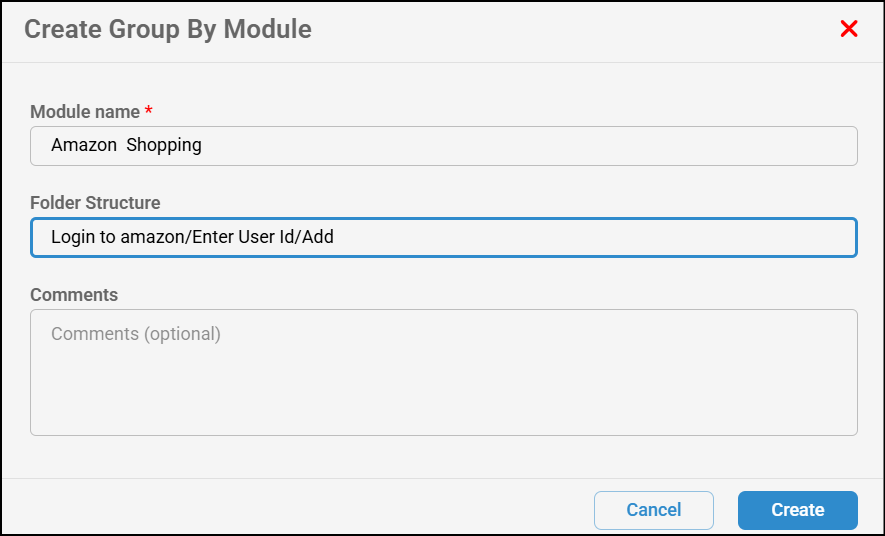
A pop-up will appear. Fill in the folder structure and comments, and click Create.
Group by module and folder structure will be displayed in the Scenario List.
The ones that are already created can also be reused in other test cases.
Use the forward slash (/) in between the feature file names to create a separate modules and create a nested folder structure in the Test Cases folder.
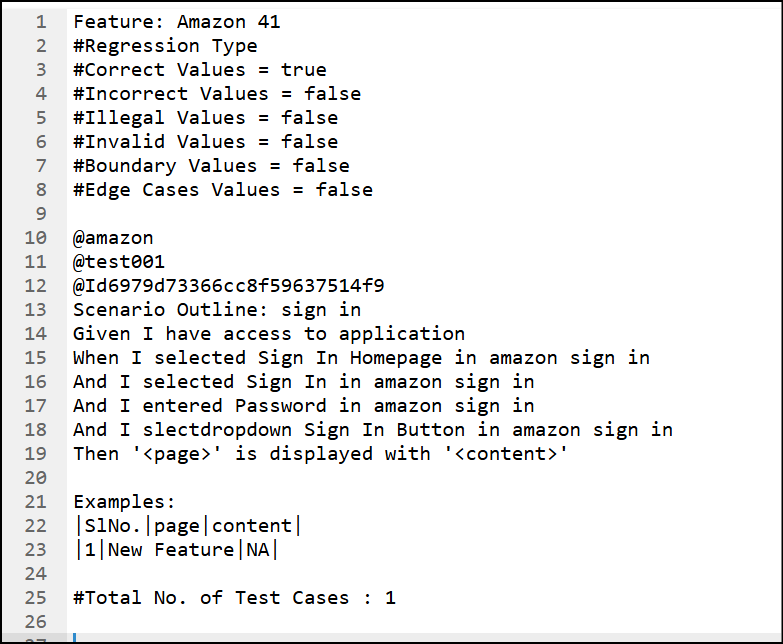
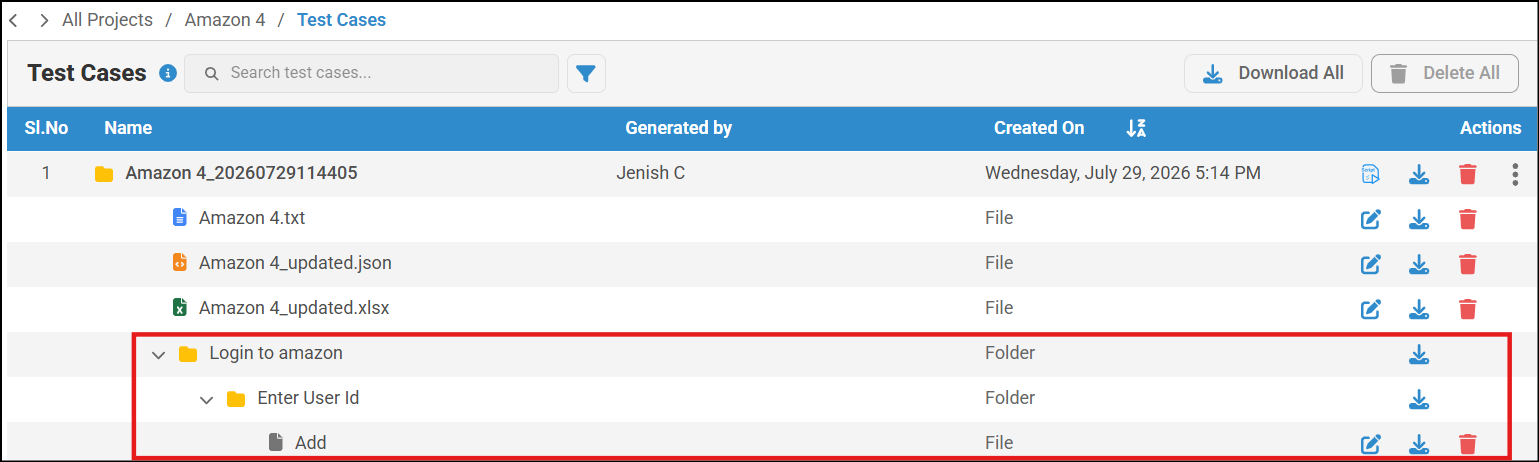
The modules will be generated in a separate folder in nested folder structure in the Test Cases folder.
To access the modules, navigate to the Test Cases tab.
Note that generated module does not display a timestamp when you hover over the corresponding file.
The Feature name will also be displayed inside the specified feature file.