
Generating Custom Values with Quotes
Generate custom values with quotes in a Feature File using the DOUBLE_QUOTE<value>DOUBLE_QUOTE keyword format in the Record Scenario feature.
Generating Custom Values with Quotes
To generate custom values with quotes using the Record Scenario feature, perform the following:
Create a project and navigate to Test Design, then click Record Scenario to record a scenario.
Enter the scenario name and outline, then click Create.
Select the appropriate feature checkbox to view the list of UI elements configured.
Navigate to scenario list.
Select the required scenario and click the Edit icon corresponding to that scenario.
The Scenario Steps list appears. Click the edit icon.
The Edit Step window appears.
In this screen, select More options to add the required custom value in the Custom Value text box, then click Save.
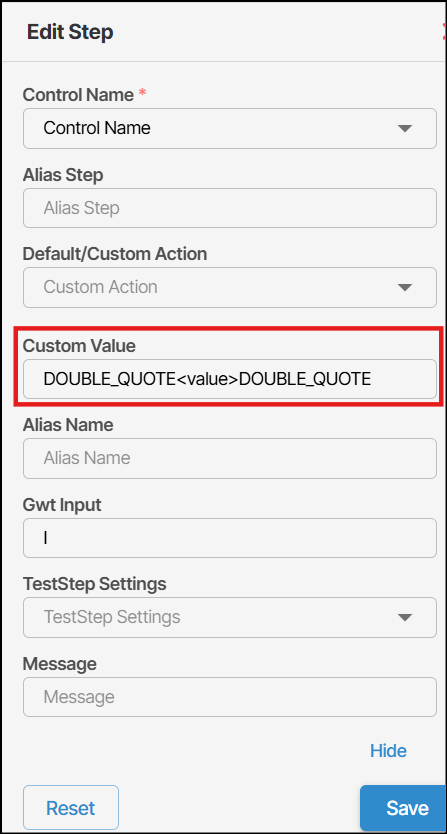
If you enter custom values into the Custom Value text box in this format, "<value>", these values will appear in the Feature File without the double quotes.
You can add custom values with quotes in the Test Design as well. For more information, refer to the alias step section of Managing Test Cases using Test Design workflow.
When users enter multiple custom values for the same step: Without inline param: Test case generation works correctly with and without data decoupling, generates proper steps in the updated file, and creates a single GWT step. With inline param: Test case generation works only without data decoupling, leads to duplicate steps in the updated file, and results in multiple GWT steps.