Custom Object Repository Feature
Learn how to use the Custom Object Repository to add, manage, and delete UI element controls for custom test methods.
Accessing the Custom Object Repository
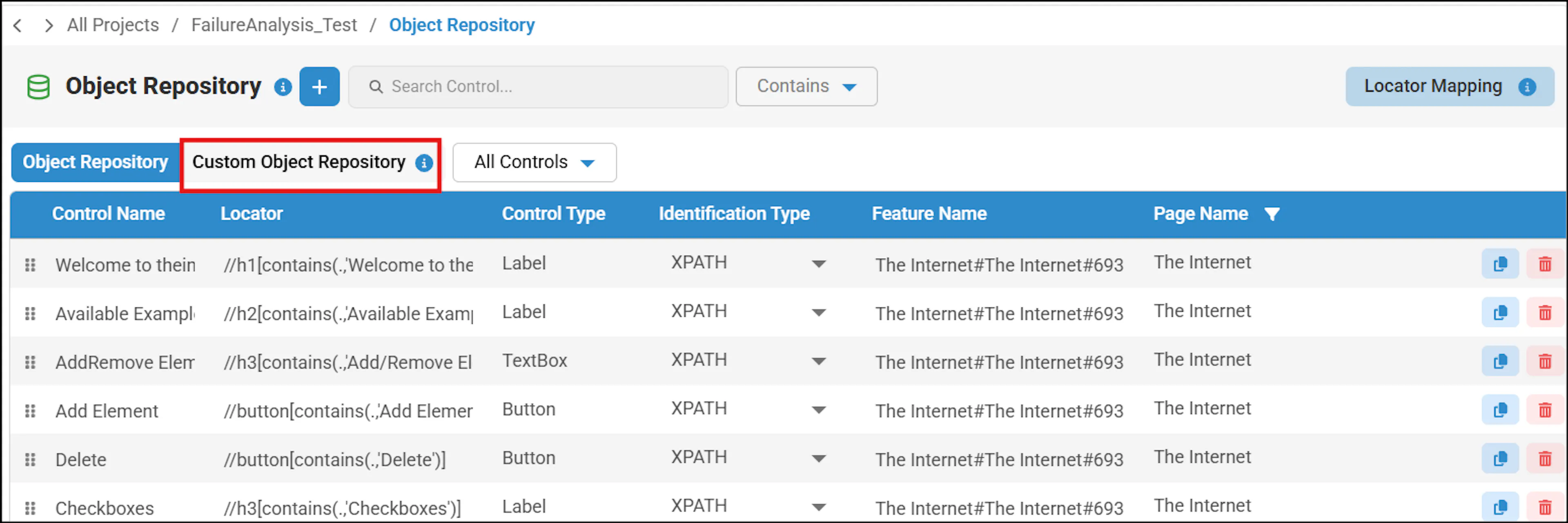
- To access Custom Object Repository, select a project and navigate to Object Repository in the left pane.
- Click Custom Object Repository.
3. Functionality Summary
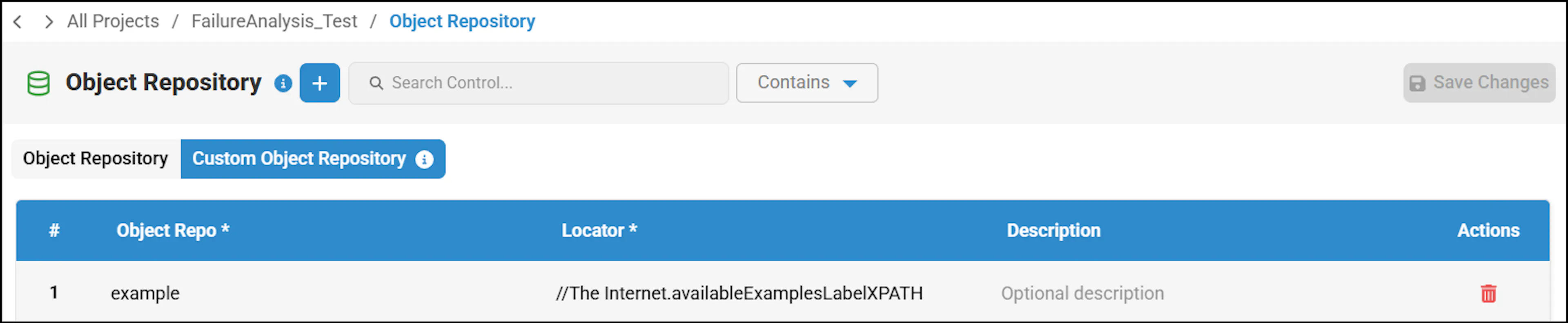
The Custom Object Repository includes the following information:
- Object Repo: Control Name, displaying all UI elements.
- Locator: Contains the XPath of the control.
- Description: Contains a description for the control.
- Actions: Delete the control if it is not required in the Custom Object Repository.
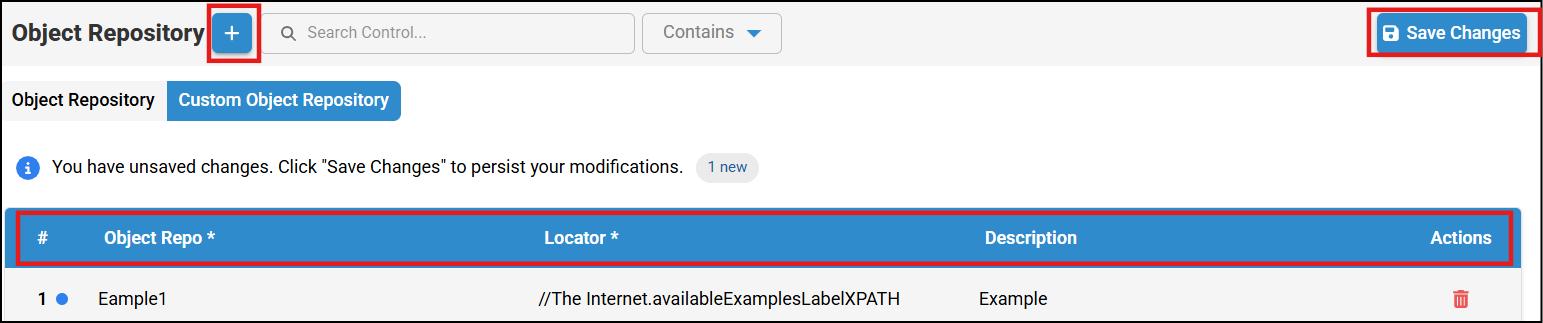
If any controls are required for the creation of a custom method, you can create them using the Custom Object Repository. To add a UI element (control), perform the following steps:
To add a UI element (control), click the Add button.
Enter the object name, locator, and description, then click Save Changes.
The object will be added to the Custom Object Repository.
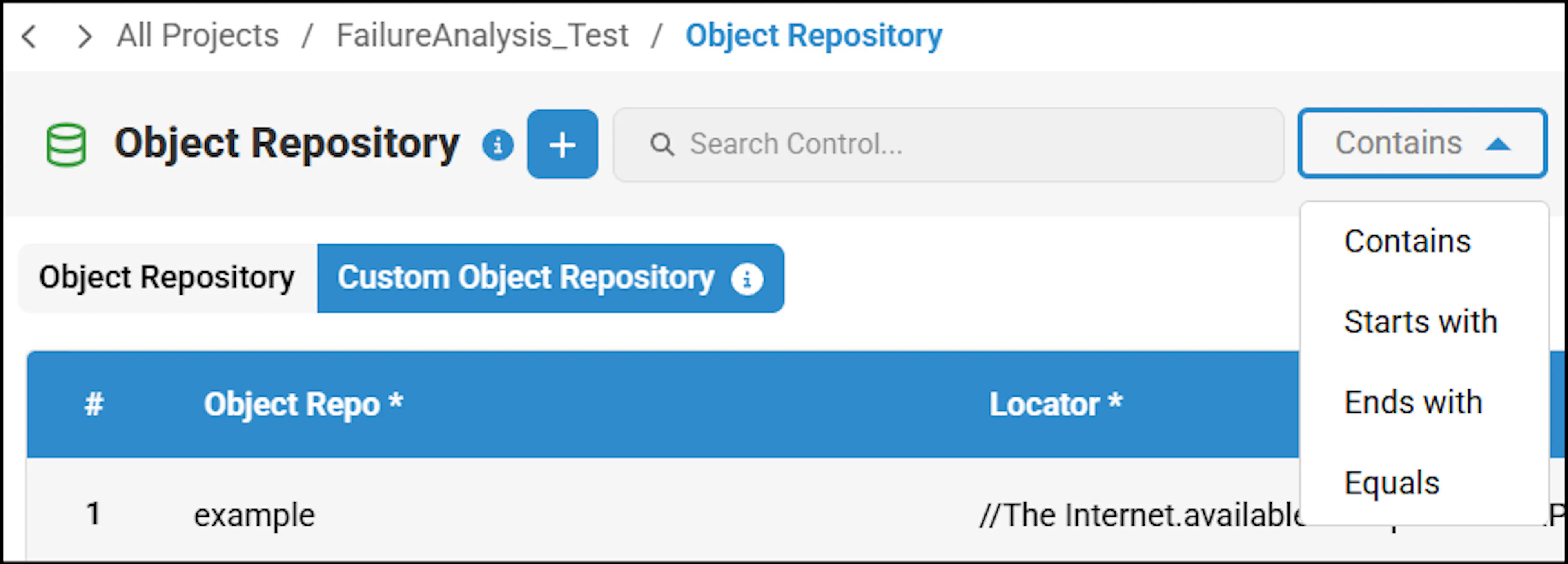
When working with a large number of controls, you can use the filter and search options to quickly find a specific control.
You can filter by Contains, Starts With, Ends With, or Equals, then enter the desired value in the search bar to view results based on the selected filter.