
Object Repository Feature
Manage UI element locators in the Object Repository file, including adding, editing, filtering, and deleting controls.
The Object Repository file is an Excel document generated by algoScraper during the application scraping process. This file contains a comprehensive list of UI element names and their corresponding locators. If there is a change in an application under test, you can use a different locator type and modify it in the Object Repository file and regenerate the test cases.
Accessing the Object Repository File
To access the Object Repository file, select a project and navigate to Object Repository in left pane.
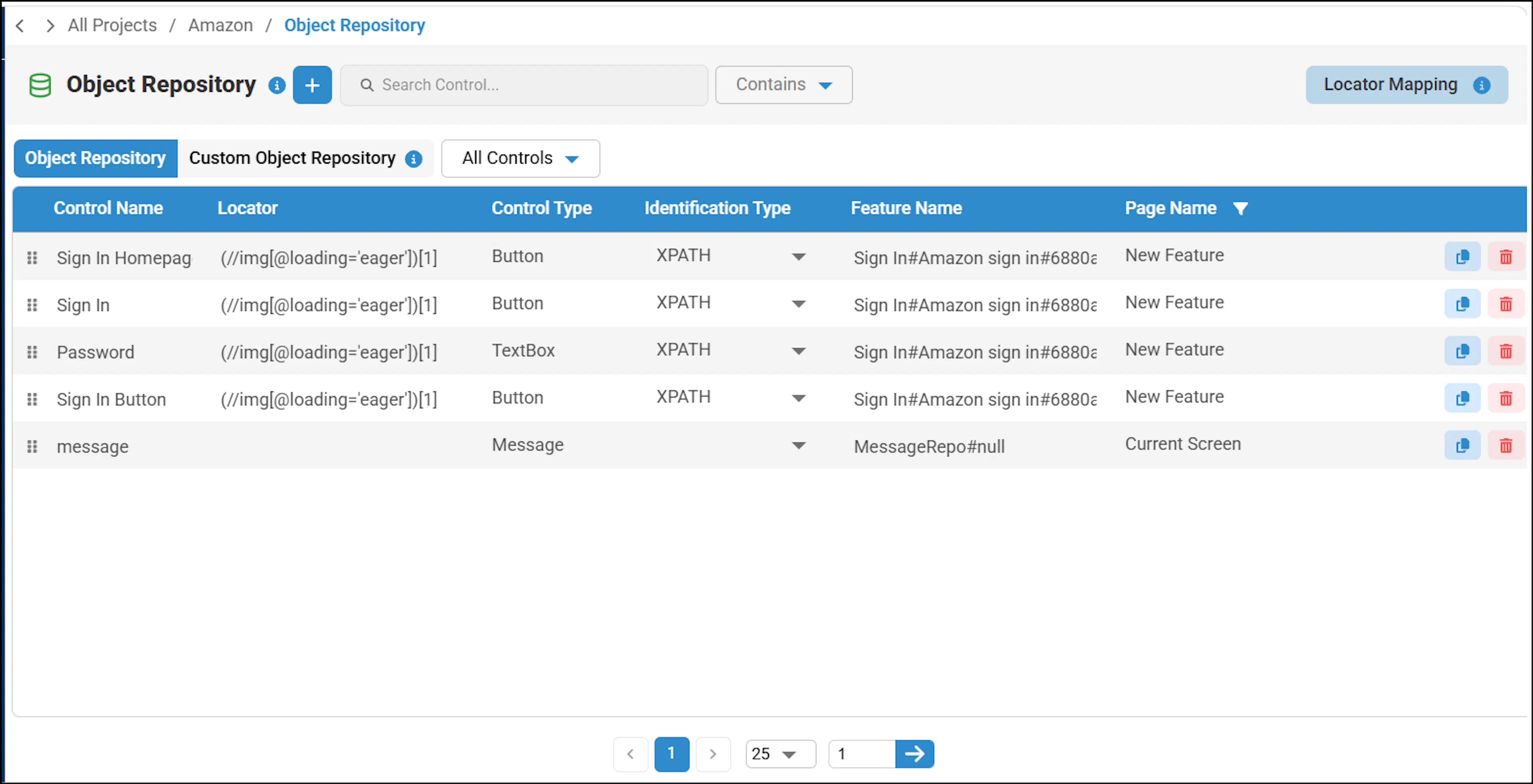
Functionality Summary
The Object Repository file includes essential information, such as:
- Control Name, displaying all UI elements
- Control Type, indicating the types of controls linked to the UI elements, for example, if a UI element's control type is a link, then the UI element functions as a hyperlink or clickable link.
- Control Identification Type, which contains the Control type ID, Page Name, and Feature Name
- Locator which contains XPath of controls
Case-sensitive variations of the same name are restricted to prevent duplicate entries. For example, names such as Home page, Home_page, Homepage, homepage, home page, home_page, HOME PAGE, and HOME_page are treated as duplicates and cannot be created separately.
Control names added through the alias name field while recording a scenario cannot be deleted directly. If you attempt to delete one, a warning message will appear stating that the control cannot be removed because it is part of a configured scenario.
To delete the control, you must:
- Navigate back to the Scenario Steps List.
- Remove the alias name and delete the associated configured step.
After doing so, the control can be deleted successfully.
If there are any UI element changes in the application and if you wish to add the UI element (control), perform the following:
You can add the UI element (control) by clicking the Add button.
By default, the Object Repository contains only the controls used in the test cases of the selected project. To include all controls in the Object Repository, navigate to Data Generation Settings, select the Full Object Repository checkbox, and click Update.

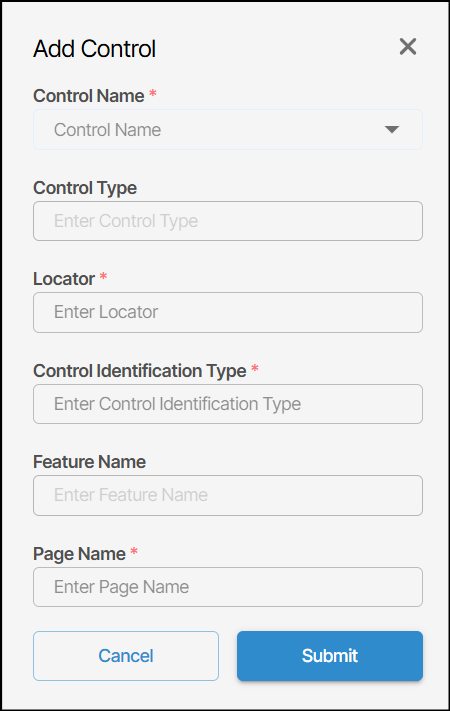
The Add Control screen appears.
In the screen, enter the required details and click Submit.
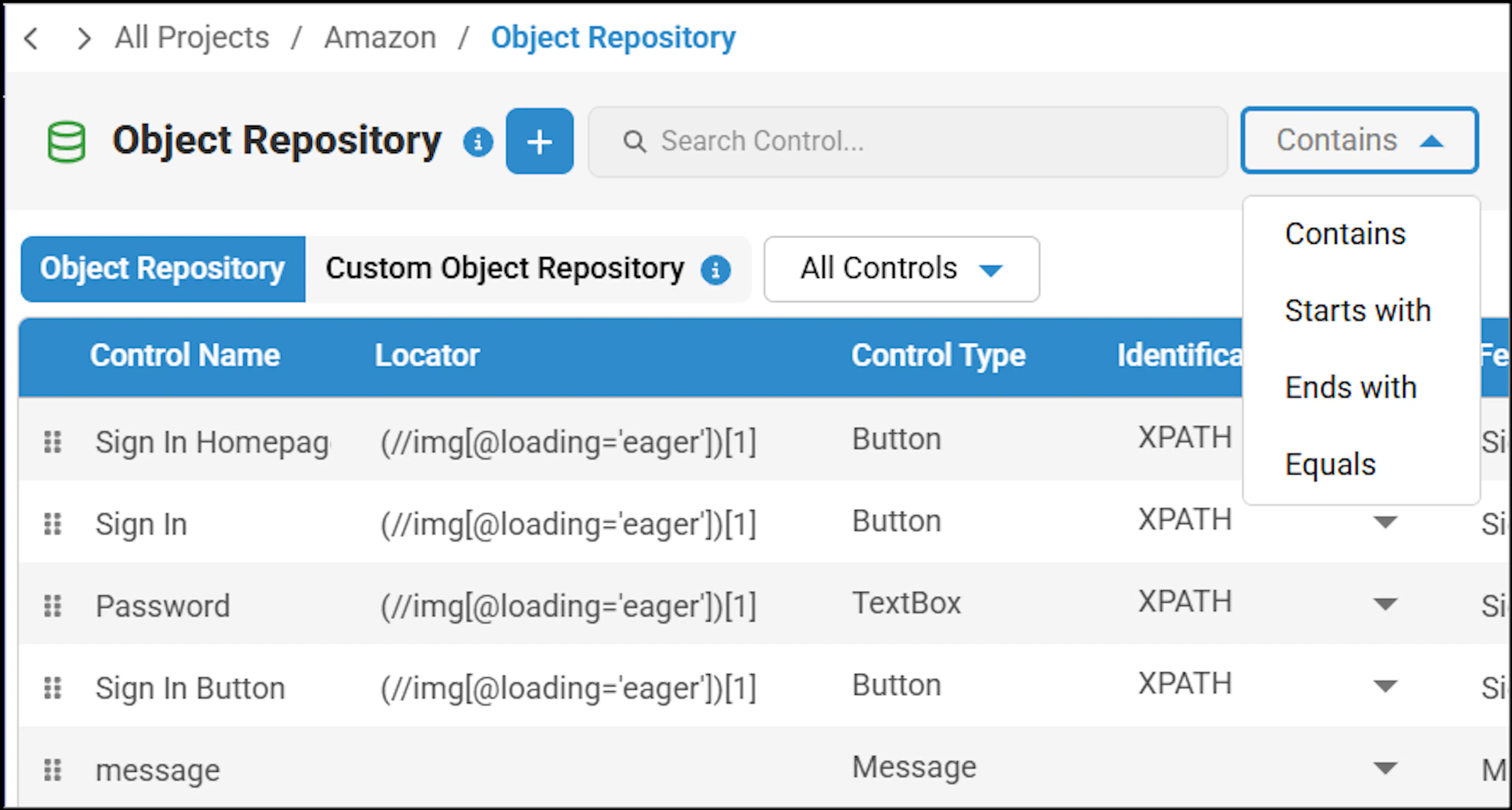
When working with a large number of controls, you can use the filter and search options to quickly find a specific control.
You can filter by Contains, Starts With, Ends With, or Equals, then enter the desired value in the search bar to view results based on the selected filter, you can search by Control name, Locator and Page name.
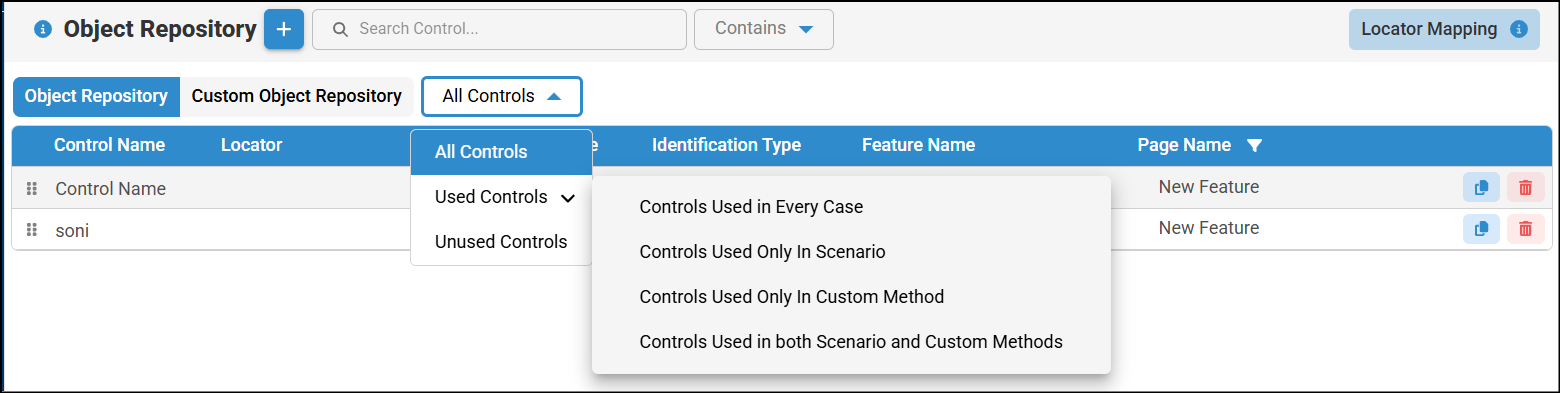
An additional filter is available that allows you to filter by All Controls, Used Controls, or Unused Controls. Under Used Controls, you also have the option to select Controls Used in Every Case, Controls Used Only in Scenario, Controls Used Only in Custom Method and Controls Used in Both Scenario and Custom Methods.
Additionally, you can filter controls by page name using the filter icon next to the page name.
Select the desired page to apply the filter, or reset it when filtering is no longer required.
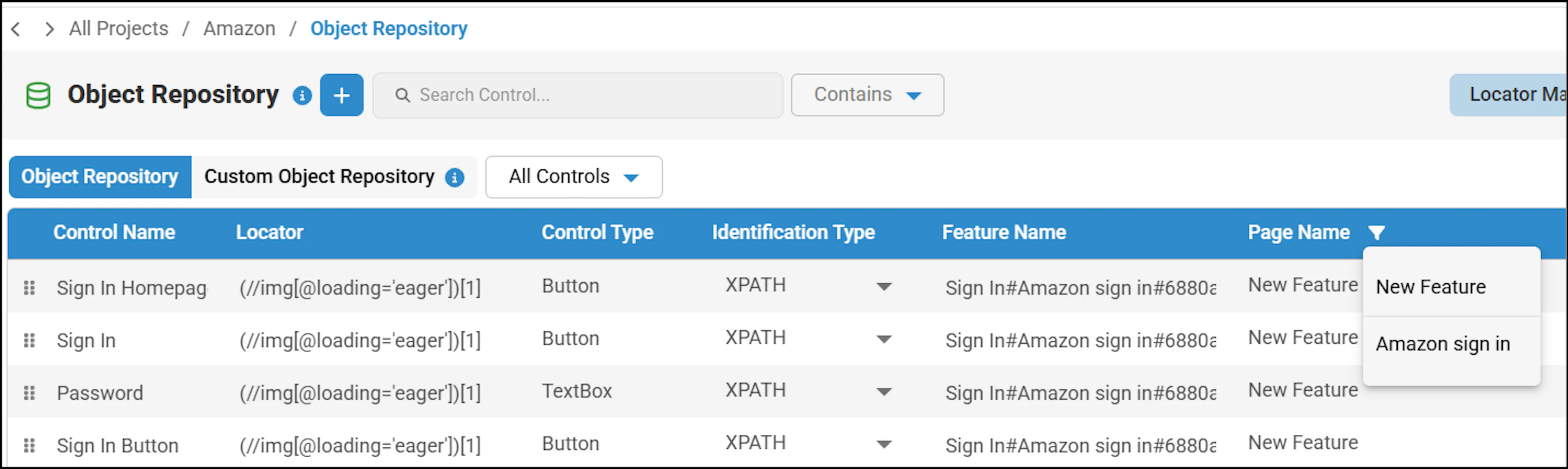
You can also edit the page name as per your requirements with auto suggestions.
You can copy the key value of a control directly by clicking the copy icon.
If any control is used while merging steps in the scenario steps list, the corresponding row for that control will be highlighted in green.
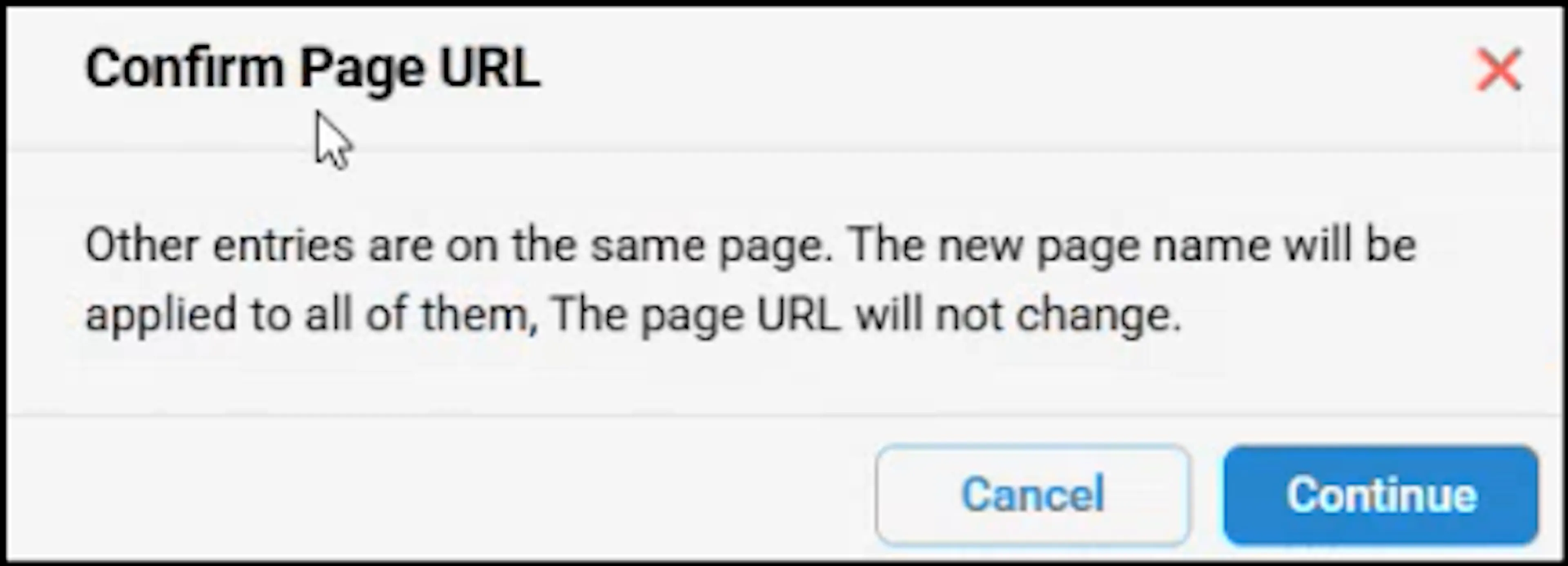
Confirm the page name update for related controls.
When you change a control's page name, a popup indicates that other entries share the same page. Click Continue to apply the new page name to all objects with the same page URL. The page URL does not change, and the updated page name is reflected in the configuration and object repository.
Tip: You can navigate to different pages using the Pagination functionality at the end of the page.
