For the complete documentation index, see https://algoshack.documentationai.com/llms.txt. Every page is also available as Markdown: add .md to its URL, or request it with an Accept: text/markdown header.
Scraping User Interface ElementsalgoScraper as an Extension for Web Applications
algoScraper as an Extension for Web Applications
algoScraper, available as an extension for web applications, captures all User Interface (UI) elements and their corresponding XPaths. algoScraper can also be used in a VM environment.
Applicable to Chrome and Edge browsers.
Prerequisite
To integrate this tool into your Chrome or Edge browser, Click here. Select the icon corresponding to the extension to view it on your browser bar, as shown:
Understanding the Scraper Tool Window
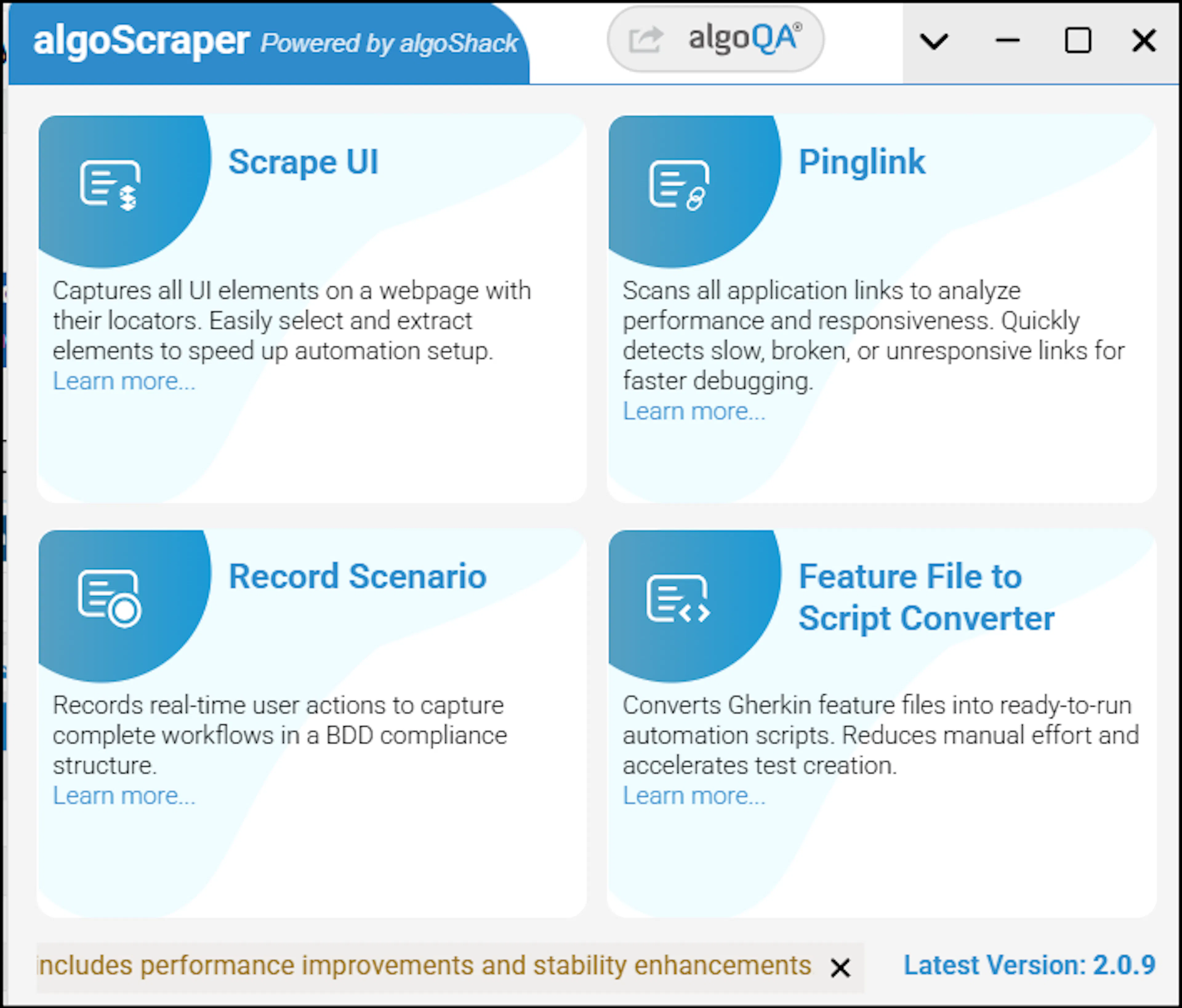
Click the extension to view the following window
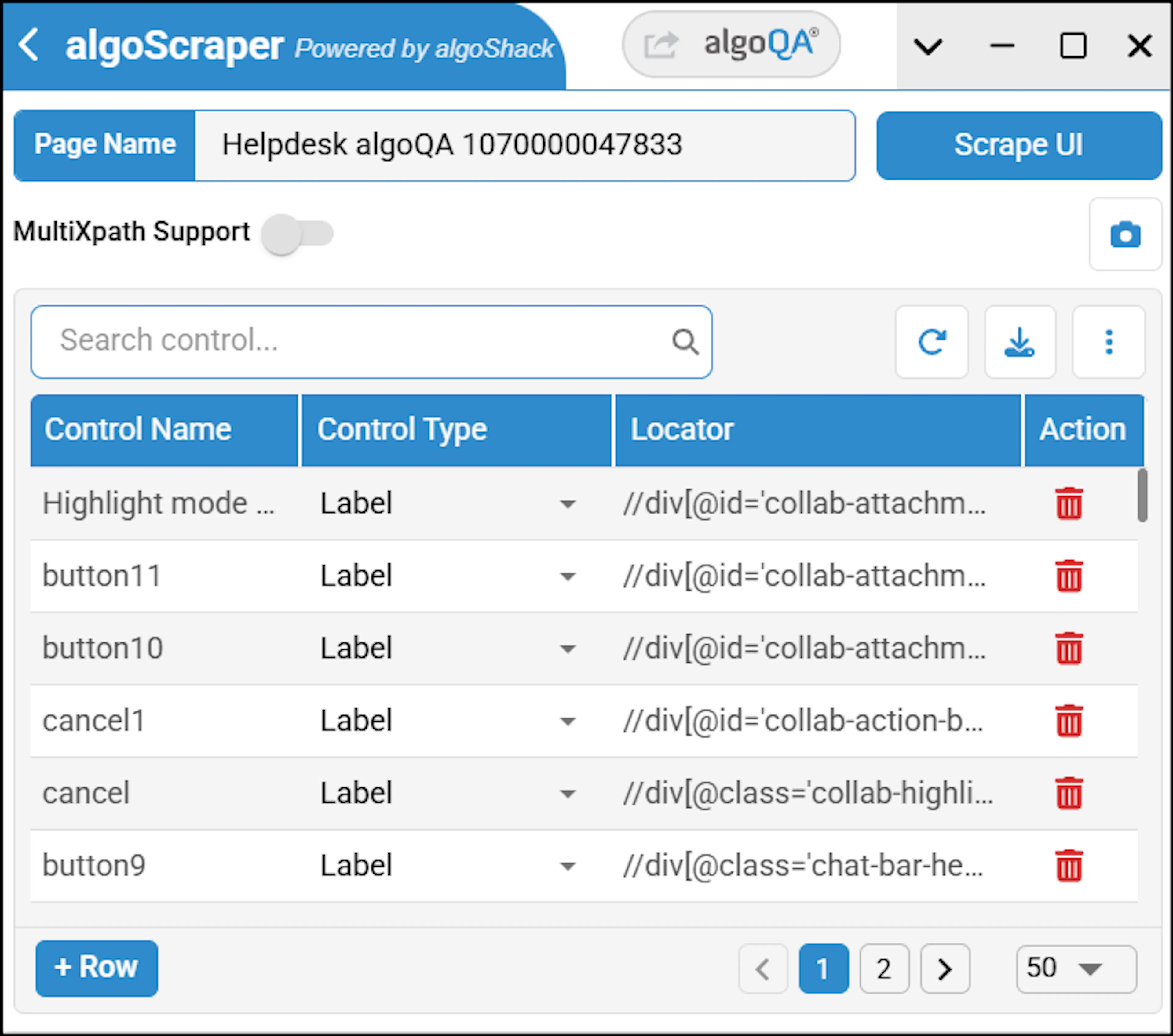
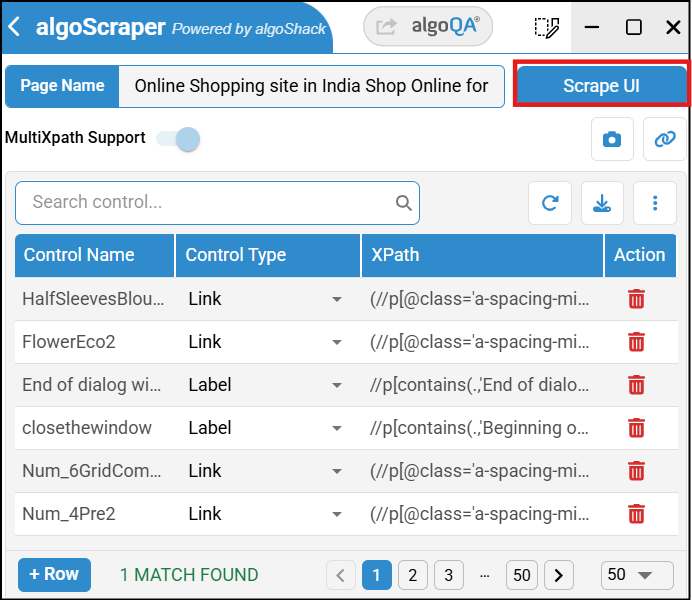
Select the page you wish to scrape and click Scrape UI button to view the following window
Tool Functionality Summary
Field
Description
Captures and displays the URL of Page name.
Click this button to scrape all the UI elements at once displayed on the particular page. While using scrape UI button ensure to select the control type and provide a meaningful name without additional spaces. If you don't enter the control name, an error message is displayed saying 'Control name is required'. Similarly, if you don't enter the Control Type, then you will see an error message saying Control type cannot be blank. Note: Iframe elements can also be scraped using algoScraper.
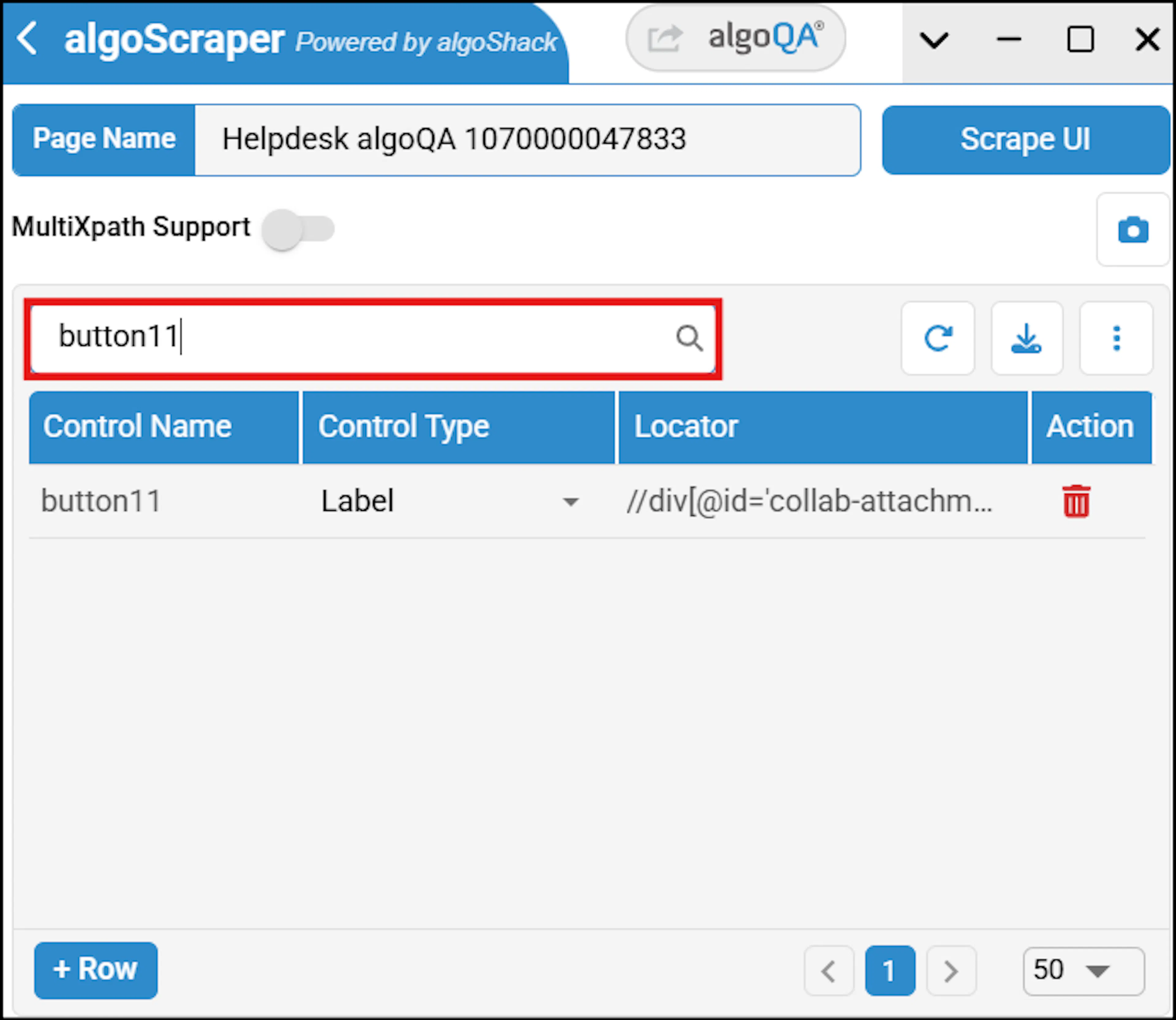
After scraping all the UI elements, you can search for a particular UI element using the search bar. If you use invalid values in the search bar, then there will be no data, Ensure that your search criteria are accurate and relevant to the data you are trying to retrieve.
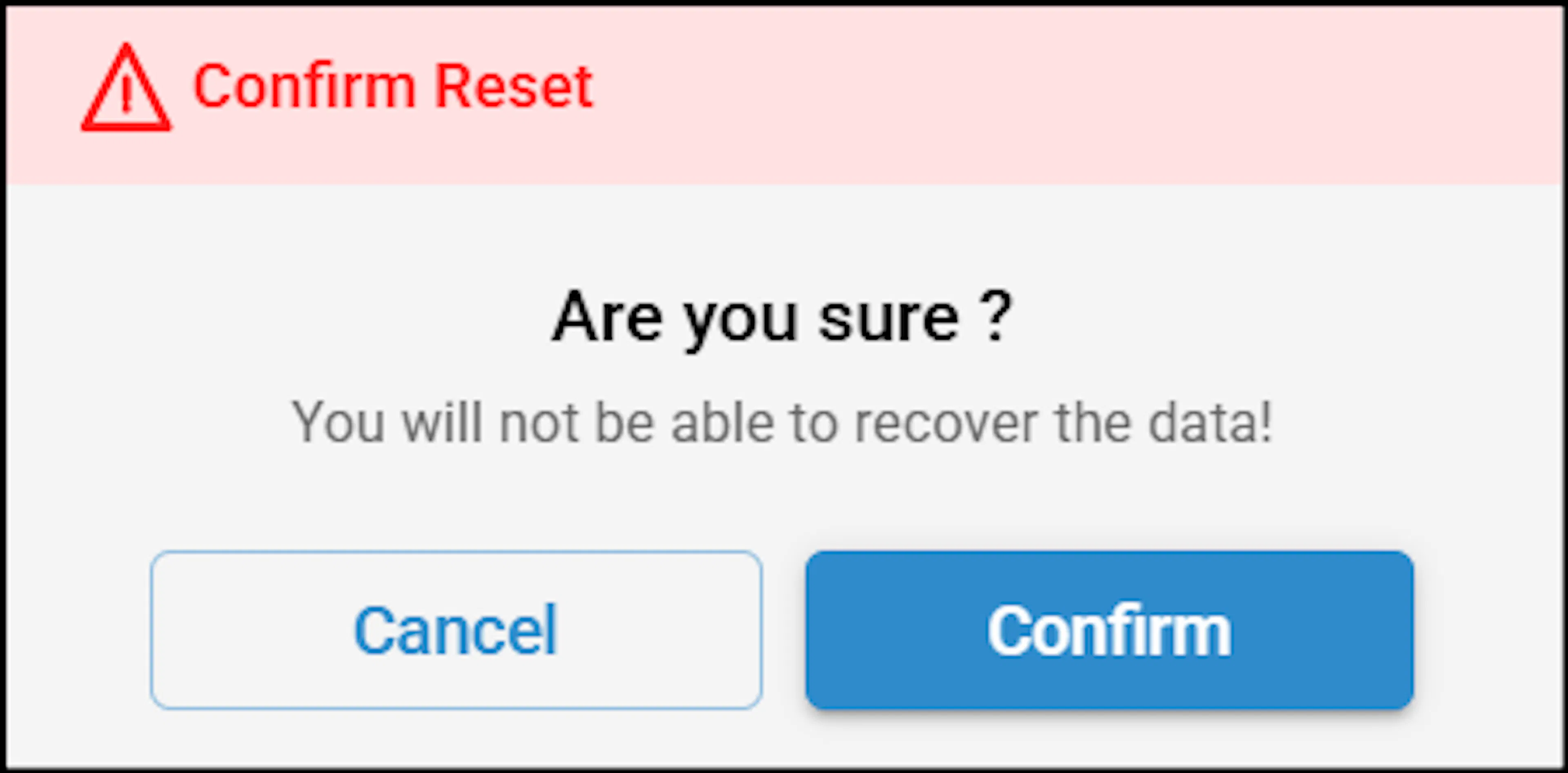
Reset window secondary window
Click this button to reset all the scraped UI elements listed in the table.
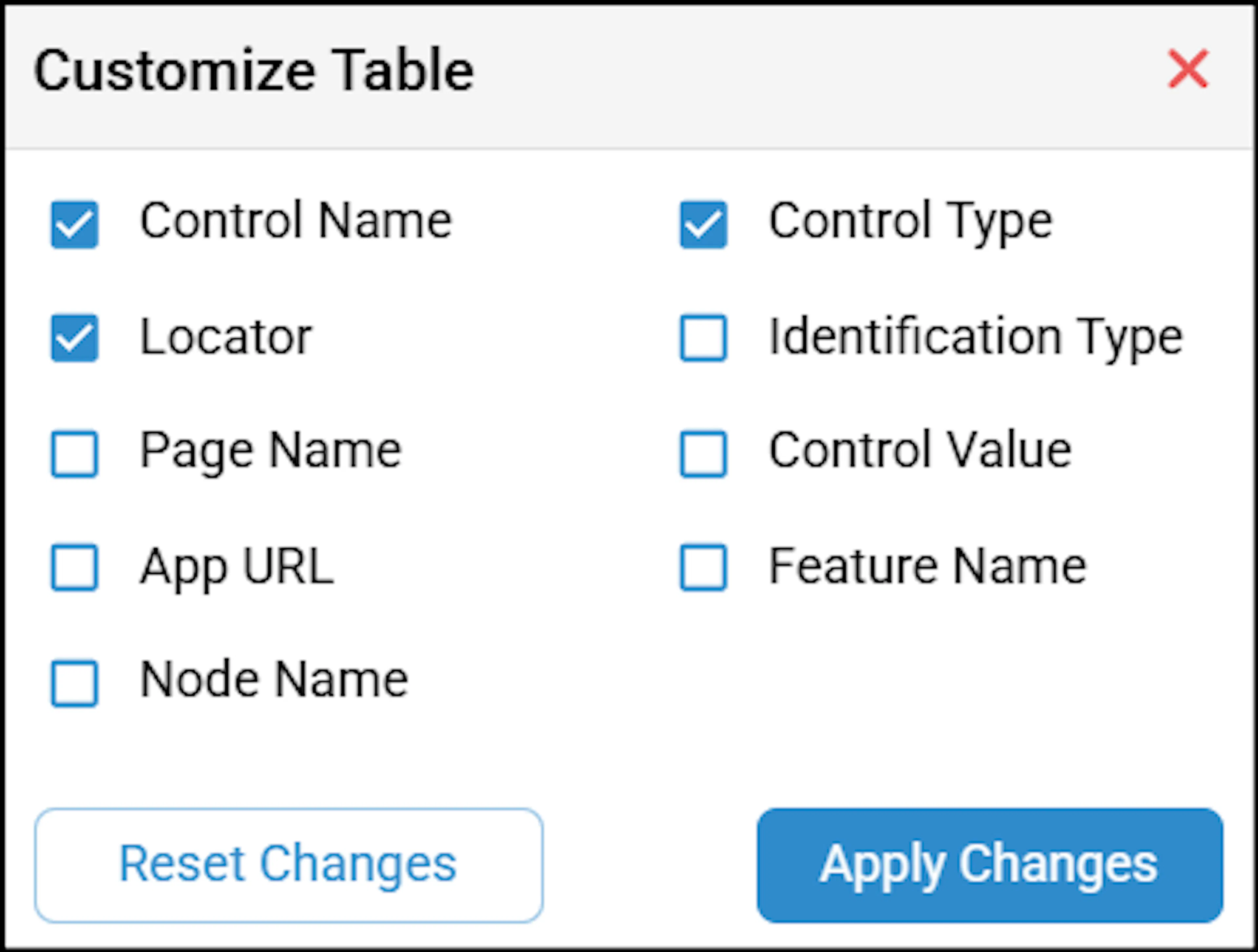
Customize Table secondary screen.
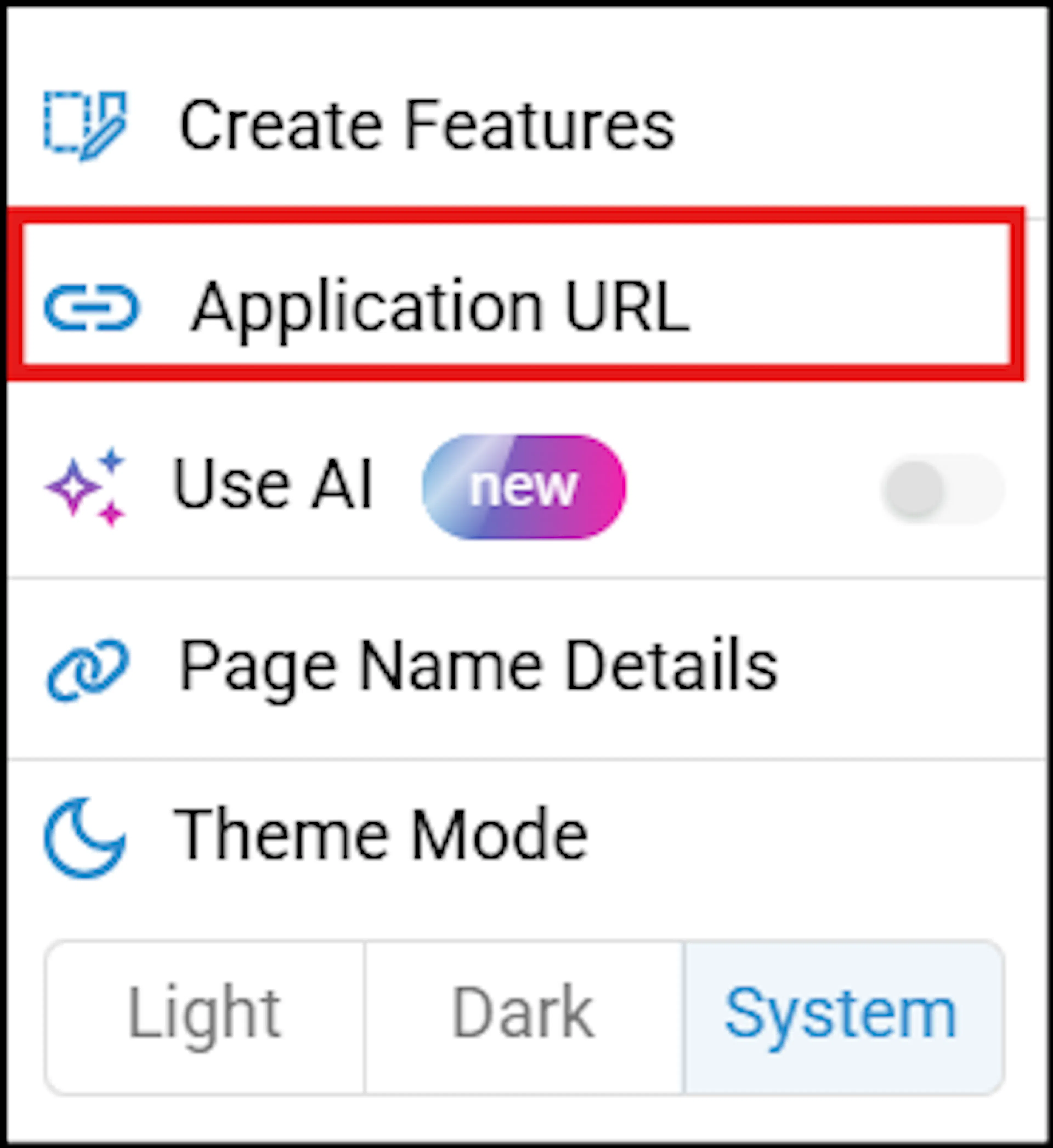
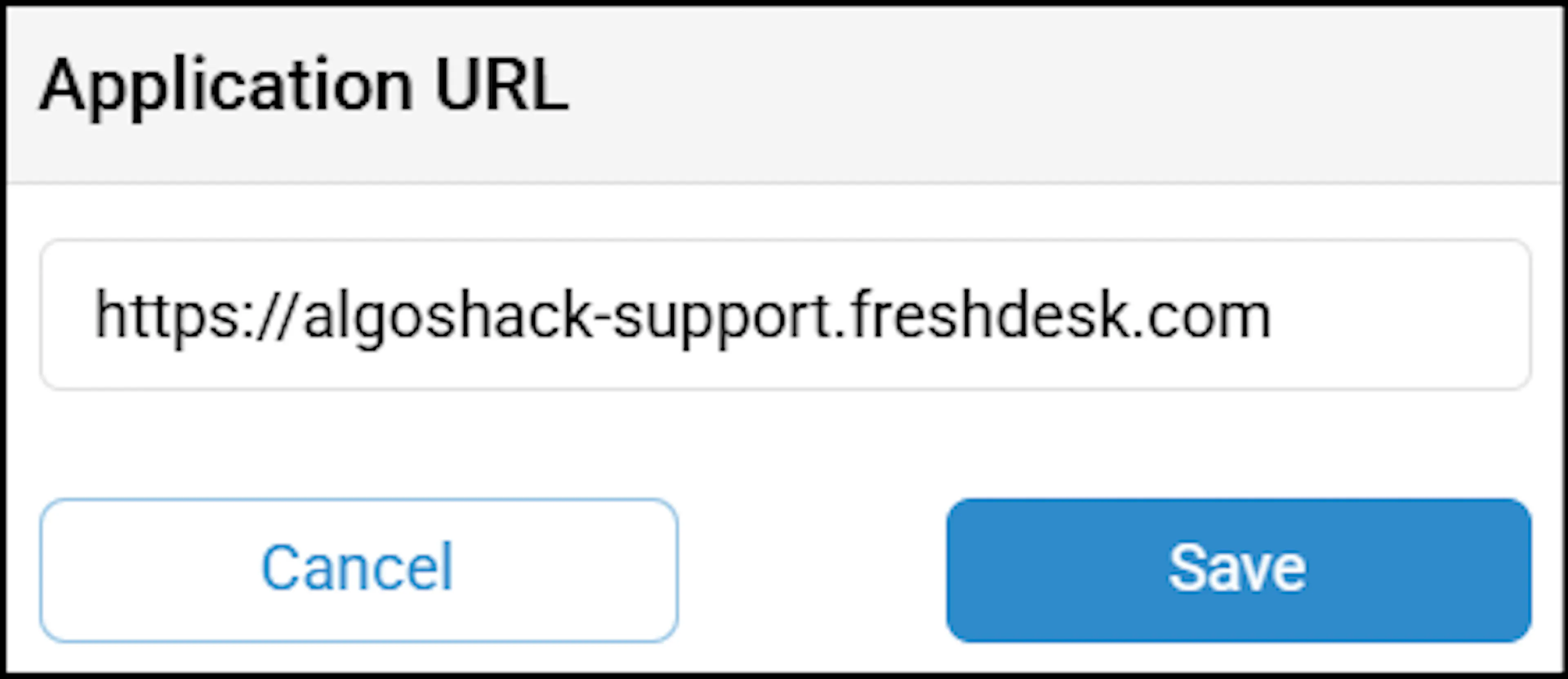
Edit URL in the secondary window
Customize Table — Select this option if you wish to select or unselect the listed items in a table.Edit URL - choose this option to change the application URL if needed.This is the only method available to modify the URL.Hover over a specific XPath to verify it. This action highlights the corresponding UI element and displays the XPath count.
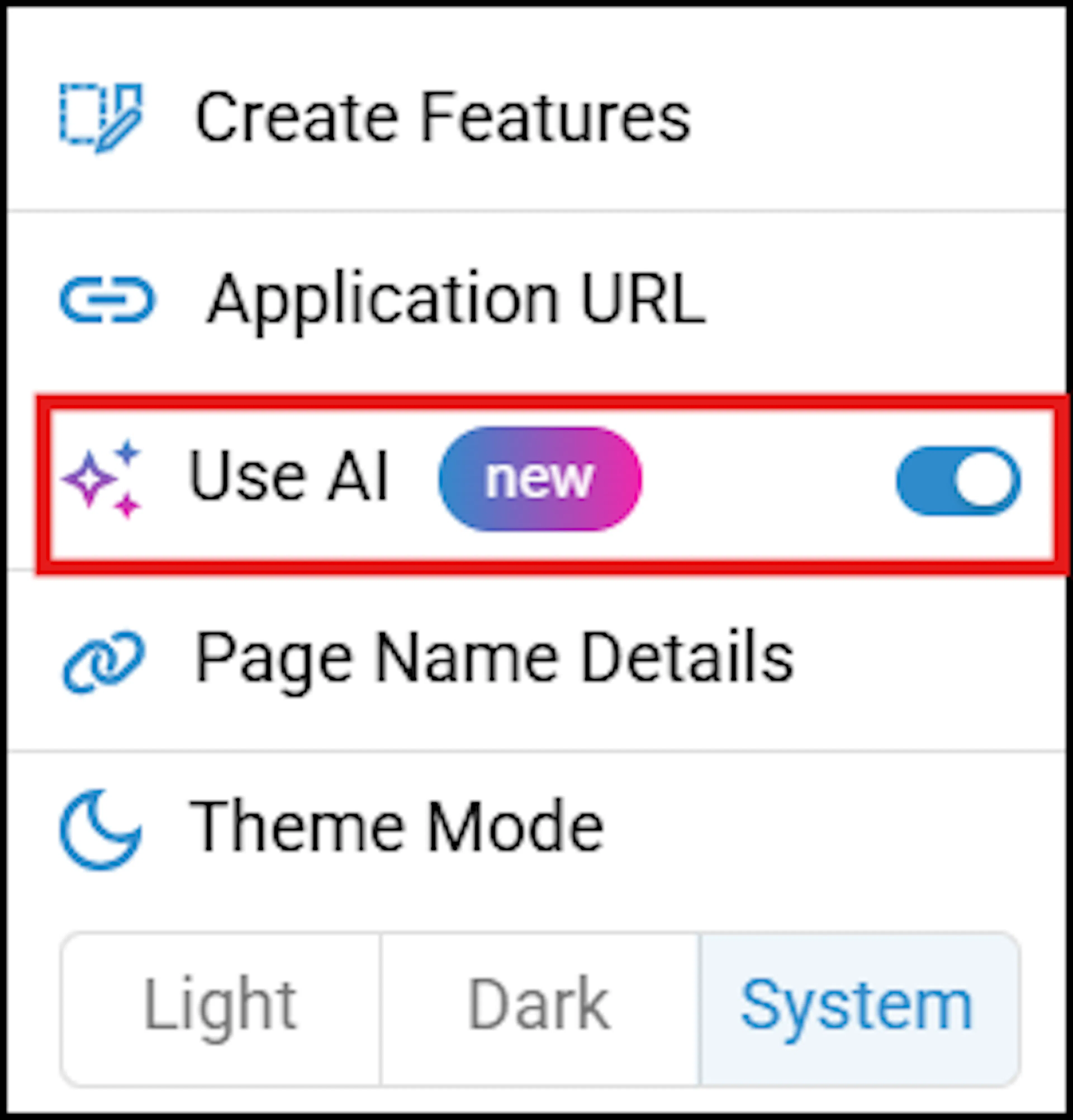
Use AI
Enable the toggle next to Ask AI to exclude unnecessary XPaths during scraping and avoid unwanted noise.
Select this button to download the scraped UI elements table in a .json format. If you have edited the control names from the scraper then the edit will reflect in .json file.
This helps in monitoring the metrics, such as Response status code, Response time and load time along with the given URL, date and time. This helps in finding the fixes and issues in a given application. By keeping track of these metrics, you can make sure your web services are performing well. For more information, refer to PingLink article.
You can set up multiple XPath expressions for each UI element in the web scraper tool. If one XPath fails, the tool will automatically try another, reducing the need for manual updates to the scraped .json file. Note: This needs to be toggled before scraping.
If you are unable to scrape the XPaths of the UI elements in certain application, then you can use the screenshot functionality to scrape the XPaths of the UI elements in the Scraper window.
Select '+ Row' button to add a new row to a scraped element table.
Select Delete button if you wish to delete a particular row in a scraped UI element table.
Note: algoScraper supports the extraction of XPaths for text containing special characters from websites. For example, if you are ordering a cheese pizza with Jalapeño toppings from a pizza website. The word 'Jalapeño' contains a special character. After downloading the scraped file, ensure to manually update the XPaths if they have changed. Test cases are automatically generated to handle such scenarios, and you can access detailed reports after executing the scripts.
Scraping the Application Using algoScraper extension
Perform the following:
Open the application and if you wish to scrape the entire page at one go, click the extension on your application described in the prerequisite to view the algoScraper window and click Scrape UI button. All the UI element details with corresponding XPath expression of the scraped UI page details will be listed. Upon successful completion, you will see the Scraping completed message.
If you wish to scrape element by element, perform the following:
Navigate to a particular UI element, right-click to capture the XPath expression of that UI element. The captured details are added to the scraped element table list.
Common XPath refers to frequently used XPath expressions that are used to locate elements. If you wish to capture Common XPath expression, perform the following: Navigate to the particular category on a webpage, right-click the category to view the following screen which displays the Common XPath.
Usage of common XPath expression: Common XPaths can be used across different web pages or applications to locate similar types of elements, such as buttons, input fields, or links.
After scraping UI elements, download the file in the .json format. Upon successful download, a "File downloaded successfully" message is displayed, and click the close button to close the Scraper window.
If you wish to scrape UI elements in a pop-up window, perform the following:
In the pop-up window, navigate to a particular UI element.
Right-click on the UI element to capture its XPath expression.
The captured details are added to the scraped elements table list.
You can also select the XPath from dropdown available in XPath column.
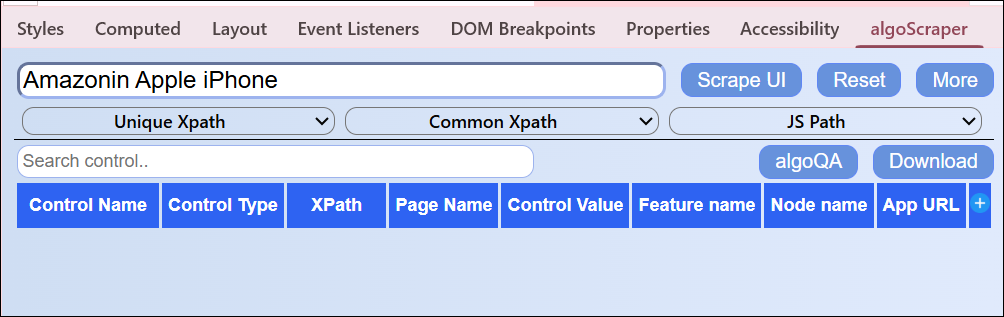
You can access algoScraper directly from the browser bar in Chrome. However, if you face any issues while using this extension, you can also find algoScraper within the Developer Tools Panel in the Chrome.
To access Developer Tools Panel, right-click on the application to select Inspect > Properties >algoScraper. For more information on usage of this extension, refer to Using algoScraper in the Developer Tools Panel.
If right click functionality is disabled in webpage then you can use Record Scenario feature to scrape the XPaths as you perform the action. To know more about Record Scenario feature, refer to Record a Scenario Using Online Recorder.
You can also use algoScraper in Developer Tools Panel. When there is a update in algoScraper, the algoScraper which is in your machine gets updated automatically. The latest version of algoScraper is 2.0.9.
For more information on usage of this extension, refer to Using algoScraper in the Developer Tools Panel. If right click functionality is disabled in webpage then you can use Record Scenario feature to scrape the XPaths as you perform the action. To know more about Record Scenario feature, refer to Record a Scenario Using Online Recorder. You can also use algoScraper in Developer Tools Panel.
When there is a update in algoScraper, the algoScraper which is in your machine gets updated automatically. The latest version of algoScraper is 2.0.11.
Limitations of algoScraper
Re-scraping for FF to script conversion is not supported
Re-scraping is not available for FF (Feature File) to script conversion at this time.