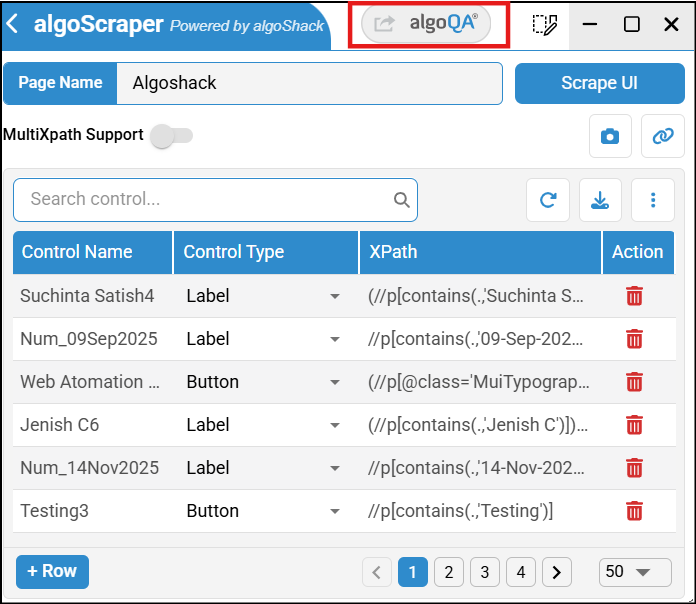
Scrape UI using algoScraper
algoScraper extension is designed for web applications that automatically captures all User Interface (UI) elements along with their corresponding XPaths.
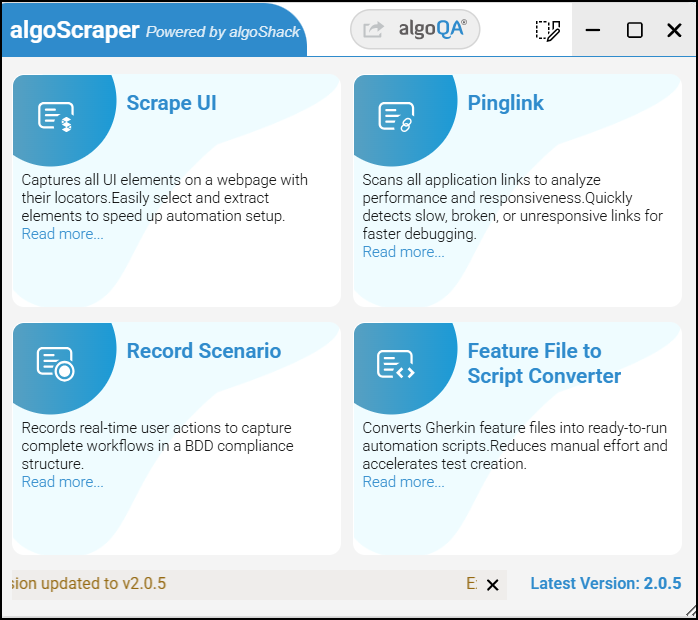
How To Use Scrape UI Feature
By default, algoScraper uses dynamic XPaths when scraping all UI elements at once. If you need hardcoded XPaths, scrape each element by element using right-click on the individual UI element.
Open the application you wish to scrape, click the extension to view the algoScraper window, and click the Scrape UI button.
Scrape UI page will appear with Page name being added automatically.
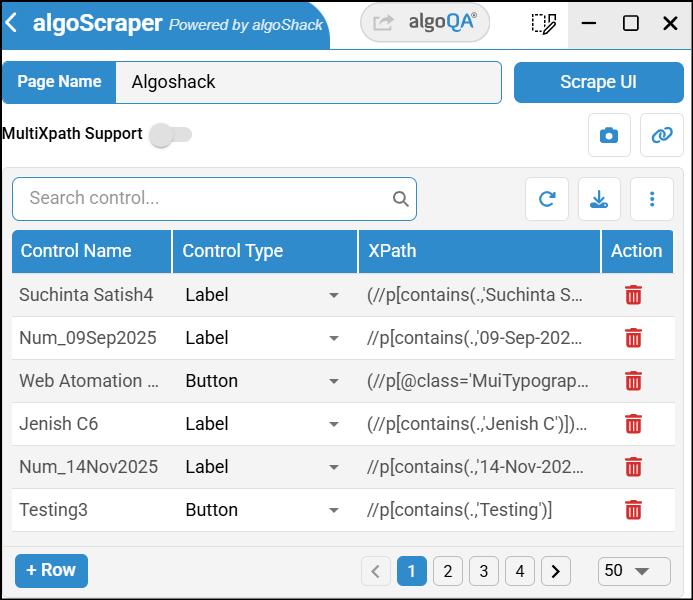
Click the Scrape UI button and all the UI element details with corresponding XPath expressions will be listed.
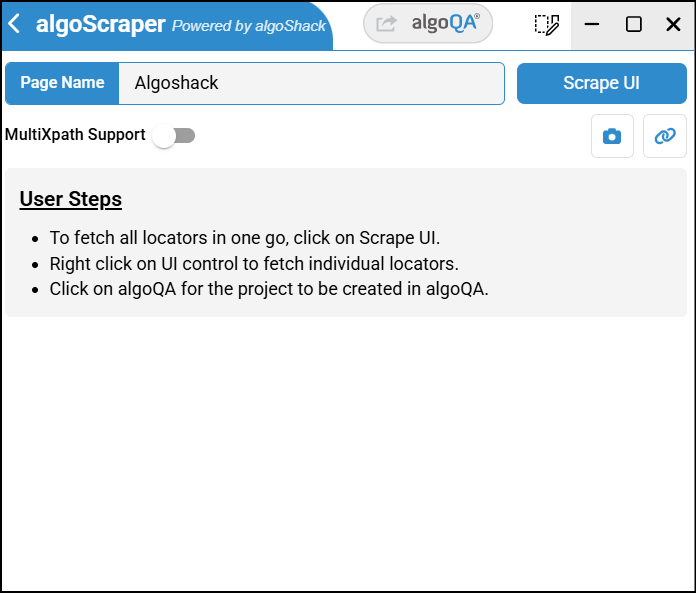
If you wish to scrape element by element, navigate to a particular UI element and right-click to capture its XPath expression.
The captured details are added to the scraped element table list.
Use MultiXPath support
You can also use MultiXPath Support so that multiple XPath expressions can be used. To know more, check MultiXPath Support.
Add a feature name for a control
You can also add a feature name for a control. To know more about how to add a feature, check How to Create a Feature Section from Scraper.
You can use the pagination feature to easily navigate through and review all the listed UI elements.
To delete a UI element, click the delete icon next to the respective element.
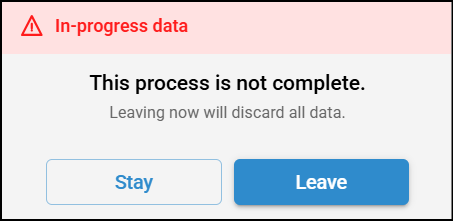
If you try to click the back button, a notification pop-up will appear saying 'Leaving now will discard all data'.
Click the + Row button to manually add additional rows and UI elements.
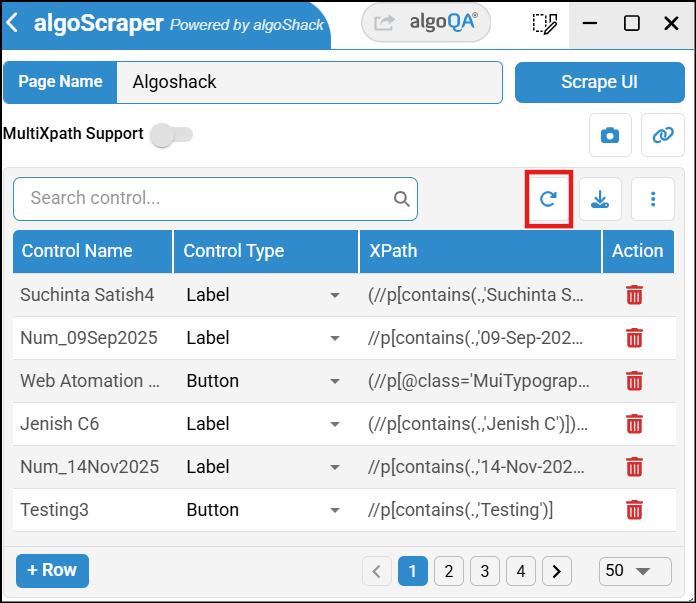
To remove all scraped details, click the Reset button.
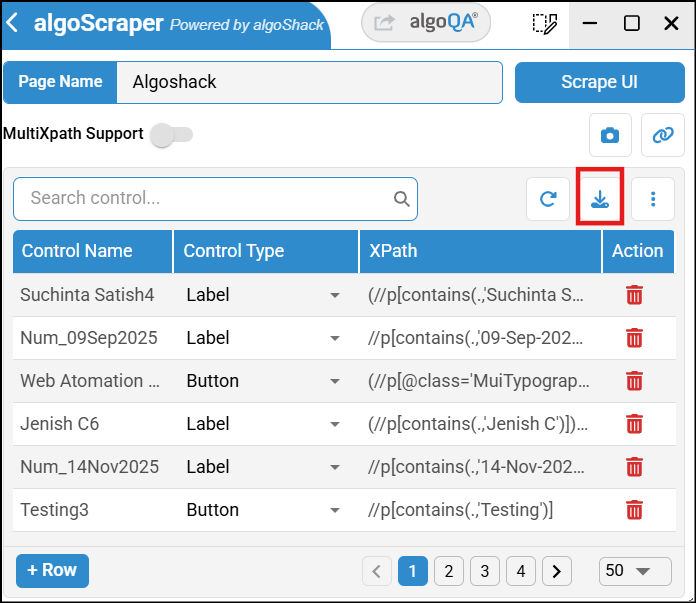
Click Download button to download the scraped UI elements table in a .json format.
If you have edited the control names in the scraper, the edits will reflect in the .json file.
Click the algoQA button for the project to be created in algoQA.