
How to Upload a Scraped File for an Existing Project
Upload a re-scraped file to an existing web project to update UI elements after application changes, auto-map new controls, and generate updated test cases.
Uploading the existing scraped file
When application changes occur, such as a new button or updated field, you can re-scrape the web page and upload the scraped file to update your project's UI elements without recreating the configuration.
Navigate to the configuration
After logging into algoQA, go to the Projects page and select an existing web project. You will be directed to the Test Design screen. Navigate to the configuration you want to update.
Open Upload Scraped Data
Click the More dropdown on the configuration and select Upload Scraped Data.
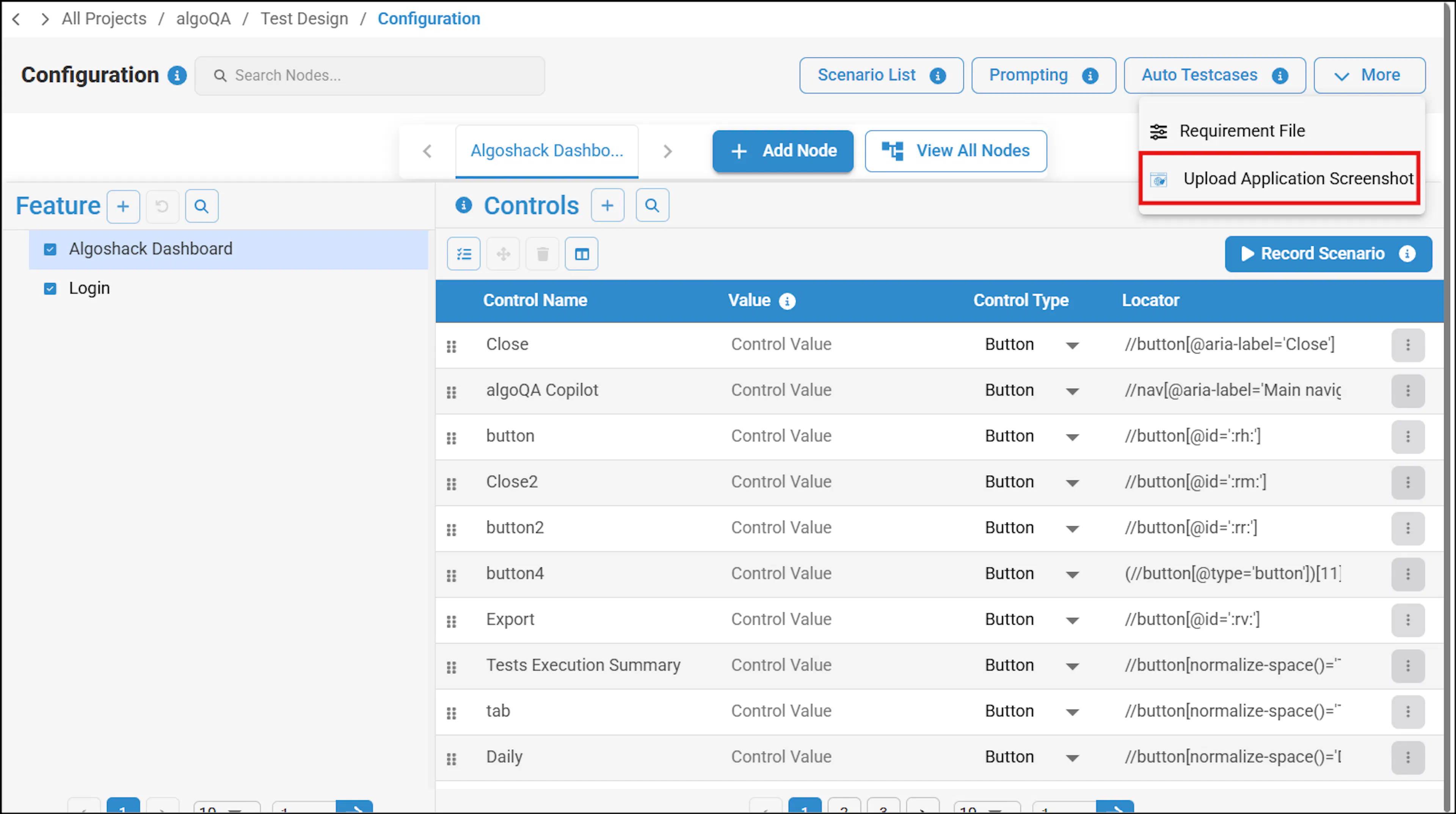
Enter the application URL and launch
Enter the target URL in the Application URL field, then click Launch.
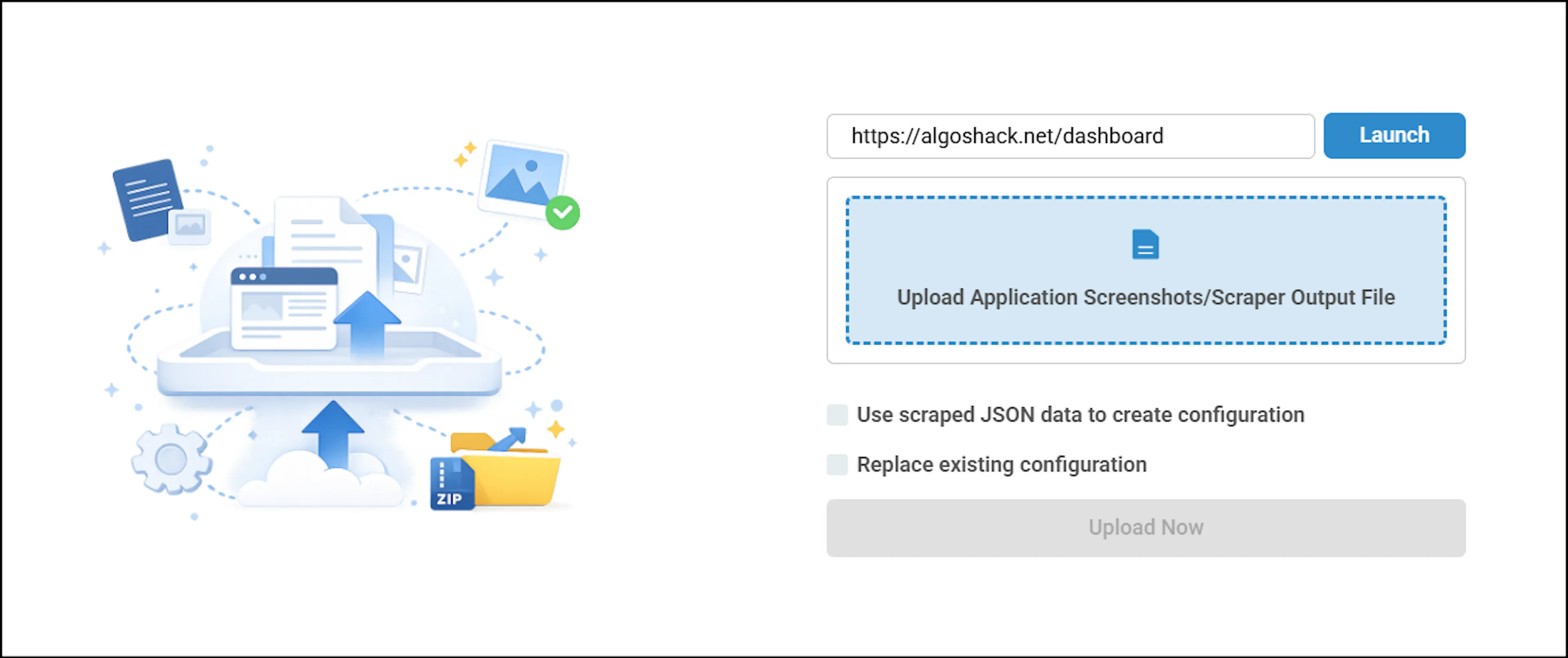
A confirmation pop-up appears when the application URL is updated. Review the change and click Confirm & Continue to proceed.
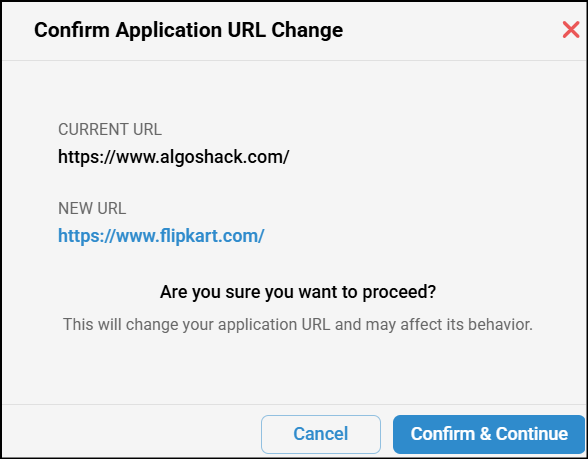
If you don't have the algoScraper extension installed, a pop-up will appear prompting you to download the scraper.
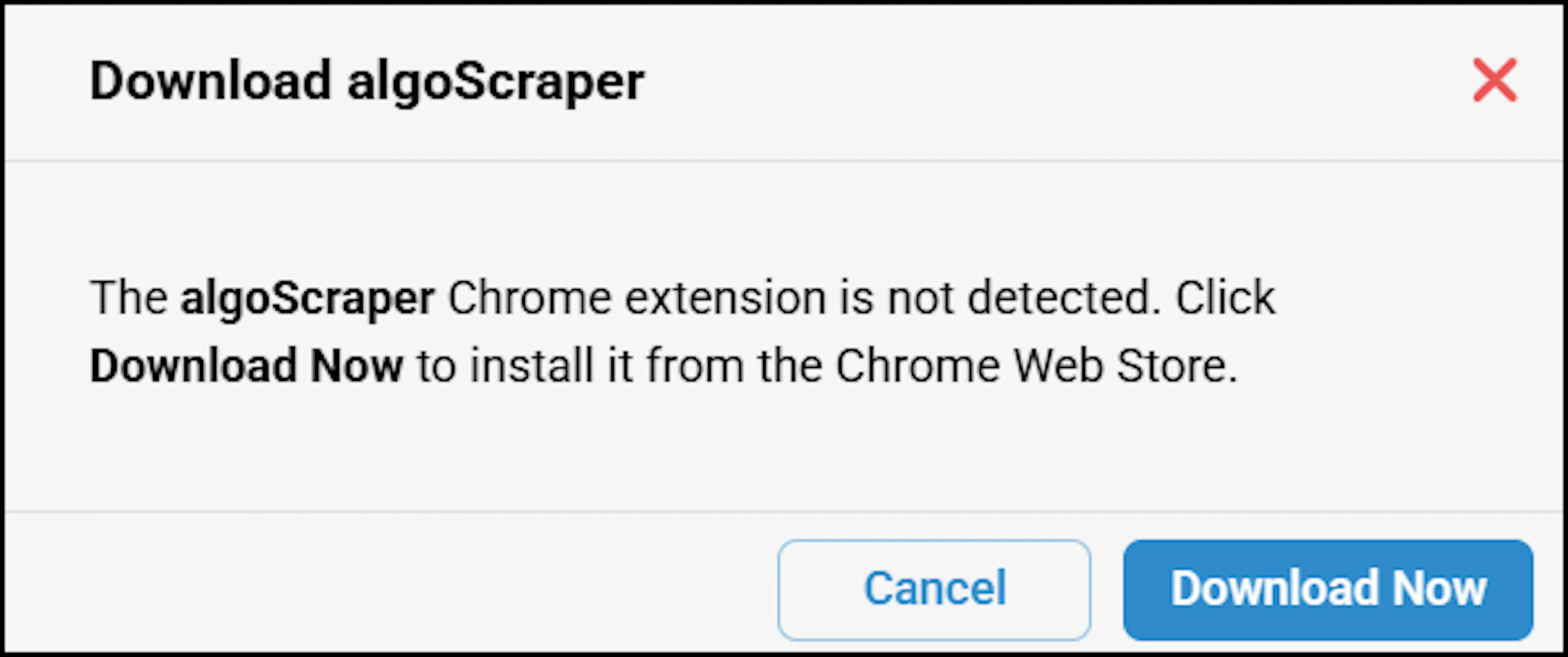
Scrape the UI elements
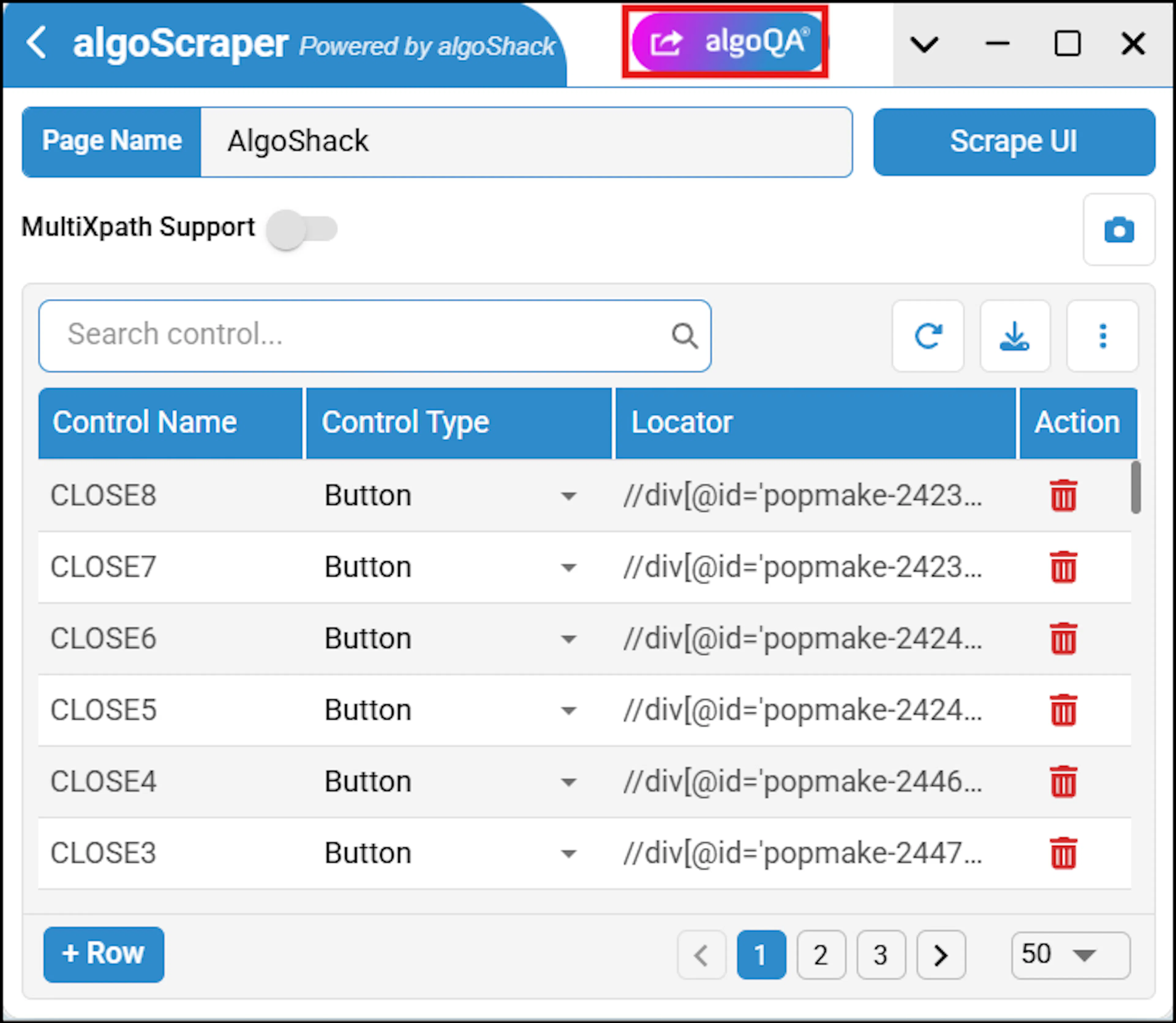
The web page opens with the scraper enabled. Use the scraper to capture UI elements. For more information, see algoScraper as an Extension for Web Applications.
Return to the Upload Scraped Data page
After scraping the UI elements, click the algoQA button in the scraper to navigate back to the Upload Scraped File page with the scraped file automatically attached.
Upload the scraped file
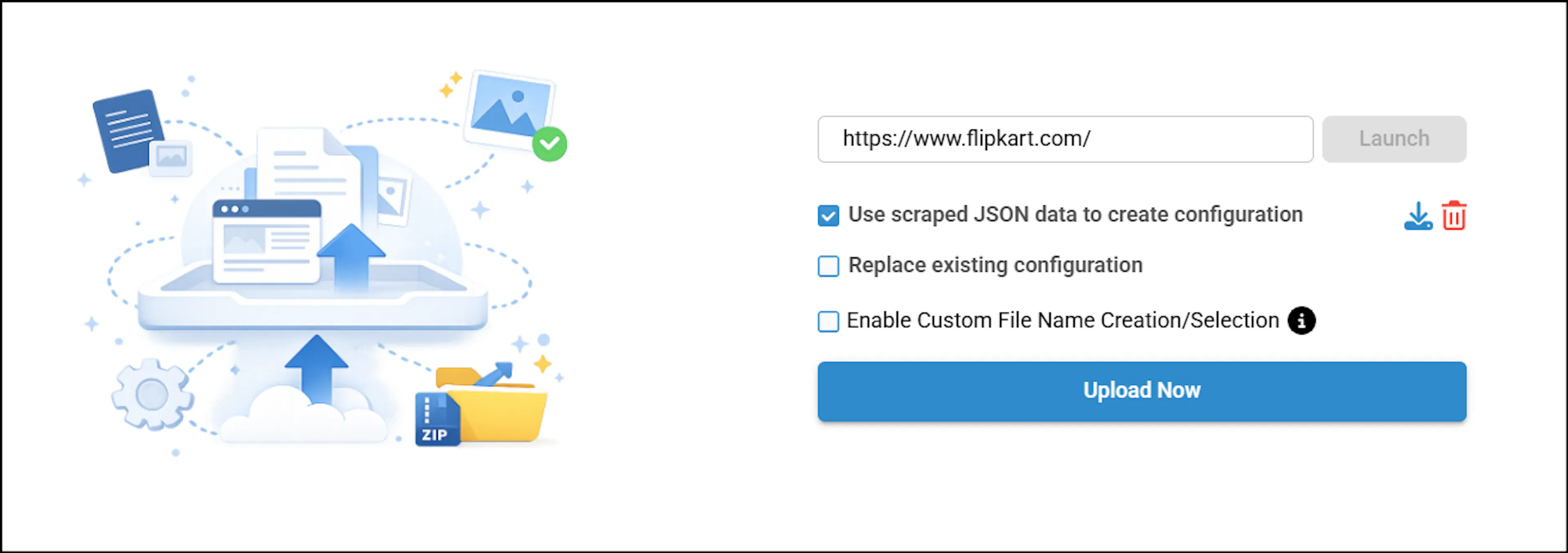
Select the Replace Existing Configuration checkbox if you want to replace the configuration, then click Upload Now. The nodes will be created in the Canvas.
Upload without replacing the existing configuration
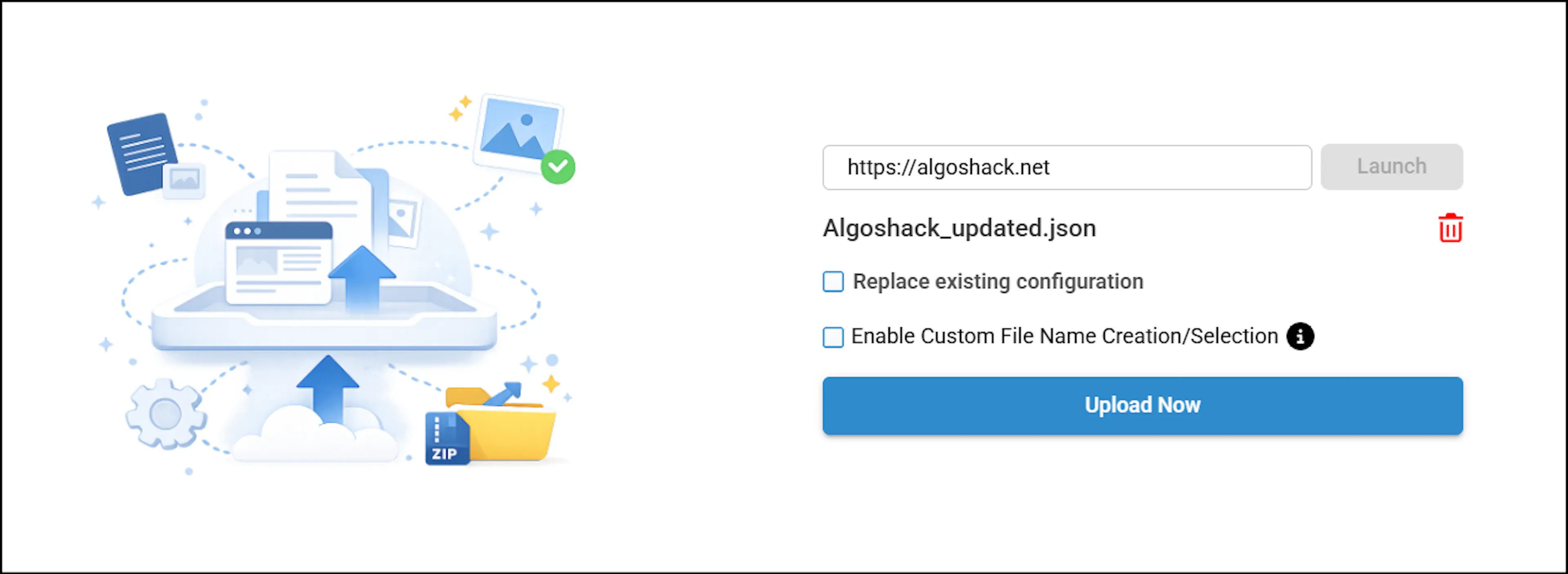
If you do not want to replace the existing configuration, leave the Replace Existing Configuration checkbox unchecked and click Upload Now after attaching the scraped file.
Review the auto-mapped controls
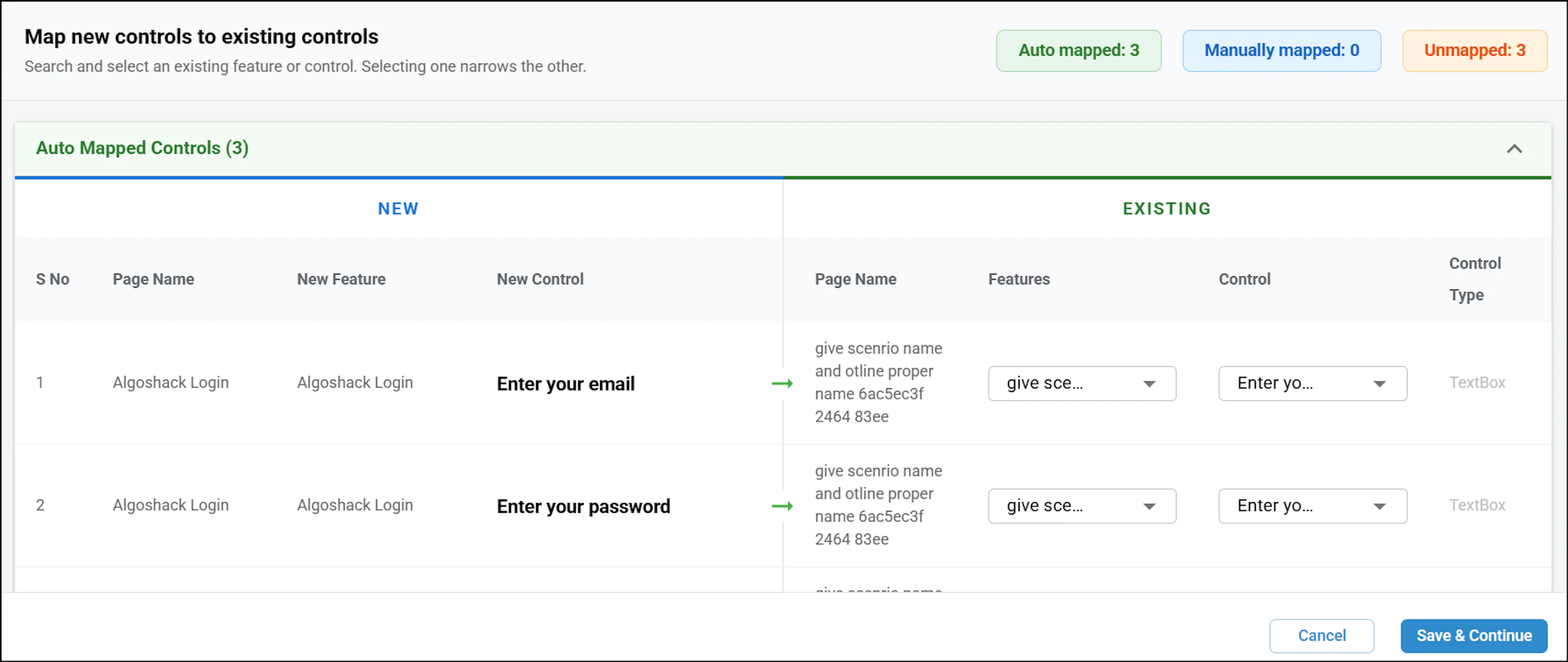
After uploading, the Map New Controls to Existing Controls pop-up appears. The auto-mapper matches new controls to existing ones based on fingerprint match, XPath match, and control and page name match to avoid duplicates. Automatically mapped controls are listed first.
Review unmapped controls
Below the manually mapped controls, you can view unmapped controls where no match was found with existing controls.
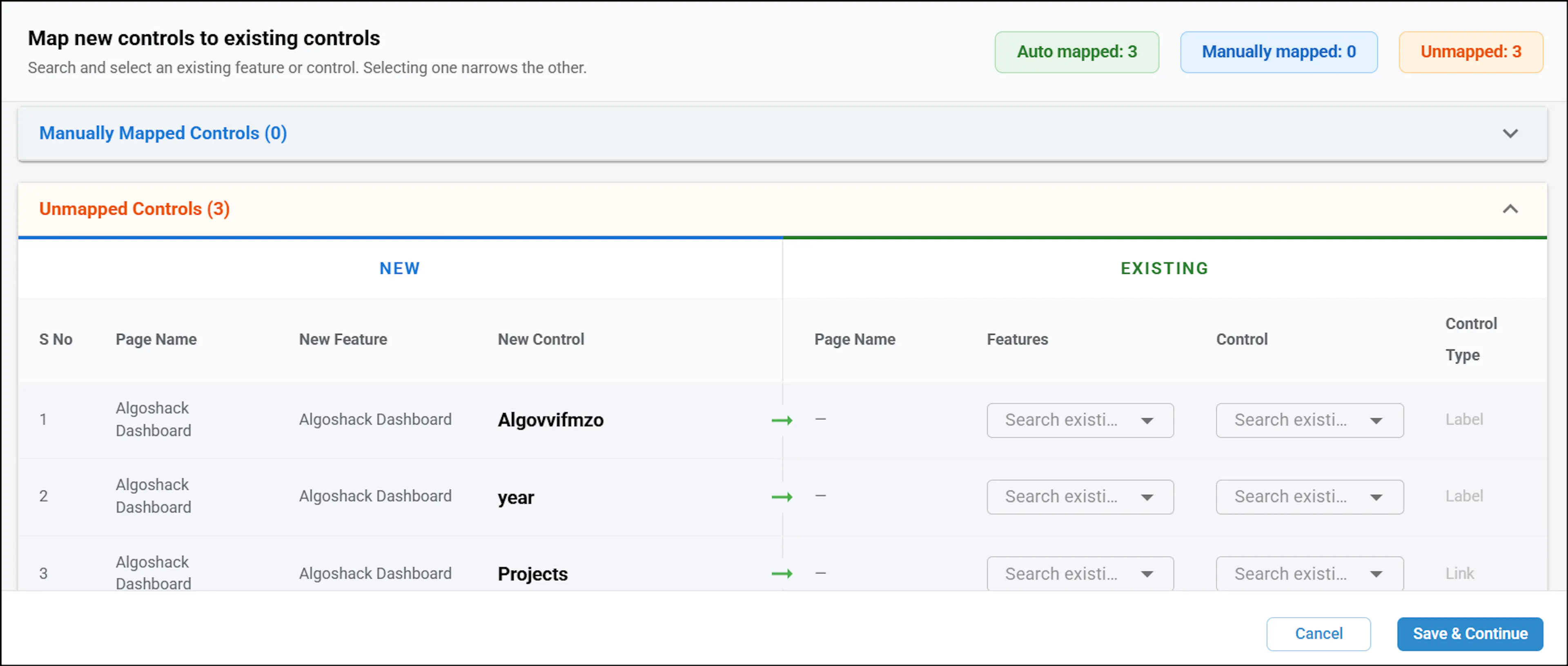
Map controls manually
To map an unmapped control manually, select the appropriate feature and control from the respective dropdowns.
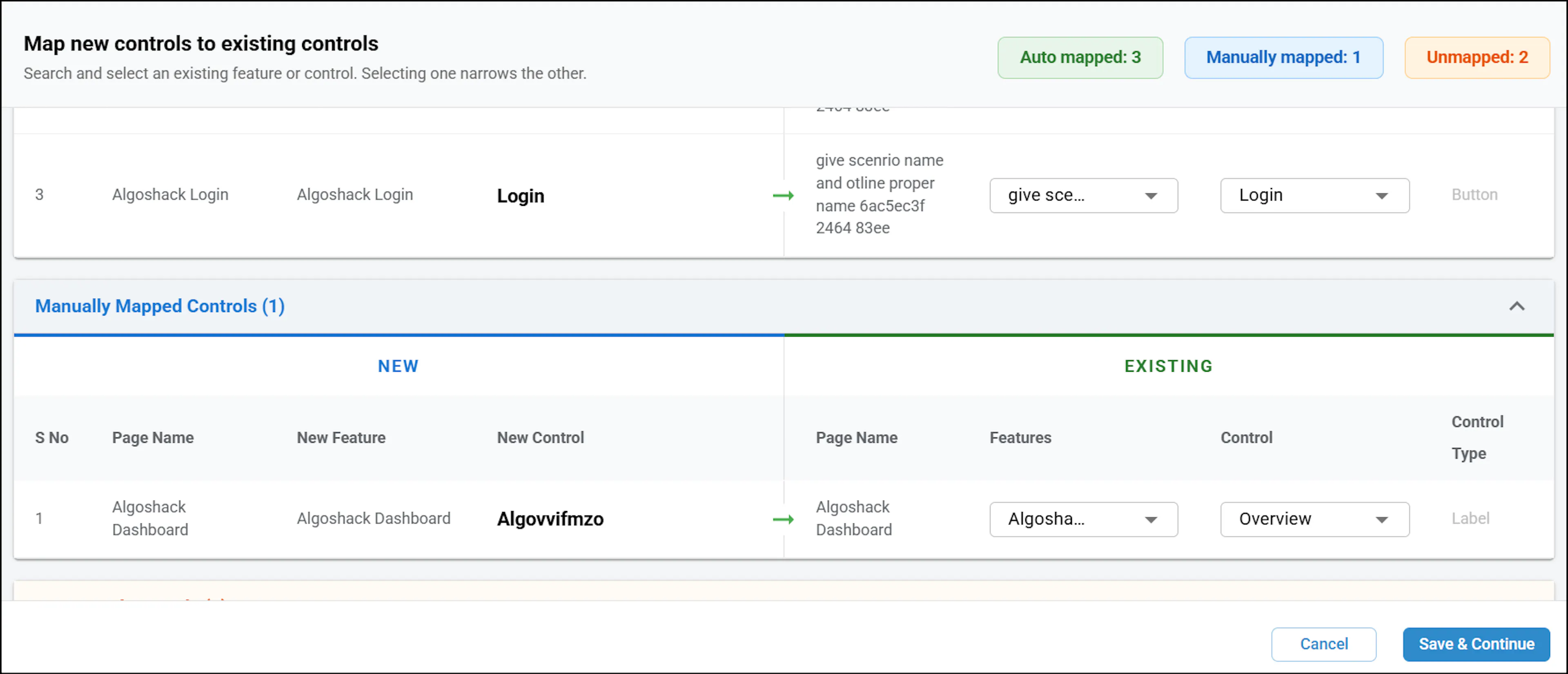
Review mapping summary
At the top of the pop-up, you can view a summary showing how many controls are auto-mapped, manually mapped, and unmapped.
Click Save & Continue
Click Save & Continue to save the control mappings and create the configuration.
The configuration will be created successfully
The configuration is created successfully with the updated nodes visible in the Canvas.
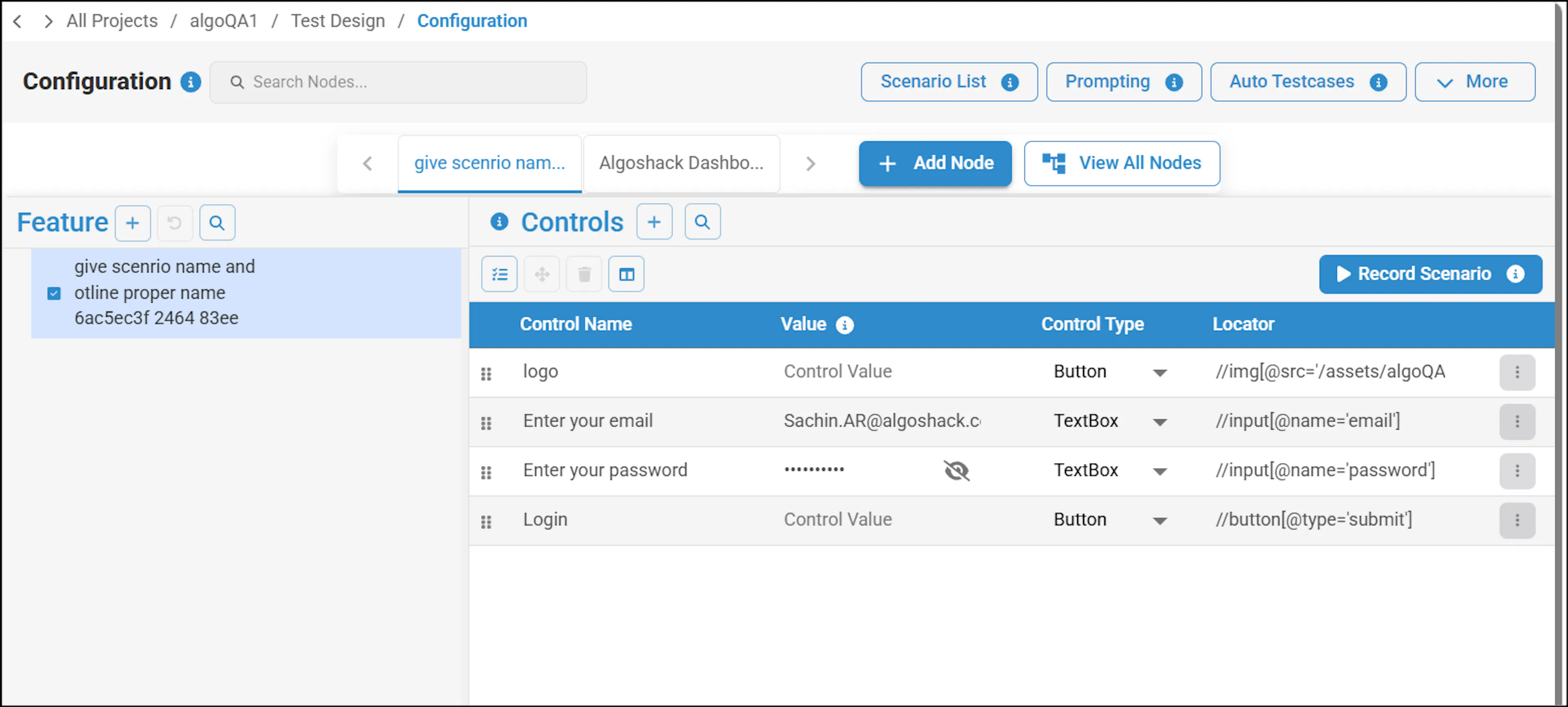
View the scenario and generate test cases
You can now view the updated scenario and proceed with generating test cases and test scripts. For more information, refer to Generate Test Cases and Test Scripts.
Note: When uploading third-party files, they are scanned for viruses before the upload process is completed to ensure the file is safe and secure.