
How to Create a Feature Section from Scraper
Add feature names to controls directly from the algoScraper extension, so scraped data is organized by feature when imported into algoQA.
How to Add a Feature Name
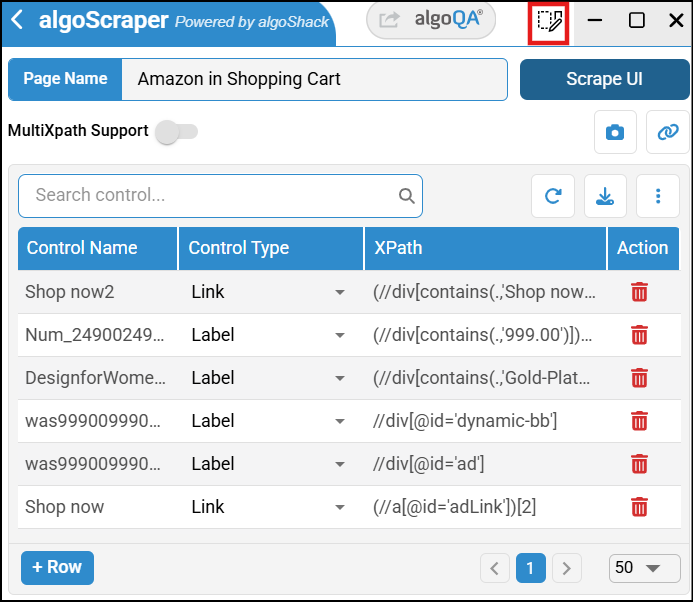
Click the dropdown available besides minimize button and select Create Features.
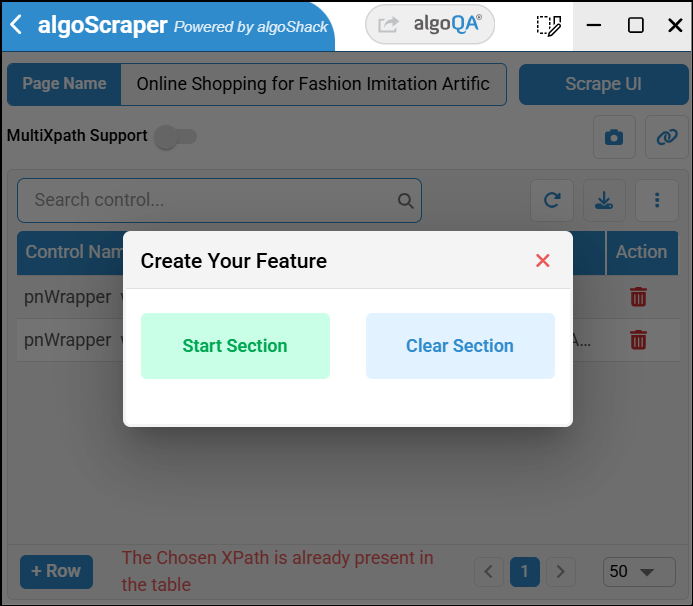
The Create Your Feature pop-up appears.
Click Start Section, then select the element for which the feature name should be added.
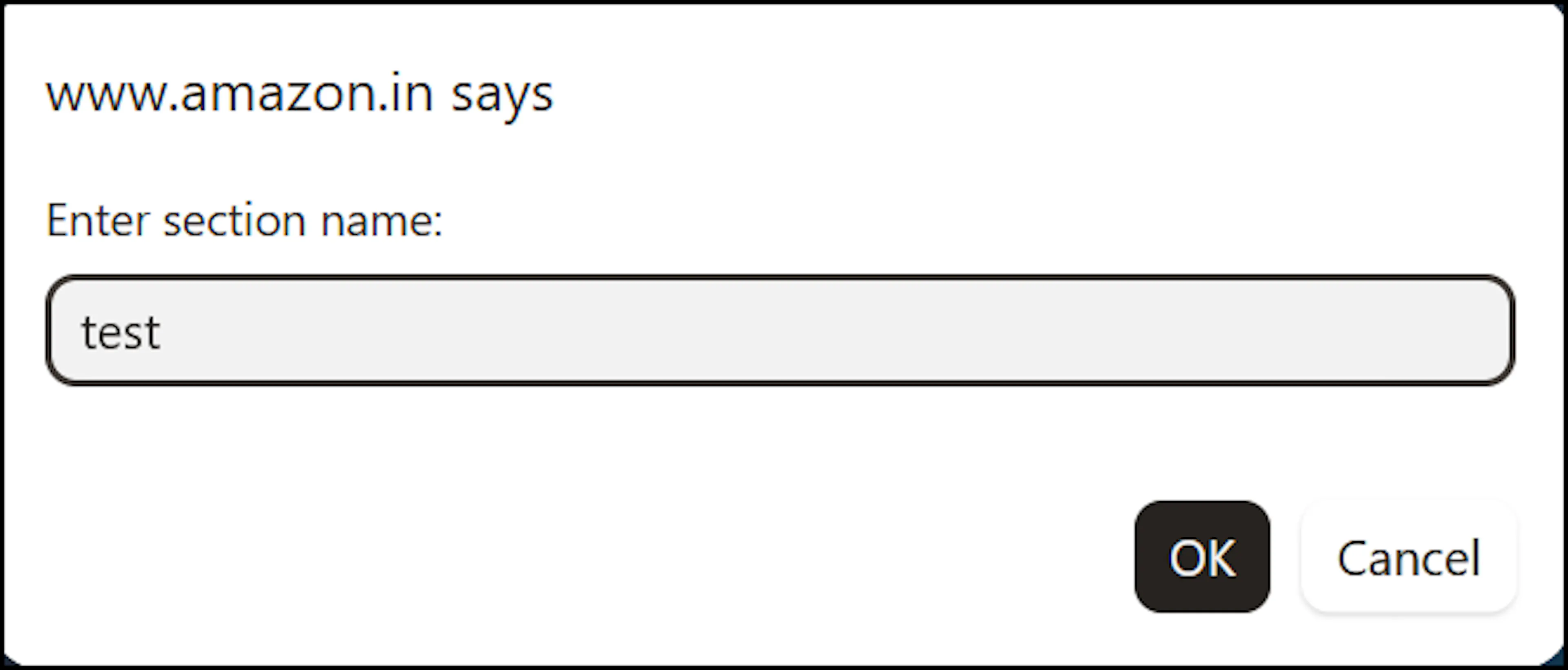
A pop-up appears to enter the section name.
Enter the name and click OK.
Click Stop Section.
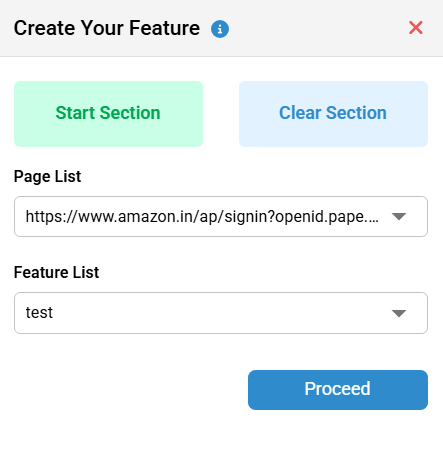
The feature name will be added to the Features List dropdown. You can edit the name by clicking the Edit icon, or clear the section if you want to remove it. Once done, click Proceed.
Click the Stop Recording button after recording your actions.
The feature name will appear in the Feature Name column.
After navigating back to algoQA with the scraped file, the feature name will also be visible on the Test Design page.
If you upload scraped data into an existing project and a feature with the same name already exists in algoQA, a duplicate feature will not be created.