
How to Re-Scrape and Add Steps for Existing Scenario
Add new steps to an existing scenario in algoQA by re-scraping with the online recorder, mapping new controls, and generating updated test cases.
How to Re-Scrape and Add Steps
If you need to add new steps to an existing scenario, you can launch scraper to re-scrape directly from algoQA.
Navigate to the Scenario Steps List
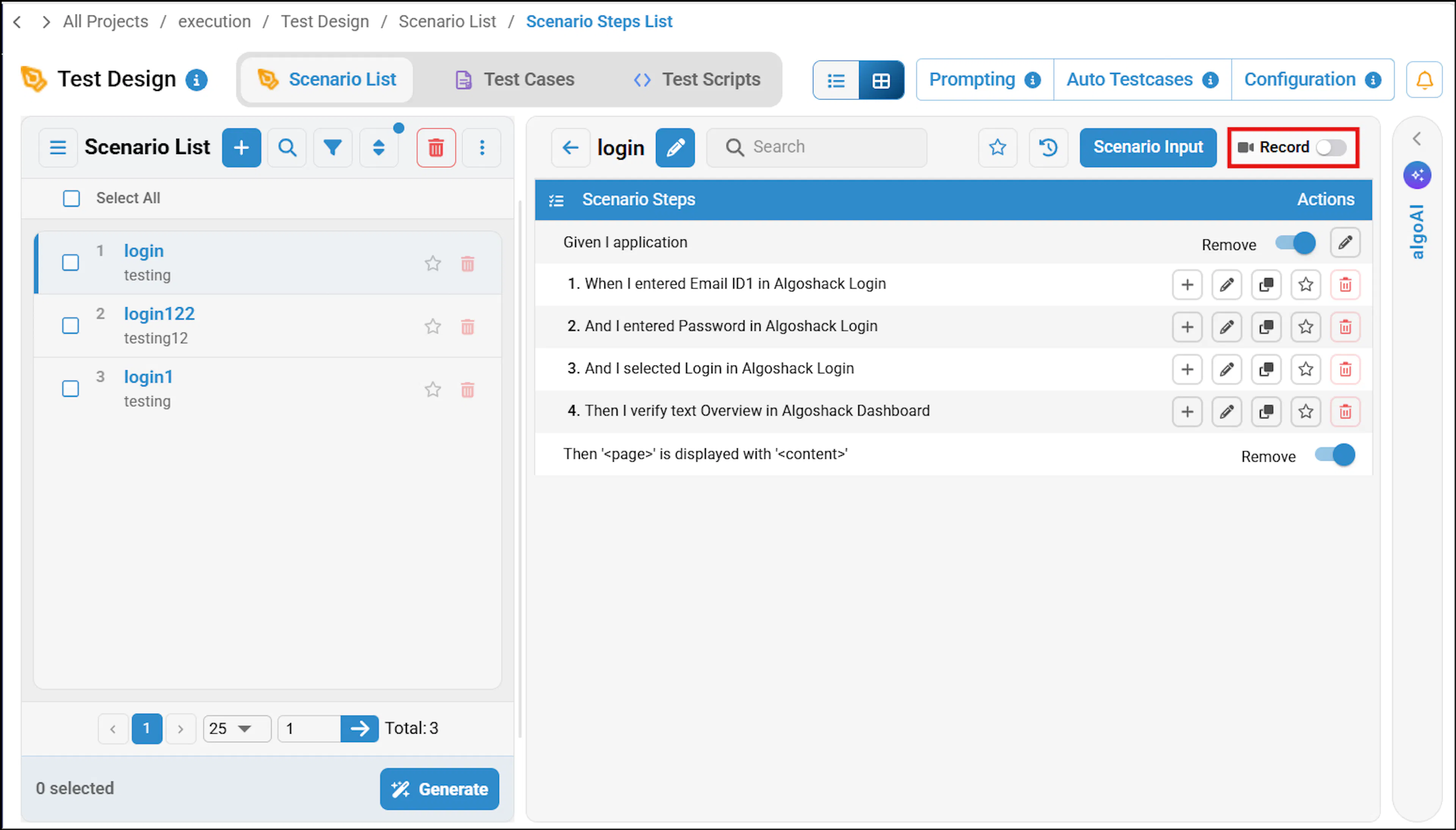
Go to Project > Scenario List > Scenario Steps List.
Select Record to start recording steps online.
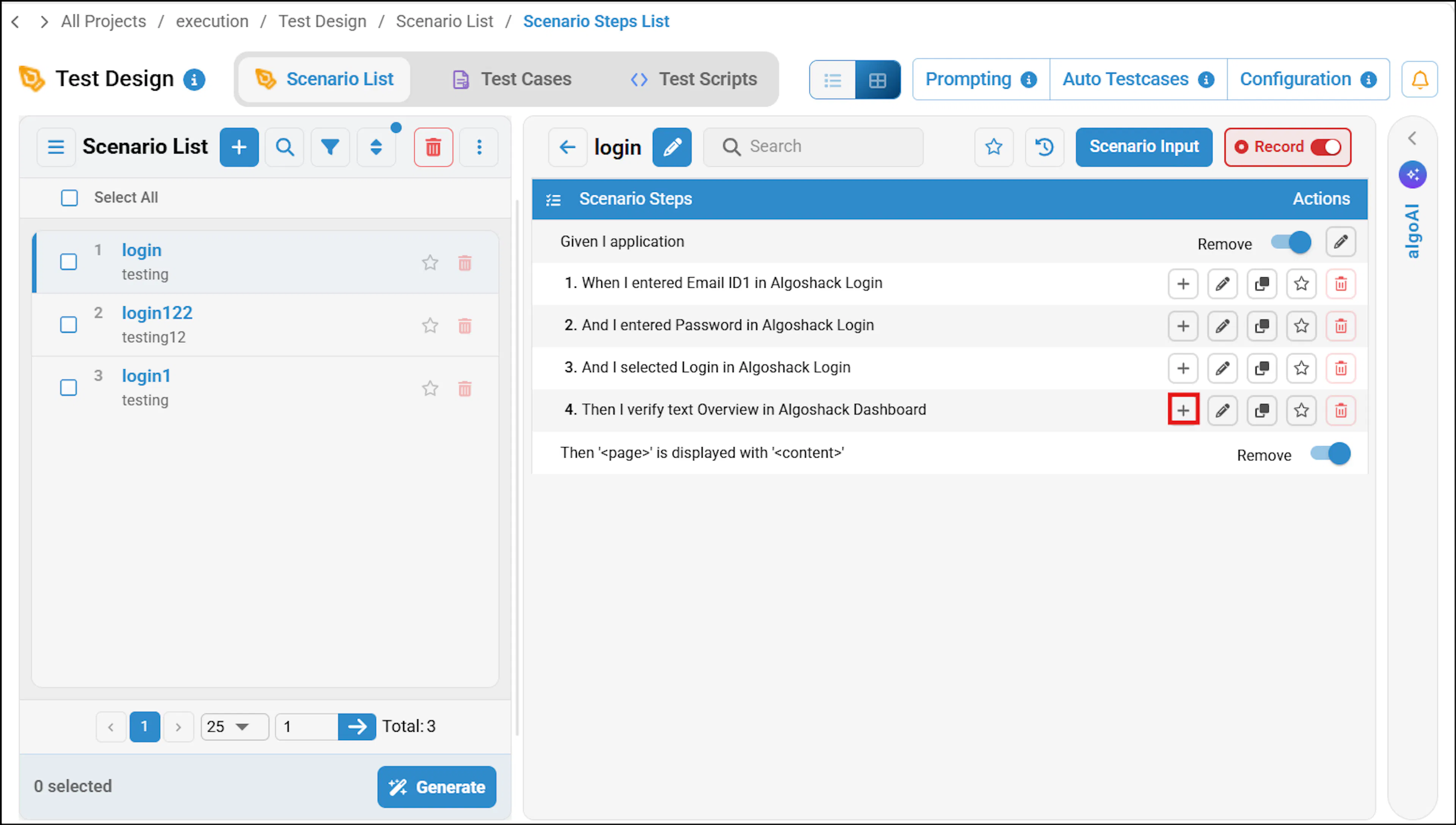
Add steps below an existing step
Go to the step below which you want to add new steps, then click the + button next to it.
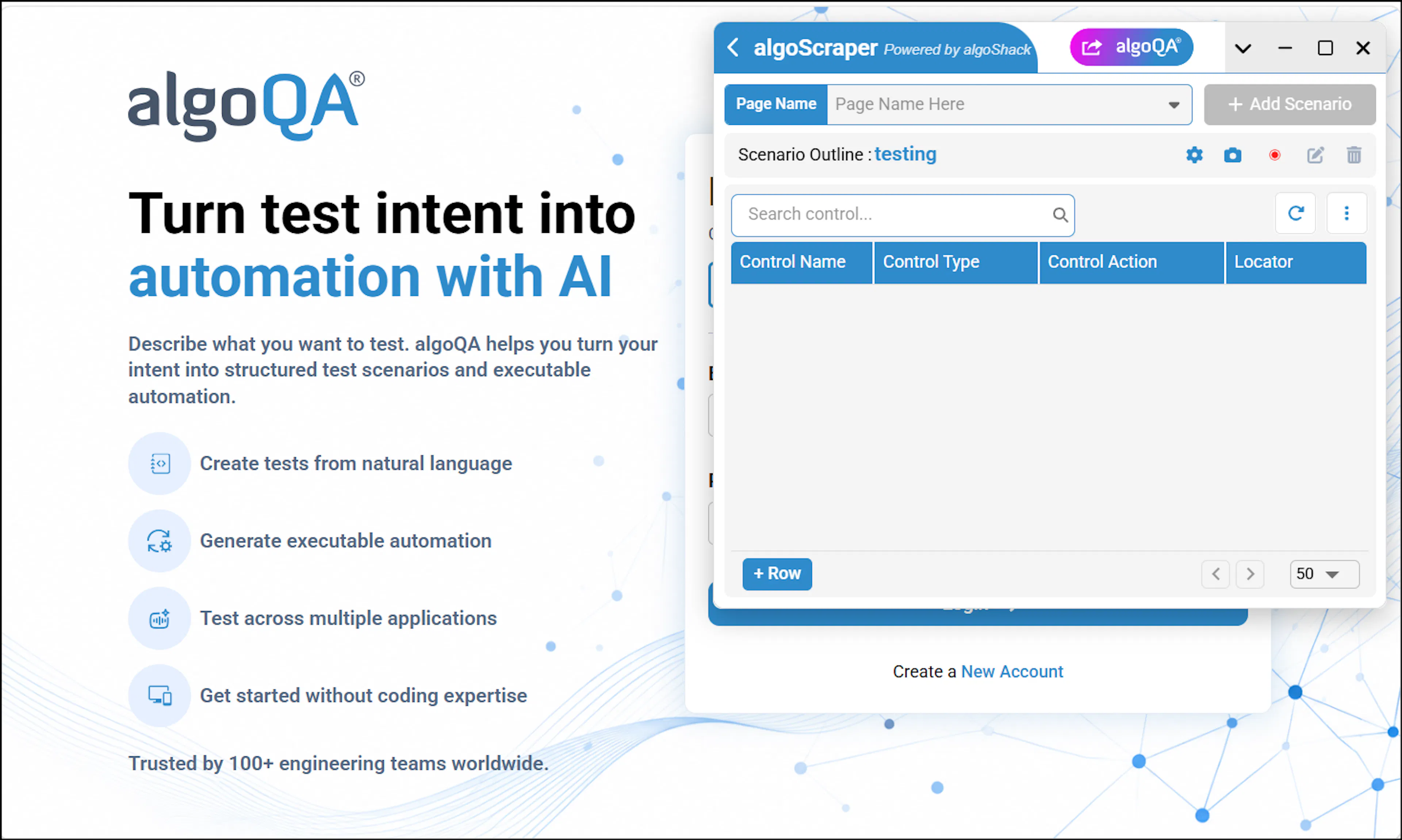
Record new steps in the scraper
The web page launches along with the scraper.
Record the steps you want to add.
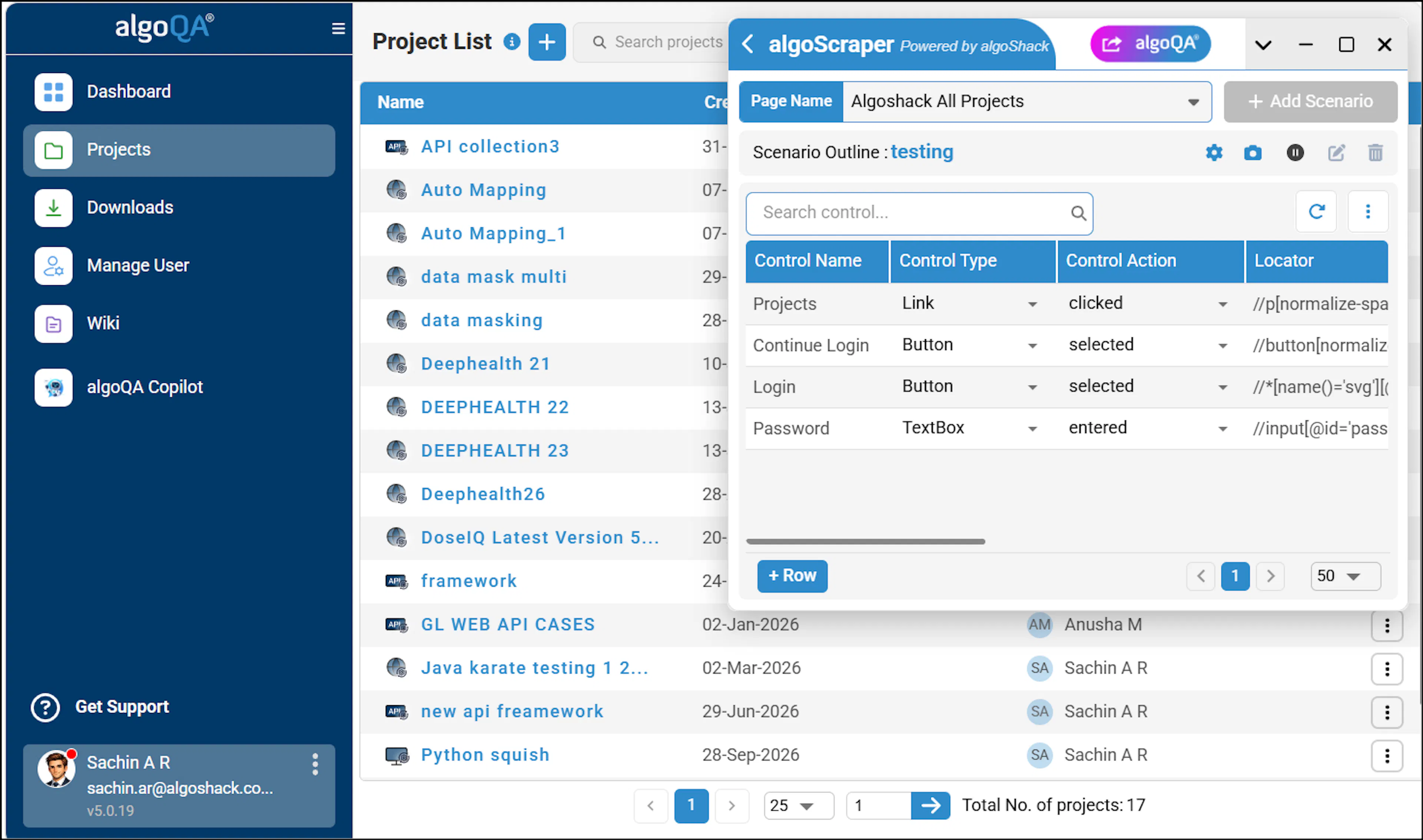
Stop recording and map controls
Click Stop Recording, then click algoQA to navigate back to the platform.
The Map New Controls to Existing Controls pop-up appears. You can view Auto Mapped, Manually Mapped, and Unmapped controls, and make corrections to features and controls if needed.
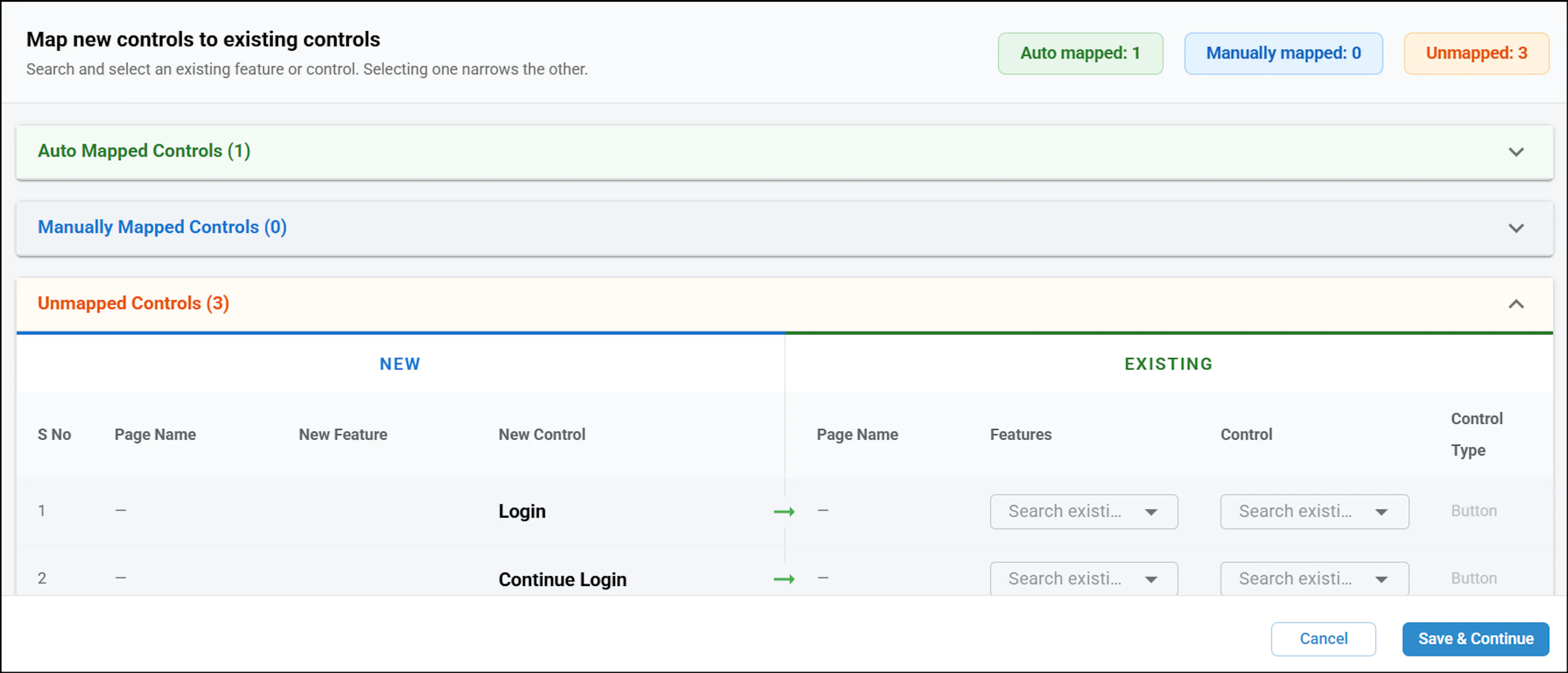
Save and review
Click Save and Continue. The new steps are added to the scenario list.
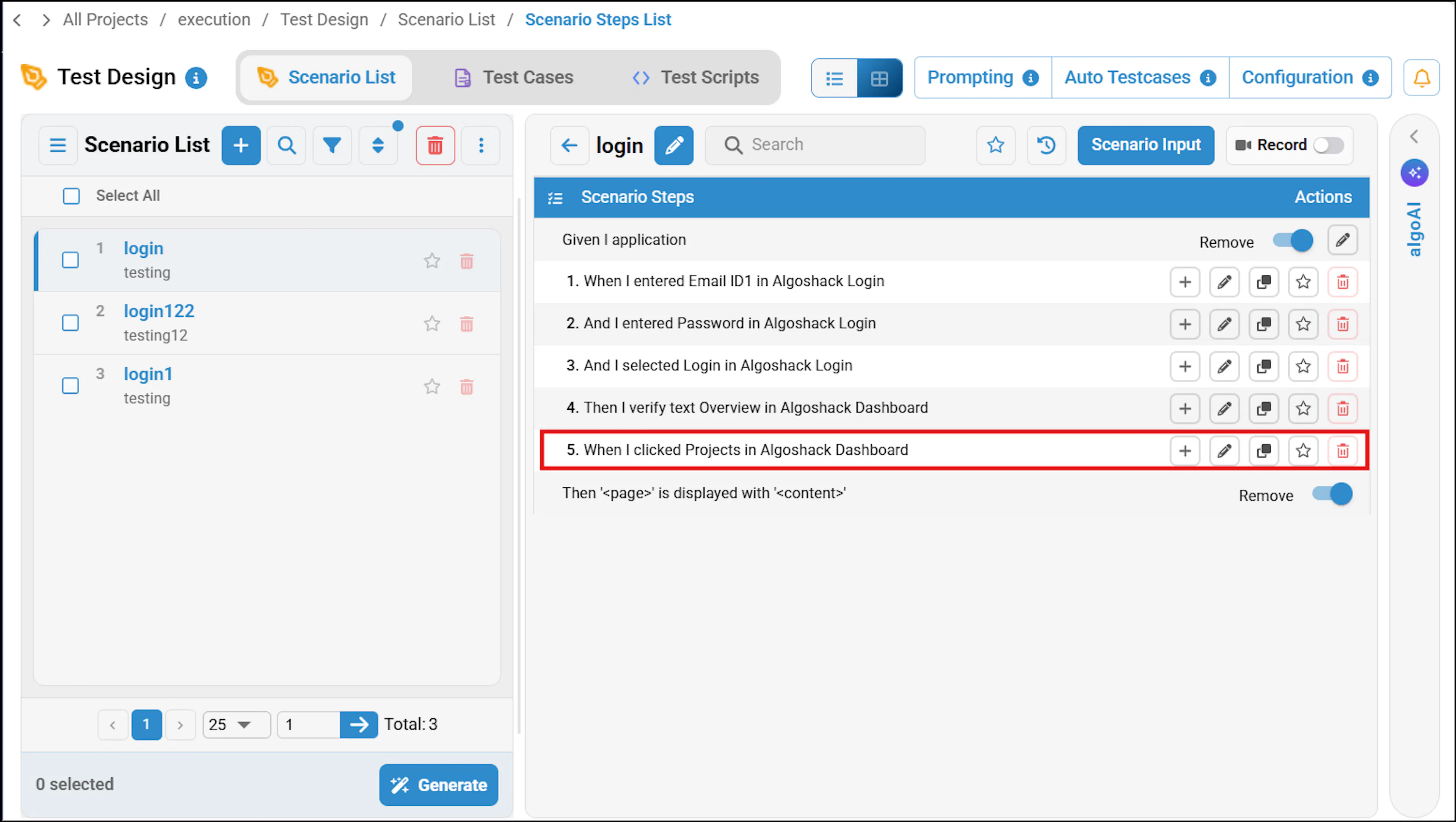
You can also make changes to the steps by clicking the edit icon if needed.
Next Steps
After reviewing the scenario, select it and click Generate. To learn more, refer to Generate Test Cases and Test Scripts.